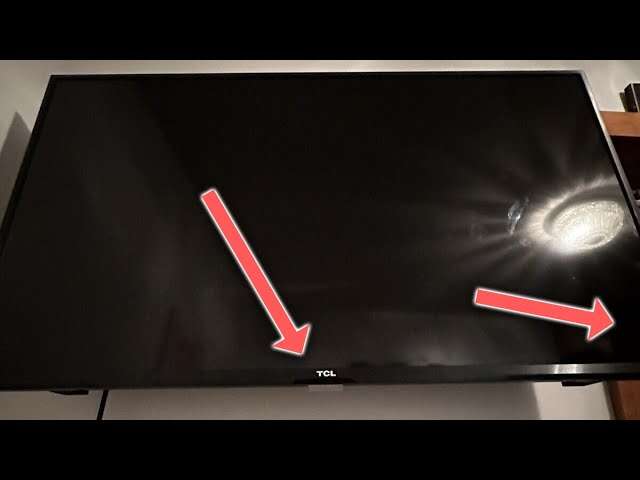
Use the TV's physical power button or the Roku mobile app to wake it when the remote is missing.
I’ve spent years fixing TV problems for friends and family, and I know exactly how frustrating it is when you need to know how to turn on a TCL Roku TV without remote. This guide lays out simple, tested methods, step-by-step instructions, troubleshooting tips, and real-life tricks so you can power on your TCL Roku TV without the remote fast and with confidence. Read on — I’ll walk you through each option and explain when each one works best.
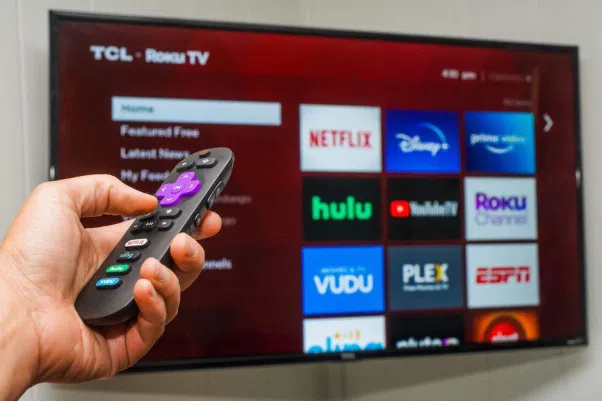
Understanding your TCL Roku TV's buttons and ports
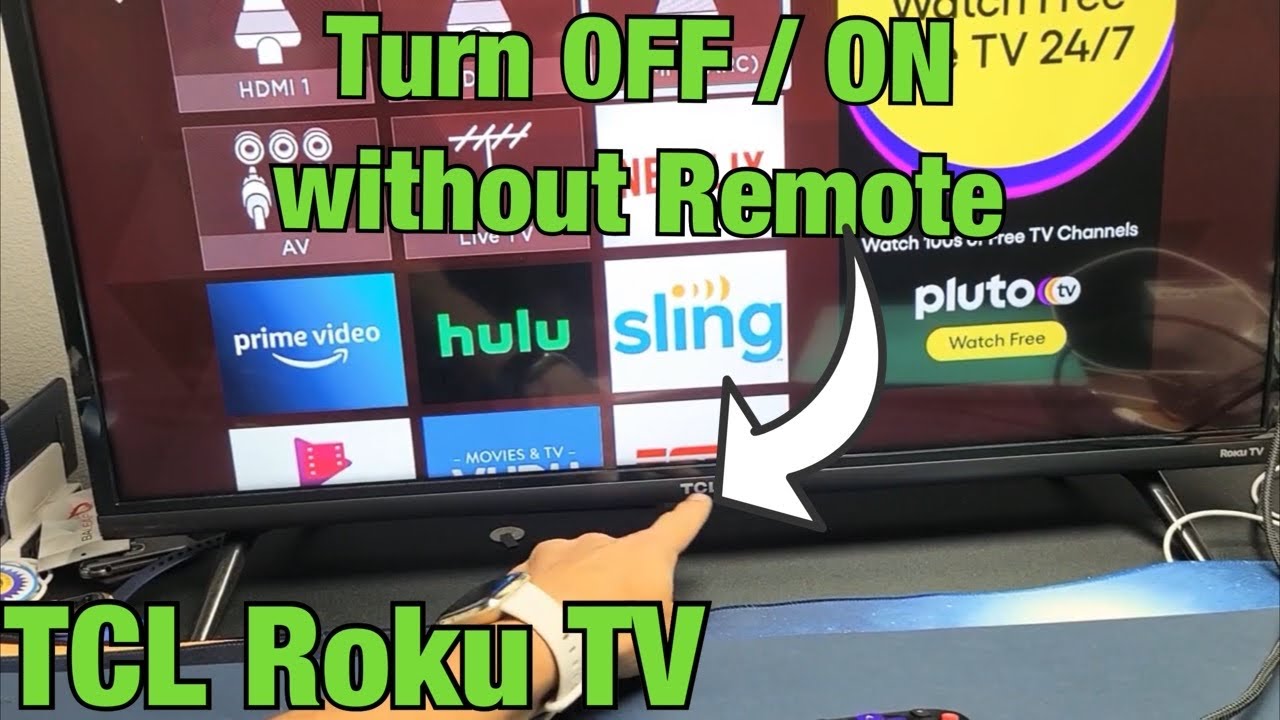
Most TCL Roku TVs have a small set of physical controls on the TV body. These controls usually include a power button, volume buttons, and an input/source button. The button placement varies by model: look on the back, under the front bezel, or on the right or left side near the bottom.
Knowing where the power button is matters when you need to turn on the TV manually. Some models use a single multi-function button that requires a short press to power on and a long press to access menus. You may also see an LED indicator near the sensor that shows standby or power status.
If your TV is connected to other devices, check the HDMI ports and any attached soundbar or receiver. Devices that support HDMI-CEC can wake the TV when the connected device turns on. That means your game console or streaming stick may help power the TV without a remote.
Ways to turn on a TCL Roku TV without the remote
Below are the most reliable ways to turn on a TCL Roku TV without remote. I order them from simplest to more involved so you can try the easiest fixes first.
-
Use the TV's physical power button
- Find the power button on the TV body.
- Press once briefly to wake the TV from standby.
- If nothing happens, press and hold for three to five seconds to reboot.
This is the fastest method when you are right next to the TV.
-
Use the Roku mobile app
- Install the Roku app on your phone and join the same Wi-Fi network as the TV.
- Open the app and tap Remote.
- If the TV is in standby but connected to the network, the app can wake it and act as the remote.
The Roku mobile app is my go-to when I misplace the remote. It mirrors the remote layout and is easy to use.
-
Use HDMI-CEC with a connected device
- Ensure HDMI-CEC is enabled on both the TV and the connected device (look for CEC, System, or 1-touch play).
- Turn on the connected device (console, Blu-ray player). The TV should power on automatically.
HDMI-CEC depends on prior settings. If you never enabled it, this method won’t work until you can access TV settings.
-
Use a universal or replacement remote
- Buy a universal remote or an official TCL Roku replacement remote.
- Follow the pairing or setup instructions included with the remote.
A universal remote often pairs quickly and gives full control without a major cost.
-
Use a smart assistant or smart home setup
- If your TV is already linked to Alexa or Google Home, say the wake command.
- Ensure the TV is online and recognized by the assistant.
Voice control is convenient but only works when you already have the TV connected to the assistant.
-
Power cycle and hardware workarounds
- Unplug the TV for 30 seconds, then plug back in and press the power button.
- Try a different outlet or power strip to rule out power delivery issues.
Power cycling fixes many soft-faults. I’ve used it several times to revive a TV that seemed totally dead.
Troubleshooting when the TV won't power on
If pressing the power button or using the mobile app doesn’t work, run these checks. Each check rules out a common cause.
-
Check the power source and cord
- Confirm the cord is fully seated at both ends.
- Try a different wall outlet and avoid surge protectors that may have tripped.
-
Inspect the LED indicator
- A steady or blinking light can indicate standby or an error.
- Note the pattern and compare with your manual to identify issues.
-
Test with minimal hardware
- Disconnect HDMI and USB devices to rule out accessory conflicts.
- Try turning the TV on with no external devices attached.
-
Perform a soft reset
- Unplug for 60 seconds then plug back in and press the power button.
- This clears minor firmware hangs without erasing settings.
-
Consider a factory reset only if accessible
- A factory reset can fix stubborn software faults but erases settings.
- Use this as a last resort after backing up network and account info if possible.
If the TV shows no lights or signs of life after these steps, you may be facing a hardware fault. In that case, contact TCL support or a qualified technician. Be transparent about what you tried; it speeds diagnosis and repair.

Tips to prevent future remote problems
Preventing another lost-remote panic is easier than it sounds. Small routines help keep your TV accessible.
- Keep a dedicated docking spot for the remote near the TV.
- Pair the Roku app on at least one phone and keep it installed.
- Buy an inexpensive universal remote as a backup.
- Label or secure the remote with Velcro or a small tray to stay organized.
- Enable HDMI-CEC and link the TV to your smart assistant for redundancy.
I once taught a family to keep a spare universal remote in the coffee table. They no longer call me when the original remote disappears. Little habits like that save time and stress.

Frequently Asked Questions of how to turn on a tcl roku tv without remote
Can I turn on a TCL Roku TV without the remote by pressing the TV button?
Yes. Most TCL Roku TVs have a physical power button on the body. A short press will usually wake the TV from standby.
Will the Roku mobile app turn on my TCL Roku TV if the TV is off?
If the TV is in standby and connected to the home network, the Roku mobile app can wake it; however, the app needs the TV online and on the same Wi-Fi network.
Can HDMI-CEC turn on my TCL Roku TV without the remote?
Yes. If HDMI-CEC is enabled on both the TV and a connected device, powering on that device can trigger the TV to turn on.
What if my TCL Roku TV shows no lights and won’t turn on?
Check the power cord and outlet first, then unplug the TV for a minute and try again. If nothing changes, it may be a hardware issue requiring professional help.
Is a universal remote a good replacement for a lost TCL Roku remote?
A universal remote is a cheap and effective replacement. Many models support TCL Roku TV codes and provide full control once programmed.
Can smart home devices turn on my TCL Roku TV without the remote?
Yes, if you previously set up voice control with Alexa or Google Assistant. The TV must be linked and online for voice commands to work.
Conclusion
You have several clear options for how to turn on a TCL Roku TV without remote: the physical power button, the Roku mobile app, HDMI-CEC via connected gear, a universal or replacement remote, and smart assistant voice control. Try the quickest methods first, then move to fixes and checks if the TV won’t respond. Adopt a simple habit—keep a spare remote or the Roku app ready—to avoid future hassles.
Take action now: try the power button and the Roku app, and if the issue persists, follow the troubleshooting checklist above. If this guide helped you, leave a comment, share your experience, or subscribe for more practical TV tips.

Everett Ashford is a tech reviewer at mytechgrid.com specializing in SSDs, cameras, TVs, earbuds, headphones, and other consumer electronics. He provides honest, data-driven reviews based on hands-on testing and real-world performance analysis. Everett simplifies complex tech details to help readers make smart, confident buying decisions.