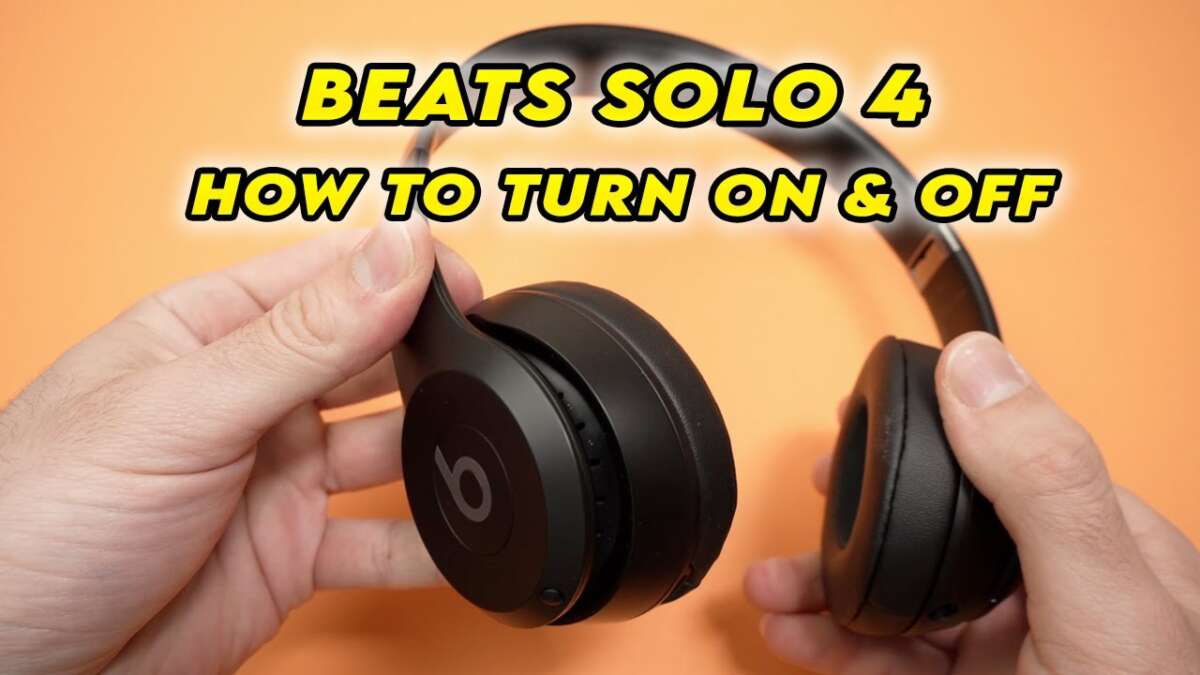
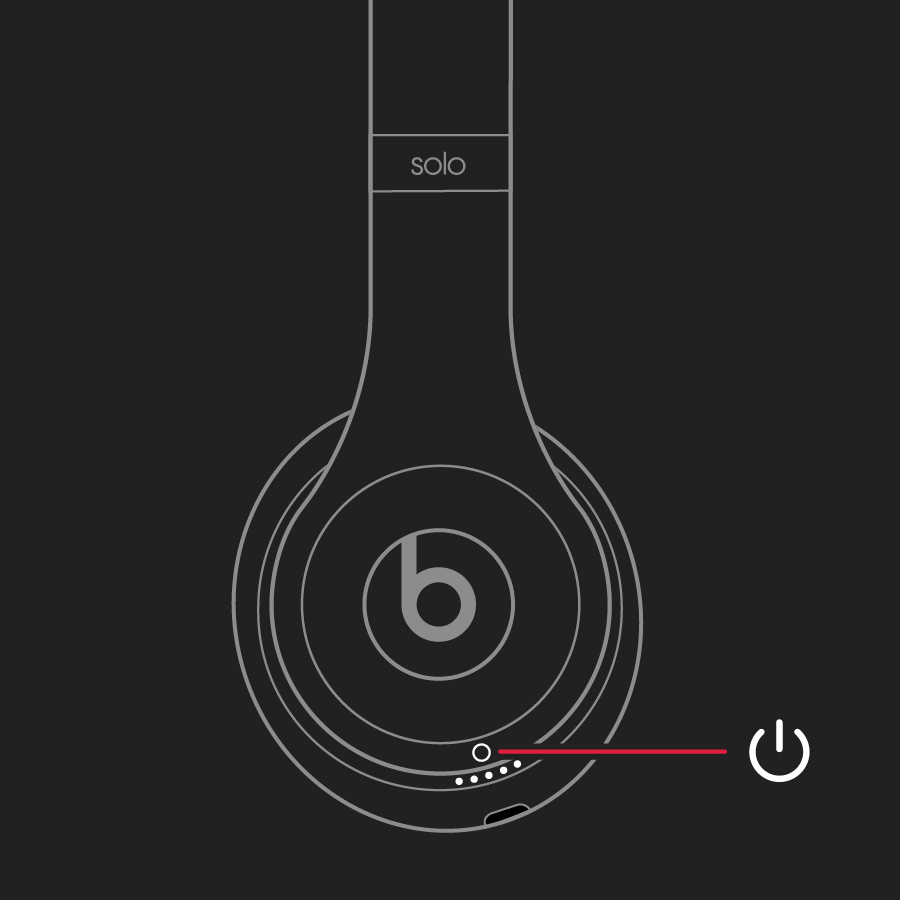
Press and hold the power button for 1–3 seconds until the LED or sound indicates the headset is on.
I’ve helped dozens of people get their Beats working, and I’ve tested many models myself. This guide explains exactly how to turn on Beats headphones across models, how to pair them, what the lights and sounds mean, and what to do when they don’t power up. Read on for step-by-step actions, quick fixes, and practical tips that save time and frustration.
Which Beats models behave differently and why
Beats has several models. Each model uses a slightly different power-control design. Knowing your model helps you know how to turn on Beats headphones quickly.
- Beats Studio and Solo series use a power button on the earcup.
- Beats Flex and BeatsX use an inline control or magnetic earbuds.
- Powerbeats Pro and Beats Fit Pro use a charging case and auto-on when removed.
- Beats Pill speakers follow a similar power-button pattern but are not headphones.
Why this matters: instructions for how to turn on Beats headphones differ by model. Learn your model name so you follow the correct steps.

How to turn on Beats headphones: step-by-step
These steps cover most Beats models. Follow the set that matches your device.
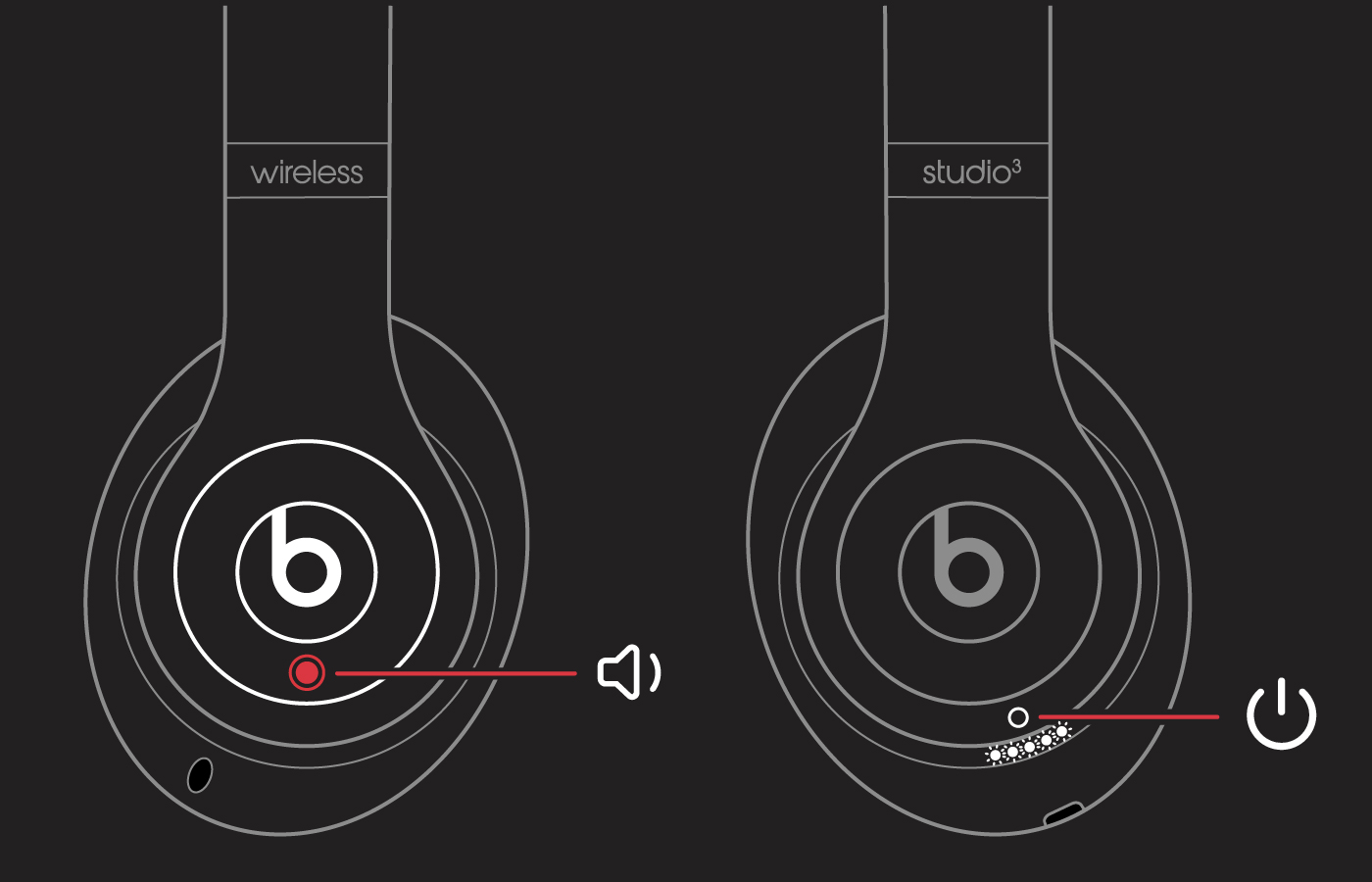
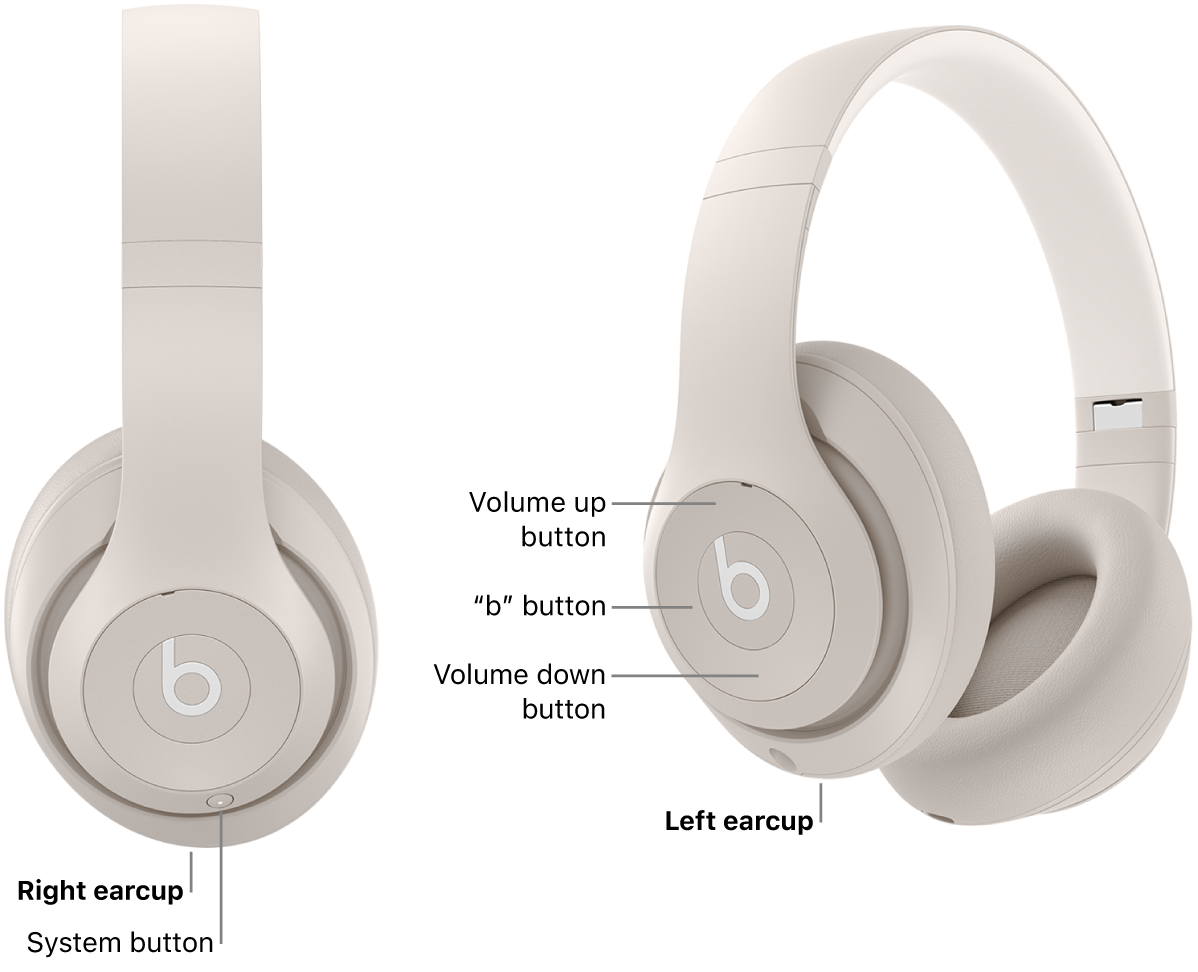
General steps for on-ear and over-ear Beats (Solo, Studio, Solo3, Studio3)
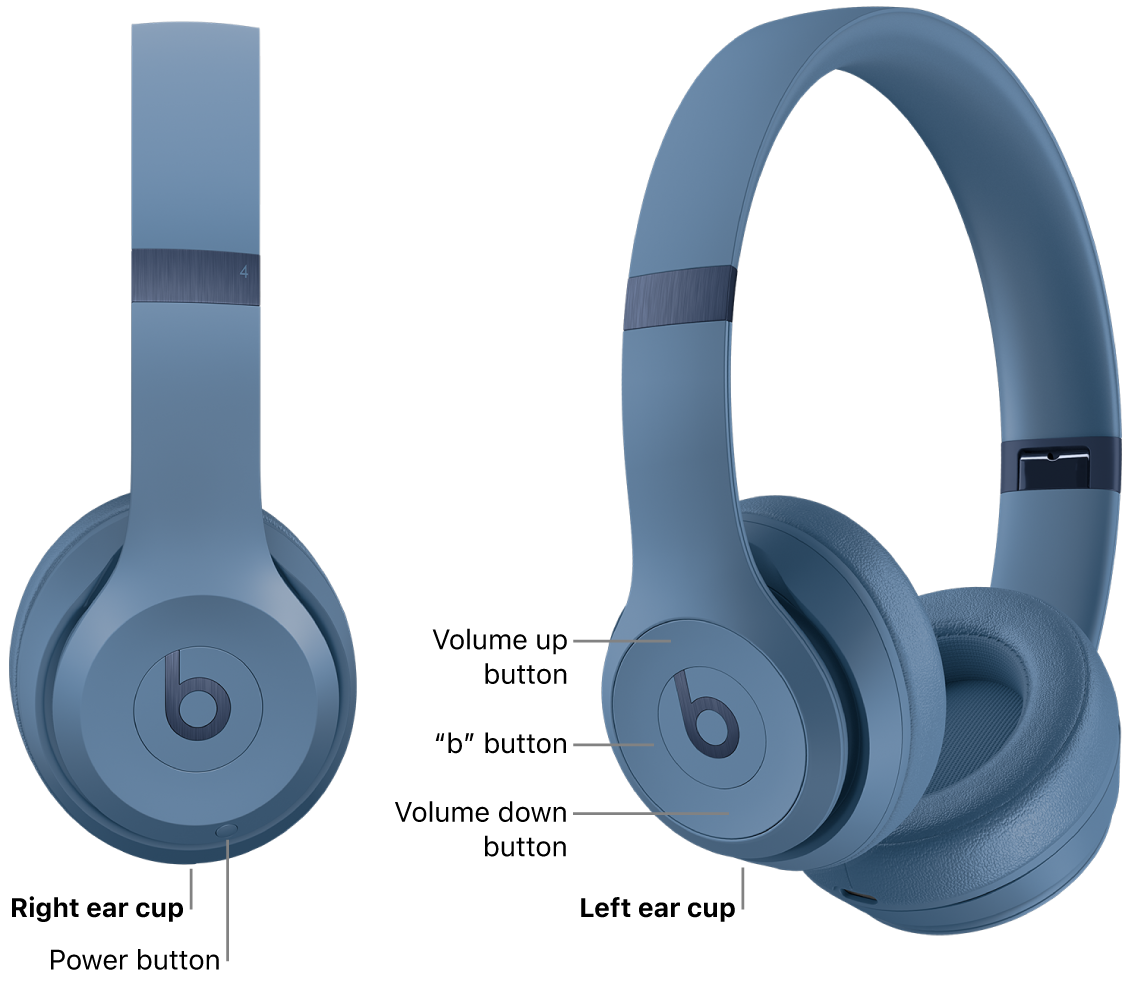
- Locate the power button. It’s usually on the right earcup.
- Press and hold the button for 1–3 seconds.
- Release when you hear a tone or see an LED light.
- If nothing happens, charge for 10–15 minutes and try again.
Powerbeats Pro and earbuds with charging case (Powerbeats Pro, Beats Fit Pro)
- Open the charging case lid. Many models power on automatically when removed.
- If they don’t turn on, press and hold the system button on the case for 1–2 seconds.
- If your earbuds are in the case, remove them to trigger auto-on.
Beats Flex and BeatsX inline models
- Find the power button on the inline remote.
- Press and hold for about 1 second.
- Magnetic tips on Beats Flex will also power the device in some configurations when separated.
Wired mode and aux-in
- Plug the 3.5 mm cable into the headphone jack and source device.
- Wired connection supplies audio without powering Bluetooth, so some models still need to be powered for features like active noise canceling.
Remember: the exact timing can vary. If you’re unsure how to turn on Beats headphones for your specific model, consult the quick model list earlier and follow that model’s steps.
Pairing and connecting after you turn on Beats headphones
Turning on is only the first step. You usually want to pair to a phone, tablet, or PC next.
Pairing with iPhone or iPad
- Turn on the Beats headset.
- Unlock your iPhone and keep it close.
- A pairing pop-up often appears. Tap Connect.
- If no pop-up, open Settings > Bluetooth and select your Beats model.
Pairing with Android
- Turn on Bluetooth in Settings.
- Turn on the Beats headphones.
- Look for your Beats model in Available devices and tap to pair.
Pairing with Mac or Windows PC
- On Mac, open Bluetooth preferences and select your Beats.
- On Windows, open Bluetooth settings and add a device.
How to turn on Beats headphones and immediately reconnect
- Many Beats remember recent pairings. Turn them on close to a previously paired device and they will auto-reconnect.
- If not, manually select them in Bluetooth settings.
People also ask:
How long after I turn on Beats headphones will they pair?
Most Beats enter pairing mode automatically when turned on for the first time. For manual pairing, you may need to press and hold a button for 5–10 seconds to force pairing mode.
Will my Beats connect to multiple devices when I turn them on?
Some Beats can remember multiple devices but only play from one at a time. You can switch by selecting the Beats in the device you want to use.
Can I use wired audio if Bluetooth won’t connect after I turn on Beats headphones?
Yes. Plug the 3.5 mm cable into many models and play audio without Bluetooth. ANC and mic functions may vary by model.

LED indicators, sounds, and what they mean
Beats use lights and tones to show power and pairing status. These cues tell you whether your headphones are on, charging, or ready to pair.
Common indicators
- Single steady white light: Powered on and connected.
- Flashing white/blue light: Pairing mode.
- Amber/orange light: Low battery or charging.
- No light: Off or fully discharged.
Audio cues
- One tone on power up means on.
- Two tones often mean pairing mode or a connection success.
- Voice prompts may say “Power on” or “Connected.”
When you don’t see a light after you try to turn on Beats headphones, the battery is likely dead. Charge them first and try again.
Charging, battery care, and power saving
Battery issues are the top cause of power problems. Good charging habits keep your Beats ready.
Charging basics
- Use the supplied cable or a MFi/USB-C cable.
- Charge until the LED turns solid green or white.
- Avoid leaving them at 0% for long. Charge monthly if you don’t use them.
Battery-saving tips
- Turn off when not in use. Press power for 1–3 seconds to power down.
- Disable automatic pairing features if you don’t need them.
- Lower volume to extend playback time.
Battery checks
- On iPhone, open case or check the battery widget to see Beats battery.
- On Android, some devices show battery in Quick Settings or via the Beats app.
I learned this the hard way: I left a pair of Beats idle for months, and the battery dropped to zero. After a long initial charge they worked, but battery health was reduced. Charge cycles matter.

Troubleshooting: my Beats won’t turn on
If your Beats won’t power on, try these fixes in order.
- Charge for 15–30 minutes with a known good cable and charger.
- Try a different charging port or wall adapter.
- Reset the headphones. Common reset steps:
- For many Beats: Hold power + volume down for 10 seconds.
- For Powerbeats Pro: Hold the system button on the case for 15 seconds until the LED flashes.
- Check for debris in ports or damaged cables.
- Update firmware via the Beats or device app.
- If still dead, contact support or use authorized service.
When you need a reset, the exact combination varies. Search your model name plus “reset” if the step above doesn’t match. These resets often fix unresponsive power behavior.
Tips, best practices, and safety when you turn on Beats headphones
Small habits improve your daily experience with Beats. Here are practical tips I use myself.
- Keep the firmware up to date for better power management.
- Store headphones in their case when not using them.
- Avoid extreme temperatures. Heat harms battery life.
- Carry a short charging cable for emergencies.
- Test the power before travel to avoid dead gear mid-trip.
I once boarded a long flight with partially charged Beats. I used airplane mode and reduced brightness on my phone to stretch playback. Simple fixes like volume control and airplane mode make a big difference.

Frequently Asked Questions of how to turn on beats headphones
How do I turn on Beats Solo or Studio headphones?
Press and hold the power button on the earcup for about 1–3 seconds until you hear a tone or see an LED light. If nothing happens, charge and try again.
My Powerbeats Pro won’t turn on after I take them out of the case. What now?
Put them back in the case and close the lid. Wait 10 seconds, then open the case. If they still won’t power, charge the case and earbuds for 15–30 minutes.
How do I force pairing mode when I turn on Beats headphones?
Turn the headset off first. Then press and hold the power or pairing button for 5–10 seconds until the LED flashes or you hear a pairing prompt.
What if my Beats show no LED after I try to turn them on?
They may be fully discharged. Charge them for at least 15–30 minutes with a known working cable and adapter, then attempt powering on again.
Can I use Beats with a wired connection without turning on Bluetooth?
Yes. Plug in a 3.5 mm audio cable if your model supports wired mode. Some features like ANC may still require power.
Conclusion
You now have clear, practical steps for how to turn on Beats headphones across models, how to pair and troubleshoot, and how to care for battery health. Try the step-by-step actions that match your model, charge before troubleshooting, and use resets when needed. If you found this guide useful, test the steps with your Beats now, leave a comment about your model, or subscribe for more hands-on tips and fixes.

Everett Ashford is a tech reviewer at mytechgrid.com specializing in SSDs, cameras, TVs, earbuds, headphones, and other consumer electronics. He provides honest, data-driven reviews based on hands-on testing and real-world performance analysis. Everett simplifies complex tech details to help readers make smart, confident buying decisions.