Back up first, use the vendor tool, follow steps carefully — and you can update safely without losing data.
I’ve updated dozens of SSDs for clients and personal builds, and I know the fear that a firmware update can wipe or brick a drive. This article shows exactly how to update SSD firmware safely without data loss. You’ll get clear steps, real-world tips, and the checks to run before and after the update. Read on and you’ll finish the process with confidence and minimal risk.

Why update SSD firmware and what it fixes
Firmware is the drive’s internal software. It controls wear leveling, error correction, power behavior, and speed. Vendors release updates to fix bugs, improve performance, or address reliability issues.
Reasons to update
- Fix known bugs that can cause slowdowns or crashes.
- Improve performance or compatibility with newer systems.
- Patch security vulnerabilities.
- Improve drive longevity and error recovery.
When not to update
- If the drive works well and the update only lists minor tweaks.
- If your system is unstable and you cannot make a full backup first.
How this article helps
- It explains how to update SSD firmware safely without data loss.
- It gives a clear checklist, tools, and rollback options.
- It includes personal tips I used when updating servers and desktops.
Risks, limitations, and what to expect
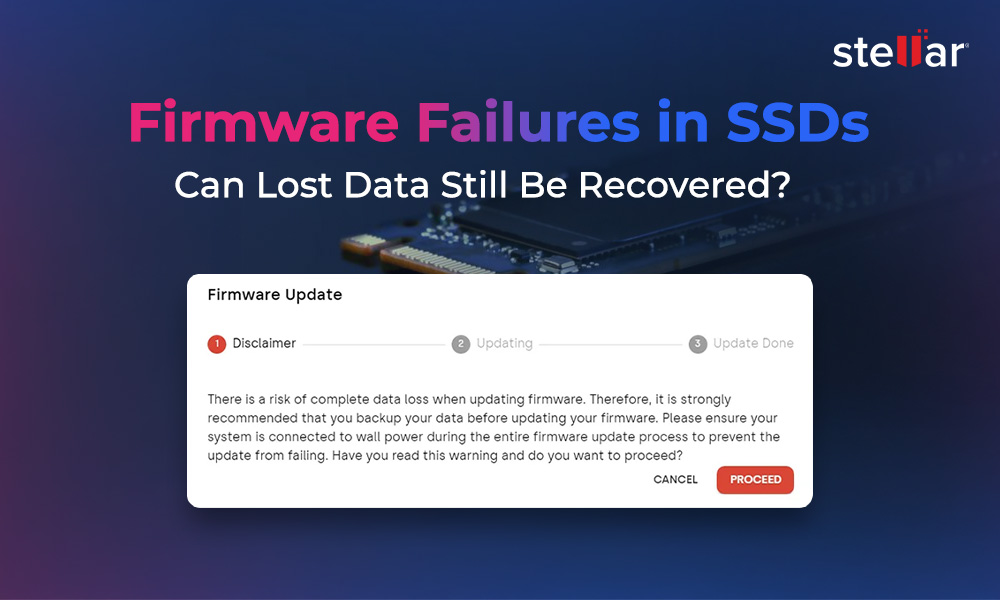
A firmware update is low risk but not risk-free. Drives can fail during the process. Power loss, interrupted updates, or a bad firmware file can make a drive unreadable.
Common risks
- Power outage during the update.
- Incompatible firmware applied to the wrong model.
- Software bugs in the updater tool.
- Rare drive corruption that requires recovery.
What limits safety
- No update can be 100% safe. Backups matter.
- Older drives may not have rollback options.
- Vendor support varies by brand and model.
My experience
- I once updated a laptop SSD without a UPS. The power flickered and the tool safely retried. I still had backups, and no data was lost. That taught me to always use a UPS for critical systems.
Preparation: backup, verify, and plan
Preparing well is the most important part of how to update SSD firmware safely without data loss. A good prep plan cuts the risk to near zero.
Create backups
- Make a full disk image or file-level backup to an external drive or cloud. Verify the backup by restoring a small file.
- Keep a second backup if the drive holds critical data.
Verify model and firmware
- Note the SSD model, serial number, and current firmware version. Use the vendor tool or system info to confirm.
- Match the firmware file exactly to the model and revision.
Prepare the system
- Update your OS and storage drivers first.
- Close all apps and stop background tasks like antivirus scans.
- Disable sleep and automatic restarts.
- If available, connect to a UPS or ensure stable power.
Have recovery options
- Keep a bootable rescue USB ready with disk tools.
- Note vendor support contacts and warranty details.
Checklist before starting
- Full verified backup exists.
- Correct firmware file downloaded.
- Vendor update tool ready.
- Stable power or UPS connected.
- Rescue media and support info on hand.
Step-by-step: how to update SSD firmware safely without data loss
Follow these steps in order. Short pausess keep risk low.
- Confirm the SSD model and current firmware.
- Use your OS or vendor tool to read the model and firmware string.
- Read the release notes.
- Check what the firmware fixes and any known issues.
- Backup everything.
- Create and verify a full backup or disk image.
- Download firmware from the vendor site only.
- Never use third-party mirrored files.
- Close apps and disable power saving.
- Prevent interruptions and sleep mode.
- Connect a UPS if possible.
- Avoid power loss during the update.
- Run the vendor update tool.
- Follow on-screen instructions and do not interrupt.
- Wait for tool confirmation.
- Let the process finish and the tool verify the update.
- Reboot and verify the firmware version.
- Check the model and firmware again.
- Run SMART and file checks.
- Use SMART tools and quick file reads to ensure data integrity.
Notes on timing
- Choose a quiet maintenance window.
- For servers, inform users and plan for a short downtime.
This is the core guide to how to update SSD firmware safely without data loss.
Vendor tools, bootable updaters, and compatibility
Vendors supply official tools for updates. These are the safest route. Use either a Windows utility, a Linux command-line tool, or a bootable ISO provided by the vendor.
Tool tips
- Use the latest vendor tool version.
- Prefer a bootable ISO if your OS is unstable.
- Avoid third-party tools that claim to update firmware unless vetted.
Compatibility checks
- Make sure the firmware file matches the SSD model and revision group.
- Some drives share names but have different internal controllers. Confirm by serial or part number.
Personal tip
- I keep a USB with multiple vendor ISOs for field work. It saves time and avoids risky downloads during maintenance.

Verifying success and post-update checks
After an update, verify everything quickly to confirm no data loss or instability.
Verify steps
- Confirm firmware version matches vendor release.
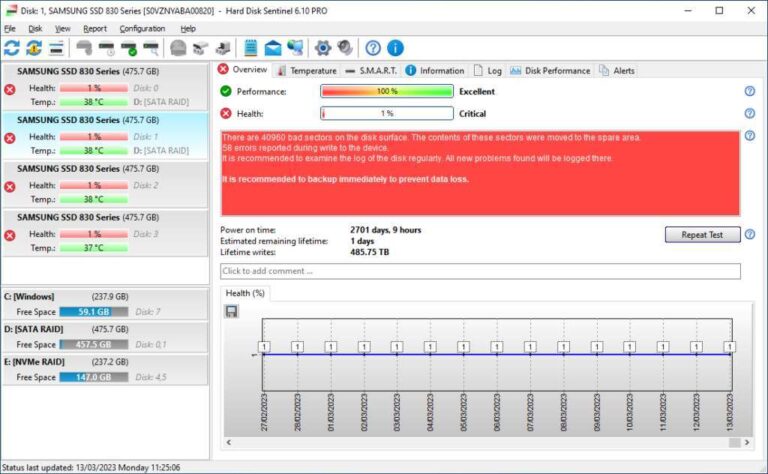
- Run SMART tests and check for reallocated sectors or errors.
- Open files from the drive to ensure readability.
- Run a quick checksum on a few large files to validate data integrity.
Monitor for 48–72 hours
- Watch for any unusual behavior like crashes or slowdowns.
- Run performance tests to confirm expected throughput.
If problems appear
- Restore from backup if the drive is corrupted.
- Contact vendor support with drive logs and SMART info.
Troubleshooting and rollback options
If something goes wrong, stay calm and follow recovery steps.
Common fixes
- Retry the update with the vendor tool in recovery mode.
- Use a bootable vendor ISO to perform a repair.
- If the drive is unreadable, attach it to another system or use USB enclosure to attempt recovery.
Rollback options
- Some vendors provide a firmware rollback tool. Use that only if recommended.
- If no rollback exists, restore data from the backup to a replacement drive.
When to involve professionals
- If the drive shows mechanical symptoms or SMART reports severe failure.
- If recovery attempts fail and data is critical, use a professional data recovery service.
My lesson
- Never skip the backup step. I once spent hours recovering data that a verified image would have restored in minutes.
Best practices and checklist for safe updates
Use this compact checklist whenever you update. It’s the practical core of how to update SSD firmware safely without data loss.
Pre-update checklist
- Backup: verified full image or file backup.
- Correct firmware: double-checked model and revision.
- Vendor tool: latest version ready.
- Power: UPS connected or stable power.
- Rescue media: bootable USB prepared.
During update
- Do not interrupt the updater.
- Avoid multitasking on the host machine.
- Monitor progress and logs.
Post-update
- Verify firmware and SMART.
- Check files and run a few benchmarks.
- Keep update logs and screenshots for support.
Follow these steps every time for repeatable safety.
PAA-style questions (common short queries)
Q: Will updating SSD firmware erase my data?
A: Firmware updates typically do not erase data, but failures can lead to data loss; always backup first.
Q: How long does an SSD firmware update take?
A: Most updates finish in a few minutes, but complex updates or validation steps can take longer.
Q: Can I update firmware on a laptop?
A: Yes, but connect a power adapter and use a UPS if possible. Avoid updating on battery only.
Q: Is firmware rollback always possible?
A: No. Some vendors offer rollback, but many do not. Plan backups instead of relying on rollback.
Q: Can I update multiple SSDs at once?
A: It’s safer to update one drive at a time to reduce risk and simplify troubleshooting.
Frequently Asked Questions of how to update ssd firmware safely without data loss
What is the first step before updating SSD firmware?
Always create a full, verified backup or disk image before attempting any firmware update.
Can a firmware update improve drive speed?
Yes. Some firmware updates include performance optimizations, but gains vary by model and workload.
Is it safe to update firmware on RAID arrays?
Proceed with caution. Check vendor guidance for RAID support and update one drive at a time where advised.
What if the updater fails halfway through?
Do not panic. Try vendor recovery tools or bootable ISOs. If recovery fails, restore from backup and contact support.
How often should I check for SSD firmware updates?
Check when you experience issues, when migrating systems, or quarterly for critical systems. Only install updates if they solve a relevant problem.
Conclusion
Updating SSD firmware can be safe and routine when done the right way. Back up first, use official tools, confirm the model and firmware, and ensure stable power. Follow the step-by-step checklist here to minimize risk and protect your data.
Takeaway: prepare well and never skip the backup. If you found this helpful, subscribe for more guides, leave a comment with your SSD model and questions, or try the checklist on your next maintenance window.

Everett Ashford is a tech reviewer at mytechgrid.com specializing in SSDs, cameras, TVs, earbuds, headphones, and other consumer electronics. He provides honest, data-driven reviews based on hands-on testing and real-world performance analysis. Everett simplifies complex tech details to help readers make smart, confident buying decisions.