You can use Bluetooth headphones on PS5 with an adapter, official wireless headset, or wired fallback.
I’ve spent years testing consoles and audio gear, and I’ll show you exactly how to use bluetooth headphones on ps5 the right way. This guide explains what works, what doesn’t, and step-by-step methods to get clean game audio, chat functionality, and minimal lag — whether you own a third-party Bluetooth pair or a PS5-ready headset.

How Bluetooth works on PS5 and why it’s tricky
Sony built the PS5 to favor dedicated wireless headsets and wired connections. The console does not allow direct pairing with most generic Bluetooth headphones. That’s because PS5 focuses on low-latency audio, microphone support, and licensed wireless profiles.
Key reasons the PS5 limits generic Bluetooth pairing:
- Many Bluetooth profiles prioritize music playback, not low-latency game audio or mic pass-through.
- Licensed features, codecs, and encryption can block third-party pairing.
- Sony supports official wireless accessories via a USB dongle that uses proprietary protocols.
Understanding this helps you decide whether to use an adapter, buy a PS5-ready headset, or use a wired solution. If your goal is easy setup, low lag, and chat support, the right adapter or a Pulse-type headset solves most problems.
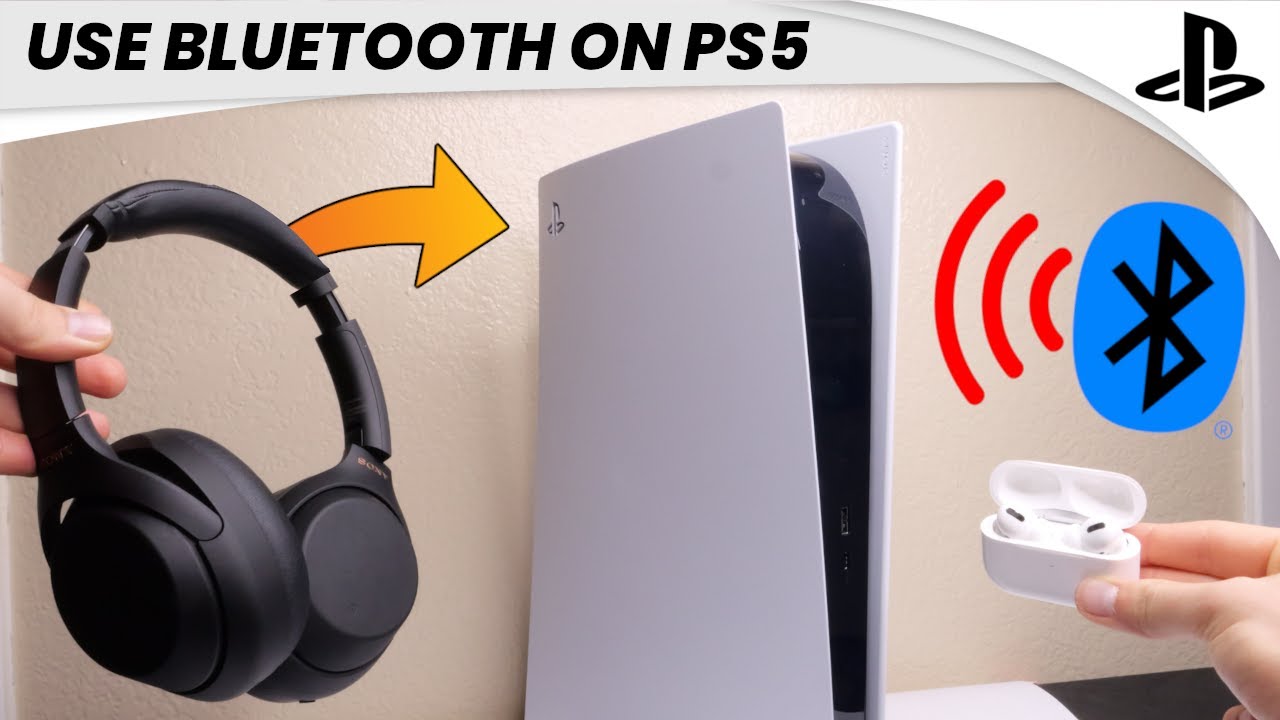
Main methods to use Bluetooth headphones on PS5
Here are the practical options to get Bluetooth headphones working with your PS5. Each method matches different needs for latency, mic support, and budget.
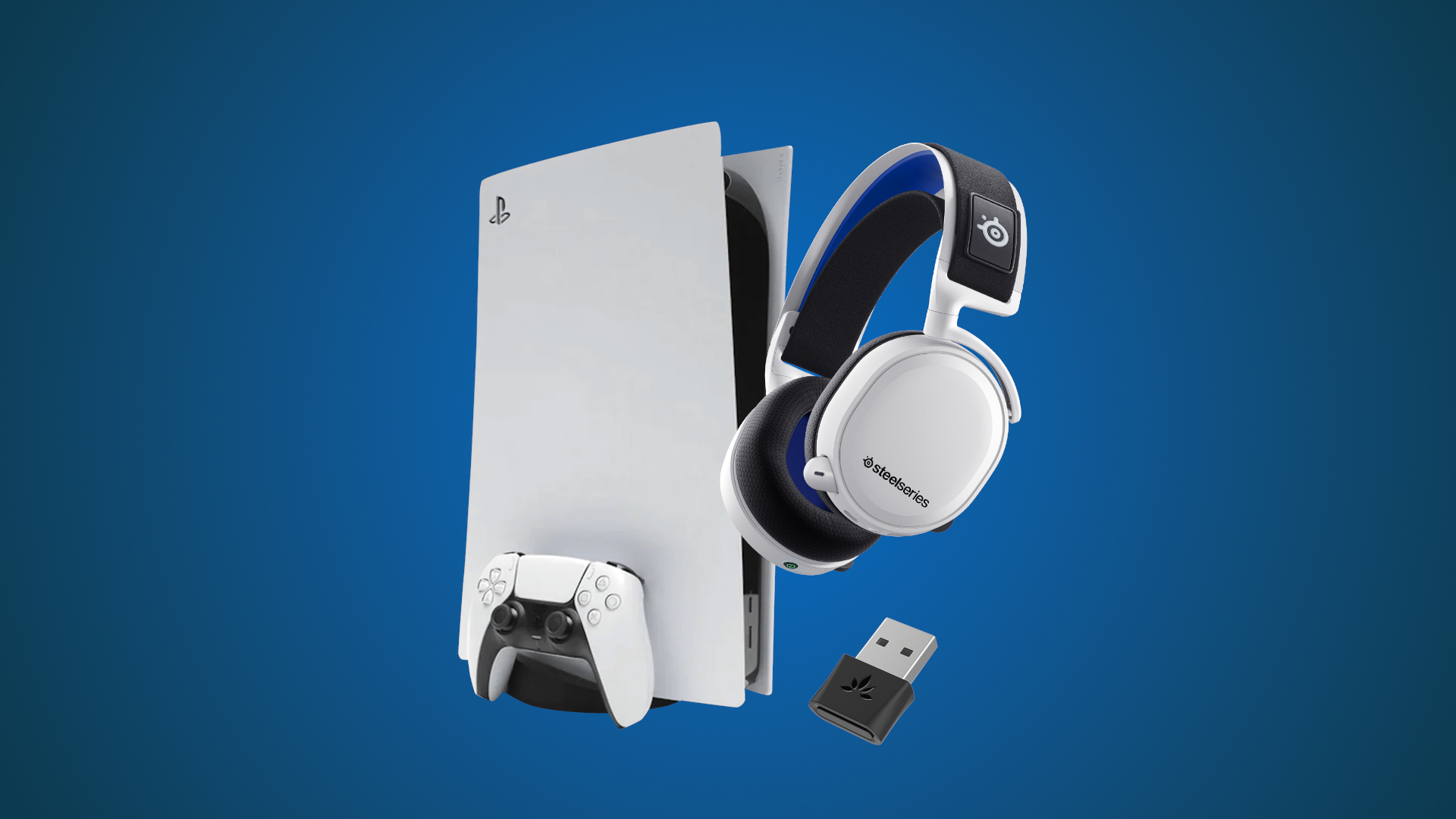
- Use a PS5-compatible wireless headset that includes a USB dongle. This gives plug-and-play support and full chat functionality.
- Use a dedicated Bluetooth USB adapter (transmitter) that supports audio + mic and low latency (aptX Low Latency). This can pair many headphones to the console.
- Use a Bluetooth transmitter attached to the PS5 controller or TV for audio-only connections. Chat might be limited.
- Connect headphones via a 3.5mm cable to the DualSense for immediate audio and mic support if your headset has a wired option.
- Use remote play on a phone/PC and pair Bluetooth headphones to that device for both audio and chat.
Each method has trade-offs. For example, adapters can introduce lag, and many transmitters do not pass microphone audio to the PS5. Choose based on whether you value voice chat, minimized latency, or simplicity.

Step-by-step: Using a USB Bluetooth dongle or adapter
A USB Bluetooth adapter is the most common way to use bluetooth headphones on ps5 when they aren’t natively supported. Follow these steps.
-
Choose the right adapter
-
Look for adapters labeled “game audio + mic” or “supports HFP/HSP and aptX Low Latency.”
-
Prefer adapters with their own pairing button and LED indicators.
-
Set up the adapter
-
Plug the adapter into a USB port on the PS5 (rear or front).
-
Put your Bluetooth headphones in pairing mode per the manufacturer’s instructions.
-
Press the adapter’s pairing button until the LED signals pairing. The adapter and headphones should connect.
-
Configure audio on PS5
-
Go to Settings > Sound > Audio Output.
-
Select the USB headset or adapter if it appears.
-
Adjust Output Device and Microphone Device as needed if the adapter supports mic pass-through.
Troubleshooting tips:
- If audio cuts or statics appear, try a different USB port or move other wireless devices away.
- If the PS5 doesn’t show the adapter, reboot the console after plugging in the device.
Step-by-step: Using the DualSense controller and wired hookup
A wired connection often offers the simplest, lowest-latency way to use bluetooth headphones on ps5 when your headphones also have a cable.
- Wired 3.5mm method
- Connect the headphone cable to the DualSense controller’s 3.5mm jack.
- On PS5 go to Settings > Sound > Audio Output, and set “Output Device” to “Controller (Headset Connected).”
- Adjust “Volume” and “Microphone Level.” This method supports chat and game audio with minimal delay.
- USB wired method
- If your headset supports USB audio, plug it into a PS5 USB port.
- In Settings > Sound, choose the USB audio device and enable microphone as needed.
Wired is reliable and avoids compatibility hassles. If your Bluetooth headphones support a detachable cable, this is often the best fallback.
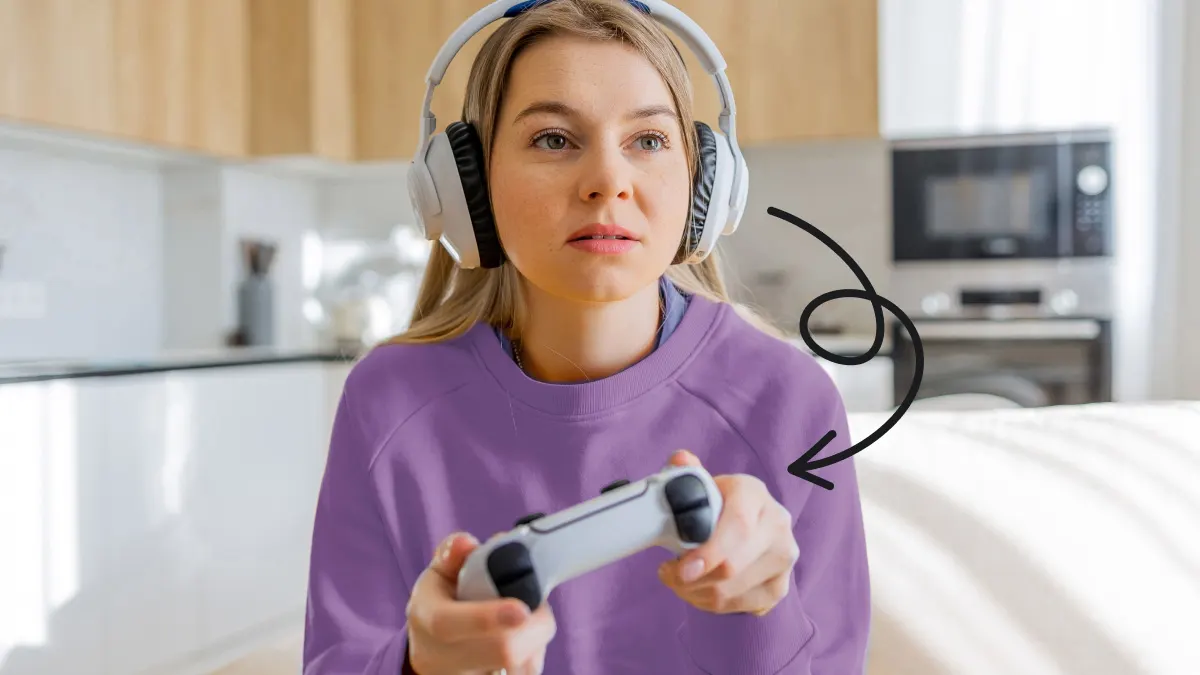
Using TV or Remote Play as an alternate route
If the PS5 can’t pair directly with your Bluetooth headphones, using the TV or remote play is a smart workaround.
-
Via TV Bluetooth
-
Pair headphones to your smart TV’s Bluetooth in the TV settings.
-
Set PS5 audio output to HDMI. Audio routes through TV to your headphones.
-
Note: Many TVs add extra latency, which can affect fast-paced games.
-
Via Remote Play on PC, Mac, Android, or iOS
-
Install the PS Remote Play app and sign in to your PSN account.
-
Connect your Bluetooth headphones to the phone or PC.
-
Launch Remote Play and stream your PS5; audio and chat then use the device’s Bluetooth connection.
These options are flexible. I use Remote Play when my main headset battery dies and I need full chat from my phone.
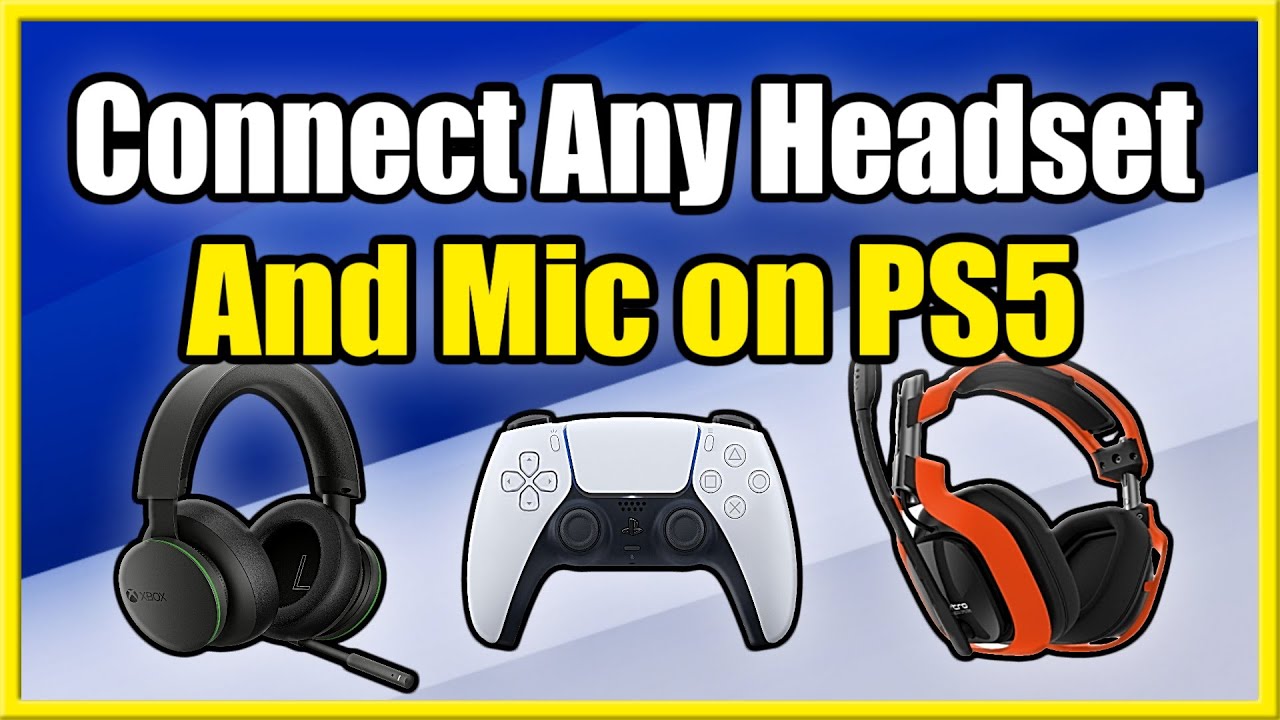
Common problems, latency, and microphone support
When trying to use bluetooth headphones on ps5, these are the typical limits and how to handle them.
-
Latency issues
-
General Bluetooth can add delay. For shooters or rhythm games, plug-in or use low-latency adapters.
-
Use transmitters that support aptX Low Latency and headphones that also support it.
-
Microphone not working
-
Most generic Bluetooth pairs only handle audio output (A2DP). Mic support requires HFP/HSP protocol and console recognition.
-
Use a USB dongle that supports mic pass-through or use the controller’s 3.5mm mic.
-
Dropped connections
-
Interference from Wi-Fi or other Bluetooth devices causes drops.
-
Move the adapter away from the console body, change USB ports, or reduce nearby wireless traffic.
-
Firmware and settings
-
Update headset firmware when possible and keep PS5 system software current to improve device compatibility.
Benefits and limitations of using Bluetooth headphones on PS5
Understanding pros and cons helps you pick the right path.
Benefits
- Convenience and wire-free freedom.
- Use familiar headphones instead of buying a new gaming headset.
- Portable setup when paired with TV or Remote Play.
Limitations
- Native pairing is restricted, so most headsets need adapters.
- Possible audio lag and reduced mic functionality.
- Variable sound quality depending on adapter and codecs.
If your priority is competitive play or reliable chat, I recommend a PS5-compatible headset or a low-latency adapter plus wired backup.

Personal experience, tips, and mistakes to avoid
I’ve tested multiple Bluetooth headsets and adapters with PS5. Here’s what I learned the hard way.
- Tip: Buy a well-reviewed low-latency USB adapter. Cheap dongles often deliver poor range and dropouts.
- Tip: Keep a short 3.5mm cable handy. Wired fallback saved multiple gaming sessions for me.
- Mistake I made: Assuming aptX alone guarantees low lag. Both transmitter and headset must support the same low-latency codec.
- Tip: Test chat in a party before joining competitive matches so you don’t lose voice on the first round.
These small steps saved me frustration and improved audio reliability.

Frequently Asked Questions of how to use bluetooth headphones on ps5
Can I pair any Bluetooth earbuds directly to the PS5?
No. PS5 does not support direct pairing for most generic Bluetooth earbuds. You’ll usually need a USB adapter, TV pairing, Remote Play, or a wired connection.
Will Bluetooth cause lag on PS5?
Bluetooth can add latency. Using an aptX Low Latency adapter and compatible headphones reduces lag, but wired connections typically offer the lowest delay.
Do Bluetooth headphones support the PS5 microphone?
Most Bluetooth headphones only support audio output. Mic support requires specific profiles and often a dongle that passes microphone data to the console.
Is using a USB Bluetooth adapter legal and safe?
Yes. USB adapters that advertise gaming use are safe and widely used. Choose reputable brands and keep firmware updated to ensure compatibility.
What’s the easiest way to get both audio and chat working?
The simplest reliable methods are a PS5-compatible wireless headset with its USB dongle or using a wired 3.5mm connection through the DualSense controller.
Can I use Remote Play to get Bluetooth headphones working with PS5?
Yes. Remote Play routes PS5 audio to your phone or PC, letting you use Bluetooth headphones connected to that device for both game sound and chat.
Conclusion
Using bluetooth headphones on ps5 is possible and practical with the right approach. Pick a solution that matches your priorities: an official wireless headset or USB adapter for convenience and mic support, wired connection for reliability, or Remote Play for flexible setups. Try a low-latency adapter and keep a wired backup for the best experience.
Take action: test one method today, check adapter compatibility, and leave a comment sharing which setup worked for you. If you want help choosing an adapter or headset, ask and I’ll recommend options based on your budget and needs.

Everett Ashford is a tech reviewer at mytechgrid.com specializing in SSDs, cameras, TVs, earbuds, headphones, and other consumer electronics. He provides honest, data-driven reviews based on hands-on testing and real-world performance analysis. Everett simplifies complex tech details to help readers make smart, confident buying decisions.