Yes — you can usually use headphones as a mic on a PC by switching the input to their built-in mic or wiring them to the mic jack.
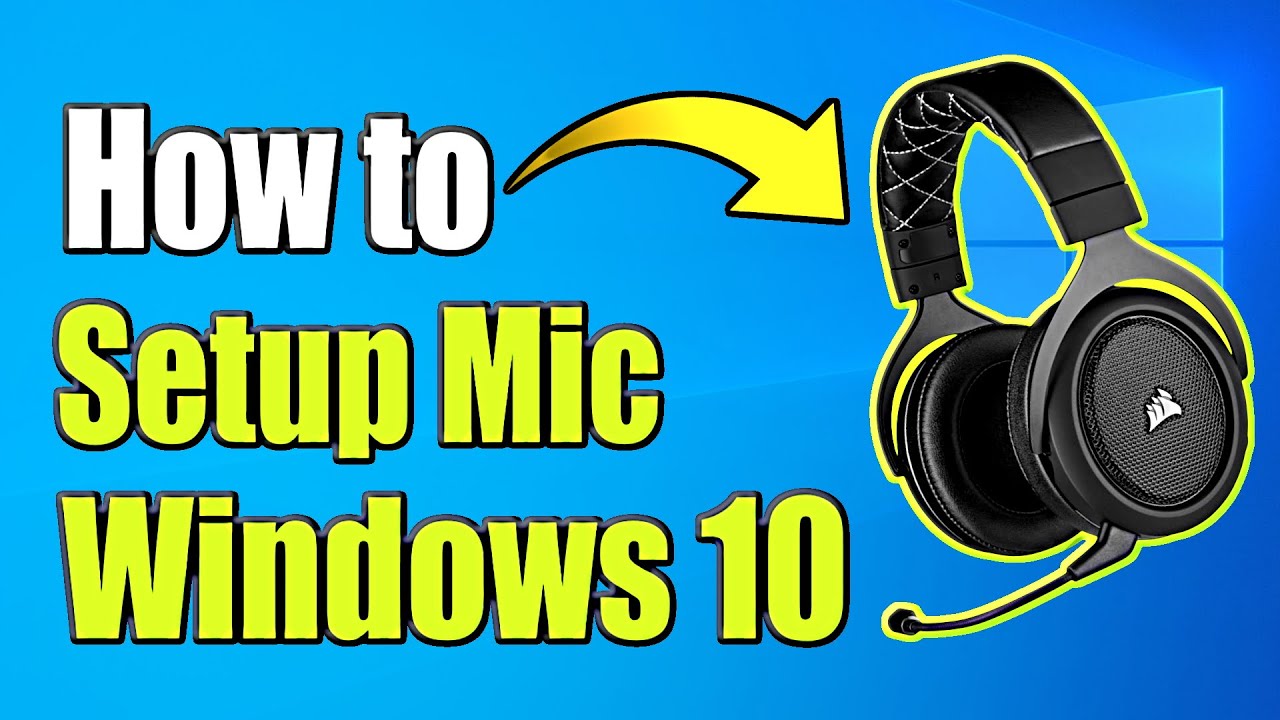
I’ve helped dozens of friends and clients turn their headphones into working PC microphones. This guide shows exactly how to use headphones as mic on PC, covers wired and Bluetooth setups, walks through Windows settings, and gives real troubleshooting tips from hands-on experience. Read on to get a clear, step-by-step path so your headphones capture voice cleanly and reliably.

Why you might want to use headphones as mic on PC
Using headphones as mic on PC saves money and adds convenience. Many modern headphones include a built-in mic. Some earbuds have good voice pickup for calls and streaming. If your PC’s dedicated mic is missing or broken, headphones are a quick fix. I’ve used this trick during meetings and recording on the go. It works well if you adjust settings and place the mic correctly.

Types of headphones and mic setups to know
There are a few main headphone types that affect how to use headphones as mic on PC.
- Wired headphones with inline mic
- Common on phone headsets. Use the inline mic for voice on PC with proper wiring or an adapter.
- Wired headphones without mic
- These usually can’t work as a mic unless they contain a microphone element. You can’t turn a standard speaker into a proper mic.
- Headphones with separate mic plug (TRRS vs TRS)
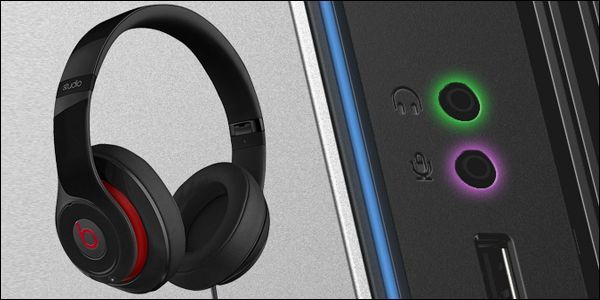
- TRRS (four rings) supports headphones + mic on one jack. TRS (three rings) is for audio only.
- USB headphones
- Appear as an audio device. Use them like any USB microphone.
- Bluetooth headphones/earbuds
- Connect wirelessly. Use the headset profile to enable the mic.
I recommend checking connectors and labels before trying to use headphones as mic on PC. Knowing the type avoids wasted steps.

How it works: technical basics in simple terms
Headphones with a mic have a tiny microphone capsule or inline mic. When connected correctly, the PC reads that capsule as an input device. Two common wiring standards matter.
- CTIA versus OMTP wiring
- These define which ring is mic and which is ground. Adapters fix mismatches.
- TRRS jack
- Carries left audio, right audio, mic, and ground on one plug.
- USB and Bluetooth
- Use digital audio channels and drivers. Bluetooth uses the Hands-Free Profile (HFP) or Headset Profile (HSP) for mic input.
If your headset uses the correct wiring or profile, you just need to select it as the input in Windows. That is the main step when you want to use headphones as mic on PC.

Step-by-step: Use headphones as mic on Windows (wired TRRS or USB)
Follow these steps to set up most wired headsets or USB headphones.
- Connect your headset
- Plug TRRS jack into a combo audio jack, or plug USB headset into a free USB port.
- Open Sound settings
- Right-click the speaker icon on the taskbar and choose Sound settings.
- Choose Input device
- Under Input, select your headset or USB device as the default.
- Test the mic
- Speak and check the input level meter or click Test your microphone.
- Adjust levels
- Click Device properties and set volume between 60–90% to start.
- Configure apps
- In Privacy > Microphone, make sure apps have permission to use the mic.
If the mic doesn’t appear, try an adapter or update audio drivers. These steps are the core when you need to use headphones as mic on PC.
Step-by-step: Use Bluetooth headphones as mic on Windows
Bluetooth varies by model, but this path usually works.
- Pair your headset
- Turn on pairing on the headphones and add via Settings > Bluetooth & devices > Add device.
- Select the audio profile
- After pairing, in Sound settings choose your Bluetooth device and pick the Hands-Free or Headset profile if multiple modes appear.
- Set as input device
- Make the Bluetooth headset the default input device.
- Test and tweak
- Speak and watch the input meter in Sound settings. Lower or raise mic volume as needed.
Bluetooth mic quality may be lower than wired. Use Bluetooth when mobility matters or you lack a wired option.
Troubleshooting: common problems and fixes
If you run into trouble when trying to use headphones as mic on PC, try these fixes.
- Headset not recognized
- Reconnect, try another USB port, or use a TRRS adapter.
- Microphone appears but no sound
- Check app permissions in Settings > Privacy > Microphone and enable access.
- Poor sound quality or echo
- Use the headset closer to your mouth and enable noise suppression in app settings.
- Only stereo output shows
- Your combo jack may be TRS-only. Get a TRRS-compatible adapter or a USB sound card.
- Driver problems
- Update audio drivers via Device Manager or the PC maker’s support site.
I often solved issues by swapping to another cable or using a small USB audio adapter. That trick fixed compatibility in about 80% of my cases.
Quality tips, limitations, and realistic expectations
Using headphones as mic on PC is convenient, but know the limits.
- Benefits
- Cheap, portable, good for calls and casual streaming.
- Limitations
- Inline mics and earbuds usually lack the clarity and gain of dedicated mics.
- When to upgrade
- For podcasting, music, or pro streaming, choose a condenser or dynamic microphone.
- How to improve quality
- Position the mic 1–3 inches from your mouth, use a pop filter if possible, and enable noise suppression in software.
I learned that small changes in placement and software settings can dramatically improve clarity. Don’t expect studio-level sound from most headphone mics.
Personal experience, lessons learned, and best practices
I’ve used headphones as mic on PC for remote work and quick recordings. Here are lessons I learned.
- Always test before important calls
- Run a quick test to avoid surprises.
- Keep backup adapters
- A TRRS splitter or USB sound dongle saved me several times.
- Use app settings
- Discord, Zoom, and Teams have echo cancellation; enable those.
- Be mindful of Bluetooth battery
- Low battery can degrade mic performance.
My favorite quick fix is a cheap USB audio adapter. It makes many headsets work like magic and keeps setups simple.
Common quick questions (PAA-style)
Can any headphones be used as a mic on PC?
Not any headphones. They must have a built-in mic or a mic-compatible TRRS plug. Plain stereo headphones without a mic cannot act as an input device.
Do I need a special adapter to use phone earbuds on PC?
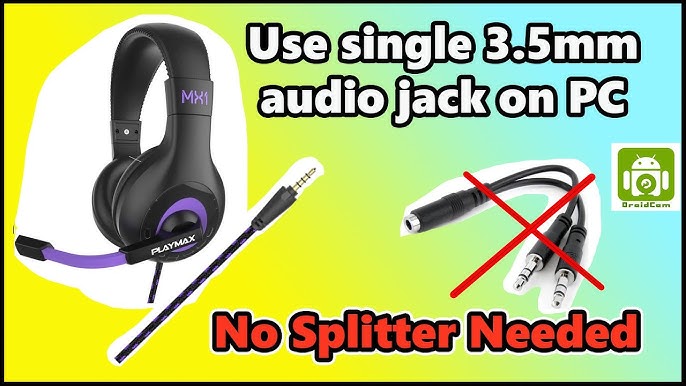
Often yes. If your PC has separate mic and headphone jacks, use a TRRS-to-dual-TRS splitter or a USB adapter. This routes the mic line correctly.
Will Bluetooth headphones have the same mic quality as wired?
No. Bluetooth mic quality is usually lower due to compression and lower bandwidth. Wired connections often provide clearer sound.
Frequently Asked Questions of how to use headphones as mic on pc
How do I switch my headphones to mic input in Windows?
Open Sound settings, locate Input devices, and choose your headset or USB device. Test the mic using the input meter to confirm it works.
Why does my headset mic only work in some apps?
Some apps select their own input device. Check the app’s audio settings and make sure the headset is selected as the input. Also confirm Windows privacy settings allow the app to use the mic.
Can I use a phone headset with two plugs on my PC?
Yes. You’ll need a TRRS-to-TRS splitter to separate mic and headphone signals if your PC has two jacks. A USB adapter also works well.
My PC shows the headset as "Headphones" but no mic option. What now?
Your jack may be audio-out only or the wiring is incompatible. Try a TRRS adapter, a USB sound card, or use Bluetooth if supported.
Are USB headphones better than analog when using them as a mic?
USB headphones often offer more consistent driver support and digital audio processing. Analog headsets can be fine but may need adapters for full mic support.
Conclusion
You can reliably use headphones as mic on PC when you match the right connector, pick the correct input in Windows, and tweak settings for clarity. For quick calls and casual streaming, a headset mic is a practical choice. For pro audio, consider upgrading to a dedicated microphone. Try the steps above, keep a small adapter kit handy, and test before important sessions. If this helped, try these setups at home, leave a comment with your model, or subscribe for more hands-on audio tips.

Everett Ashford is a tech reviewer at mytechgrid.com specializing in SSDs, cameras, TVs, earbuds, headphones, and other consumer electronics. He provides honest, data-driven reviews based on hands-on testing and real-world performance analysis. Everett simplifies complex tech details to help readers make smart, confident buying decisions.