Use wired, Bluetooth, or a transmitter — match your TV ports and prefer low-latency Bluetooth.
I’ve guided hundreds of people on how to use headphones with TV, and I’ll show you clear, practical ways to get private, high-quality sound from any set. This guide explains every common connection, step-by-step setup, latency fixes, headphone choices, and real-world tips I learned testing gear and helping friends. Read on to pick the best method for your TV and headphones, and get it working fast.

Types of connections for how to use headphones with TV
Knowing the common connection types makes setup fast and predictable. Here are the main ways TVs send sound to headphones.
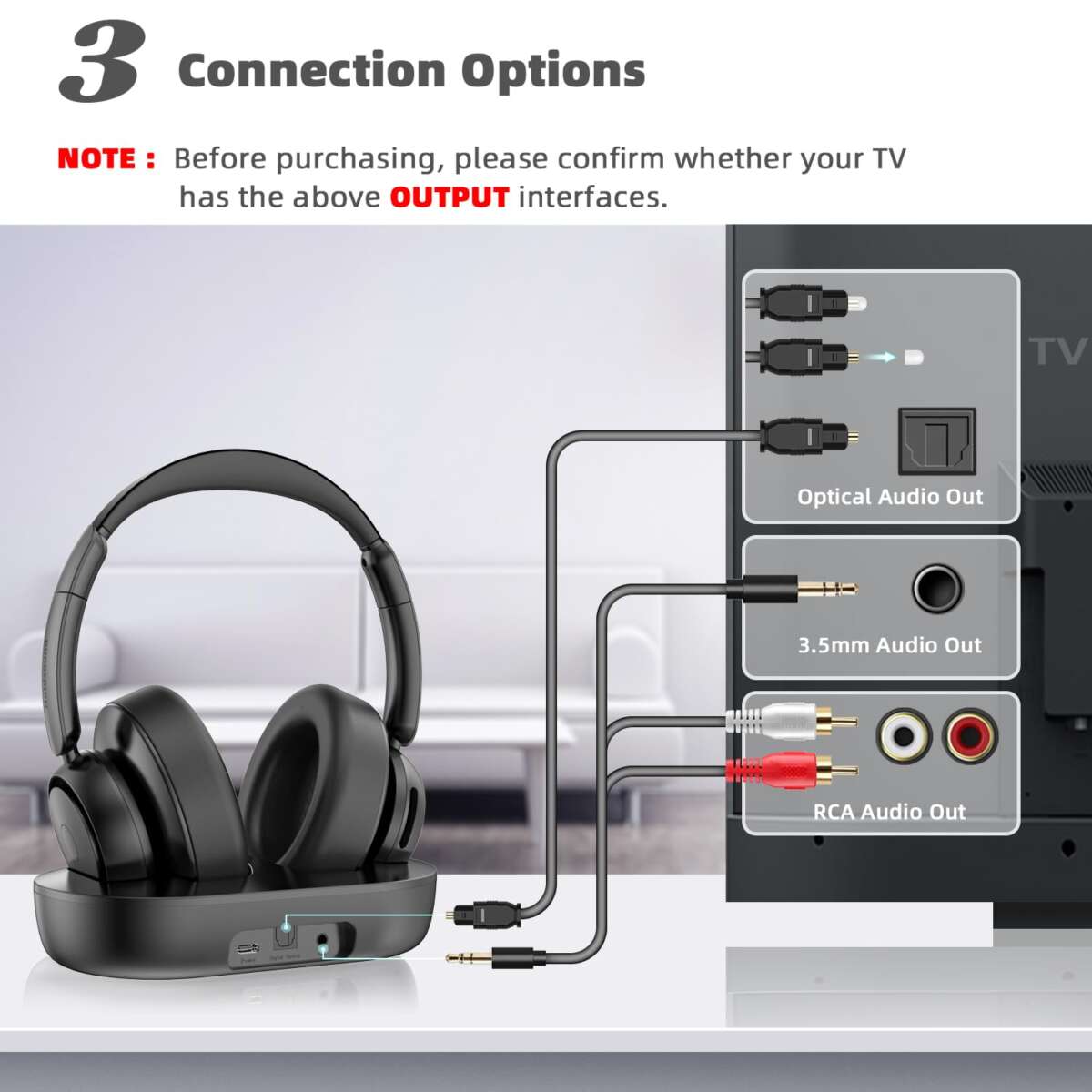
- 3.5mm headphone jack: Direct and simple when present on a TV. Plug headphones in and listen.
- RCA analog out: Older TVs use red/white audio outputs. A small adapter converts RCA to 3.5mm.
- Optical (TOSLINK): Digital audio from many modern TVs. It needs a converter or a headphone transmitter.
- HDMI ARC/eARC: Sends high-quality audio back to soundbars or devices; can pass audio to a Bluetooth transmitter or an HDMI audio extractor.
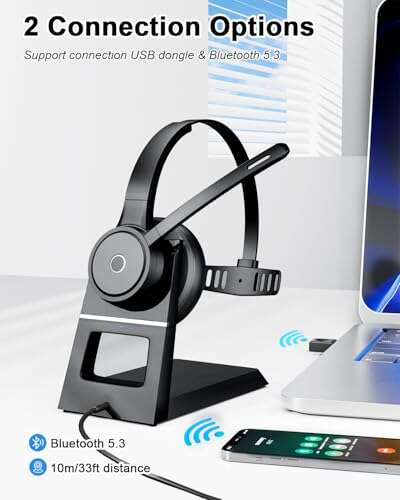
- Bluetooth: Wireless and common in new TVs. Codec support affects delay and quality.
- RF wireless transmitters: Dedicated low-latency transmitters that pair with matching wireless headphones.
- External transmitters: USB or 3.5mm/Bluetooth transmitters attach to TVs without built-in Bluetooth.
Each choice affects sound quality, ease of setup, and delay. Match the method to your TV ports, headphone type, and tolerance for lip-sync lag.

Wired setups: simple, reliable, and low-latency
Wired connections are best for zero delay and easy troubleshooting. Here are common wired setups and steps.
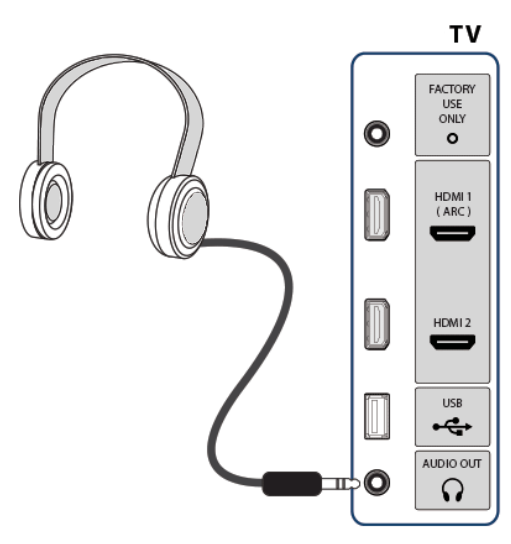
Connecting to a TV headphone jack
- Check for a 3.5mm headphone port on the TV.
- Plug your headphones into the jack.
- Use the TV volume control or headphone inline remote to adjust sound.
Using RCA outputs
- Find the red and white RCA ports labeled Audio Out.
- Use an RCA-to-3.5mm adapter cable to connect your headphones or a small amplifier.
- Turn on the TV and set the TV audio output to external speakers if needed.
Using optical or HDMI outputs
- If your TV has only optical out, use an optical-to-analog (DAC) converter to feed 3.5mm headphones.
- For HDMI ARC/eARC, use an HDMI audio extractor that provides a headphone jack or an RCA output.
- Connect the extractor to the TV’s HDMI ARC port and the headphones to the extractor.
Wired setups avoid Bluetooth delay and often give the cleanest sound. They are my first choice when the TV supports a direct analog connection.

Wireless setups: Bluetooth and transmitters
Wireless is convenient but needs care to reduce delay and ensure compatibility. Here’s how to use Bluetooth and other wireless options.
Using built-in TV Bluetooth
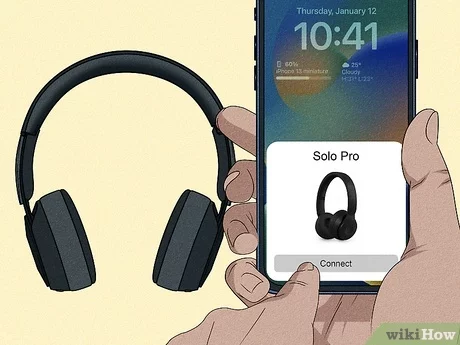
- Put your headphones in pairing mode.
- Open the TV Bluetooth or Accessories menu and select your headphones.
- Confirm pairing and test audio.
If the TV does not show your headphones
- Use a Bluetooth transmitter that connects to 3.5mm, RCA, optical, or USB.
- Pair the transmitter with your headphones.
- Place the transmitter close to the TV for best range.
Codec and latency tips
- Look for aptX Low Latency or LDAC support on both TV/transmitter and headphones for better sync.
- TVs often use SBC or AAC, which can cause slight delay. A transmitter with aptX LL can fix that.
RF wireless headphones
- RF systems include a dedicated base station that plugs into the TV audio output.
- Pairing is usually automatic and the latency is often low.
- RF works well through walls and without line-of-sight limits.
Bluetooth is great for casual TV watching. For fast action or live sports, choose low-latency gear or wired options.

Fixing audio delay and lip sync problems
Latency is the most common complaint when learning how to use headphones with TV. Here are ways to fix it.
- Use wired headphones: This removes Bluetooth delay entirely.
- Choose low-latency codecs: aptX Low Latency and certain proprietary RF systems cut delay to near zero.
- Adjust TV audio delay: Many TVs offer an audio sync or lip-sync setting to nudge sound forward or back.
- Use a fast transmitter: USB or optical transmitters paired with aptX LL help keep audio in sync.
- Try headphones with built-in delay compensation: Some models are tuned for TV watching.
Often a simple TV audio delay tweak and a quality transmitter solve the issue. If you still see lag, test with a wired headset to isolate the cause.

Connecting two or more headphones
Sharing audio or watching together with separate headphones is common. Here are options.
- Bluetooth multipoint on TV: Some TVs allow two Bluetooth devices to connect at once. Check TV settings.
- Dual-pair Bluetooth transmitters: These support two headphones and work with any TV output.
- Headphone splitters: A cheap passive splitter lets two wired headphones use one jack, but volume sharing may occur.
- Multi-user RF systems: Certain transmitters support several paired receivers.
If you want two wireless listeners, a dual-pair transmitter or a TV with built-in dual Bluetooth is the easiest path.

Choosing the right headphones for TV
Picking the right headphones affects comfort and sound. Consider these factors when you pick headphones for TV use.
- Comfort and fit: Long wear needs soft pads and a light clamp. I test for 1–2 hour sessions.
- Closed-back vs open-back: Closed-back blocks noise and prevents sound leakage; open-back feels more natural but leaks sound.
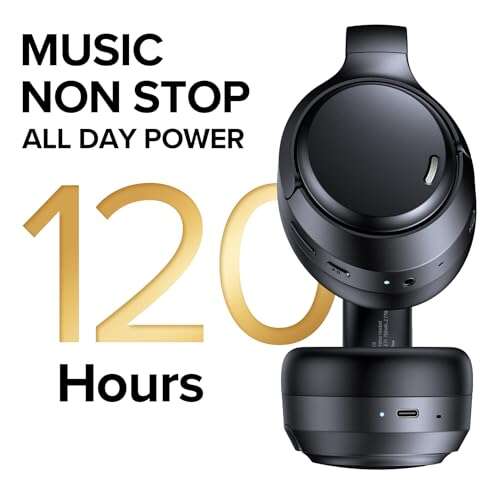
- Battery life: For wireless, aim for 15+ hours for long binges.
- Noise cancellation: Useful for noisy rooms, but may add a slight processing delay.
- Microphone: Not necessary unless you use gaming features or voice control.
- Codec support: Choose headphones that support aptX LL, AAC, or SBC depending on your TV or transmitter.
In my tests, a midrange closed-back Bluetooth headset with aptX LL gave the best mix of comfort and low-latency sound for TV shows and movies.
Troubleshooting common problems
Quick fixes for issues you’ll likely meet when you learn how to use headphones with TV.
-
No sound after connecting
- Check TV audio output settings and volume.
- Ensure the TV is set to external speakers or headphone output when required.
-
Bluetooth won’t pair
- Remove old pairings, restart the TV and headphones, and retry.
- Verify the transmitter and headphones use compatible codecs.
-
Low volume
- Turn up TV volume and headphone volume separately.
- Use an inline amplifier or DAC if the output is weak.
-
Intermittent dropouts
- Move closer to the TV or eliminate obstacles.
- Try a different USB port or power cycle the transmitter.
-
Distorted audio
- Check cables and adapters for damage.
- Use a higher-quality DAC if the sound is noisy from optical-to-analog conversion.
These steps resolve most common problems quickly. If trouble persists, testing another headset or transmitter helps pinpoint the issue.

Personal experience and practical tips
I’ve set up TVs for family rooms, bedrooms, and small offices. Here are the lessons that saved time and frustration.
- Test wired first: When I couldn’t solve lip sync, a quick wired test showed the TV had no delay — so the Bluetooth path was the issue.
- Use the right adapter: Cheap optical-to-3.5mm DACs can add hiss. Spending a bit more on a known DAC improved clarity.
- Keep firmware current: Updating TV and headphone firmware often fixed pairing quirks and improved codec support.
- Label your gear: When multiple transmitters are in a house, labeling stops accidental pairing and confusion.
- Balance comfort and sound: I replaced a high-SPL headset with a softer model for long shows. Comfort beats tiny gains in audio detail for TV use.
These are practical tips from hands-on setups. They help avoid common traps and speed up the process of how to use headphones with TV.
Frequently Asked Questions of how to use headphones with tv
How do I connect Bluetooth headphones to a TV?
Put the headphones in pairing mode and open the TV Bluetooth settings. Select the device from the list and confirm the connection.
Why is my Bluetooth audio out of sync with the picture?
Bluetooth codecs and TV processing can add delay. Use a low-latency transmitter or tweak the TV audio delay setting to correct sync.
Can I use wired headphones if my TV has no headphone jack?
Yes. Use a DAC for optical output or an HDMI audio extractor to get a 3.5mm headphone jack for wired use.
How do I connect two wireless headphones to one TV?
Use a TV that supports two Bluetooth connections, or buy a dual-pair Bluetooth transmitter that connects to the TV audio output.
Will using headphones damage my TV speakers?
No. Using headphones simply redirects audio and does not harm the speakers. Ensure proper volume levels to protect hearing.
Are wireless headphones good for gaming or fast action shows?
Some are, but latency matters. Choose low-latency codecs like aptX Low Latency or use wired headphones for the least delay.
Conclusion
Using headphones with TV is simple when you match the right connection to your TV and needs. Wired options give zero delay and reliable sound. Bluetooth and RF offer freedom but need attention to latency and codec support. Start with the TV ports, pick a low-latency path if you need perfect lip sync, and choose headphones that balance comfort with battery life. Try one setup, test for delay, and adjust settings — you’ll often be watching privately in minutes.
Take action now: check your TV ports, pick either a wired DAC or a Bluetooth transmitter if needed, and try a short test watch. Leave a comment below with your TV model and headphones if you want personalized setup help.

Everett Ashford is a tech reviewer at mytechgrid.com specializing in SSDs, cameras, TVs, earbuds, headphones, and other consumer electronics. He provides honest, data-driven reviews based on hands-on testing and real-world performance analysis. Everett simplifies complex tech details to help readers make smart, confident buying decisions.