Use an external SATA/USB enclosure or adapter to turn your old laptop SSD into a fast portable drive.
I’ve converted several old laptop SSDs into external drives, and I’ll walk you through every step. This guide explains why and how to use old laptop SSD as external drive, what tools you need, how to format and optimize the SSD, and how to troubleshoot common issues. I write from hands-on experience and tested methods. Read on to make the most of your old SSD and get fast, reliable portable storage.
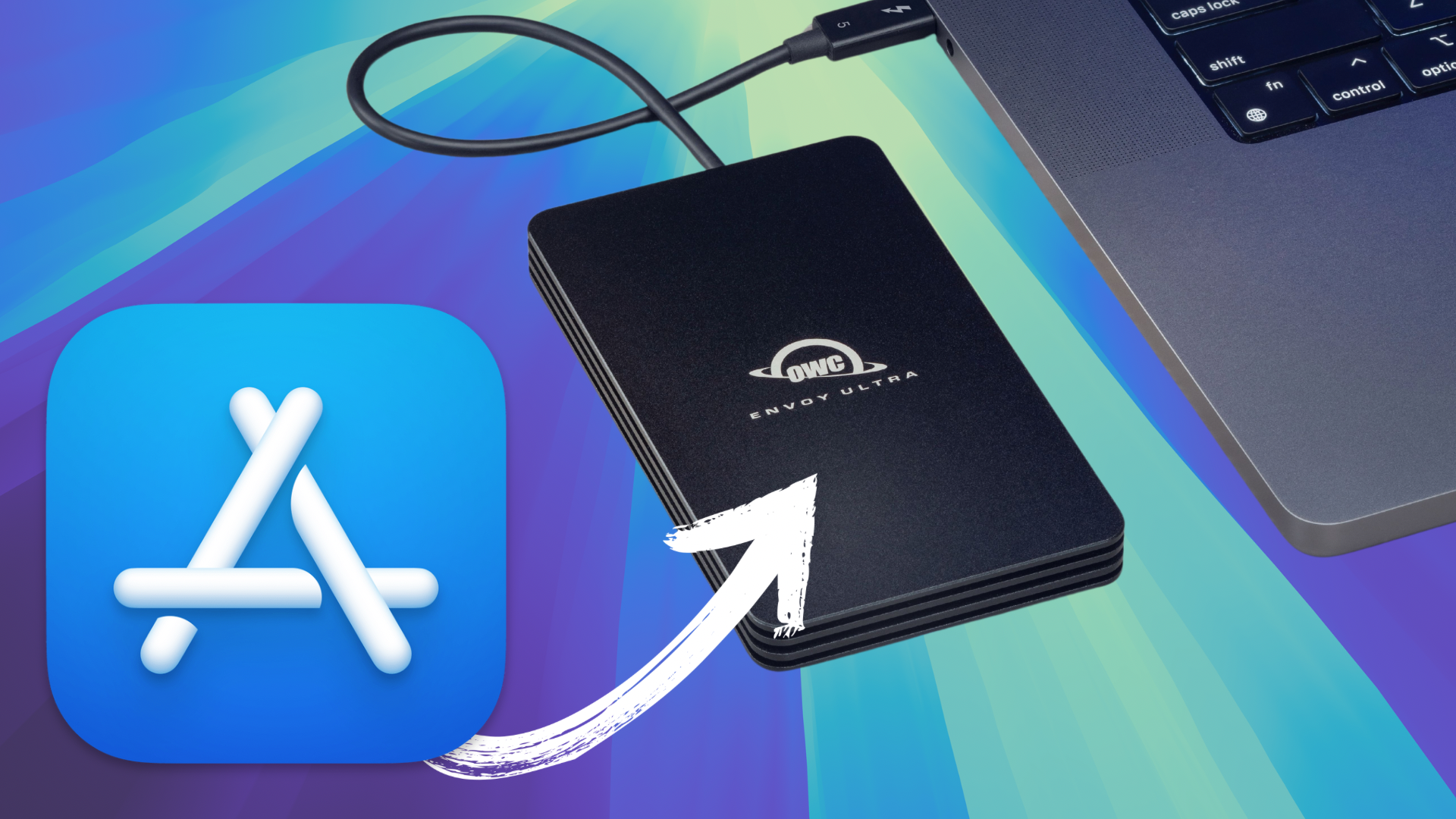
Why repurpose an old SSD and when it makes sense
Reusing an old SSD saves money and reduces waste. It also gives you a fast external drive at a fraction of the cost of buying new storage.
SSD speeds are far faster than typical spinning drives. That makes them great for backups, media libraries, and on-the-go work. If the SSD is healthy and fits common interfaces, learning how to use old laptop SSD as external drive is quick and practical.
I tested a few SSDs after upgrades. A five-year-old SATA SSD still handled daily work and transfers well. The trick is the right enclosure and the right format for your device and use case.
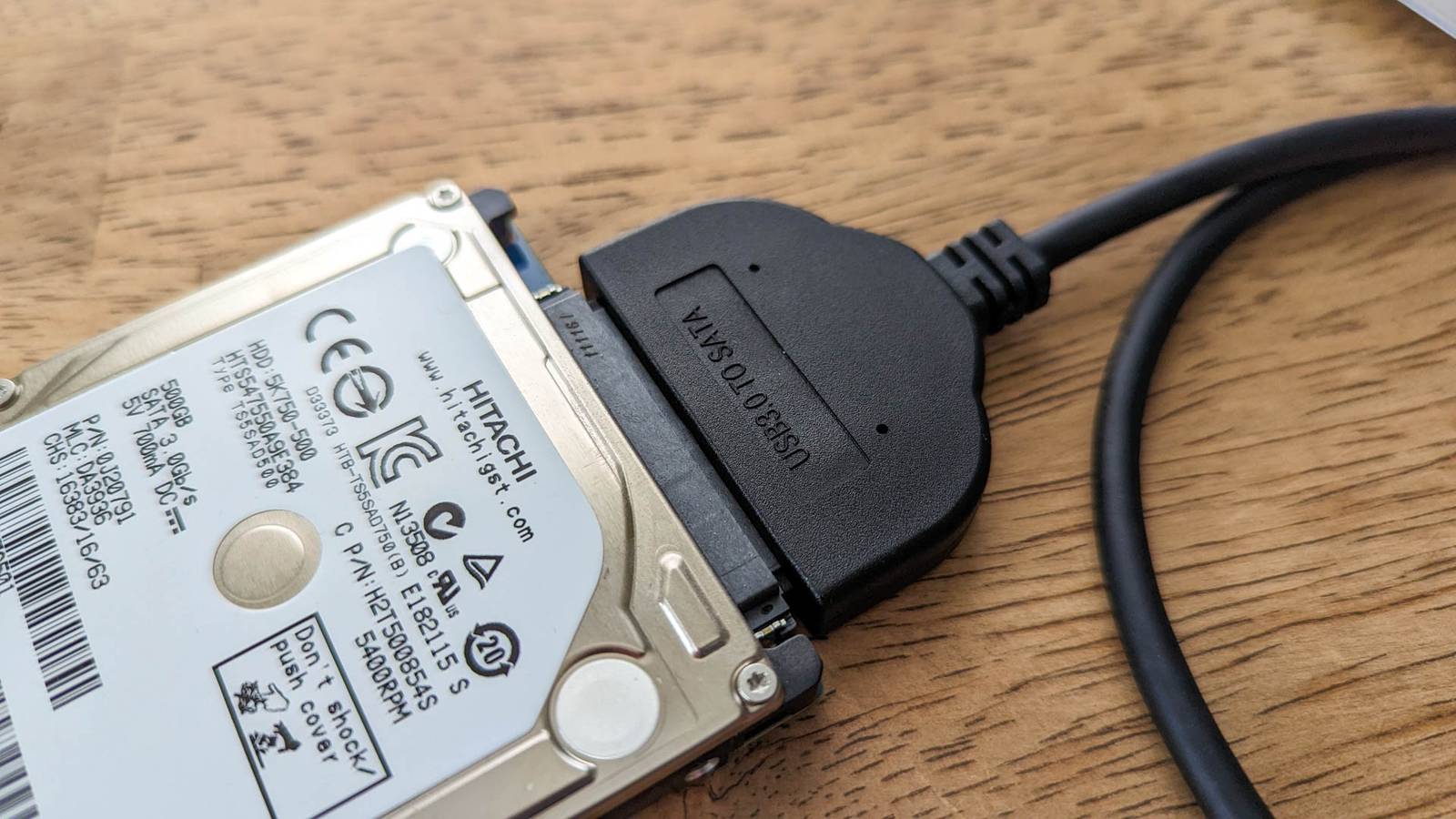
What you’ll need before you start
Gather these items before you start converting the SSD.
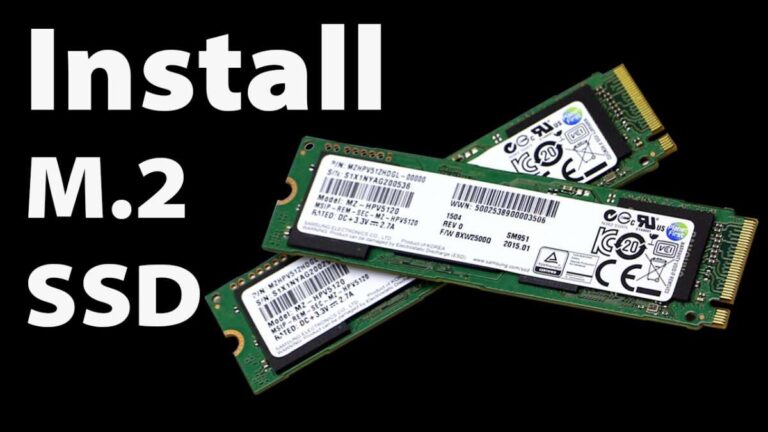
- Old laptop SSD. Check whether it’s SATA or M.2 and whether it’s keyed B, M, or NVMe.
- External enclosure or adapter. Choose one matching the SSD type and offering USB 3.0 or USB-C.
- Small screwdriver if the SSD is inside a laptop or enclosure.
- USB cable that came with the enclosure.
- A computer to format and test the drive.
Check the SSD health first. Use a simple SMART tool on your computer to confirm the drive has no major errors. If the SSD shows many bad sectors or signs of failure, skip reusing it for important data.

How to choose the right enclosure or adapter
Match the SSD form factor to the enclosure.
- For 2.5-inch SATA SSDs, pick a 2.5" SATA-to-USB enclosure. They are cheap and reliable.
- For M.2 SATA drives, choose an M.2 SATA enclosure that supports the B+M key if needed.
- For M.2 NVMe drives, buy an NVMe-specific USB-C enclosure with PCIe support and a thermal pad.
Look for enclosures that support USB 3.1 Gen 2 or USB 3.2 for best transfer speed. If you plan to move large files often, prefer USB-C with a steady power delivery.
I once used a generic M.2 NVMe enclosure that overheated. Upgrading to a metal enclosure with a thermal pad fixed the speed drops. Thermal design matters.
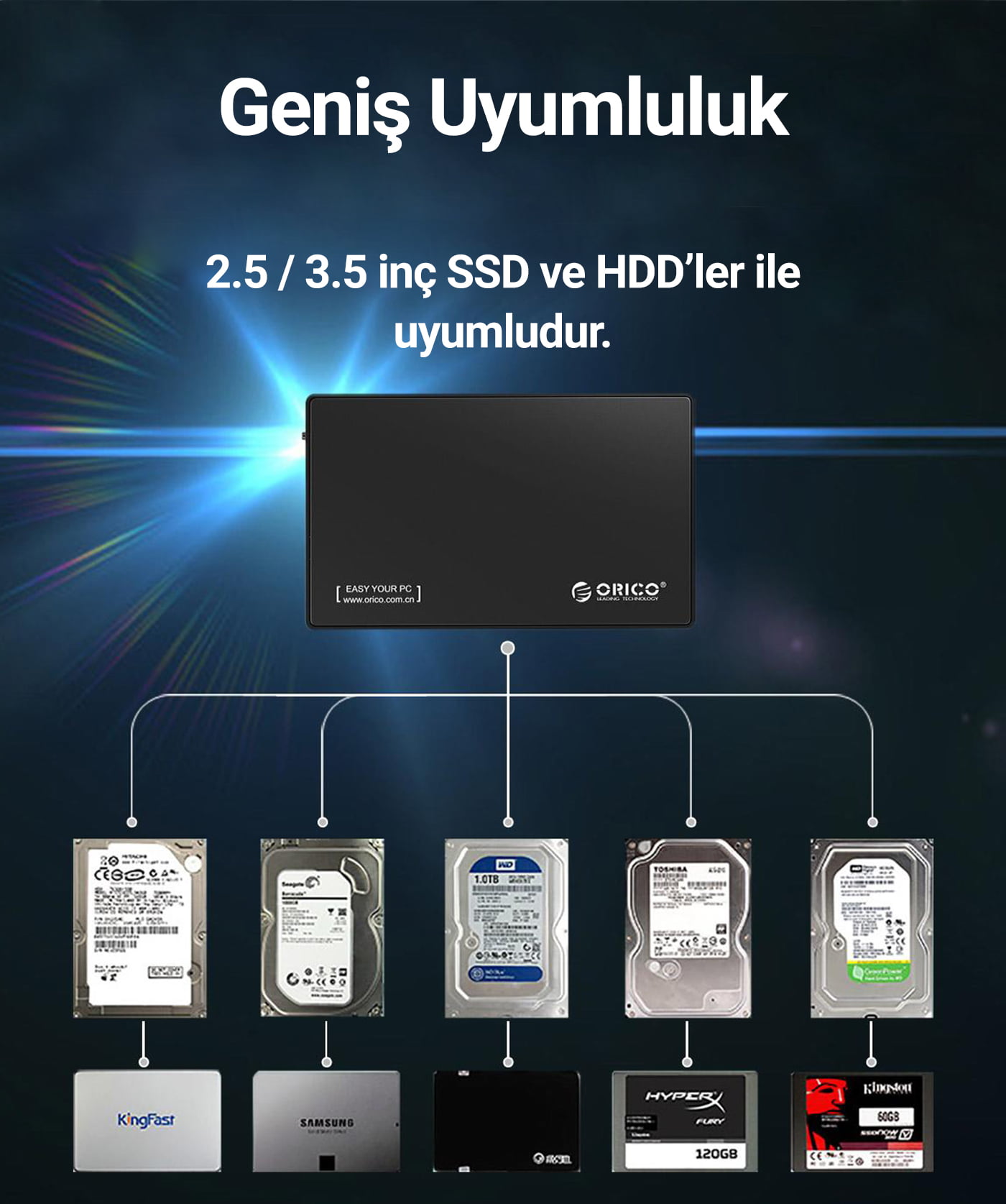
Step-by-step: convert the SSD to an external drive
Follow these simple steps to complete the conversion.
- Remove the SSD from the laptop.
- Power off the laptop and remove the battery if possible.
- Open the access panel and unscrew the SSD.
- Identify SSD type.
- Check the label for SATA or NVMe and for M.2 key type.
- Insert the SSD into the enclosure.
- Slide the SSD into the connector gently.
- Secure the SSD with the included screw if present.
- Connect the enclosure to your computer.
- Use the supplied cable and a USB 3.0 or USB-C port.
- Initialize and format the SSD on your computer.
- Use Disk Management on Windows or Disk Utility on macOS.
- Pick a file system that fits your needs.
These steps show how to use old laptop SSD as external drive quickly and safely. Keep screws and parts in a safe place. Test the drive for read and write speed after setup.
People also ask
Can I plug an SSD from a laptop into any USB port?
Yes. You can plug it into most USB ports, but speed depends on the port. Use USB 3.0 or USB-C for best performance.
Do I need to clone the system drive before removing it?
If you want the same system on another drive, clone it first. For a spare external drive, cloning is not required.
Formatting, partitioning, and file system choices
Formatting matters based on how you’ll use the drive.
- For Windows-only use, format as NTFS.
- For macOS-only use, format as APFS or Mac OS Extended.
- For cross-platform use between Windows and macOS, format as exFAT.
- For Linux or advanced use, consider ext4 on Linux or partition with multiple file systems.
Partitioning helps if you want separate areas for backup and for large media. Keep at least one partition with a simple file system for broad compatibility.
When you format, choose allocation unit sizes based on use. For many small files, default cluster sizes are fine. For very large files, a larger allocation unit can be better.
Performance, speed tips, and common issues
Expect external speeds to be slightly lower than internal. Still, an SSD in a good enclosure is fast.
- Use a direct USB 3.1 or USB-C port. Avoid slow hubs.
- Verify the enclosure supports UASP. It improves small file speed.
- Watch for thermal throttling on NVMe drives under heavy load.
- Update your computer drivers if the drive shows low speed.
If Windows does not detect the drive, try a different cable or port. If the SSD shows reduced capacity, check partition table and reformat if needed. If you see repeated errors, run a SMART test and consider replacing the SSD.
From my experience, a cheap cable caused random disconnects. Replacing the cable solved the problem immediately.
Data safety and maintenance tips
Keep data safe when using the SSD as an external drive.
- Back up important files in two places.
- Use a protective case when transporting the drive.
- Avoid abrupt disconnects. Always eject safely from the OS.
- Periodically check SMART health and run quick tests.
Remember that SSDs have limited write cycles. For long-term backup, consider additional copies or cloud storage. If you use the SSD for daily heavy writes, monitor wear level.
Use cases and practical examples
Here are common ways to use your external SSD.
- Fast backups and Time Machine or File History targets.
- Portable workspace with apps and documents.
- Media library for photos, video, and music.
- Game storage for faster load times.
I used an external SSD to edit video clips on a laptop. It cut rendering time and made workflow smoother. The drive stayed cool in a metal enclosure and held up for months.
Frequently Asked Questions of how to use old laptop ssd as external drive
How do I know if my old SSD is still good to reuse?
Run a SMART check with a simple utility. Look for reallocated sectors and drive health indicators; a clean report usually means safe reuse.
Which enclosure should I buy for an M.2 NVMe SSD?
Choose an NVMe-specific USB-C enclosure with good cooling and UASP support. Metal cases with thermal pads reduce throttling.
Can I boot a computer from an external SSD?
Yes. Many systems support USB boot. Set the external SSD as the boot device in BIOS or Startup Manager and ensure the OS supports external booting.
Will using an external SSD wear it out faster?
External use does not inherently wear it faster. Heavy write workloads do. Use SSD health tools and avoid unnecessary writes.
Do I need drivers to use the SSD as an external drive?
Most modern OSes include drivers for USB storage. You generally do not need extra drivers unless the enclosure uses a niche controller.
Conclusion
Converting an old laptop SSD into an external drive is a smart, eco-friendly upgrade. It is affordable and quick. Pick the right enclosure, check the SSD health, format the drive correctly, and protect your data. Try it yourself and reuse that SSD for backup, media, or portable work.
Take action today: dig out that old SSD, pick an enclosure that fits, and make a fast external drive. If you found this guide helpful, leave a comment or share your experience.

Everett Ashford is a tech reviewer at mytechgrid.com specializing in SSDs, cameras, TVs, earbuds, headphones, and other consumer electronics. He provides honest, data-driven reviews based on hands-on testing and real-world performance analysis. Everett simplifies complex tech details to help readers make smart, confident buying decisions.