Use the Samsung TV remote by pairing it, learning the buttons, and using voice and smart features.
I’ve spent years teaching people how to use the Samsung TV remote. I write tech guides and test remotes daily. In this article you will learn clear steps, tips, and troubleshooting for how to use the samsung tv remote. I explain models, pairing, voice commands, smart features, and fixes in plain language. Read on for practical advice you can apply right away.
Understanding your Samsung TV remote
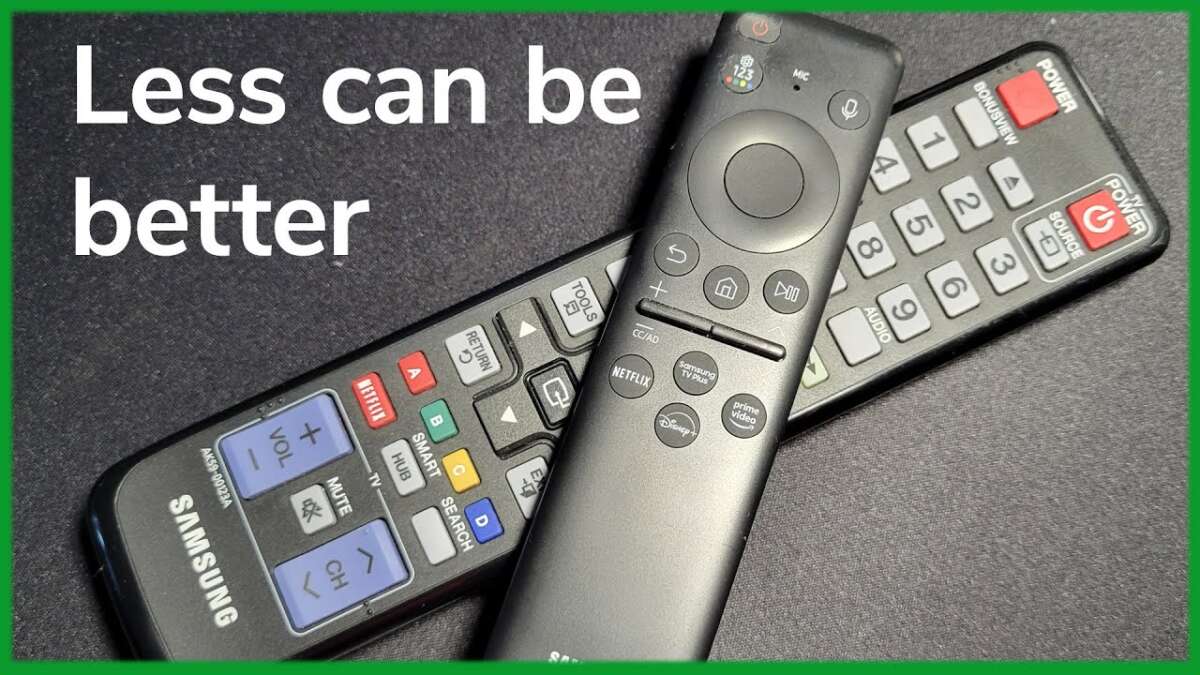
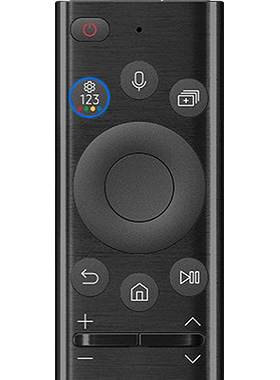
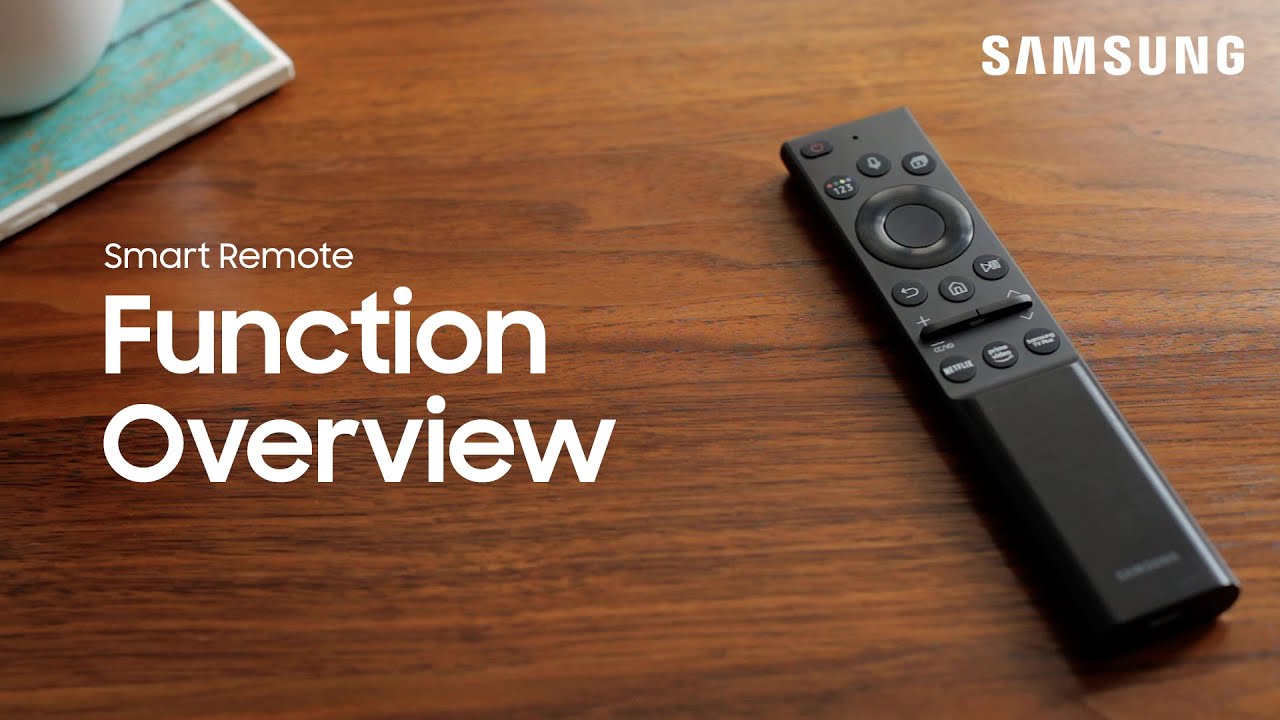
Samsung makes several remote types. The most common are the basic infrared remote and the Smart Remote with Bluetooth and voice. Newer remotes include motion sensors, rechargeable batteries, and a minimalist button layout.
Knowing which model you have makes learning how to use the samsung tv remote easier. Look at the back for a model number or check Settings > Support > About This TV for remote info. I learned to check the model before teaching others. It saves time and avoids wrong pairing steps.
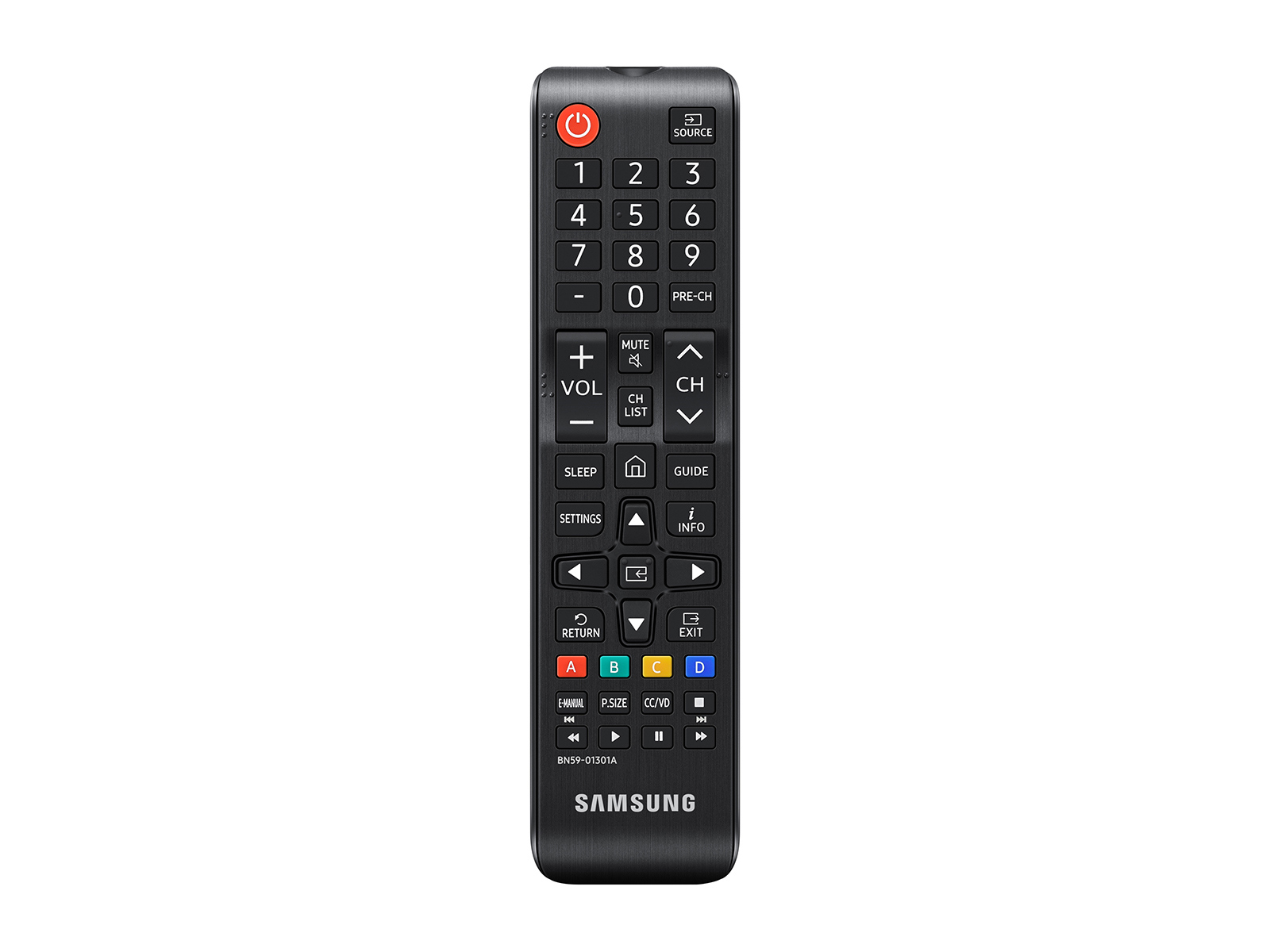
Basic buttons and their functions
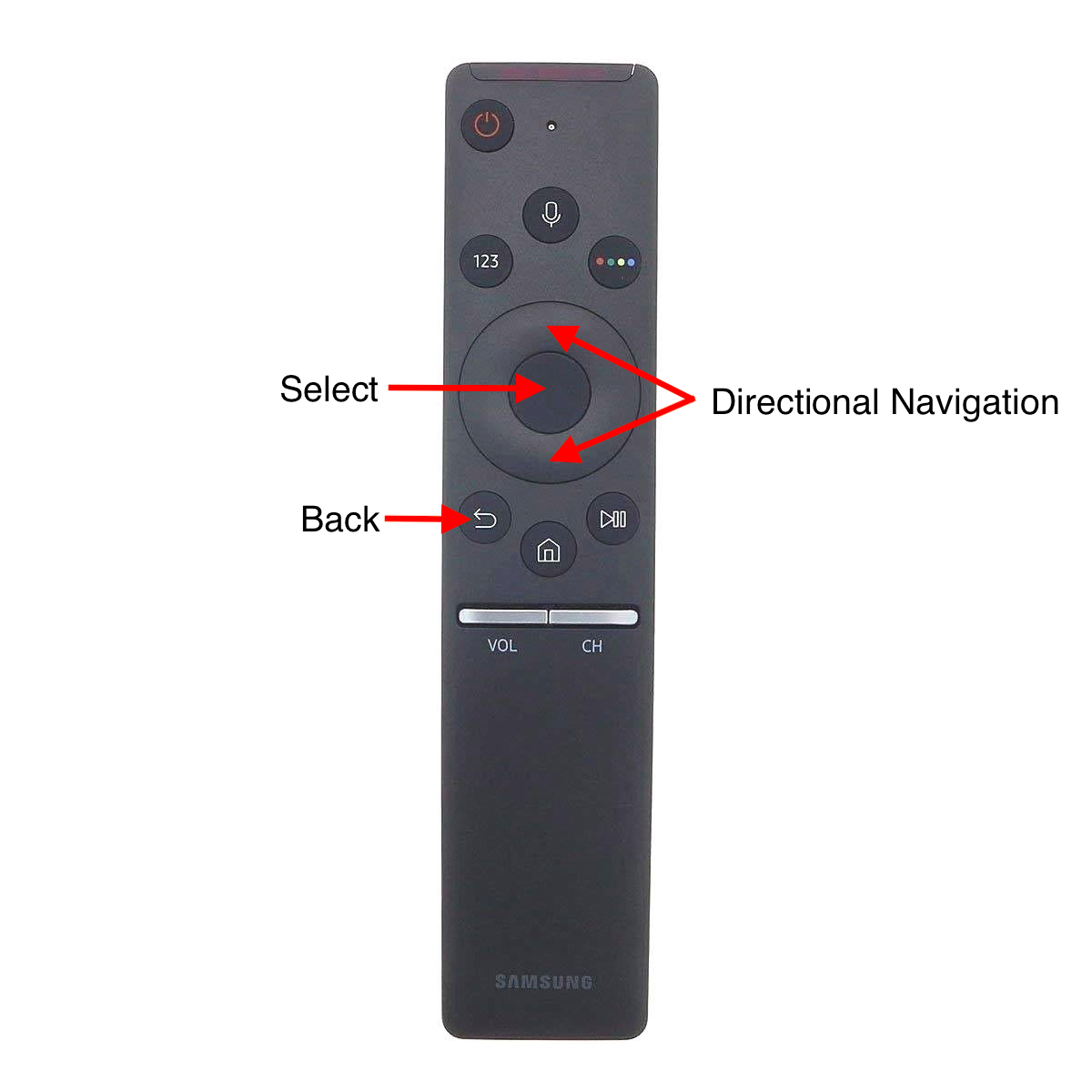
Below are the buttons you will use most when learning how to use the samsung tv remote.
- Power: Turn the TV on or off.
- Volume + / -: Raise or lower sound.
- Channel up / down: Change channels or move through lists.
- Mute: Silence audio instantly.
- Home: Open Smart Hub and apps.
- Source / Input: Switch HDMI, USB, or antenna input.
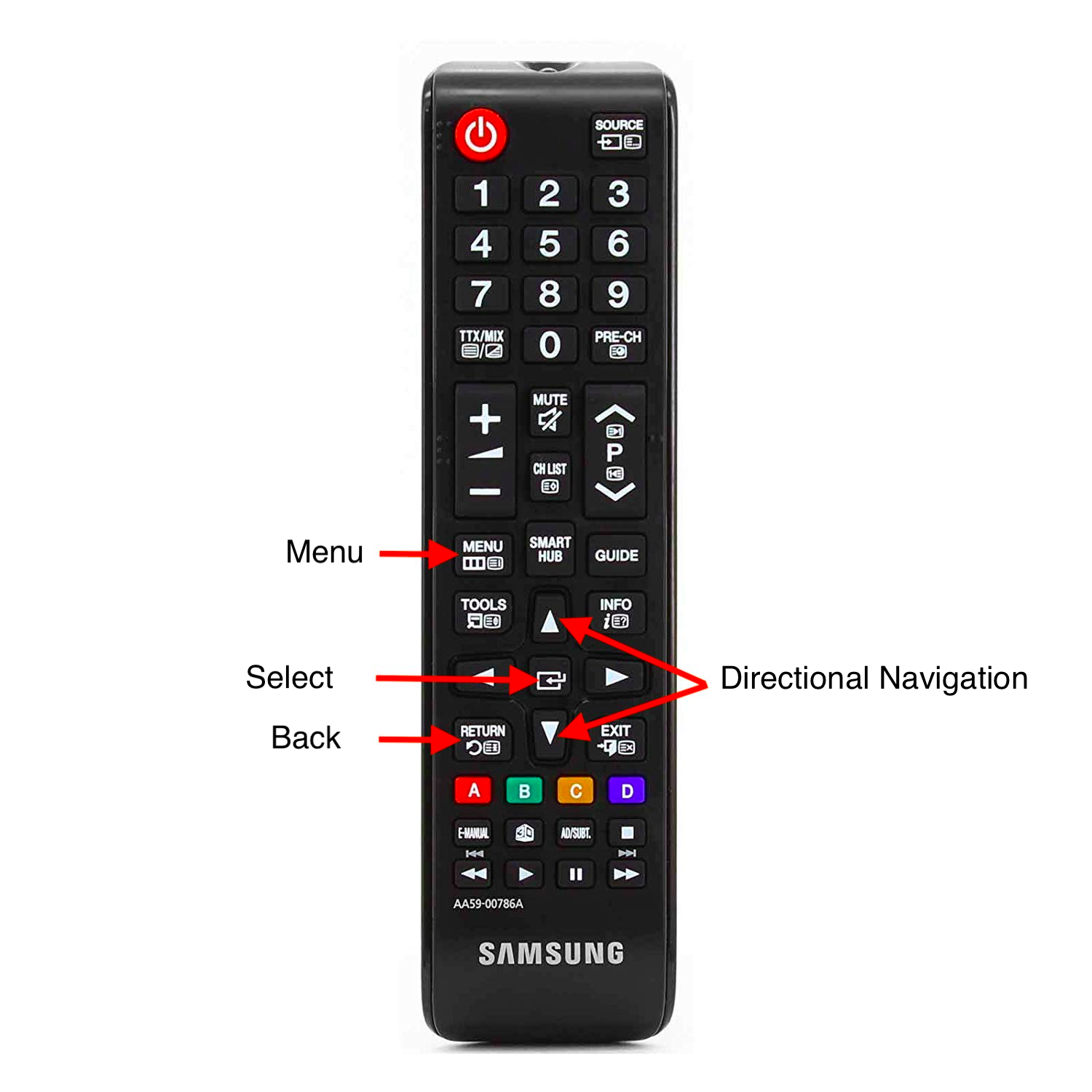
- Directional pad and OK: Move through menus and confirm choices.
- Back / Exit: Go back one screen or close menus.
- Guide: Open program guide on TVs with a tuner.
- Settings or Gear: Open TV settings quickly.
- Playback controls: Play, pause, skip when using built-in apps.
- Microphone button: Activate voice commands on compatible remotes.
Each button has a clear job. Practicing five minutes helps you remember them. I teach new users to find Home, Back, and Volume first.
Pairing and connecting your Samsung TV remote
Pairing depends on your remote type. Here are step-by-step methods for how to use the samsung tv remote with Bluetooth or IR.
-
Pair a Samsung Smart Remote (Bluetooth):
- Turn on the TV. Point the remote at the TV.
- Press and hold the Return and Play/Pause buttons together for about 5 seconds.
- Watch the on-screen prompt and follow pairing instructions.
-
Use a basic infrared remote:
- Insert fresh batteries. Point the remote directly at the TV sensor.
- No pairing is needed; IR works line-of-sight.
-
Pair via TV settings if the above fails:
- Go to Settings > General > External Device Manager > Input Device Manager.
- Choose Bluetooth Device List and follow on-screen pairing steps.
-
If the remote won’t pair:
- Replace batteries or recharge. Move closer to the TV. Restart the TV. Repeat pairing steps.
These moves helped me fix most pairing issues within minutes. The key is fresh power and following the exact button combo for your model.
Using voice commands and Smart Hub
Voice makes controlling a TV fast. Most Samsung Smart Remotes support Bixby. Many TVs also work with Alexa or Google Assistant via the SmartThings app.
- To use voice: Press the microphone button and speak a command.
- Example voice commands: "Open Netflix," "Turn up the volume," "Show closed captions."
- For Alexa or Google: Link your TV inside the SmartThings app and authorize voice services.
Keep voice commands short and clear. I recommend saying the app name first. That reduces misinterpretation. If voice fails, check the TV’s network and microphone permission settings.
Advanced features: gestures, universal control, and the smartphone app
Samsung TVs and remotes can do more than change channels. Learn these advanced controls for better use.
- HDMI-CEC (Anynet+): Control connected devices with the Samsung remote when HDMI-CEC is enabled in Settings.
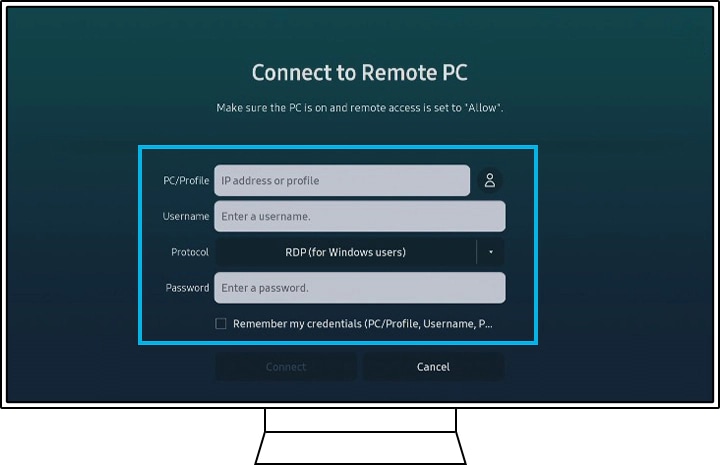
- SmartThings app: Use your phone as a remote, keyboard, or to mirror media. Download the app and add your TV.
- Universal remote setup: Program your Samsung remote to control a soundbar or cable box through Settings > Universal Remote.
- Gesture control: On remotes with motion sensors, you can point and scroll with movement in supported apps.
I use the SmartThings app when the couch is far from the TV. It becomes a handy backup remote. Setting up HDMI-CEC reduced my need for multiple remotes.
Troubleshooting common problems
If something goes wrong, try these quick fixes for how to use the samsung tv remote reliably.
- Remote not responding: Replace batteries or recharge. Restart the TV by unplugging it for 30 seconds.
- Remote pairs but won’t control volume: Check HDMI-CEC and soundbar settings. Reprogram the universal remote under Settings.
- Voice not recognized: Ensure internet is active. Speak clearly and try simpler commands. Re-pair the remote if needed.
- Buttons stick or fail: Remove batteries and gently clean the battery contacts. Avoid liquids and use a soft cloth.
- Remote lost pairing: Re-pair using the Return + Play/Pause combo or follow on-screen prompts in Input Device Manager.
Most issues clear quickly with fresh power or a simple re-pair. I keep spare batteries and the SmartThings app ready for fast fixes.
Practical tips, shortcuts, and real-life lessons
These are tips I picked up from testing remotes and helping friends.
- Label a spare remote: Keep a second remote labeled for guests.
- Use the TV menu shortcuts: Press Home then number keys to jump to apps quickly.
- Clear battery corrosion: Use a small brush and a bit of vinegar on a cloth. Dry fully before inserting batteries.
- Reassign buttons: On some TVs you can customize button behavior in Settings > General > External Device Manager.
- Keep firmware up to date: Update the TV to improve remote compatibility and voice recognition.
I once spent 30 minutes troubleshooting a non-working remote only to find the batteries were old. Small checks save big time.
Frequently Asked Questions of how to use the samsung tv remote
How do I pair a Samsung Smart Remote to my TV?
Press and hold the Return and Play/Pause buttons together for about 5 seconds while pointing the remote at the TV. Follow the on-screen prompts to complete pairing.
Why is my Samsung TV remote not working after I changed batteries?
Batteries may be inserted incorrectly, dead, or corroded. Check polarity, replace with fresh batteries, and clean the contacts if needed.
Can I use my Samsung TV remote to control a soundbar?
Yes. Enable HDMI-CEC (Anynet+) and set the universal remote in Settings to control an attached soundbar or audio system.
How do I use voice commands with my Samsung remote?
Press the microphone button and speak a short, clear command like "Open YouTube" or "Turn down volume." Ensure the TV is online and voice services are enabled.
What if my Samsung remote pairs but does not control apps?
Try restarting the TV and re-pairing the remote. Also check for a software update and verify the app supports remote navigation.
Is there an app that replaces the Samsung TV remote?
Yes. The SmartThings app turns your phone into a remote, keyboard, and media controller. Add your TV in the app and follow pairing steps.
How can I reset my Samsung remote to factory settings?
Remove the batteries and press any button for 20 seconds to discharge. Reinsert batteries and re-pair the remote using the standard pairing method.
Conclusion
Learning how to use the samsung tv remote is fast when you know the steps. Start by identifying your remote, pair it correctly, and learn the key buttons. Use voice and the SmartThings app for extra convenience. Try the troubleshooting tips and keep spare batteries ready. Now pick up your remote and explore one new feature today — leave a comment or subscribe for more simple tech guides.

Everett Ashford is a tech reviewer at mytechgrid.com specializing in SSDs, cameras, TVs, earbuds, headphones, and other consumer electronics. He provides honest, data-driven reviews based on hands-on testing and real-world performance analysis. Everett simplifies complex tech details to help readers make smart, confident buying decisions.