Use a splitter, Windows audio routing, or a virtual mixer like Voicemeeter to share sound.
I’ve spent years helping people set up audio rigs and testing multiple ways to use two headphones on PC. This guide explains why each method works, walks you through step-by-step setups, and shares real-world tips so you can pick the best option for your gear and use case.
How audio works when you want to use two headphones on PC
Every sound card usually sends a single stereo output at a time. Sending the same audio stream to two headphones means either sharing that physical output or creating duplicated streams in software. Knowing the difference helps you pick a solution that matches your needs for latency, sync, and sound quality.
Common concepts to understand:
- Output device: The hardware that plays sound, like speakers, a headphone jack, or a USB DAC.
- Stereo mix / loopback: A software method that captures output and resends it to another device.
- Latency: A short delay that can cause echo when two wireless headphones play the same audio.
These basics make the rest of the guide easier to follow.
Source: youtube.com
Main methods to use two headphones on PC
There are several reliable ways to use two headphones on PC. Pick one based on your budget and whether you want wired or wireless sound.
Wired audio splitter
- A simple Y-splitter duplicates the 3.5mm jack into two jacks.
- Best for low cost and zero latency.
- Works well if both headphones have similar impedance.
Source: el-greco.ru
USB or multiple audio interfaces
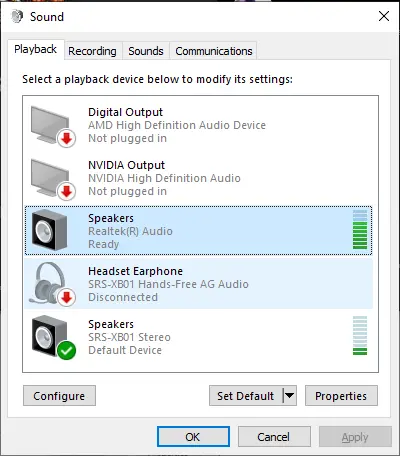
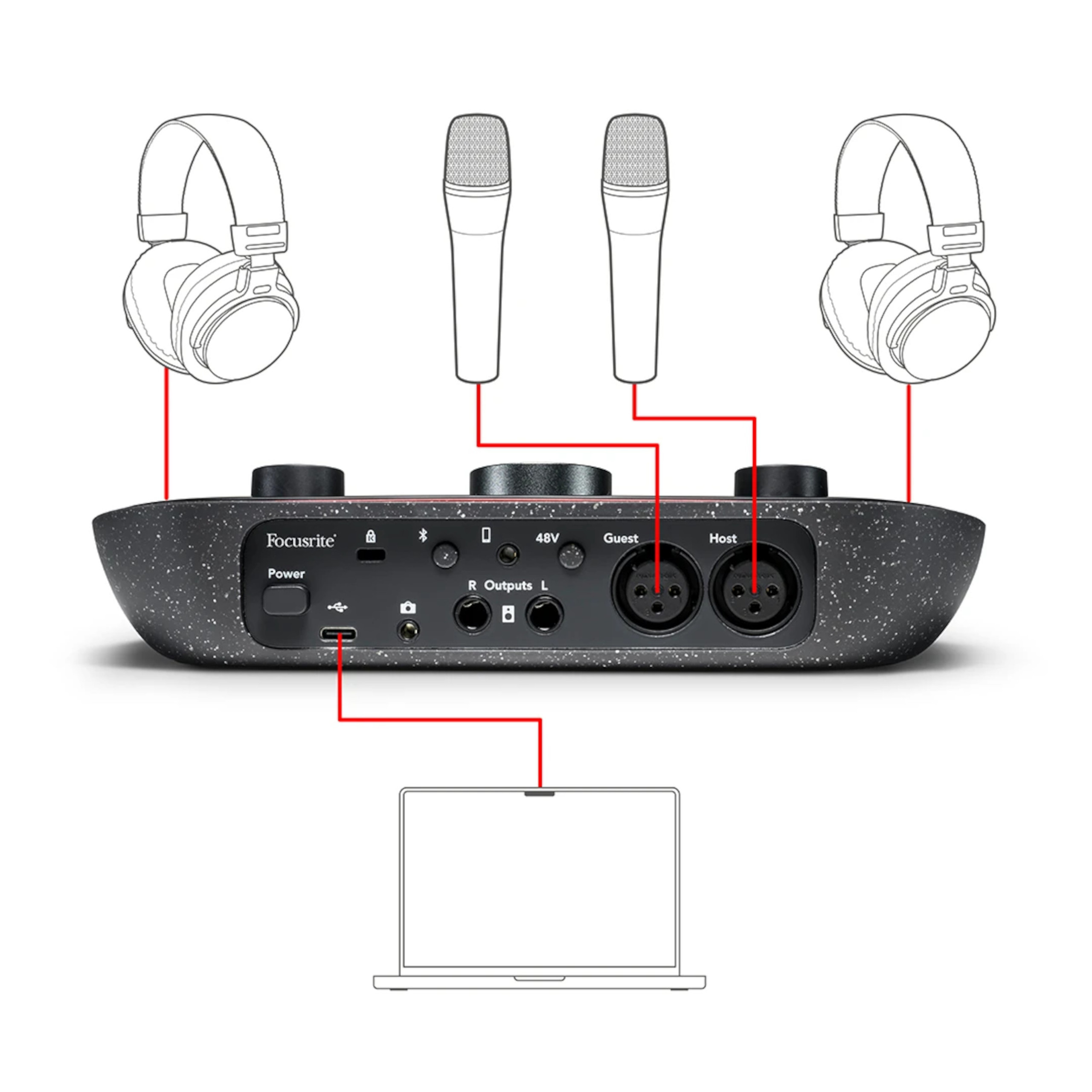
- Use a second USB headset or USB sound card and set both devices in software.
- Good sound and low latency with proper drivers.
- You may need to route audio through a mixer app to sync both outputs.
Source: larc.ch
Bluetooth dual-pairing
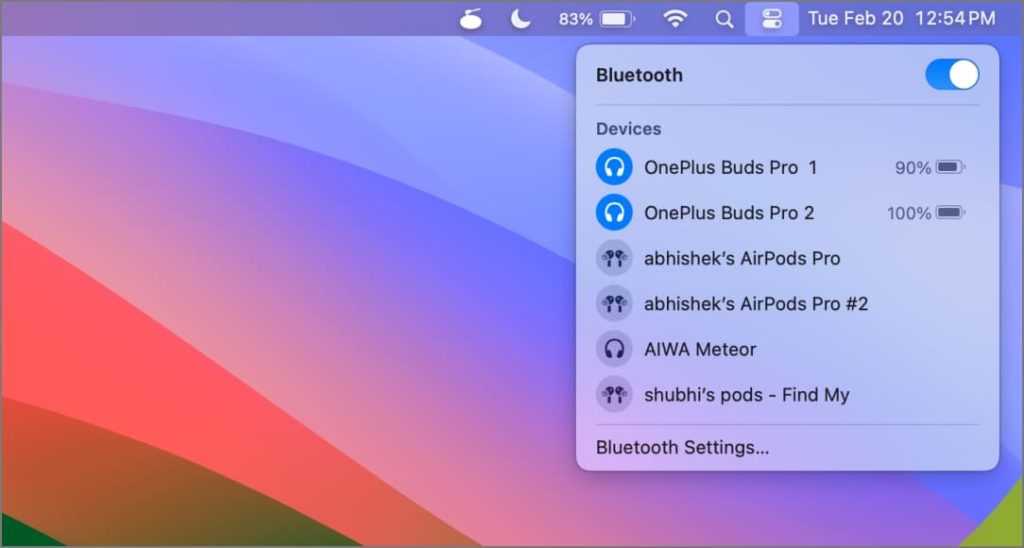
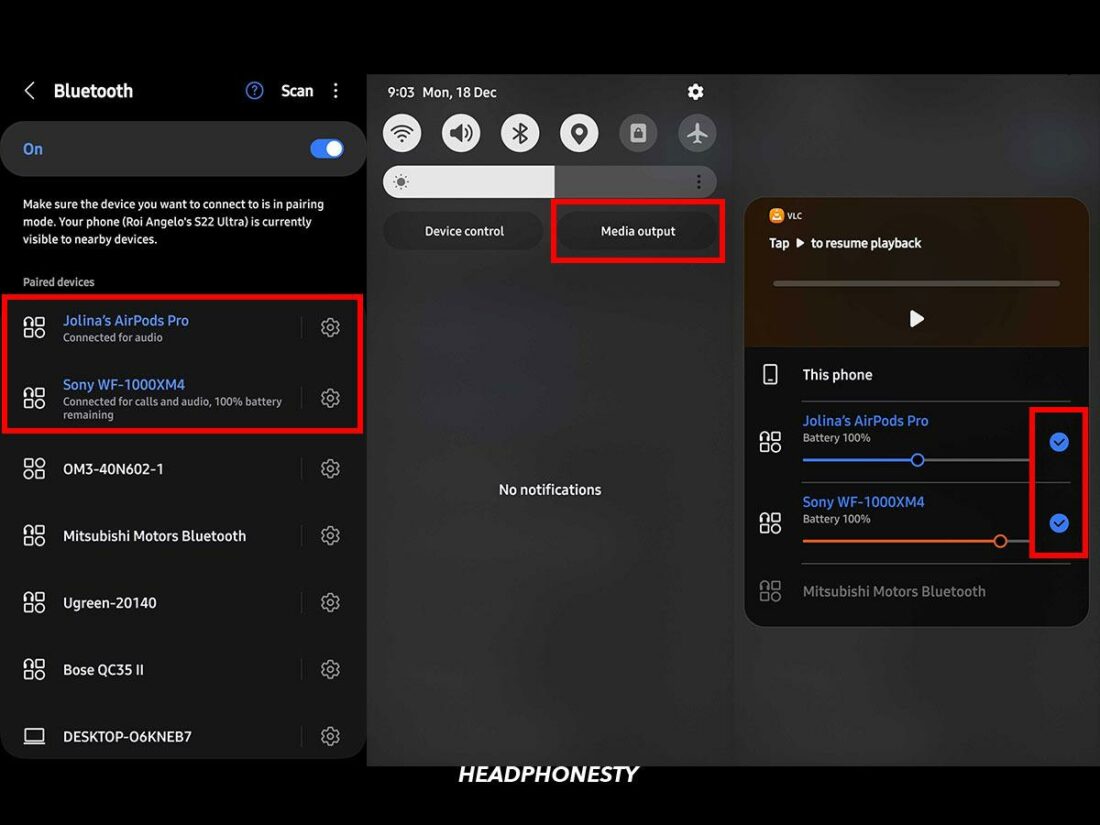
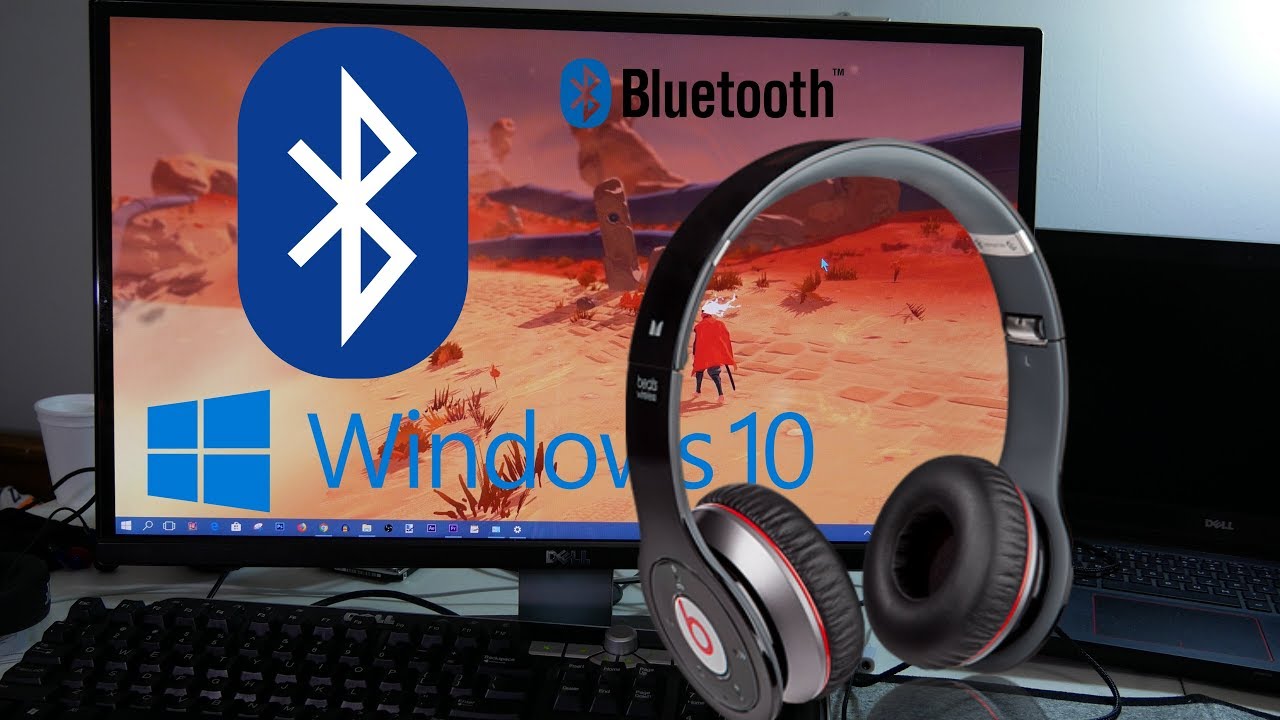
- Modern phones sometimes support dual Bluetooth audio, but Windows is limited.
- Two Bluetooth headsets usually cannot play simultaneously without special adapters or transmitter dongles.
- Use a Bluetooth transmitter that supports two outputs for wireless sharing.

Source: luxurycorporatelodging.com
Windows settings: App volume and device preferences
- Windows lets apps use different output devices.
- You can run one app to headphone A and another app to headphone B.
- This is useful when two people want different streams, like music and a game.

Source: youtube.com
Virtual audio tools (Voicemeeter, Virtual Audio Cable)
- These apps create virtual outputs and route audio to multiple devices.
- They offer volume control, mixing, and delay compensation.
- Better for advanced users who want control and good sync.
Source: autoservis-paroubek.cz
Stereo Mix or Loopback technique
- Enable Stereo Mix in Windows Sound settings, then set it to record what you hear.
- Route the Stereo Mix output to a secondary device to mirror audio.
- This is a free option but can be tricky with drivers.
Source: el-greco.ru
Step-by-step: three practical setups for how to use two headphones on PC
Below are clear steps for the most used methods: splitter, Windows routing, and Voicemeeter.
- Wired splitter — fastest and simplest
- Plug a 3.5mm Y-splitter into your PC headphone jack.
- Plug both headphones into the splitter.
- Test volume and adjust headphone levels; use an inline amp if both are quiet.
- Pros: instant, no software, no latency.
- Cons: shared volume control, possible mismatch in loudness and impedance.
Source: anniesdeli.com
- Windows app routing — when you want different apps on each headphone
- Plug each headphone into its own output (headphone jack + USB headset).
- Open Settings > System > Sound > App volume and device preferences.
- Choose the output device for each running app from the dropdown.
- Start audio in each app and confirm which headphone plays which stream.
- Pros: clean method for separate audio per user or app.
- Cons: won’t mirror a single app to two headphones without extra steps.
- Voicemeeter (virtual mixer) — mirror a single stream to two devices
- Download and install Voicemeeter or a virtual audio cable tool.
- Set Voicemeeter as the default playback device in Windows.
- Open Voicemeeter and set Hardware Out A1 and A2 to your two headphone devices.
- Route the virtual input to both hardware outputs and adjust levels.
- Use the tool’s delay/gain controls to fix sync or loudness issues.
- Pros: flexible, supports mixing and multiple outputs.
- Cons: learning curve and need to keep the app running.
Troubleshooting and limitations when using two headphones on PC
If audio is out of sync, or one headphone is silent, check these common causes.
Latency and sync issues
- Bluetooth devices can introduce different delays.
- Use wired connections or a software tool that can add small delays to sync outputs.
Driver and compatibility problems
- Some sound cards don’t allow simultaneous multi-device output.
- Update drivers or use a virtual driver to bridge devices.
Volume and impedance mismatch
- Different headphones have different sensitivity.
- Use headphone amplifiers or software EQ to balance loudness.
Only one app duplicated
- Windows often defaults to a single output per app.
- Use virtual audio routing or set the system default to the virtual mixer to mirror the stream.
Hardware quality limits
- Cheap splitters may induce noise or weak signal.
- Invest in a buffered splitter or dedicated audio interface for better sound.
Personal experience, tips, and common mistakes to avoid
I’ve set up shared listening sessions for friends and tested each method above. Wired splitters were fastest for quick co-listens. For streaming or gaming together, Voicemeeter gave me reliable sync and control.
Lessons learned
- Test your setup before the event to catch latency or driver issues.
- Avoid mixing Bluetooth and wired without a virtual mixer; delays often ruin the experience.
- Label your audio devices in Windows to avoid confusion when routing.
Practical tips
- Use a small headphone amplifier for two high-impedance cans on a splitter.
- Keep Voicemeeter updated and save presets for common setups.
- If you need portable dual Bluetooth, buy a transmitter that explicitly supports two headsets.
People also ask (PAA-style)
How do I play the same audio on two different headphones on PC?
- Use a Y-splitter, a virtual audio mixer, or route audio to multiple devices with software. Wired splitters avoid latency.
Can I use two Bluetooth headphones on Windows at the same time?
- Native Windows support is limited. You’ll need a Bluetooth transmitter that allows dual connections or a virtual audio solution with compatible drivers.
Is there an easy free way to mirror audio to two outputs?
- Enabling Stereo Mix or using free virtual audio cable apps can mirror audio without buying hardware, though setup may require technical steps.
Will two headphones reduce audio quality?
- A passive splitter can change load and reduce volume or quality if the headphones have very different impedance. A powered splitter or interface preserves quality.
Do I need special drivers to route audio to two devices?
- Not always. Some solutions work without extra drivers, but advanced routing (virtual audio devices) often installs a virtual driver to manage multiple outputs.
Frequently Asked Questions of how to use two headphones on pc
How can I share audio to two headphones with one jack?
A 3.5mm Y-splitter duplicates the jack so two headphones can plug into the same source. This is simple and low-latency but both headphones share the same signal and volume.
Can I send one app to one headphone and another app to the second headphone?
Yes. In Windows Settings under App volume and device preferences, you can choose different outputs for individual apps. This works when each headphone is a separate device, such as one USB headset and one analog jack.
What’s the best way to avoid lag between two headphones?
Use wired connections or a single audio interface that outputs to multiple channels. If you must use Bluetooth, select devices known for low latency and avoid mixing wireless and wired outputs without a mixer.
Will Voicemeeter work for beginners?
Voicemeeter is powerful but has a learning curve. Beginners can follow step-by-step guides and save presets to simplify repeated use. The effort pays off for stable multi-output routing.
Do I need two sound cards to use two headphones on PC?
Not always. You can use one sound card with a splitter, a USB headset plus onboard audio, or virtual audio tools that send one stream to multiple devices. Two sound cards can simplify routing but are not required.
Conclusion
Setting up two headphones on PC is doable for every budget and skill level. For quick sharing, use a wired splitter; for app-specific routing, use Windows settings; and for flexible, low-latency mirroring, use a virtual mixer like Voicemeeter. Try the method that fits your gear, test before use, and save your configuration once it works.
Take action today: pick one method, run a quick test, and tweak levels until both listeners are happy. If this guide helped, leave a comment or share your setup so others can learn from your experience.

Everett Ashford is a tech reviewer at mytechgrid.com specializing in SSDs, cameras, TVs, earbuds, headphones, and other consumer electronics. He provides honest, data-driven reviews based on hands-on testing and real-world performance analysis. Everett simplifies complex tech details to help readers make smart, confident buying decisions.