When you need to help someone remotely, sharing your screen can be a game changer. But have you ever worried about the security of your sensitive information while doing so?
If you want to support others without risking your data, choosing the right tools for secure screen sharing is crucial. You’ll discover the best options designed to keep your remote sessions safe and efficient. Ready to take control of your remote support experience and protect what matters most?
Keep reading to find out how to do it right.
Secure Screen Sharing Essentials
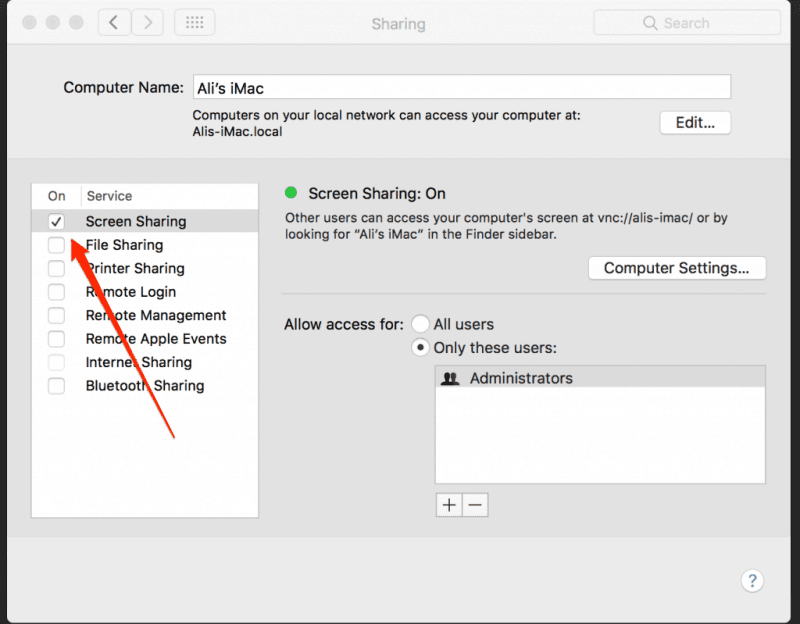
Secure screen sharing is crucial for remote support. It protects sensitive data from unauthorized access. Choosing the right tools ensures safe and efficient sessions. Understanding the essentials helps in making informed decisions.
Key Security Features
Secure screen sharing tools include access controls to limit who can view or control screens. Session logging records activities for audit and review. Time limits automatically end sessions to reduce risks. Permissions allow hosts to control participant actions. These features prevent misuse and protect information.
Encryption Standards
Encryption secures data during screen sharing sessions. Strong standards like AES-256 protect information from interception. End-to-end encryption ensures only authorized users can see the shared content. Secure protocols such as TLS add extra layers of protection. High encryption standards are a must for privacy.
User Authentication Methods
Authentication verifies user identity before allowing access. Multi-factor authentication adds a second verification step for security. Password protection restricts sessions to invited users only. Single sign-on simplifies login while maintaining safety. Proper user authentication stops unauthorized entry effectively.
Credit: deskin.io
Top Tools For Remote Support
Remote support depends on reliable screen sharing tools. These tools help technicians see and fix problems quickly. Security is a top priority during screen sharing sessions. Choosing the right tool can protect your data and improve support quality.
Several tools stand out for their ease of use and strong security features. They allow smooth connections across different devices and platforms. Here are the top tools for secure screen sharing in remote support.
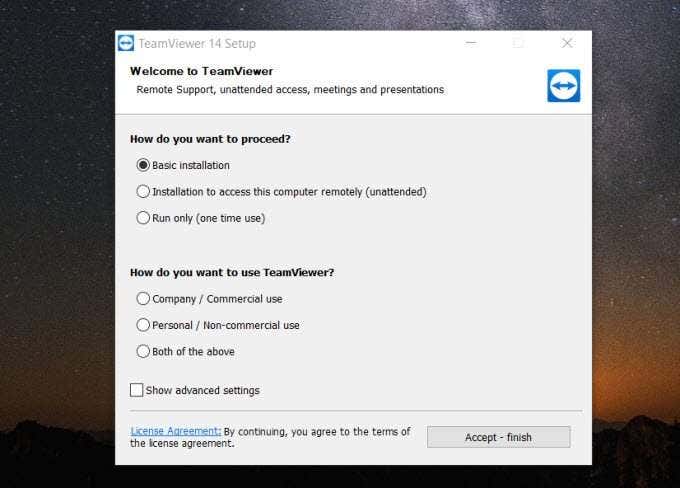
Teamviewer
TeamViewer offers fast and secure screen sharing. It supports many devices, including Windows, Mac, and mobile. The tool uses end-to-end encryption to keep sessions safe. It also allows remote control, making troubleshooting easier. TeamViewer has a simple interface for users with any skill level.
Anydesk
AnyDesk is known for its speed and low latency. It provides secure remote access with TLS 1.2 encryption. The software is lightweight and easy to install. AnyDesk works well on slow internet connections. Users can control another device remotely with minimal delay.
Splashtop
Splashtop focuses on secure and reliable remote support. It uses multiple layers of encryption to protect data. The tool supports file transfer and session recording. Splashtop works on Windows, Mac, iOS, and Android. It offers quick setup and smooth remote desktop control.
Web-based Screen Sharing Options
Web-based screen sharing tools offer quick and easy remote support without complex setups. These options run directly in web browsers, requiring minimal installation. They provide secure connections and smooth experiences. Ideal for IT teams and support agents, these tools help solve problems fast.
Chrome Remote Desktop
Chrome Remote Desktop is a simple tool from Google. It works inside the Chrome browser or as a mobile app. The tool allows users to share screens or control computers remotely. Security is strong with encrypted connections. It supports Windows, Mac, Linux, and Chromebooks. Setup is easy and free for anyone with a Google account.
Surfly
Surfly focuses on co-browsing and screen sharing without downloads. It runs fully in the browser, making it fast and user-friendly. Support agents can guide customers by sharing screens and browsing together. Surfly uses secure, encrypted links to protect data. It works on all modern browsers and devices. This tool suits customer service and remote assistance well.
Screenmeet
ScreenMeet offers screen sharing with remote control and video chat features. It integrates with service platforms like ServiceNow to streamline support workflows. The tool uses end-to-end encryption for privacy and security. ScreenMeet works in browsers and on mobile devices. It is designed to keep users within one platform for better support experiences.
Integrated Collaboration Platforms
Integrated collaboration platforms combine communication and screen sharing in one place. These tools help teams work together smoothly. They offer secure screen sharing features that protect sensitive information. Using these platforms saves time by reducing the need for separate apps. Here are some popular options that support secure screen sharing for remote support.
Microsoft Teams
Microsoft Teams offers built-in screen sharing during video calls. Users can share their entire screen or just a specific window. It uses encryption to keep your data safe. Teams also lets you control who can view or control your screen. The platform integrates with Microsoft 365 apps for easy file sharing.
Zoom
Zoom is known for its reliable screen sharing features. It supports sharing the full desktop or individual apps. Zoom uses end-to-end encryption to secure your sessions. You can allow others to request control of your screen. It also has settings to restrict screen sharing to hosts only.
Slack
Slack includes screen sharing within its calls for quick collaboration. Users can share their screen with teammates during meetings. Slack protects shared content using strong security measures. It allows viewers to request control for hands-on support. Integration with many apps makes Slack a flexible choice.
Choosing The Right Tool
Choosing the right tool for secure screen sharing in remote support is key to effective communication. The right software helps solve issues quickly and keeps data safe. It also improves the overall experience for both support teams and users. Consider the tool’s speed, ease of use, and compatibility before making a choice.
Speed And Performance
Fast screen sharing reduces wait times during remote sessions. Good performance means smooth video and quick response. Avoid tools that lag or freeze often. A tool with strong speed helps solve problems faster. This also keeps users satisfied and less frustrated.
Ease Of Use
Simple tools save time and avoid confusion. Clear interfaces help users share screens without trouble. Look for features that require few clicks or steps. A tool easy for both support staff and clients is best. Training time decreases with intuitive design.
Cross-platform Compatibility
Support teams use different devices and systems. The tool should work on Windows, Mac, and mobile devices. Cross-platform support ensures everyone can connect. It also allows support without limits on device type. This flexibility improves remote assistance success.
Credit: helpdeskgeek.com
Best Practices For Secure Sharing
Secure screen sharing is essential for remote support. Sharing screens without proper safeguards can expose sensitive data. Following best practices reduces risks and protects both users and businesses. Clear rules and tools help maintain control during sessions. These steps ensure safe, efficient remote support experiences.
Managing Permissions
Always control who can view or control your screen. Limit access to trusted individuals only. Use software that allows setting specific permissions. Avoid giving full control unless necessary. Change permissions if the situation changes during the session. This prevents unauthorized actions and protects your data.
Session Monitoring
Keep an eye on all screen sharing activities. Use tools that record sessions or show live participant actions. Monitoring helps detect unusual behavior quickly. Alert participants if suspicious activity happens. End the session immediately if security is at risk. Monitoring ensures accountability and safety throughout support.
Data Privacy Tips
Close all unrelated apps and files before sharing your screen. Avoid showing sensitive information like passwords or personal data. Use privacy filters or blur tools if available. Share only what is necessary for the support task. Regularly update your screen sharing software for security fixes. Protecting privacy reduces data leaks during remote sessions.

Credit: docs.beyondtrust.com
Frequently Asked Questions
Which Tool Is Used For Screen Sharing?
TeamViewer is a popular tool for fast, secure, and easy screen sharing. Other options include Zoom, AnyDesk, Splashtop, and Chrome Remote Desktop. These tools support remote collaboration by allowing users to share and control screens efficiently.
Can Screenmeet Be Used For Remote Support?
Yes, ScreenMeet supports remote support with features like remote control, screen sharing, cobrowsing, and video chat for seamless assistance.
How To Remote Control Screen Sharing?
To remote control screen sharing, click “Remote Control” during the session. Select the participant to grant control. They receive a notification and can then control your screen by clicking on it.
Which Tool Is Commonly Used For Remote Desktop Support?
TeamViewer is commonly used for remote desktop support due to its ease, strong security, and cross-platform compatibility. AnyDesk and Splashtop are also popular for speed and secure screen sharing.
Conclusion
Choosing the right tool ensures secure and smooth screen sharing. Protect your data by using trusted software with strong encryption. Easy-to-use features help remote support run without hassle. Quick connections save time and improve customer satisfaction. Keep security and simplicity in mind for the best results.
Secure screen sharing supports better teamwork and efficient problem solving.