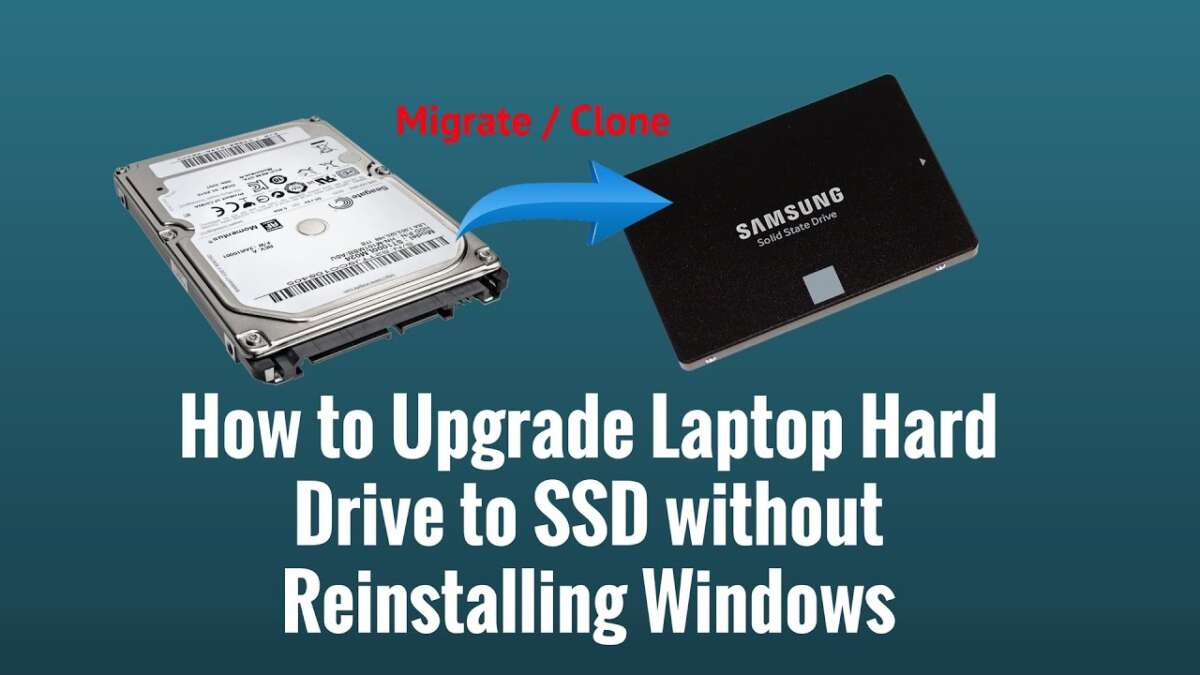
Clone your HDD to the SSD with reliable cloning software, then swap drives—no Windows reinstall needed.
I’ve upgraded many laptops by cloning the old drive to a new SSD and swapping it in place. This guide shows exactly how to upgrade laptop from hdd to ssd without reinstalling windows. I’ll walk you through planning, tools, step-by-step cloning, validation, and tips from real hands-on experience. Read on for a clear, zero-reinstall path that saves time and keeps your apps and settings intact.

Preparation: plan before you start
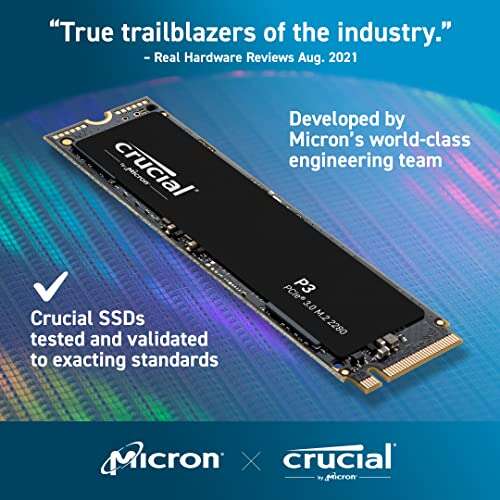
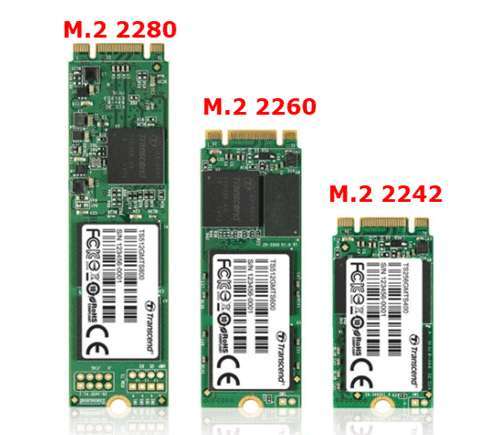
Upgrading a laptop from HDD to SSD without reinstalling Windows starts with good prep. Back up critical files first. Check laptop compatibility. Confirm the SSD fits physically and supports your laptop’s interface, like SATA or NVMe.
Check current disk layout and used space. If your used space exceeds the SSD capacity, you must free space or buy a larger SSD. Make a list of installed apps you might want to reinstall later. Note your Windows activation status and BitLocker settings.
Checklist before cloning:
- Verify SSD size and form factor match the laptop.
- Confirm the laptop BIOS/UEFI supports the SSD type.
- Backup important files to an external drive or cloud.
- Disable BitLocker or prepare the recovery key.
- Ensure you have a USB drive for boot tools if needed.
This prep will reduce surprises during the cloning process. It also helps when following steps to upgrade laptop from hdd to ssd without reinstalling windows.

Tools and materials you will need
Gather tools first. A clear workspace helps. Most upgrades use the same basic kit.
Essential items:
- SSD with adequate capacity and correct form factor.
- SATA-to-USB adapter or external enclosure for cloning.
- Reliable cloning software that supports Windows system disks.
- Phillips screwdriver set for opening the laptop.
- External backup drive or cloud storage for critical files.
- USB recovery drive for Windows (optional but useful).
Optional but helpful:
- Thermal paste for laptops with integrated storage cooling.
- Anti-static wrist strap to avoid static damage.
Using the right tools makes the process smoother and lowers risk when you upgrade laptop from hdd to ssd without reinstalling windows.
:max_bytes(150000):strip_icc()/upgrade-a-laptop-hard-drive-without-losing-data-and-programs-2378113-536feceb3d0946a2acd461216d767792.png)
Step-by-step cloning guide
These steps show how to upgrade laptop from hdd to ssd without reinstalling windows. Follow them in order.
- Prepare the SSD
- Connect the SSD to your laptop via SATA-to-USB adapter or enclosure.
- Initialize the SSD in Disk Management if Windows prompts you.
- Choose cloning software
- Pick software that supports system cloning and resizing partitions.
- Free and paid options exist. Test the interface before cloning.
- Clean up the source drive
- Delete large unused files.
- Run disk cleanup and defragmentation (HDD only) if suggested.
- Shrink partitions so total used space is less than SSD capacity.
- Start the clone
- Select your HDD as source and SSD as target in the cloning tool.
- Enable option to copy boot sector, system reserved partitions, and recovery partitions.
- Allow the tool to resize partitions if needed so Windows fits the SSD.
- Verify clone success
- After cloning, safely eject the SSD.
- Reconnect and check that partition sizes and file counts match.
- If the cloning tool offers a verification step, run it.
- Swap the drives
- Power off the laptop and remove the battery if removable.
- Open the laptop and replace the HDD with the SSD.
- Reassemble and power on.
- Boot into Windows
- Enter BIOS/UEFI if needed and set the SSD as the first boot device.
- Boot and confirm Windows loads normally.
If Windows boots correctly, you have successfully upgraded laptop from hdd to ssd without reinstalling windows. If not, use a recovery USB or go back and check cloning options.

Post-clone checks and troubleshooting
After you clone and boot, validate the system. Quick checks prevent slowdowns and data loss.
Essential post-clone checks:
- Confirm Windows Activation is intact.
- Check Device Manager for missing drivers.
- Ensure system partition is marked active if boot issues occur.
- Re-enable BitLocker after confirming drive works.
Common problems and fixes:
- Windows won’t boot: Enter BIOS and ensure SSD is first boot device. Repair boot files with a Windows recovery USB.
- Disk space mismatch: Use disk management to expand the main partition.
- Slow boot after clone: Check SATA mode in BIOS (AHCI is preferred). Install SSD firmware if available.
- Activation issues: Sign in to your Microsoft account to reactivate or use the digital license troubleshooter.
These steps help when you upgrade laptop from hdd to ssd without reinstalling windows and run into common issues.
Performance tuning and best practice tips
An SSD behaves differently from an HDD. Tweak settings to get the most from your upgrade.
Performance tips:
- Enable AHCI mode in BIOS prior to cloning for best performance.
- Turn off disk defragmentation for the SSD and enable TRIM in Windows.
- Move pagefile to the SSD only if you have enough space and RAM.
- Use the Windows power plan for balanced or high performance.
Maintenance tips:
- Keep at least 10-20 percent free space on the SSD.
- Update SSD firmware periodically.
- Use backup routines; cloning is not a replacement for regular backups.
These optimizations ensure the upgrade laptop from hdd to ssd without reinstalling windows gives a real speed boost and long-term reliability.
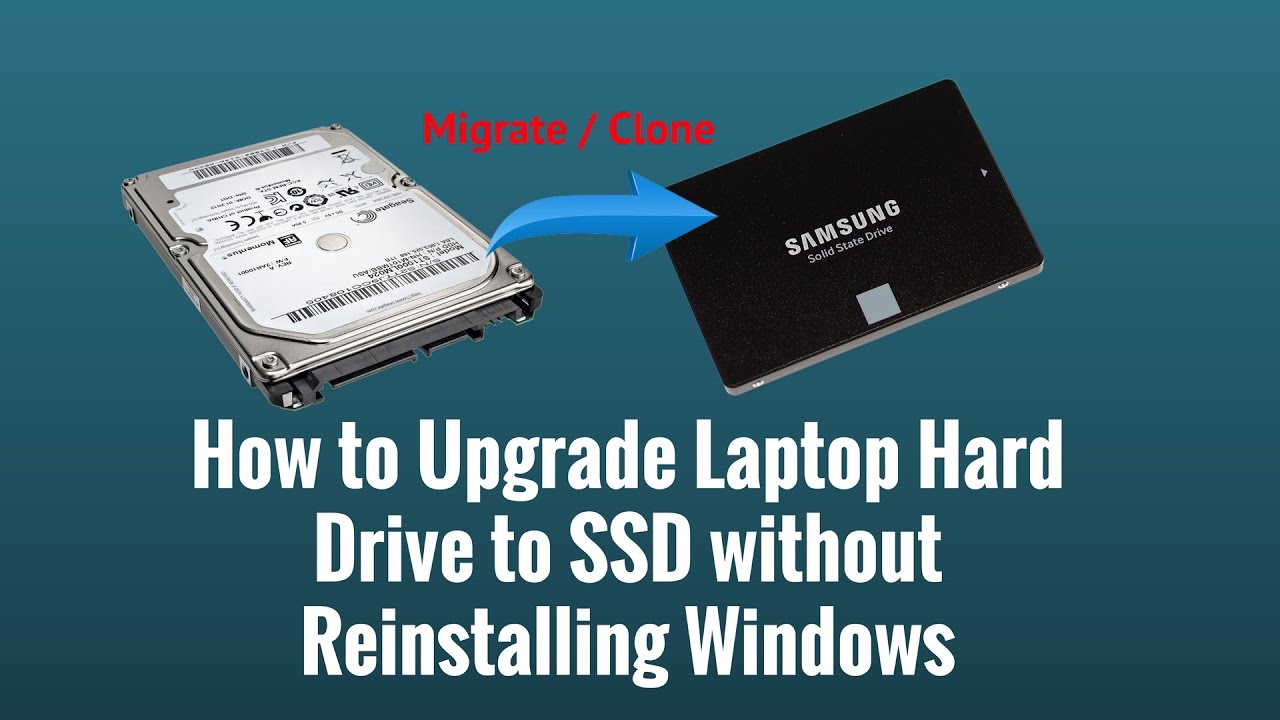
Personal experience and lessons learned
I’ve upgraded dozens of laptops using cloning. Most took under one hour from start to finish. The biggest mistakes I saw were skipping backups and choosing an SSD that was too small. One client lost time because BitLocker blocked the clone. We fixed it by suspending BitLocker first and then cloning.
Hands-on tips I use:
- Always suspend encryption before cloning.
- Run a full backup even when the clone succeeds.
- Test booting with the SSD connected externally before swapping it in.
These simple rules save time and stress when you upgrade laptop from hdd to ssd without reinstalling windows.
 windows”
style=”max-width: 100%; height: auto; border: 2px solid black; border-radius: 10px; display: block; margin: 0 auto;”
loading=”lazy”
/>
Frequently Asked Questions of how to upgrade laptop from hdd to ssd without reinstalling windows
### How long does the cloning process take?
Cloning time depends on data size and connection speed. Expect 20 minutes to several hours for large drives over USB.
Can I clone a larger HDD to a smaller SSD?
Yes, if used data fits on the SSD. You must shrink partitions and ensure cloned data is smaller than the SSD capacity.
Will I lose data when I clone the drive?
Cloning copies data sector-by-sector or file-by-file. It usually preserves data, but you should still back up before cloning to be safe.
Do I need special software to clone my Windows drive?
You need cloning software that supports system disks and resizing partitions. Many free and paid tools can do this reliably.
Will Windows activation break after swapping to SSD?
Most modern Windows licenses re-activate automatically. Sign in with your Microsoft account if you face activation issues.
Conclusion
Upgrading your laptop from HDD to SSD without reinstalling Windows is doable, fast, and rewarding. Plan well, back up, pick the right SSD and cloning tool, suspend encryption, and verify the clone before swapping drives. Follow the steps here to keep your apps and settings intact while getting the speed gains of an SSD. Try this upgrade on a test laptop or backup first, then go ahead and enjoy a faster system—share your results or ask questions below for help.

Everett Ashford is a tech reviewer at mytechgrid.com specializing in SSDs, cameras, TVs, earbuds, headphones, and other consumer electronics. He provides honest, data-driven reviews based on hands-on testing and real-world performance analysis. Everett simplifies complex tech details to help readers make smart, confident buying decisions.