Reset, update drivers, and use a low-latency codec to cut Bluetooth audio lag fast.
I’ve spent years fixing audio issues on phones and PCs. This guide on how to fix audio delay on bluetooth headphones android windows gives clear, tested steps you can follow now. Read on for simple fixes, deeper settings, and real-world tips that work whether you use Android or Windows.

Why Bluetooth audio delay happens
Bluetooth audio delay is the gap between sound output and what you hear. This delay is caused by wireless encoding, decoding, and buffering. Older Bluetooth versions and default codecs like SBC add more lag. Device CPU load, app buffering, and distance also make the delay worse.
Understanding the cause helps you pick the right fix. If you know whether the issue is codec, driver, or app-related, you can target it faster. This article shows how to fix audio delay on bluetooth headphones android windows with clear diagnostics and fixes.

How to fix audio delay on Android — step-by-step
Start simple, then test. These steps are ordered from easiest to more advanced.
1. Restart phone and headphones
- Turn Bluetooth off, then on.
- Fully power-cycle headphones.
- Re-pair and test audio.
2. Update firmware and system
- Check headphone firmware via the maker’s app.
- Update Android system and Google Play Services.
- Updated stacks often improve latency.
3. Force a low-latency codec
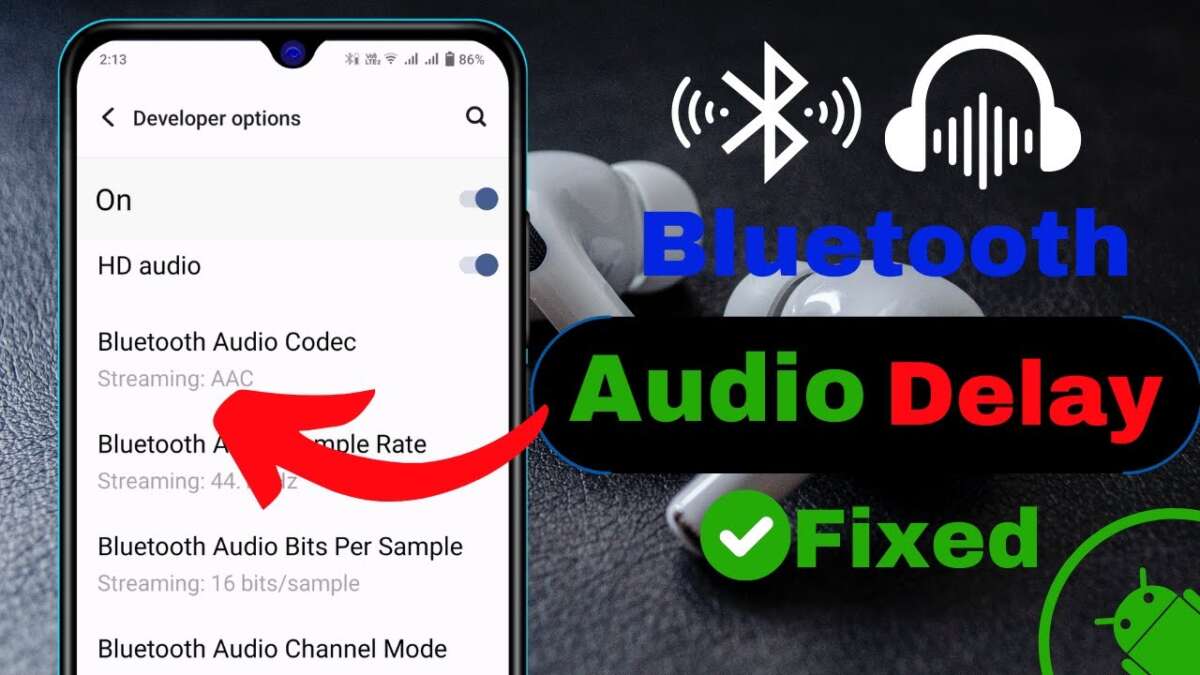
- Open Android Developer Options and enable Bluetooth audio codec settings.
- Choose aptX Low Latency, AAC, or LDAC (as supported).
- Test each codec; some phones and headphones work best with one.
4. Use a music app with low buffer settings
- In music/video apps, lower the buffer or enable “low latency” mode.
- For streaming, download tracks for local playback to avoid network lag.
5. Turn off power-saving and Bluetooth scanning
- Disable battery saver and background limits for audio apps.
- Stop Bluetooth scanning apps that may interrupt the connection.
6. Try a wired connection or aptX LL transmitter
- Use a wired cable for zero lag if available.
- Or get an external aptX Low Latency transmitter if your phone supports it indirectly.
These steps address most cases of how to fix audio delay on bluetooth headphones android windows. Test after each step to find what works best.

How to fix audio delay on Windows — step-by-step
Windows has a different stack. Follow these steps to cut lag on a PC.
1. Re-pair and restart
- Turn Bluetooth off in Windows, then back on.
- Remove the device and pair it again.
- Restart the PC after re-pairing.
2. Update Bluetooth and audio drivers
- Open Device Manager and update Bluetooth and sound drivers.
- Install driver packages from the PC or adapter maker when possible.
- Generic drivers are often slower than vendor drivers.
3. Use the right audio profile
- Windows often uses the Hands-Free profile for calls, which has poor quality and latency.
- Switch to A2DP or a high-quality profile in Sound settings when listening to media.
4. Lower audio buffer in apps
- In video players, change audio output to “DirectSound” or “WASAPI (Exclusive)” and lower buffer size.
- In games, reduce audio buffering in game audio settings when possible.
5. Use a dedicated Bluetooth dongle or aptX LL adapter
- Built-in Bluetooth chips may not support low-latency codecs.
- A USB Bluetooth adapter that supports aptX Low Latency can help a lot.
6. Disable audio enhancements and exclusive apps
- Turn off sound enhancements in Sound settings.
- Close background apps that use audio or Bluetooth heavily.
Applying these steps will help you know how to fix audio delay on bluetooth headphones android windows on a PC.

Advanced fixes and settings
When basic steps fail, try deeper tweaks.
-
Codec and profile swap
- aptX Low Latency is best for low lag, then AAC, LDAC, and SBC.
- Match the best codec both on Android and Windows.
-
Developer and registry tweaks
- On Android, set codec and sample rate in Developer Options.
- On Windows, advanced registry or driver settings can tune buffers, but backup first.
-
External DACs and transmitters
- USB-C/USB audio dongles can bypass device Bluetooth entirely.
- Dedicated transmitters with aptX LL cut latency for TV and gaming.
-
Reduce wireless interference
- Move away from crowded Wi-Fi or microwave sources.
- Use the 5 GHz Wi-Fi band to reduce overlap with Bluetooth 2.4 GHz signals.
These advanced options show how to fix audio delay on bluetooth headphones android windows when simple fixes don’t cut it.

Practical tips I learned from testing
I’ve tested phones, laptops, and many headphones. Here are things that helped me fast.
- Test with different apps
- Some apps buffer more than others. Use VLC or a local audio file to test.
- Keep firmware fresh
- Headphone maker updates often talk about latency fixes. I saw major gains after one firmware update.
- Use wired for streaming live audio
- For live shows, wired is reliable. I used a cable for livestream monitoring to avoid lag.
- Prefer newer Bluetooth versions
- Bluetooth 5.x and newer chips have better throughput and stability. Upgrading a laptop’s adapter helped me a lot.
These practical bits reflect real experience and help you apply fixes quickly.

Troubleshooting checklist
Quick list to run through when you notice delay.
- Reboot phone, PC, and headphones.
- Re-pair device and test.
- Update firmware and OS.
- Try different codecs and profiles.
- Check app buffer and audio output mode.
- Move closer to the source and remove interference.
- Test with wired connection to isolate the problem.
- Try a USB Bluetooth dongle with aptX LL on Windows.
Use this checklist any time you want to diagnose how to fix audio delay on bluetooth headphones android windows.

Frequently Asked Questions of how to fix audio delay on bluetooth headphones android windows
What causes Bluetooth audio delay on Android and Windows?
Bluetooth audio delay is caused by codec encoding/decoding, buffering, and wireless interference. Device CPU load and outdated drivers or firmware can add to the lag.
Can switching codecs reduce delay?
Yes. Using aptX Low Latency or AAC can cut lag significantly when both devices support them. SBC is more common but usually slower.
Will a USB Bluetooth dongle fix the delay on Windows?
A quality dongle with low-latency codec support can help, especially if the laptop’s built-in Bluetooth is old or limited. It often gives better codec support and cleaner signals.
Does distance affect audio delay?
Yes. Greater distance can increase packet loss and rebuffering, which appears as extra delay. Stay within 10 meters for best results and avoid obstacles.
Is wired always better than Bluetooth for latency?
Wired is virtually free of wireless delay and is the best choice for live monitoring or competitive gaming. Use wired if you need zero lag.
Conclusion
You now have clear steps and real tips on how to fix audio delay on bluetooth headphones android windows. Start with simple restarts and updates, test codecs and apps, and move to hardware or driver fixes if needed. Try one change at a time and keep notes on what helps.
Take action today: update firmware, try a low-latency codec, and follow the troubleshooting checklist. If this guide helped, leave a comment with your setup or subscribe for more practical audio tips.

Jamie Lee is a seasoned tech analyst and writer at MyTechGrid.com, known for making the rapidly evolving world of technology accessible to all. Jamie’s work focuses on emerging technologies, product deep-dives, and industry trends—translating complex concepts into engaging, easy-to-understand content. When not researching the latest breakthroughs, Jamie enjoys exploring new tools, testing gadgets, and helping readers navigate the digital world with confidence.