Restart devices, update firmware, enable low-latency codecs, and reduce interference to fix lag.
I’ve spent years troubleshooting audio gear for content creators and gamers, so I know exactly how frustrating lip-sync and lag can be. This guide explains how to fix audio delay on bluetooth headphones step by step, with simple tests, practical fixes, and real-world tips I’ve used myself to get audio back in sync.

How Bluetooth audio delay works
Bluetooth transmits sound wirelessly in packets. Those packets get encoded on the source, sent over the air, then decoded by the headphones. Each step adds small delays.
Codecs, buffering, and interference determine how big the delay will be. Some codecs add more delay but give higher quality. Others are built for low latency.
Knowing the cause makes it much easier to fix how to fix audio delay on bluetooth headphones.

Common causes of audio delay
- Codec mismatch. One device may use a high-latency codec while the other supports low-latency codecs.
- Old or buggy firmware. Outdated firmware on headphones or phone can add delay or create sync errors.
- Interference. Wi-Fi, other Bluetooth devices, and crowded 2.4 GHz signals cause packet loss and extra buffering.
- Distance and obstacles. Walls, pockets, or moving away from the source can increase lag.
- Device processing. Phones, TVs, and consoles may add processing delay before sending audio.
- Multiple audio sinks. If a phone is connected to more than one audio device, it may prioritize or buffer differently.

How to fix audio delay on bluetooth headphones — quick checklist
Below are clear steps. Try them in order from easiest to more advanced.
- Restart both devices
- Turn off headphones and the sending device. Wait 10 seconds, then turn them back on.
- Reconnect and test audio. Many sync problems clear with a restart.
- Re-pair the connection
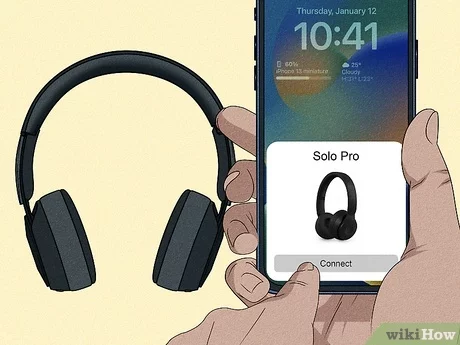
- Forget the headphones in your device’s Bluetooth settings.
- Re-pair from scratch to reset negotiation and codec selection.
- Update firmware and OS
- Check for headphone firmware updates in the manufacturer app.
- Update your phone, tablet, PC, or TV system software. Firmware updates often fix latency bugs.
- Use a low-latency codec
- Enable aptX Low Latency, AAC, or LC3 when possible. These codecs reduce delay.
- On Windows or Android, check codec info in the Bluetooth settings or a headphone app.
- Some phones default to SBC, which is slower. Switching to aptX LL can help.
- Reduce interference
- Move closer to the source. Keep distance under 10 meters for best results.
- Turn off nearby Wi-Fi routers or switch them to 5 GHz temporarily.
- Disable other active Bluetooth devices.
- Change audio settings on the source
- On TVs and consoles, look for “game mode” or “audio sync” settings.
- Use any available lip-sync or audio delay adjustment to match sound with video.
- Try a wired connection or adapter
- Use a wired cable if your headphones support it to eliminate wireless latency.
- Use a low-latency USB or Bluetooth transmitter (dongle) that supports aptX LL for TVs and PCs.
- Reset headphones to factory settings
- Follow the manufacturer’s reset steps. This clears corrupted settings that can cause lag.
- Test with different apps
- Try a simple audio file first. Streaming apps may add their own buffering.
- If delay appears only in one app, adjust that app’s playback or reduce quality to test.
- Consider device limitations
- Older phones, cheap headphones, or TVs without low-latency support may never reach minimal lag. Upgrading may be the only fix.

Advanced fixes and troubleshooting
- Use a Bluetooth sniffer or diagnostic app if you are technically inclined to see packet loss and codec negotiation. This helps identify whether the problem is codec choice or interference.
- For gaming on PC, use a dedicated USB Bluetooth transmitter that advertises low-latency codecs. I’ve used a dongle and saw a noticeable drop in lip-sync during fast games.
- On macOS, switch audio output sample rate in Audio MIDI Setup when apps add processing. Sometimes lowering sample rate reduces buffering.
- For TVs that don’t support low-latency codecs, get a transmitter that plugs into the TV’s optical or 3.5mm output and supports aptX LL. This bypasses the TV’s internal Bluetooth stack.
Personal tip: I once edited a video and suffered small but annoying sync drift. Re-pairing the headphones and forcing aptX LL on my phone fixed the issue instantly. If a simple restart doesn’t work, firmware updates and codec changes usually do.

Preventing audio delay and best practices
- Buy headphones with explicit low-latency specs if you need accurate sync for gaming or video.
- Keep headphone firmware and device OS updated. Small updates often improve timing.
- Use wired connections for critical tasks like pro audio work. Wireless will always have some potential delay.
- Minimize background Bluetooth and Wi-Fi traffic while using headphones for video calls or music production.
- Test devices before live use. Run a 10-second audio-video sync test on the device you’ll use.

Frequently Asked Questions of how to fix audio delay on bluetooth headphones
Why is my Bluetooth headphone audio delayed only with video?
Video playback often adds buffering and video processing. Check app settings and enable any audio sync or “lip-sync” options. Try a different app or lower video quality to test.
Will updating headphone firmware reduce lag?
Yes. Firmware updates can include codec fixes and timing improvements. Always check the manufacturer app for updates.
Can I make my TV’s Bluetooth output low latency?
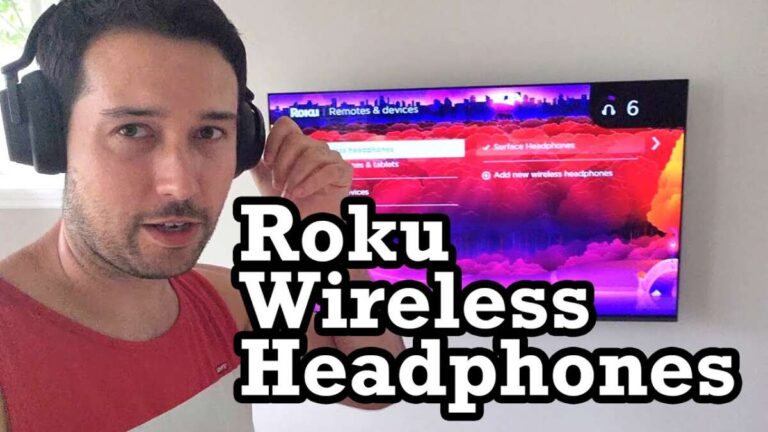
If the TV lacks low-latency codec support, use an external transmitter that supports aptX Low Latency or connect headphones via wired output.
Does distance affect audio delay?
Yes. Greater distance causes weaker signals and more packet loss, which can increase buffering and perceived delay. Stay within 10 meters for best results.
Are some codecs always better for low latency?
aptX Low Latency and LC3 are designed for low lag. AAC is better on Apple devices. SBC is common but usually has higher latency.
Conclusion
You can fix audio delay on bluetooth headphones with a few precise steps: restart and re-pair devices, update firmware, use low-latency codecs, reduce interference, or use a wired or low-latency adapter when needed. Start with the quick fixes and move to advanced solutions only if the issue persists. Try these steps today, test your setup, and leave a comment if you need personalized help or want advice on a specific device or model.

Everett Ashford is a tech reviewer at mytechgrid.com specializing in SSDs, cameras, TVs, earbuds, headphones, and other consumer electronics. He provides honest, data-driven reviews based on hands-on testing and real-world performance analysis. Everett simplifies complex tech details to help readers make smart, confident buying decisions.