It gives streamers a separate, movable camera view inside VRChat for capture and broadcast.
I’ve worked with VR streaming tools for years, and I can tell you exactly what does VRChat streaming camera do and why it matters for creators. This guide breaks down its purpose, how it works, real use cases, setup tips, and common pitfalls. Read on to learn practical steps and pro tips so you can capture polished footage, stream with confidence, and make the most of VRChat’s camera tools.

What is the VRChat streaming camera?
The VRChat streaming camera is an in-world camera tool. It creates a view that is separate from your player camera. You can move it around, change field of view, and lock it to avatars or points of interest. The core purpose is to give streamers and creators control over what their viewers see, independent of their own headset view.
What does VRChat streaming camera do in practice? It lets you frame cinematic shots, show a close-up of an avatar, or create picture-in-picture scenes while you interact in VRChat. This makes streams and recordings look more professional and dynamic.

How the VRChat streaming camera works
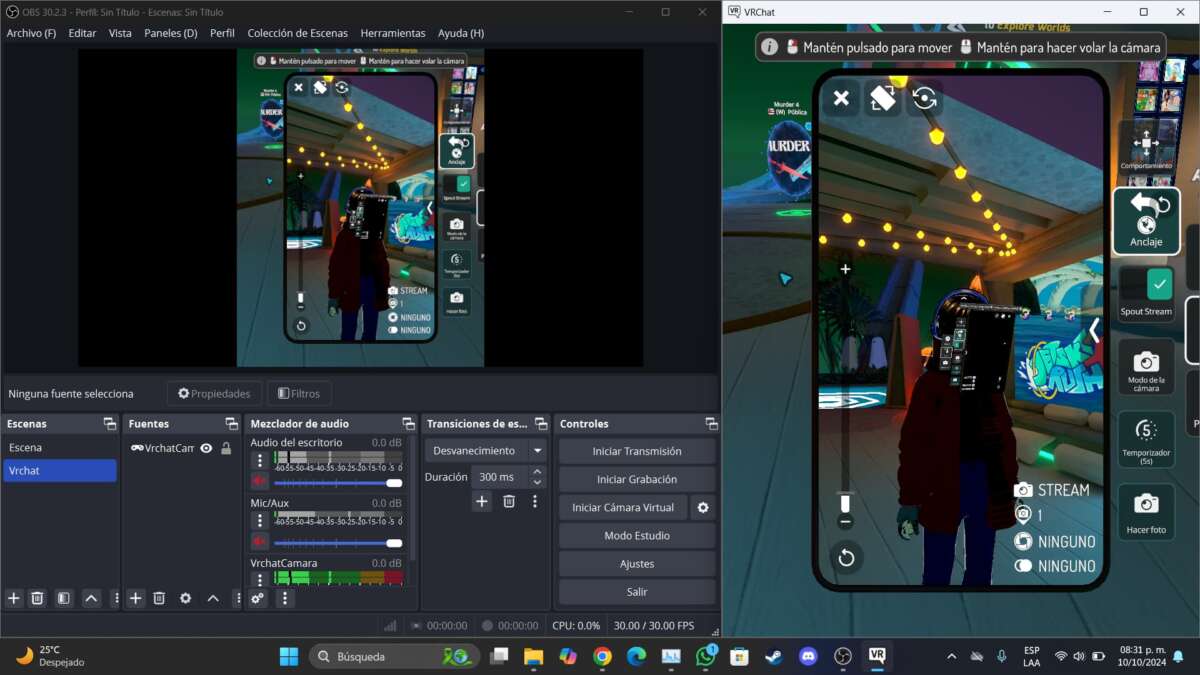
The streaming camera spawns a virtual camera in the scene. You place or move it like an object. Then you set its mode—free, follow, or locked to a target. The camera outputs a render that you capture with streaming software or as a window you record.
Behind the scenes, the tool renders a second viewport. You can capture that viewport with OBS, game capture, or a virtual webcam app. That separation lets you present a different scene to viewers than what you see in VR.
What does VRChat streaming camera do technically? It requests an alternate render pass and exposes that pass as a source you can grab for streams or recordings.

Key features and controls
The streaming camera includes a set of useful controls. These let you tailor the look and behavior of the camera.
- Free camera movement: move the camera freely in 3D space for custom shots.
- Follow or lock targets: keep the camera focused on an avatar or object.
- Field of view (FOV) and zoom: adjust framing for wide or tight shots.
- Visibility toggles: hide your avatar or UI from the camera feed for clean footage.
- Output options: windowed feed or virtual camera that can be captured by streaming software.
Knowing what does VRChat streaming camera do means understanding these features and using them to produce clear, engaging visuals for your audience.

Setup and system requirements
Setting up the streaming camera is straightforward, but you need a few things in place.
- Software: VRChat (updated version) and a streaming tool such as OBS or XSplit.
- Hardware: a PC that can handle VR and a second capture or encoding load. VR plus streaming is CPU/GPU heavy.
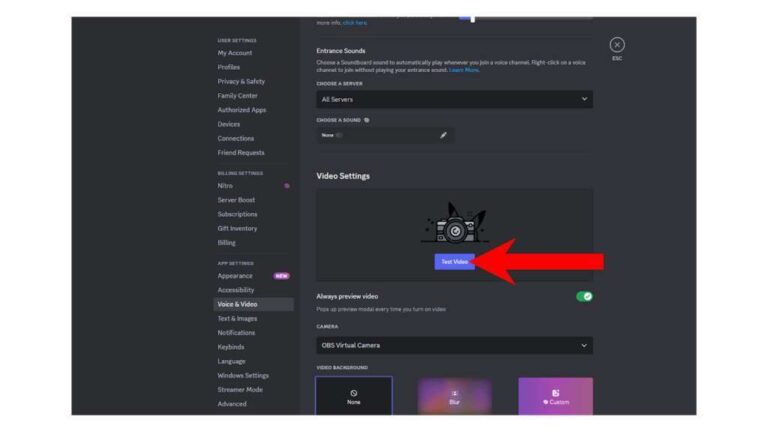
- Capture method: use window capture for the camera viewport or set up a virtual webcam if you want it recognized as a webcam source.
- Permissions: some worlds restrict camera use. Check world rules and owner settings.
Step-by-step: enable the streaming camera in the VRChat camera menu, position it, then capture the camera window in OBS. Test audio and sync before going live.

Common use cases and examples
The streaming camera unlocks many creative options. Here are practical examples.
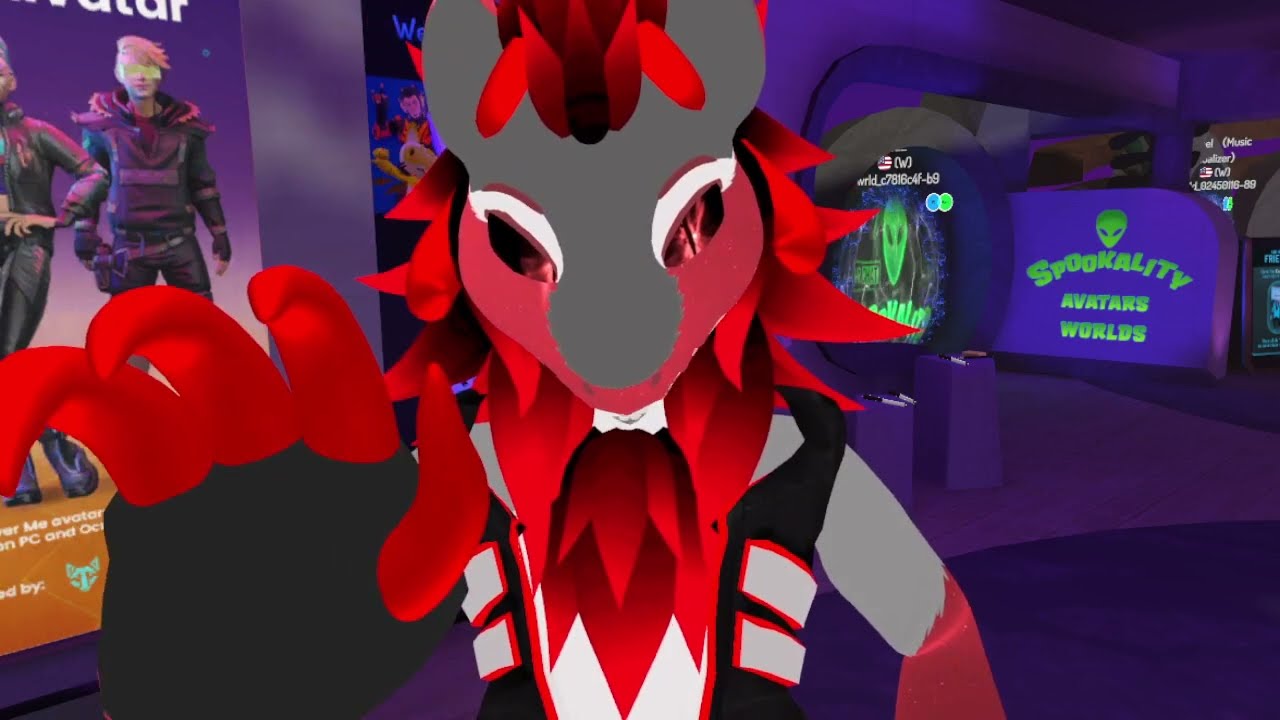
- Avatar showcases: spin and zoom on an avatar for an intro shot.
- Cinematic scenes: cut between player POV and staged camera for drama.
- Tutorial videos: frame close-ups of UI or tools while you narrate.
- Event coverage: place multiple cameras around a stage to mix live.
- Interviews and panels: use a locked camera on the speaker while you roam.
I’ve used the streaming camera to record avatar reveal clips and to capture staged micro-theater in public worlds. It made the content look cinematic and saved editing time.

People also ask (quick PAA answers)
Can I use the VRChat streaming camera as a webcam?
Yes. Capture the camera viewport with software like OBS and then use the OBS virtual camera to send that feed into platforms that accept webcams.
Does the camera affect my VR performance?
It can. Rendering an extra camera adds workload. Lowering resolution or encoding settings helps keep VR smooth.
Can I record from multiple cameras at once?
Yes, you can place multiple streaming cameras in a scene and capture each viewport separately, but this increases CPU/GPU load.

Benefits and limitations
The streaming camera brings clear benefits and some limits.
Benefits:
- Professional framing without moving your headset.
- Clean cuts between POV and cinematic angles.
- Better control over what viewers see.
Limitations:
- Extra performance cost on CPU/GPU.
- Some worlds may disable camera use.
- Setup requires learning if you’re new to streaming tools.
If you ask what does VRChat streaming camera do for your stream quality, the short answer is it elevates look and storytelling, but you must balance system load and complexity.
Troubleshooting and best practices
When something goes wrong, try these fixes and tips.
- If the camera window won’t capture, use window capture instead of game capture in OBS.
- If frame drops occur, lower the VR render scale or stream encoding bitrate.
- If audio sync is off, enable audio delay in your streaming software.
- Test layouts before you go live and keep a backup scene ready.
What does VRChat streaming camera do when worlds block cameras? Respect the rules and plan alternate coverage with your own staged worlds or guest feeds.

Privacy, safety, and etiquette
Cameras in VR raise social and ethical issues. Follow these rules.
- Get consent before filming private conversations or other users.
- Respect world camera rules and creator intents.
- Avoid recording minors or people who request privacy.
- Use visibility toggles to hide HUD or private data.
Being mindful builds trust with your audience and community. The streaming camera is a tool, not a license to ignore consent.
My real-world experience and lessons learned
I started using the streaming camera to make better intro montages. Early on, I pushed my PC too hard. I learned to:
- Pre-plan shots to avoid long live repositioning.
- Use one cinematic camera for highlights and switch to POV for interaction.
- Keep presets for FOV and position for faster setup.
A mistake I made was streaming at max settings during community events. Dropouts taught me to keep a lower bitrate backup scene. Now I always test for 10 minutes before going live.
Related concepts and tools
To get the most from the streaming camera, pair it with these tools.
- OBS or equivalent encoder for capture and output.
- Virtual webcam plugins to send camera feed to other apps.
- Scene switchers to cut between camera views and POV.
- Chroma key and overlays for polished presentation.
Understanding these helps answer the broader question: what does VRChat streaming camera do in a full streaming workflow? It’s the visual source you control and mix into the stream.
Frequently Asked Questions of what does vrchat streaming camera do
How do I enable the VRChat streaming camera?
Open the in-game camera menu and select the streaming or external camera option. Position the camera and capture its window with your streaming software.
Will the streaming camera show my HUD or menu?
You can toggle HUD visibility for the streaming camera. Use these toggles to keep the feed clean for viewers.
Is it safe to record other users with the streaming camera?
Only record people who consent and follow world rules. Respect privacy and community guidelines to avoid conflicts.
Can I stream the camera feed to Twitch or YouTube?
Yes. Capture the camera viewport in OBS and stream the output to Twitch, YouTube, or other platforms as you would any other source.
Does using the streaming camera require a powerful PC?
It helps. The camera adds rendering and encoding work. If your PC struggles, lower render scale, camera resolution, or streaming bitrate.
Conclusion
The VRChat streaming camera gives you a flexible, independent view you can use to make streams and recordings more cinematic, clearer, and more engaging. Use it to showcase avatars, stage scenes, and control what your audience sees. Start small: test a single camera, capture it in OBS, and refine your shots. Try a preset or two, respect privacy rules, and iterate from there. If you found this guide useful, subscribe for more tips, leave a comment with your setup questions, or try the camera in a low-stakes world today.

Jamie Lee is a seasoned tech analyst and writer at MyTechGrid.com, known for making the rapidly evolving world of technology accessible to all. Jamie’s work focuses on emerging technologies, product deep-dives, and industry trends—translating complex concepts into engaging, easy-to-understand content. When not researching the latest breakthroughs, Jamie enjoys exploring new tools, testing gadgets, and helping readers navigate the digital world with confidence.