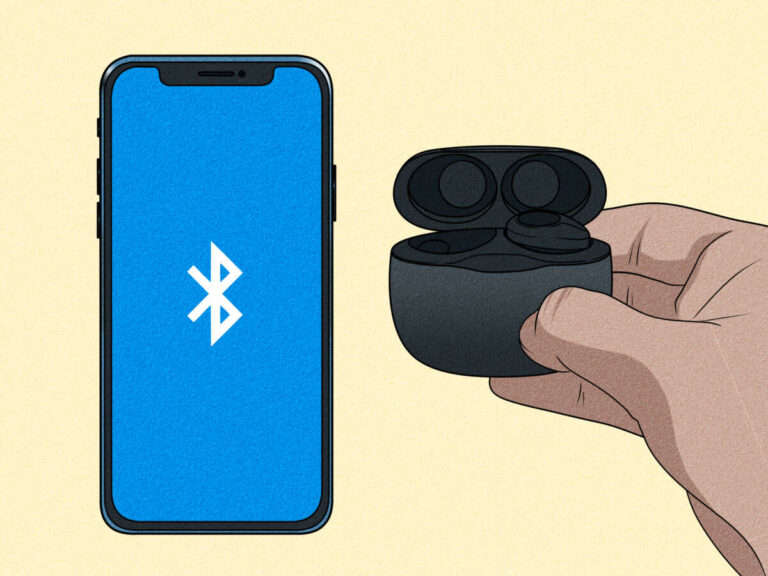
Turn on your earbuds, open iPad Settings > Bluetooth, then tap the earbuds to pair.
I’ve paired hundreds of earbuds to many iPads in support calls and at home, so I know the simple steps and the tricky bits. This guide explains exactly how to pair earbuds to iPad, whether you have AirPods or third‑party Bluetooth earbuds. You’ll get clear steps, quick fixes for common problems, and practical tips I use every day to get a stable connection fast.

Why pairing works: a quick definition and how it applies to your iPad
Pairing is how two Bluetooth devices exchange identity and keys so they can connect securely. Your iPad scans for nearby Bluetooth devices, and the earbuds announce their presence. When you confirm the connection on the iPad, both devices store a record so they reconnect automatically later.
Understanding pairing helps when things go wrong. Knowing which device handles the connection and where settings live on the iPad makes troubleshooting faster. This article covers AirPods-specific flow and the general Bluetooth pairing method for other earbuds.

Prepare your iPad and earbuds before pairing
A small prep step solves many problems. Follow this checklist before you try to pair.
- Charge both devices. Low battery can block pairing.
- Update your iPad to the latest iOS or iPadOS version. Apple often fixes Bluetooth bugs in updates.
- Turn Bluetooth on: open Settings > Bluetooth and toggle it on.
- Forget old connections you don’t use to reduce confusion.
- Put earbuds in pairing mode. Check the manual for model-specific steps.
I once spent 20 minutes troubleshooting a pair that wouldn’t show because the earbuds were in power-save mode. A quick full charge solved it. Small prep saves time.

How to pair AirPods to iPad (fast and reliable)
AirPods and other Apple earbuds have a streamlined pairing workflow with iPads.
- Make sure Bluetooth is on in Settings > Bluetooth.
- Open the AirPods case and keep the AirPods inside. Place the case near the iPad.
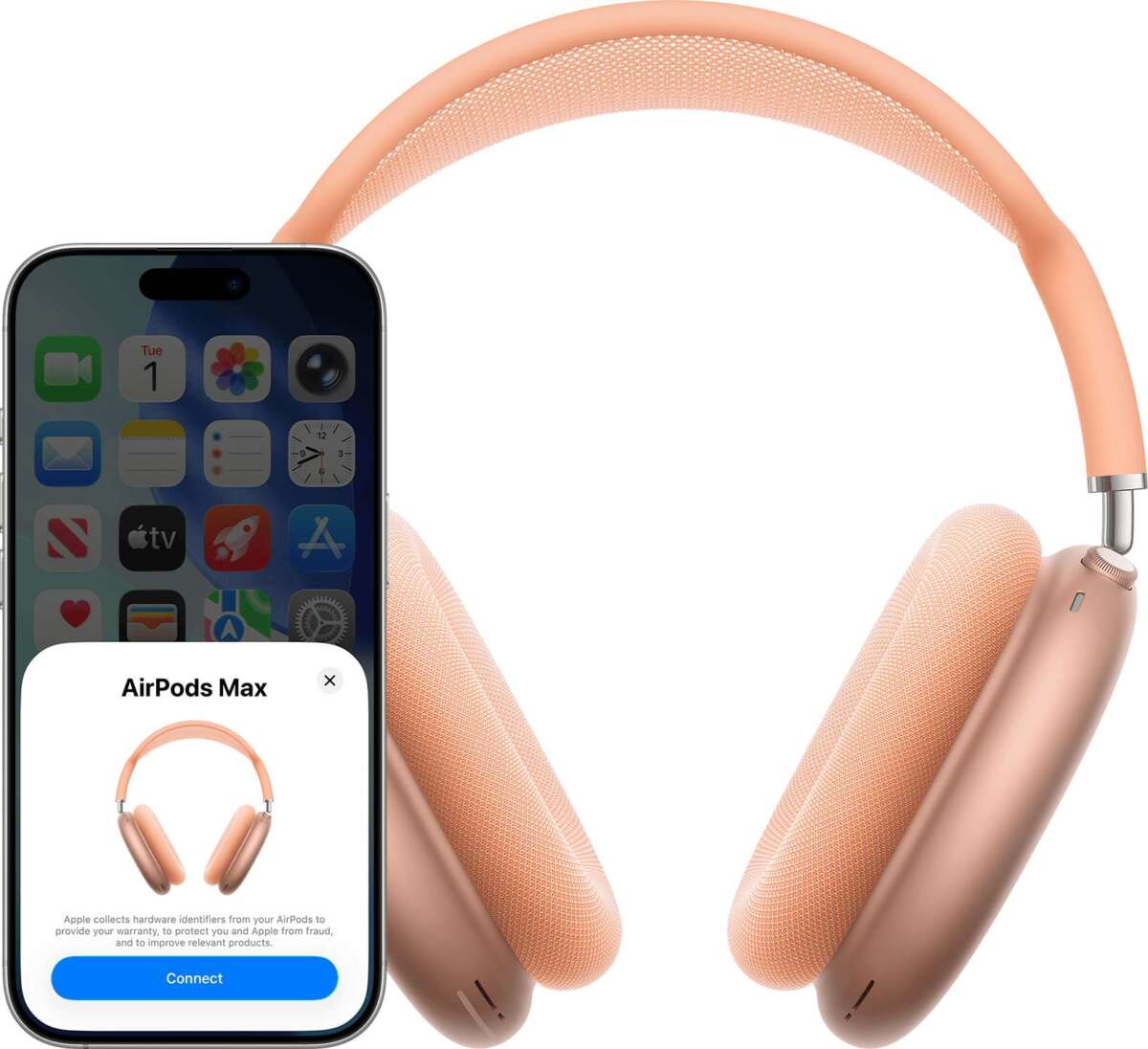
- A setup animation usually appears on the iPad screen. Tap Connect.
- Follow brief prompts if any. The iPad pairs and shows battery levels.
- Test audio by playing a song or video.
If the setup animation does not appear, press and hold the case’s setup button until the LED flashes white. Then look under Settings > Bluetooth and tap the AirPods name when it appears.

How to pair other Bluetooth earbuds to iPad
Most non-Apple earbuds use the standard Bluetooth pairing method. The steps are similar across brands.
- Charge earbuds and turn them off.
- Activate pairing mode. Common ways:
- Press and hold a multi-function button until an LED flashes blue or white.
- Hold the earbuds in the charging case while pressing a pairing button.
- Open your iPad and go to Settings > Bluetooth.
- Wait for the earbuds’ name to appear in Other Devices.
- Tap the name to pair. You may be prompted to accept or enter a PIN (usually 0000 or 1234).
- Test audio and set audio routing in Control Center if needed.
Some earbuds offer an app for firmware updates or advanced settings. Install that app if you have trouble pairing or need custom controls.

Troubleshooting common pairing problems
Below are frequent issues and simple fixes when you try to pair earbuds to iPad.
Earbuds don’t appear in Bluetooth list
- Ensure earbuds are in pairing mode and near the iPad.
- Turn Bluetooth off and on in Settings, then scan again.
- Restart the earbuds by powering them off and on.
Pairing fails or disconnects repeatedly
- Forget the device on the iPad: tap the info icon next to the device and choose Forget This Device, then re-pair.
- Reset network settings on the iPad if many Bluetooth devices misbehave (Settings > General > Transfer or Reset > Reset > Reset Network Settings).
- Move away from interference like microwaves, Wi‑Fi routers, or other Bluetooth devices.
No sound after pairing
- Check the iPad’s output: open Control Center, long-press audio widget, and ensure the earbuds are selected.
- Make sure volume is up on both the iPad and earbuds.
- Restart both devices and try again.
One earbud not working
- Place both earbuds back in the case to resync, then re-pair.
- Some models require a manual reset to resynchronize left and right buds.
Personal note: I once fixed a “no sound” issue by switching the iPad’s output from the TV to the earbuds in Control Center. The earbuds were paired, but audio was still routing to the TV.

Tips and best practices for a smooth pairing experience
Small habits make pairing easy and stable over time.
- Keep earbuds firmware updated using the manufacturer’s app.
- Rename earbuds in Settings > Bluetooth to something you recognize.
- Use the iPad’s Control Center to switch audio quickly between devices.
- If you use multiple Apple devices, enable iCloud pairing for AirPods to sync them across your Apple ID.
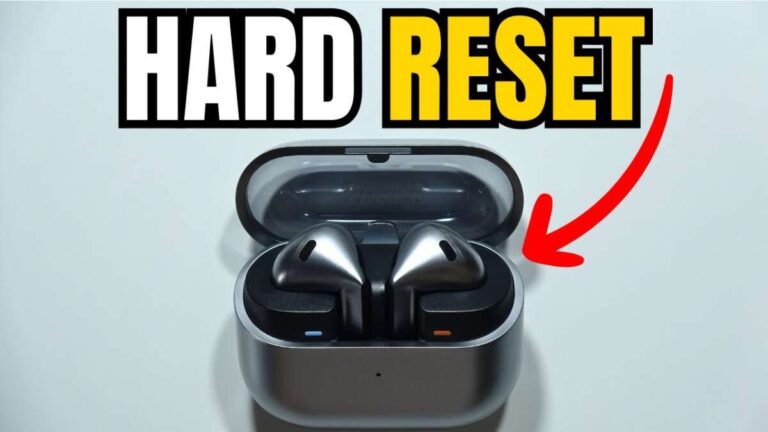
- Reset earbuds and the iPad if you experience repeated issues; a fresh start often fixes stale settings.
I recommend pairing new earbuds near the router-free zone. Less wireless noise means a faster and more stable initial connection. Over time, keep a weekly habit of checking firmware and iPadOS updates.

Frequently Asked Questions of how to pair earbuds to ipad
How do I put my earbuds in pairing mode?
Most earbuds enter pairing mode by holding a button until an LED flashes blue or white. Check the manual if that doesn’t work.
Why won’t my iPad find my earbuds?
Common causes are earbuds not in pairing mode, low battery, or Bluetooth interference. Restart both devices and move closer together.
Can I pair earbuds to more than one iPad?
Yes. Many earbuds can pair with multiple devices but usually connect to one at a time. You may need to switch or re-pair when moving between iPads.
Do AirPods pair automatically with my iPad?
AirPods paired to your Apple ID can pair automatically with iPadOS devices that share the same Apple ID. Otherwise, follow the normal pairing steps.
What if only one earbud connects?
Try placing both earbuds back into the case to resync, then remove and re-pair. If that fails, reset the earbuds following the manufacturer’s instructions.
Conclusion
Pairing earbuds to iPad is quick when you know the right steps. Start with charging, enable pairing mode, and use Settings > Bluetooth or the AirPods animation for the fastest setup. When problems arise, simple resets, forgetting the device, and checking audio routing usually fix them. Try these steps today and you’ll be listening in minutes. If this guide helped, leave a comment, share your pairing story, or subscribe for more practical tech tips.

Jamie Lee is a seasoned tech analyst and writer at MyTechGrid.com, known for making the rapidly evolving world of technology accessible to all. Jamie’s work focuses on emerging technologies, product deep-dives, and industry trends—translating complex concepts into engaging, easy-to-understand content. When not researching the latest breakthroughs, Jamie enjoys exploring new tools, testing gadgets, and helping readers navigate the digital world with confidence.