Check system tools, commands, or the drive label to see your SSD type quickly.
I’ve spent years building and fixing PCs and laptops, so I know the pain of guessing what’s inside. This guide shows exactly how to see what kind of SSD I have, step by step, across Windows, macOS, and Linux. You’ll learn simple commands, free tools, how to read model numbers, and what specs matter when you decide to upgrade. Read on and you’ll be able to identify your SSD with confidence and speed.

Quick methods to identify your SSD
Start with simple checks. Look in your OS utilities first. They often show model and interface.
- On Windows, open Device Manager or Disk Management for model info. For deeper detail, use PowerShell or a free tool.
- On macOS, open System Information and check SATA or NVMExpress sections.
- On Linux, use lsblk, nvme-cli, or smartctl to see controller and transport type.
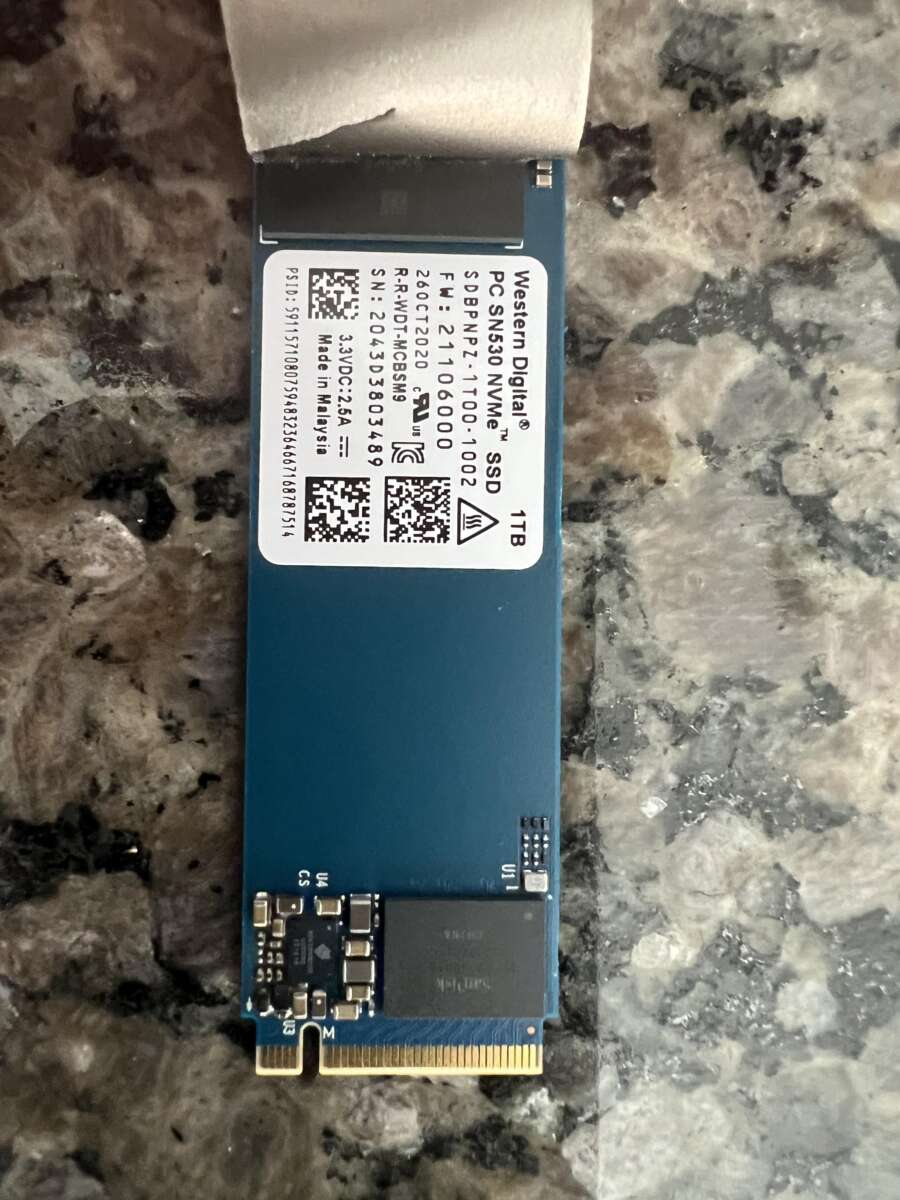
If you can open your device, a sticker on the drive gives model and form factor. That model lets you look up full specs online. These first steps answer most needs when you want to know how to see what kind of ssd i have.
Windows — exact steps
- Open Device Manager, expand Disk drives, and note the listed model name.
- Run PowerShell as admin and type: wmic diskdrive get Model, InterfaceType, MediaType. This shows whether the interface is SATA or USB and whether the OS sees it as SSD.
- Use PowerShell command: Get-PhysicalDisk | Format-Table FriendlyName, MediaType, Size to confirm SSD media type.
- For NVMe details, use a tool like CrystalDiskInfo or HWiNFO to see NVMe version and PCIe lanes.
These methods make it easy to answer how to see what kind of ssd i have on a Windows PC.
macOS — exact steps
- Click the Apple menu, choose About This Mac, then System Report.
- Check the SATA or NVMExpress section for model, firmware, and link speed.
- Terminal users can run: diskutil list and system_profiler SPNVMeDataType for NVMe info.
macOS clearly shows whether your drive is NVMe or SATA. This helps when you need to know how to see what kind of ssd i have on a Mac.
Linux — exact steps
- Run lsblk -d -o NAME,MODEL,TRAN to show transport (sata or nvme).
- For NVMe devices, nvme list reveals namespace IDs, firmware, and model.
- smartctl -a /dev/sdX or /dev/nvme0n1 gives model, serial, and device type.
If you use Linux, these commands directly answer how to see what kind of ssd i have with precise technical info.

Interpreting SSD specs and model numbers
Once you have a model string, you need to read it. Model numbers hide key details.
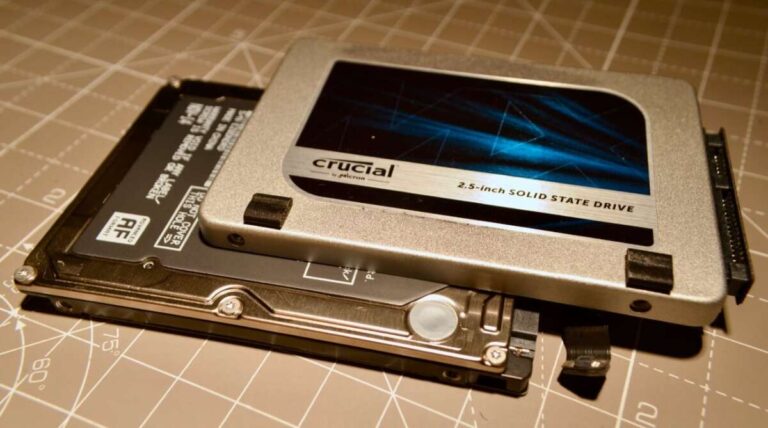
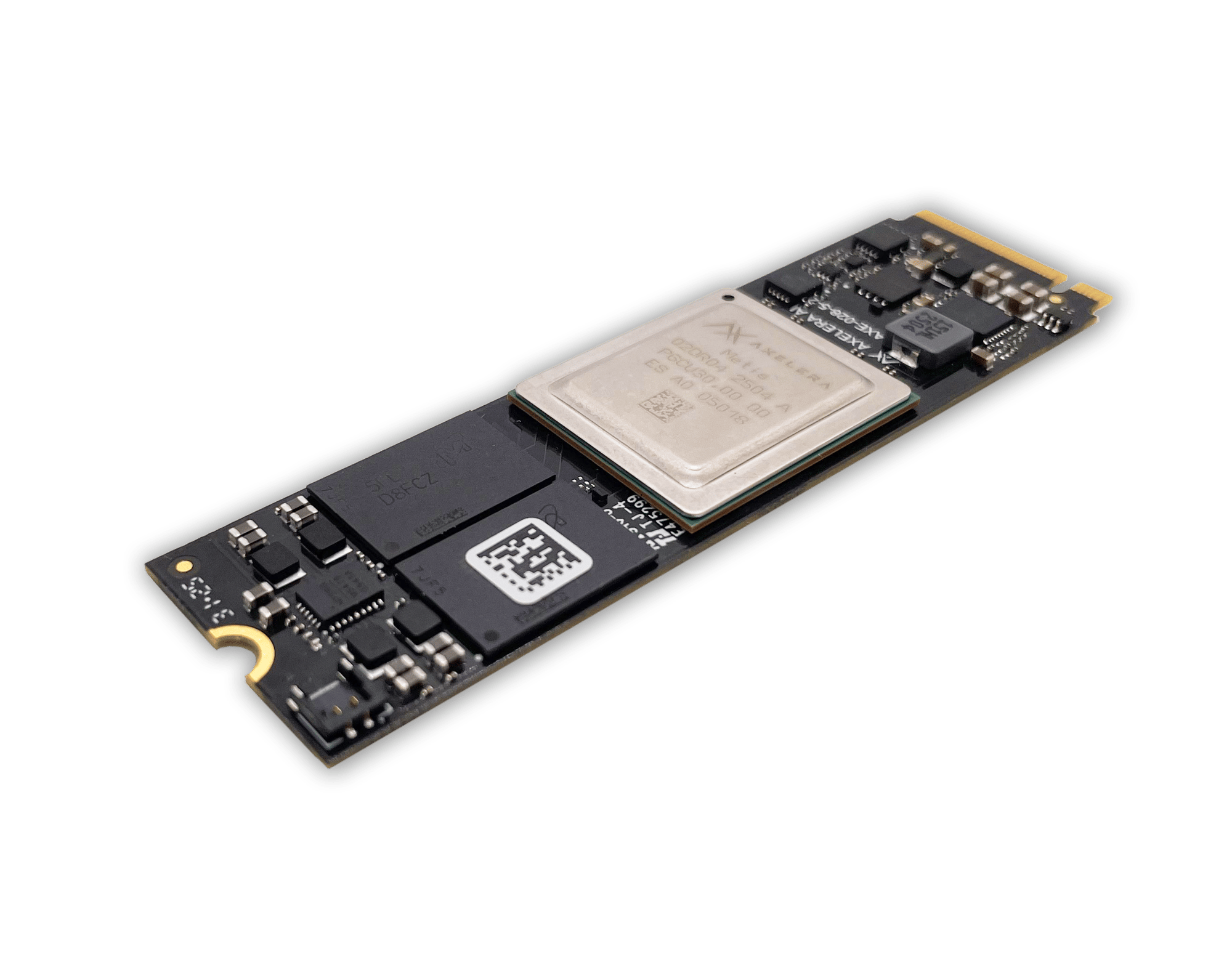
- Form factor: 2.5-inch, M.2, or add-in card. The model name or part number often includes M.2.
- Interface: SATA, PCIe, or NVMe. SATA has slower throughput than NVMe over PCIe.
- NAND type: SLC, MLC, TLC, QLC. More bits per cell usually means lower endurance.
- Capacity and endurance: TBW or DWPD values indicate lifespan. These appear in spec sheets.
- Controller and firmware: These affect speed and reliability. Model lookups show the controller vendor.
Example: A model like “Samsung MZ-V7S1T0” often decodes to a Samsung NVMe M.2 drive. Knowing how to see what kind of ssd i have is only half the task — you must also know what the specs mean for real-world use.
Personal note: I once assumed a drive labeled M.2 was NVMe. It was SATA-based M.2, and that led to a bottleneck. Lesson learned—always check the interface field, not only the form factor.

Tools and commands to identify your SSD
Use tools for quick, reliable answers. I list free and built-in options I use daily.
- Built-in OS tools: Device Manager, Disk Management, System Information, lsblk.
- CLI commands: wmic, PowerShell Get-PhysicalDisk, nvme list, lsblk, smartctl.
- Free GUI tools: CrystalDiskInfo, HWiNFO, Speccy, GParted, Disks (GNOME).
- Vendor tools: Samsung Magician, Intel SSD Toolbox, Western Digital Dashboard for drive-specific details.
How to see what kind of ssd i have often comes down to one command or one click in these tools. If the tool shows “NVMe” or “PCIe,” you are on a fast interface. If it shows “SATA,” speeds will be lower but the drive is common and compatible.
Practical tip: Copy the drive model text into a search engine or the vendor’s site to pull a full spec sheet. That gives TBW, NAND type, and firmware notes.

Troubleshooting, validation, and tips
If info looks unclear, try these checks.
- Firmware: Check the vendor tool for firmware updates and changelogs. Updates can fix bugs and improve performance.
- Drivers: On Windows, ensure NVMe drivers and chipset drivers are current. Older drivers may hide NVMe features.
- Benchmark: Run a quick benchmark to confirm speeds. If NVMe shows SATA speeds, check BIOS settings or physical connection.
- BIOS/UEFI: Some systems require BIOS settings to enable NVMe or to switch SATA mode. Verify the slot supports NVMe M.2 (not all do).
Common mistake: Confusing form factor with interface. M.2 can be SATA or NVMe, so always confirm the transport. This is central when asking how to see what kind of ssd i have.
Personal tip: I keep a small USB stick with CrystalDiskInfo portable. It saves time when diagnosing client systems and quickly answers how to see what kind of ssd i have.
When to upgrade or replace your SSD
Decide based on performance needs and health.
- Replace if SMART reports failing attributes or if TBW is near its limit.
- Upgrade to NVMe for faster boot and app load times if your system and budget allow.
- Consider endurance if you do heavy writes like video editing or databases. Choose TLC over QLC for longer life.
- Back up before any swap. Use cloning tools or vendor migration software for a smooth move.
If you know how to see what kind of ssd i have, you can match a new drive correctly to your system and needs.

Frequently Asked Questions of how to see what kind of ssd i have
How do I tell if my SSD is NVMe or SATA?
Check system tools like Device Manager, System Information, or run lsblk/nvme list. If the transport shows NVMe or PCIe, it’s NVMe; if it shows SATA, it’s a SATA SSD.
Can an M.2 slot be SATA and NVMe at the same time?
Some M.2 slots support either SATA or NVMe but not both at once. The motherboard manual shows which types a slot supports.
What command on Linux shows SSD type?
Use lsblk -d -o NAME,MODEL,TRAN or nvme list for NVMe drives. smartctl -a also reveals device type and model.
Will Windows Disk Management tell me SSD details?
Disk Management shows model and capacity but not always transport type. Use Device Manager or PowerShell for clearer interface info.
How can I find SSD endurance and TBW?
Look up the exact model on the vendor spec sheet or run a tool that reports model number, then check the manufacturer’s specs for TBW and DWPD.
Conclusion
You now have clear, practical ways to answer how to see what kind of ssd i have on any platform. Start with built-in tools, then use a free utility or command for full details. Read model numbers and spec sheets to understand speed, endurance, and form factor. Act: check your SSD now, note the model, and decide whether it meets your needs. If you found this helpful, try the commands or tools listed, leave a comment with your drive model, or subscribe for more hardware guides.

Everett Ashford is a tech reviewer at mytechgrid.com specializing in SSDs, cameras, TVs, earbuds, headphones, and other consumer electronics. He provides honest, data-driven reviews based on hands-on testing and real-world performance analysis. Everett simplifies complex tech details to help readers make smart, confident buying decisions.