Use Input.get_mouse_motion and apply yaw/pitch to a Camera3D, clamped and smoothed for stability.
I’ve built multiple Godot projects that rely on tight, responsive camera control, and I’ll show you how to make a camera rotate with the mouse Godot-style with clear, practical steps. I know the pitfalls: gimbal lock, flipped cameras, poor sensitivity, and platform issues. This guide covers core concepts, Godot 3 vs Godot 4 differences, ready-to-use GDScript, tuning tips, and real-world lessons I learned while shipping games. Read on to get a stable, polished camera that feels great to play.

Understanding camera rotation basics
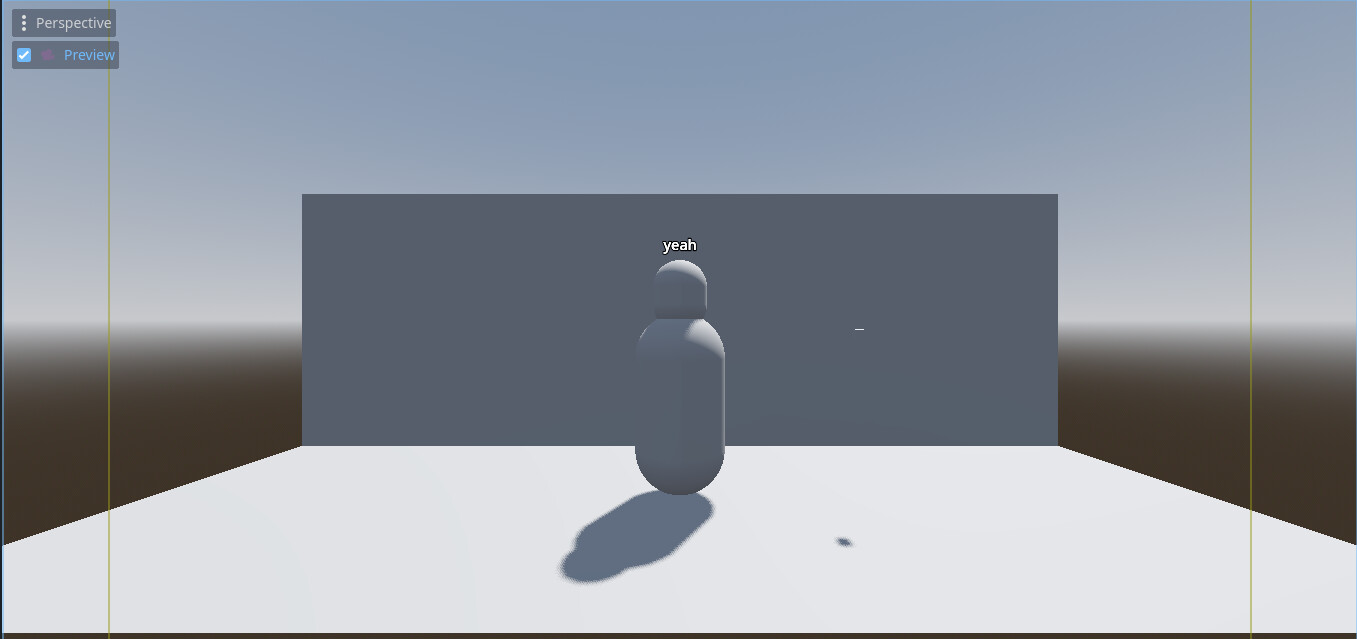
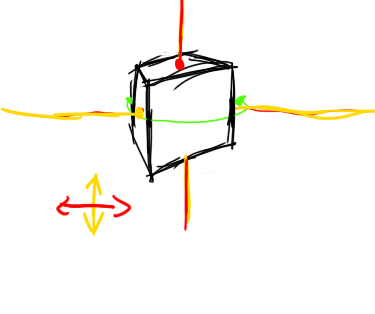
Camera rotation with the mouse maps mouse motion to yaw and pitch changes. Yaw rotates around the vertical axis. Pitch rotates around the camera’s local X axis. Together they let the player look around.
Key ideas to learn before coding:
- Map mouse delta to yaw/pitch with a sensitivity multiplier.
- Clamp pitch to avoid flipping the camera and gimbal issues.
- Separate yaw and pitch into different nodes to avoid roll and simplify clamping.
- Capture the mouse when gameplay starts and optionally show/hide the cursor.
How this ties to Godot: Godot gives you input events like Input.get_mouse_motion() (Godot 3 & 4 variants) or _input(event). Use these to read delta and apply rotation. The phrase how to make a camera rotate with the mouse godot means wiring input to rotation cleanly and safely.
Common quick questions you may ask:
- How do I prevent flipping? Clamp the pitch angle between about -89 and +89 degrees.
- Should the camera rotate the player body? Usually yaw rotates the player, pitch rotates the camera pivot.
Godot versions and nodes to use
Godot 4 renamed some nodes and APIs. Pick the right node and API for your version.
Godot 4:
- Use Camera3D, Node3D, CharacterBody3D.
- Use Input.get_last_mouse_velocity() or Input.get_mouse_motion() in _unhandled_input or _process.
Godot 3:
- Use Camera, Spatial, KinematicBody.
- Use Input.get_mouse_motion() inside _input(event) or _process.
Which node structure works best:
- A parent node for yaw (rotate around Y).
- A child pivot for pitch (rotate around local X).
- A Camera3D node as a child of the pitch pivot.
This split makes implementing how to make a camera rotate with the mouse godot projects straightforward and robust. Keep camera rotation logic in a script on the yaw node or a dedicated camera controller node.

Step-by-step: 3D camera rotate with the mouse in Godot (Godot 4 example)
Follow these steps to implement a basic, stable camera rotation using the mouse in Godot 4.
- Create a Node3D named Player.
- Add a Node3D child named CameraYaw.
- Add a Node3D child of CameraYaw named CameraPitch.
- Add a Camera3D child of CameraPitch.
- Script on Player (or CameraYaw):
- Capture and hide the mouse on start.
- Read mouse delta each frame.
- Update yaw on CameraYaw and pitch on CameraPitch.
- Clamp pitch.
Example GDScript (Godot 4):
extends Node3D

@export var sensitivity := 0.003
@export var pitch_limit := 89.0

var pitch := 0.0

func _ready():
    Input.set_mouse_mode(Input.MOUSE_MODE_CAPTURED)

func _input(event):
    if event is InputEventMouseMotion:
        rotate_camera(event.relative)

func rotate_camera(delta):
    var dx = -delta.x * <a href="https://wikipedia.org" target="_blank" rel="dofollow">sensitivity
</a>    var dy = -delta.y * sensitivity
    rotate_y(dx) # apply yaw on this node
    pitch += dy
    pitch = clamp(pitch, deg2rad(-pitch_limit), deg2rad(pitch_limit))
    $CameraYaw/CameraPitch.rotation.x = pitch
Notes:
- sensitivity is small since delta is in pixels.
- clamp pitch using radians in Godot 4.
- This shows how to make a camera rotate with the mouse godot projects need: separate yaw/pitch and clamping.

Godot 3 variant and _process approach
If you prefer Godot 3 or a frame-based approach, use _process and Input.get_mouse_motion().
Godot 3 example:
extends Spatial

export(float) var sensitivity = 0.1
export(float) var pitch_limit = 89.0

var pitch = 0.0

func _ready():
    Input.set_mouse_mode(Input.MOUSE_MODE_CAPTURED)

func _process(delta):
    var m = Input.get_mouse_motion()
    if m.length() > 0:
        var dx = -m.x * sensitivity * delta
        var dy = -m.y * sensitivity * delta
        rotate_y(deg2rad(dx))
        pitch += dy
        pitch = clamp(pitch, -pitch_limit, pitch_limit)
        $CameraYaw/CameraPitch.rotation.x = deg2rad(pitch)
Adjust sensitivity and whether you multiply by delta based on how your game feels. This example demonstrates a simple solution for how to make a camera rotate with the mouse godot 3 workflows.

Smoothing, sensitivity, and inversion options
Players expect smooth, configurable camera control. Add these features to improve feel.
Smoothing:
- Interpolate current rotation toward target using lerp (linear) or slerp (quaternions).
- Store target_yaw and target_pitch, then smooth current values each frame.
Sensitivity:
- Provide UI slider to tweak sensitivity at runtime.
- Differentiate horizontal and vertical sensitivity if needed.
Invert Y:
- Offer a toggle that flips the sign of the vertical delta.
- Many players prefer inverted Y for flight-like controls.
Example smoothing snippet:
current_pitch = lerp(current_pitch, target_pitch, 0.15)
current_yaw = lerp(current_yaw, target_yaw, 0.15)
These options make your implementation of how to make a camera rotate with the mouse godot-friendly and player-ready.

First-person vs third-person: setup differences
First-person:
- Camera is at the player’s head position.
- Yaw rotates the character body; pitch rotates camera pivot.
- Avoid moving camera through geometry by using collision checks or camera clipping fixes.
Third-person:
- Use a pivot and a spring arm to position the camera behind the character.
- Rotate pivot with mouse for orbiting.
- Raycast from pivot to camera position and adjust distance to avoid clipping.
Example third-person approach:
- Parent: Player
- Child: CameraYaw (handles yaw)
- Child: CameraPitch (handles pitch)
- Child: SpringArm (offset)
- Child: Camera3D (at end of arm)
These patterns ensure your implementation of how to make a camera rotate with the mouse godot-backed works for both play styles.
Performance, input mapping, and cross-platform behavior
Mouse input behaves differently across platforms and devices. Keep these points in mind.
Performance:
- Camera math is cheap; avoid unnecessary allocations in hot paths.
- Use _physics_process for physics-linked cameras and _process for UI/visual responsiveness.
Input mapping:
- Use InputMap for toggles like "toggle_cursor" or "invert_y". This makes remapping easy.
Cross-platform:
- On web (HTML5), mouse capture requires a user gesture to lock the pointer.
- On mobile, provide touch-look controls or virtual joystick instead of mouse.
These practical tips help you make a camera rotate with the mouse godot projects that run across platforms without surprises.
Common pitfalls and troubleshooting
You will run into a few recurring issues. Here’s how to avoid them.
- Camera flipping: Caused by unrestricted pitch. Fix by clamping pitch near +/-89 degrees.
- Gimbal lock: Avoid rotating pitch and yaw on the same node. Use a two-node setup.
- Sensitivity too high: Provide a slider and reasonable defaults.
- Cursor not capturing: Ensure you call Input.set_mouse_mode and handle ungrab events from the OS.
- Jitter or stutter: Smooth target values and remove per-frame allocations.
These lessons come from building and testing multiple projects where how to make a camera rotate with the mouse godot-accurately mattered for player experience.
Personal experience and lessons learned
I once shipped a prototype with camera control that felt twitchy. I learned three things:
- Start with low sensitivity and let players increase it.
- Use separate nodes for yaw and pitch from day one.
- Test on target platforms early; pointer lock behaves differently on web builds.
A small fix I used was adding a soft start when capturing the mouse so the camera doesn't jump to a new angle when focus changes. Little touches like that improve the polish of how to make a camera rotate with the mouse godot tutorials show.
PAA-style quick answers
Q: Do I need to worry about quaternions?
A: For basic FPS-style rotation, Euler angles with separate yaw/pitch nodes are fine. Use quaternions only if you need smooth interpolation without gimbal issues.
Q: Should I update rotation in _process or _physics_process?
A: Use _process for purely visual camera rotation. Use _physics_process if the camera rotation must stay in lockstep with physics movement.
Q: Is mouse smoothing necessary?
A: Not strictly necessary, but smoothing often makes the camera feel higher quality and less jittery.
Frequently Asked Questions of how to make a camera rotate with the mouse godot
How do I prevent the camera from flipping when looking up or down?
Clamp the pitch angle between safe limits like -89 and +89 degrees. Keep yaw and pitch on separate nodes to avoid compounded rotations.
Which Godot node should hold the rotation logic?
Put yaw rotation on a parent Node3D/Spatial and pitch rotation on a child pivot node. This separation simplifies clamping and avoids gimbal problems.
How can I make the camera feel smooth and responsive?
Store target angles from mouse input and interpolate current angles toward targets using lerp or move_toward. Tune the smoothing factor to balance responsiveness and smoothness.
How do I handle mouse capture on web builds?
Web builds require a user gesture before pointer lock. Prompt the player to click to start and then call Input.set_mouse_mode(Input.MOUSE_MODE_CAPTURED).
Can I use this method for third-person orbit cameras?
Yes. Use yaw/pitch on pivots and offset the camera with a spring arm. Raycast to avoid clipping into scene geometry for a robust third-person solution.
Conclusion
You now have a clear path to implement how to make a camera rotate with the mouse Godot-style: separate yaw and pitch, read mouse delta, clamp pitch, and add smoothing and sensitivity controls. Start with the basic two-node structure I showed, test on your target platform, and tune the feel until it moves like you want. Try the provided scripts, tweak sensitivity, and add UI options for players.
Take action now: implement the sample script in a small scene, adjust the sensitivity slider, and playtest on each platform. Leave a comment or share your camera tweaks to help others improve their controls.

Everett Ashford is a tech reviewer at mytechgrid.com specializing in SSDs, cameras, TVs, earbuds, headphones, and other consumer electronics. He provides honest, data-driven reviews based on hands-on testing and real-world performance analysis. Everett simplifies complex tech details to help readers make smart, confident buying decisions.