Select your camera in Teams settings and preview it before joining any meeting.
I’ve tested cameras in Microsoft Teams hundreds of times across offices and remote setups. This guide shows exactly how to test camera in Teams with clear steps, real-world tips, and fixes for common problems. You’ll get short checks, device-specific instructions, troubleshooting flows, and advanced testing tips so your video works every time.
Why testing your camera in Teams matters
Testing your camera in Teams prevents awkward calls. A quick check saves time and builds confidence for presentations and interviews.
Good testing avoids bad lighting, wrong cameras, and permission errors. It also confirms your camera works with Teams and other apps. Knowing how to test camera in Teams keeps meetings professional and smooth.
Quick pre-check: what to do before testing
Do a few simple checks first. This saves time when you run the actual test.
- Make sure the camera is plugged in and powered on.
- Close other apps that might use the camera.
- Check physical privacy covers and dust on the lens.
- Restart your computer or device if the camera was recently used.
These steps cut down common issues when you learn how to test camera in Teams. They are quick and often fix the problem before deeper troubleshooting.
How to test camera in Teams: step-by-step guide
Follow these steps to test camera in Teams before or during a meeting.
- Open Microsoft Teams.
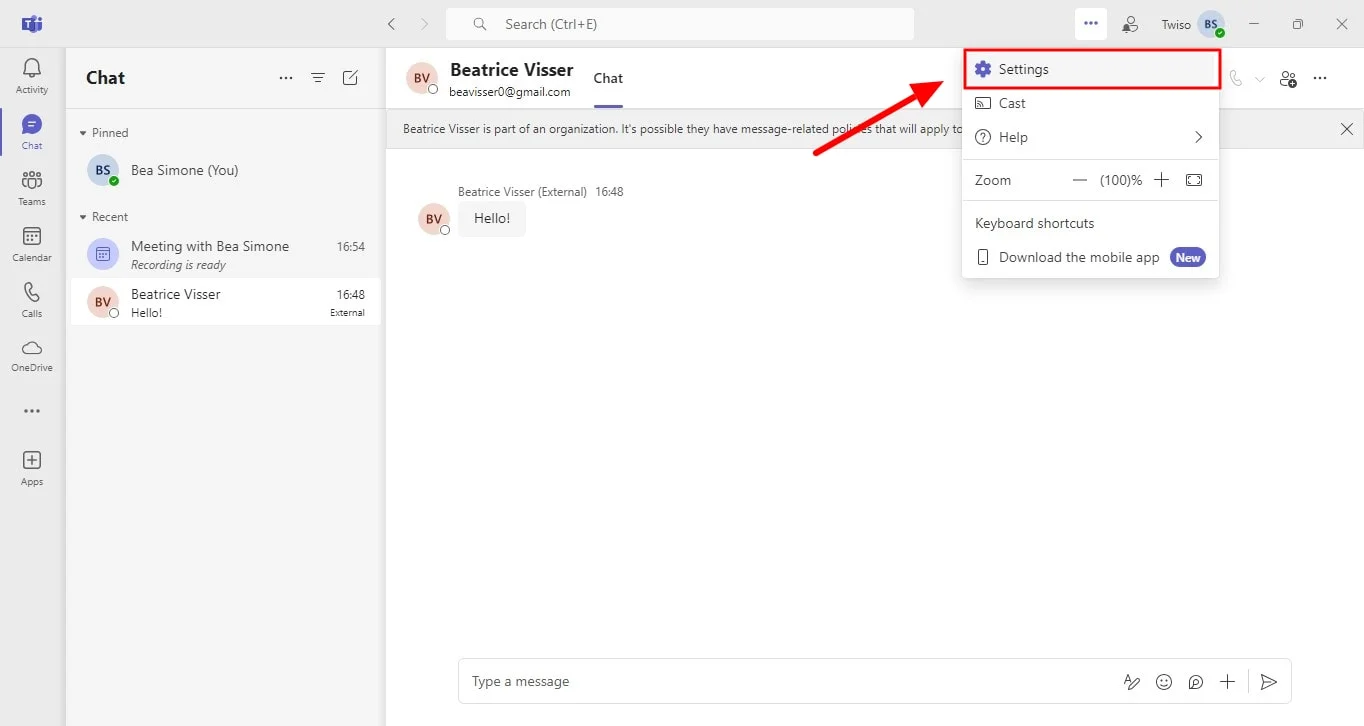
- Click your profile photo, then choose Settings.
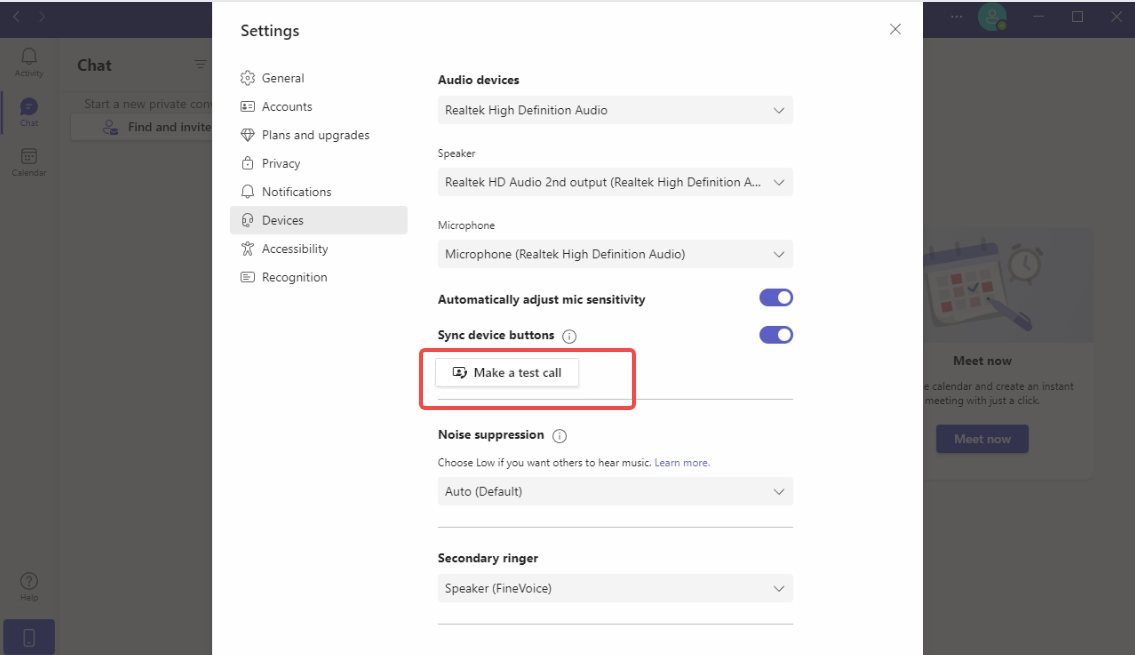
- Select Devices from the left menu.
- Under Camera, pick the device you want to test.
- Look at the camera preview. Move, adjust lighting, and check framing.
- Optionally, start a test call using Meet now or Make a test call in Devices.
Doing these steps shows you how to test camera in Teams quickly. If the preview is black, grainy, or blank, try the pre-checks above and continue troubleshooting below.

How to test camera in Teams before a meeting
Open Settings > Devices and use the camera preview. If it shows you clearly, you’re ready.
How to test camera in Teams during a meeting
Click the three dots in the meeting toolbar, pick Device settings, and view the camera preview. Switching cameras there instantly updates your view.
Can I test camera in Teams without joining a meeting?
Yes. Use the Devices tab in Settings or Start a Meet now in a private space for a quick test. This lets you try lighting and angles without attendees.
Testing camera in Teams across Windows, Mac, and mobile
Different platforms need slightly different steps. I’ll cover the most common ones.
Windows
- Use Teams app or web version in Chrome or Edge.
- Confirm Camera access in Windows Settings > Privacy > Camera.
- Update camera drivers if the preview fails.
Mac
- Grant camera permission in System Settings > Privacy & Security > Camera.
- Restart Teams after changing permissions.
- Test via Devices in Teams.
iPhone and iPad
- Allow Teams camera access in iOS Settings > Teams > Camera.
- Use the front or rear camera during a call.
- Lock orientation if you want to prevent unexpected flips.
Android
- Allow permissions in Settings > Apps > Teams > Permissions > Camera.
- Close background apps that use the camera.
- Use Meet now to preview.
These steps show platform differences for how to test camera in Teams. I use this checklist every time I switch devices.

Common camera problems and fixes
Here are common issues and quick fixes when you learn how to test camera in Teams.
- Black or no preview
- Check privacy cover and permissions. Restart Teams or the device.
- Wrong camera selected
- Switch camera in Settings > Devices. External cameras can be chosen manually.
- Poor image quality
- Improve lighting, clean the lens, and reduce background apps that hog CPU.
- Camera busy error
- Close apps like Zoom, Skype, or browser tabs using the camera. Restart the camera app.
- Teams not detecting camera
- Update Teams, update drivers, and check OS privacy settings. Replug USB if external.
I once missed a client call because my webcam defaulted to an unused virtual camera. After that, I always test 10 minutes early. Small checks prevent big problems.

Advanced tests and tools for pro setups
If you need higher reliability or quality, use these advanced checks.
- Use a virtual camera manager carefully. It can help with overlays but often causes conflict.
- Test resolution and frame rate in camera control apps. Confirm Teams supports the selected resolution.
- Use a capture card for DSLR or mirrorless cameras. Test with a Meet now session.
- Run network tests to ensure bandwidth is enough for HD video.
- Record a short clip during a test call to check audio and video sync.
These tactics help when you must deliver a polished stream. They also explain more complex scenarios of how to test camera in Teams.

PAA-style questions
How do I check camera settings in Teams quickly?
Open Settings, go to Devices, and look at the Camera section. Use the preview to confirm the right camera and framing.
Why does Teams show a black screen for my camera?
Common causes are blocked permissions, another app using the camera, or a faulty driver. Restarting the app or updating drivers usually fixes it.
Can I change camera mid-meeting in Teams?
Yes. Open Device settings from the meeting toolbar and pick a different camera. The preview updates immediately.
Frequently Asked Questions of how to test camera in teams
How do I test my camera in Microsoft Teams before joining a meeting?
Open Teams, go to Settings > Devices, and check the Camera preview. You can also start a Meet now to test live.
Why can't Teams find my webcam?
Often it’s due to blocked permissions, other apps using the camera, or outdated drivers. Check OS privacy settings and close competing apps.
How do I switch between front and rear cameras on mobile?
During a meeting, tap the camera icon or options and choose switch camera. Ensure Teams has camera permission in your phone settings.
Is there a way to test camera and microphone together?
Yes. Use Make a test call in Teams Devices or start a Meet now session. Both will let you check video and audio together.
What should I do if the camera preview is laggy?
Reduce background apps, lower video resolution if possible, and test your network speed. For persistent lag, update drivers and try a direct USB connection.
Conclusion
Testing your camera in Teams is a short routine that prevents meeting stress. Follow the pre-checks, use Teams Devices preview, and apply platform-specific fixes to stay ready. For pro setups, add capture cards or advanced tools and always test before important calls.
Take one small step now: run a quick preview in Settings and fix any issue you find. If this guide helped, try these tips in your next call and share your experience or questions below.

Everett Ashford is a tech reviewer at mytechgrid.com specializing in SSDs, cameras, TVs, earbuds, headphones, and other consumer electronics. He provides honest, data-driven reviews based on hands-on testing and real-world performance analysis. Everett simplifies complex tech details to help readers make smart, confident buying decisions.