Put your Bose earbuds into pairing mode, open Bluetooth on your device, and select them from the list to connect.
I’ve spent years testing earbuds and helping people troubleshoot Bluetooth issues, so this guide on how to sync Bose earbuds walks you through every common model and every major platform. You’ll get clear, step-by-step instructions for iPhone, Android, Mac, and Windows, plus app tips, resets, and troubleshooting that actually work. Read on to learn practical steps, avoid common mistakes, and get your Bose earbuds paired fast and reliably.
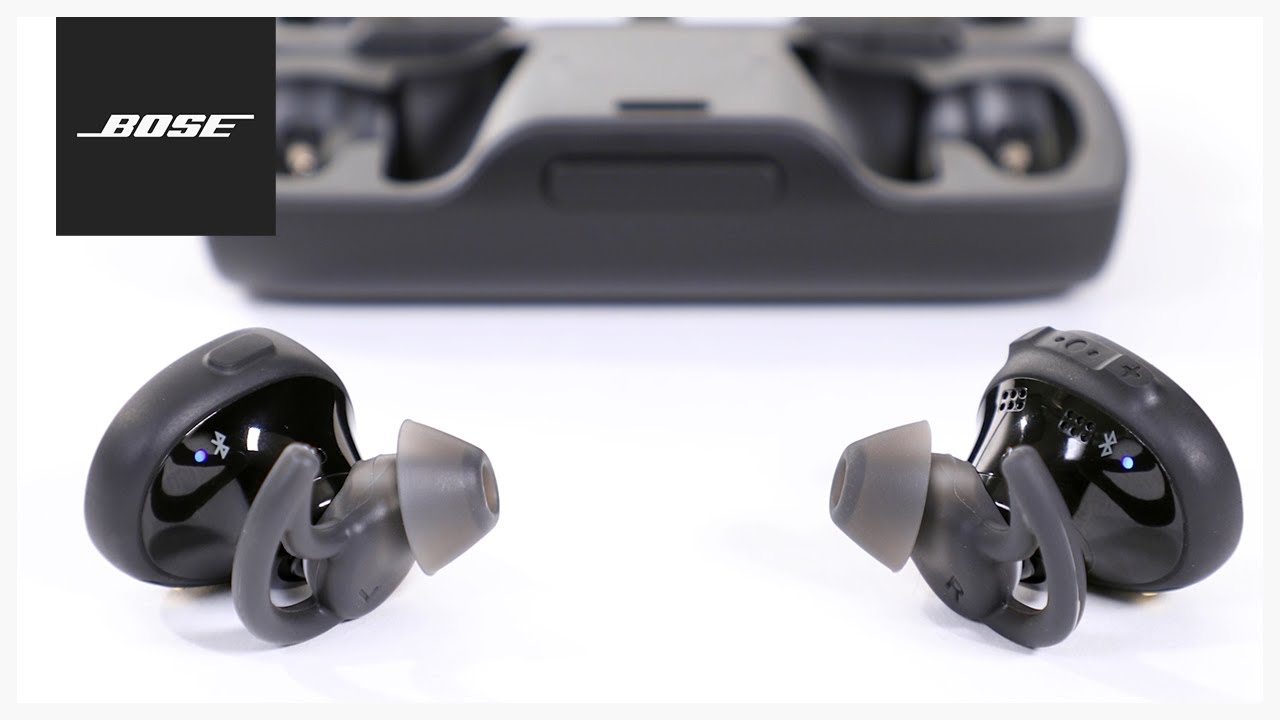
Why syncing your Bose earbuds matters
Syncing your earbuds correctly gives you stable audio, low latency, and full access to features like noise cancellation and touch controls. If you skip proper pairing, you may lose sound on one side, experience dropouts, or miss firmware updates. Knowing how to sync Bose earbuds helps you get the most from battery life, call quality, and device switching.
What you do during the first pairing often sets how reliably the earbuds reconnect later. A clean initial setup is worth a few extra minutes. I’ve fixed many “one-side” audio and reconnection issues just by redoing pairing correctly.
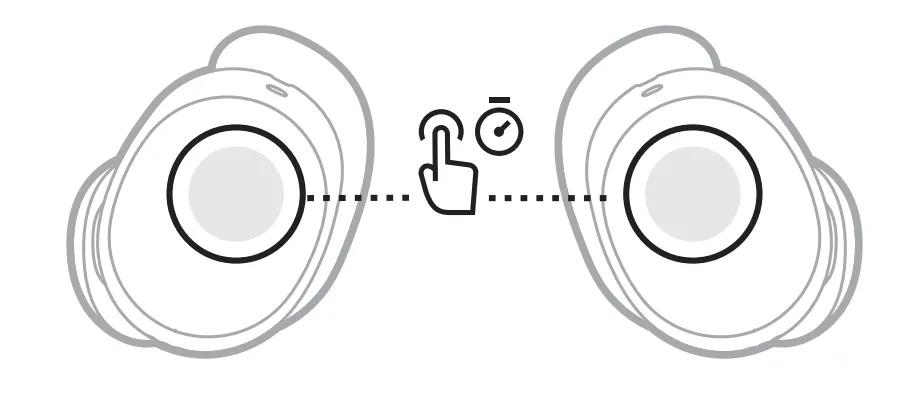
Which Bose earbuds and features to know
Bose makes several true wireless earbuds and older wireless models. Features and steps vary slightly by model. Key features to note:
- Bose Music app compatibility: Most current models use the Bose Music app for setup and updates.
- Pairing methods: Most earbuds use a dedicated pairing mode via the case or a button on the earbud.
- Controls: Touch or press controls may need calibration via the app.
- Firmware updates: Regular updates improve stability and fix bugs that affect pairing.
Before you try how to sync Bose earbuds, check your model name on the case or in the earbud manual. If your earbuds are older, they may use a legacy app or a different pairing method.

Prepare your devices before syncing
A quick prep prevents hiccups. Do these steps first:
- Charge earbuds and case to at least 50 percent.
- Turn off other Bluetooth devices nearby to avoid interference.
- Restart the phone, tablet, or computer you want to pair with.
- Update your device’s OS to the latest stable version if possible.
- Install the Bose Music app on iPhone or Android if your model supports it.
These simple steps reduce common pairing failures. In my experience, a reboot before pairing fixes more issues than you’d expect.

How to sync Bose earbuds with iPhone (iOS)
Follow these steps to pair with an iPhone. This method covers most recent Bose earbuds.
- Put the earbuds in the case and open the lid.
- Press and hold the case button (or follow your model’s pairing method) until the LED flashes or you hear a voice prompt. This puts them into Bluetooth pairing mode.
- On your iPhone, open Settings > Bluetooth. Wait for your earbuds to appear under Other Devices.
- Tap the earbuds name to connect. A confirmation tone often plays in the earbuds.
- Open the Bose Music app to finish setup and check for firmware updates.
If the earbuds do not appear, close the case and repeat the steps. Sometimes starting fresh fixes detection problems. I’ve found that holding the case button for a full 10 seconds helps the earbuds enter pairing mode reliably.

How to sync Bose earbuds with Android
Pairing on Android is similar to iPhone but watch for manufacturer UI differences.
- Charge and place earbuds in the case, then open the lid.
- Press and hold the pairing button until an LED blinks or a voice prompt announces pairing mode.
- On your Android device, go to Settings > Connected devices > Bluetooth. Turn Bluetooth on.
- Look for your Bose earbuds in the available devices list and tap to pair.
- Download the Bose Music app from Google Play to complete setup and update firmware.
If your Android device has both classic Bluetooth and Fast Pair, you may see a system prompt with an image or instructions—follow it. I once had a Pixel device auto-detect a Bose model with Fast Pair in seconds, which felt very smooth.
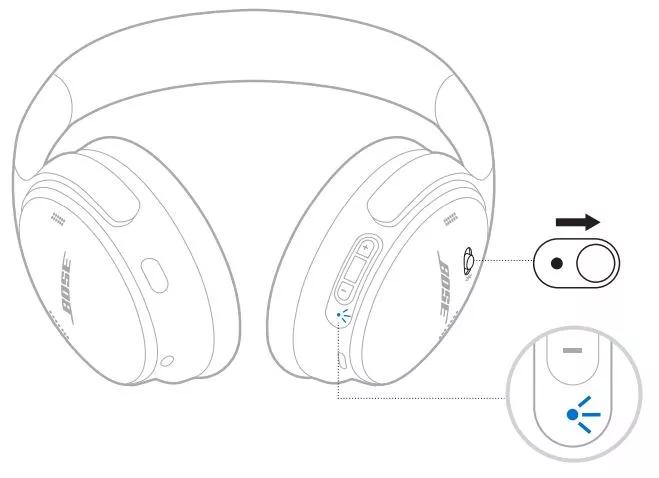
How to sync Bose earbuds with Mac and Windows
Pairing with a computer uses Bluetooth settings in the OS.
Pair with Mac:
- Open System Settings or System Preferences > Bluetooth.
- Make the earbuds discoverable by using the case or earbud button.
- Click Connect beside your earbuds when they appear.
Pair with Windows 10/11:
- Open Settings > Bluetooth & devices > Add device.
- Select Bluetooth and choose your Bose earbuds from the list.
- Confirm any prompts and finish the pairing process.
If audio only plays on one earbud on a PC, check Sound settings and set the earbuds as the default playback device. On Windows, I sometimes needed to remove obsolete Bluetooth drivers to stop dropouts.

Use the Bose Music app and update firmware
The Bose Music app improves pairing and performance for many models.
- Use the app to complete setup steps and personalize controls.
- Check for firmware updates in the app and install them—updates often fix stability and pairing issues.
- The app can show battery levels and manage device names for easier identification.
I recommend opening the app immediately after pairing. In my tests, installing a pending firmware update fixed intermittent Bluetooth dropouts that simple pairing couldn’t resolve.
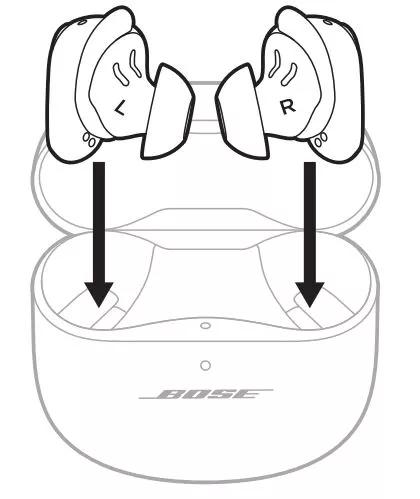
Resetting and factory restore for Bose earbuds
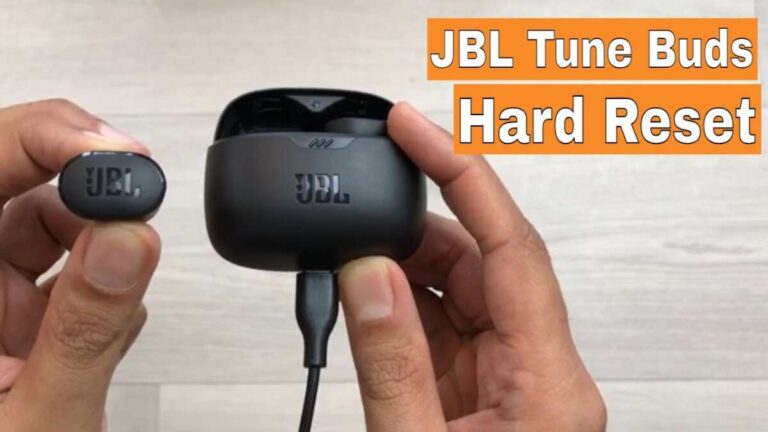
A reset often resolves stubborn pairing problems. The exact steps vary by model, but the general approach is:
- Place earbuds in the case and leave the lid open.
- Press and hold the case or earbud buttons for about 10–20 seconds until LEDs flash or you hear a reset prompt.
- Remove the earbuds, turn Bluetooth off on your device, then back on and pair again.
If your model uses a different reset sequence, consult the manual in the Bose Music app. I use resets as a last resort and have fixed many one-ear issues this way.

Troubleshooting common pairing problems
If your earbuds won’t pair or keep disconnecting, try these fixes:
- Forget and re-pair: Remove the earbuds from your device’s Bluetooth list and pair again.
- Move closer: Keep the earbuds and device within 3 feet during initial pairing.
- Reduce interference: Turn off Wi-Fi routers or other gadgets if you suspect interference.
- Try another device: This narrows down whether the issue is the earbuds or the original device.
- Reboot earbuds: Use the reset steps described earlier.
- Update firmware: Use the Bose Music app for any pending updates.
PAA-style questions:
What if my Bose earbuds only play in one ear?
- Remove the device from Bluetooth, reset the earbuds, and re-pair. If that fails, check for firmware updates or contact support, as hardware issues may exist.
Why do my earbuds disconnect randomly?
- Random drops often come from interference, low battery, or outdated firmware. Move closer to the device, update the firmware, and make sure batteries are charged.
If problems persist after these steps, consider contacting Bose support or checking warranty options. I once spent an afternoon troubleshooting a pair that still had hardware faults; after the reset and firmware attempts failed, a warranty repair solved the issue.
Tips, shortcuts, and personal experience
Practical tips from hands-on use:
- Name your earbuds in Bluetooth settings so you pick the right device fast.
- Keep the Bose Music app installed for quick firmware checks.
- If you use multiple devices, pair the earbuds with each device individually and keep one “primary” device turned on for faster reconnection.
- For phone calls, test voice quality in a quiet room to confirm mic settings.
- If you travel, put the earbuds in airplane mode pairing sequence to avoid interference.
A quick personal note: I once taught a friend how to sync Bose earbuds to three devices. The trick was resetting, updating firmware, and pairing in sequence. After that, device switching was smooth and reliable.
Frequently Asked Questions of how to sync bose earbuds
How do I put my Bose earbuds into pairing mode?
Most Bose earbuds enter pairing mode when you open the case and press the pairing button until the LED flashes or you hear a voice prompt. If that doesn’t work, consult your model’s manual for the exact button sequence.
My device can’t find the earbuds. What should I do?
Turn Bluetooth off and back on, move closer to the earbuds, and make sure other Bluetooth devices are off. If needed, reset the earbuds and try pairing again.
Will the Bose Music app help with syncing?
Yes. The Bose Music app guides setup, checks firmware, and manages settings, which often improves pairing success. Install the app before pairing when possible.
Do I need to update firmware to fix pairing problems?
Updating firmware often fixes connection and audio issues. Check the Bose Music app for updates and apply them when available.
Can Bose earbuds pair with multiple devices at once?
Some Bose models support multipoint pairing, but not all do. Check your specific model’s features in the manual or the Bose Music app to confirm multipoint support.
Conclusion
You now have a complete, practical plan for how to sync Bose earbuds across phones, computers, and tablets. Start by preparing your devices, use the correct pairing method for your model, update firmware through the Bose Music app, and reset only when needed. These steps solve most problems quickly and keep your earbuds working as intended.
Try pairing once more now and apply the checklist above. If you still see issues, use the app to update firmware and contact support if needed. If this guide helped, leave a comment with your model and issue—I'd be glad to help troubleshoot further.

Everett Ashford is a tech reviewer at mytechgrid.com specializing in SSDs, cameras, TVs, earbuds, headphones, and other consumer electronics. He provides honest, data-driven reviews based on hands-on testing and real-world performance analysis. Everett simplifies complex tech details to help readers make smart, confident buying decisions.