Put Raycon earbuds into pairing mode, then add them through your laptop’s Bluetooth settings.
I’ve spent years troubleshooting wireless audio on laptops and have paired Raycon earbuds with Windows and macOS dozens of times. This guide explains exactly how to connect Raycon earbuds to laptop, step by step, with clear troubleshooting, practical tips, and real-world advice so you can get reliable audio fast.

Bluetooth basics: how Raycon earbuds connect
Bluetooth earbuds use a wireless link and standard profiles to send audio from a laptop. Raycon earbuds typically use the A2DP profile for stereo audio and HFP/HSP for calls. Laptops talk to the earbuds through the laptop’s Bluetooth radio and drivers.
Pairing means the laptop and earbuds exchange a secure link key. Once paired, your laptop will remember the earbuds and reconnect automatically when both are on and in range. Understanding this helps when you troubleshoot pairing or audio issues.
Prepare your devices before pairing
- Charge both earbuds and the case. Low battery can prevent pairing or cause one earbud not to connect.
- Turn off other nearby Bluetooth devices to reduce interference.
- Make sure your laptop’s Bluetooth is enabled and its drivers are up to date. Many connection problems come from outdated Bluetooth drivers.
- If your Raycon earbuds were paired to a phone recently, turn off the phone’s Bluetooth or “forget” the earbuds before pairing to the laptop.

How to connect Raycon earbuds to laptop (Windows 10 / Windows 11)
- Confirm the earbuds are charged and turned off.
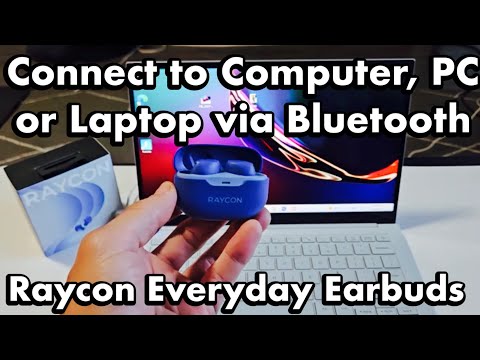
- Put the Raycon earbuds into pairing mode. Typical method: press and hold the button on both earbuds for about 3–6 seconds until the LED flashes red/blue or alternates colors. If one earbud acts as a master, press that earbud until pairing mode starts.
- On your laptop, open Settings > Bluetooth & devices. Turn Bluetooth on.
- Click Add device > Bluetooth. Wait for the laptop to scan and list nearby devices.
- Select your Raycon earbuds from the list (they may appear as “Raycon,” the model name, or “RAYCON EARBUDS”).
- If prompted, confirm pairing. Windows will install the needed profile and connect.
- After connection, select the Raycon as the default audio output in Sound settings or the taskbar speaker menu.
Troubleshooting quick tips for Windows:
- If the earbuds don’t appear, toggle Bluetooth off and on and try again.
- Restart your laptop if the Bluetooth stack is unresponsive.
- Update Bluetooth drivers in Device Manager: right-click the Bluetooth adapter > Update driver.
- If only one earbud plays sound, try resetting the earbuds (see troubleshooting section).
How to connect Raycon earbuds to laptop on Windows is straightforward once drivers and battery status are good. Repeating the pairing steps usually resolves most issues.
How to connect Raycon earbuds to laptop (macOS)
- Charge and power off the earbuds.
- Enter pairing mode on your Raycon earbuds by pressing and holding the earbud button until the LED flashes (3–6 seconds).
- On your Mac, open System Settings (or System Preferences) > Bluetooth. Turn Bluetooth on.
- Look for the Raycon earbuds in the device list. Click Connect next to their name.
- Once connected, choose Raycon as the output device in Control Center > Sound or in System Settings > Sound.
macOS tips:
- If the earbuds don’t show up, close the Bluetooth pane, wait a few seconds, then reopen it.
- Remove old pairings from the Bluetooth list on both your phone and Mac to avoid conflicts.
- Resetting the Mac’s Bluetooth module can help for persistent issues: hold Shift + Option and click the Bluetooth icon to reveal advanced options, then Reset (use cautiously).

If your laptop has no built-in Bluetooth
- Buy a USB Bluetooth adapter. Choose a Bluetooth 5.0 dongle for best range and stability. Plug it into a USB port, install drivers if required, and then pair like a normal device.
- Use a Bluetooth audio transmitter that plugs into the headphone jack or USB-C port if you prefer a dedicated audio adapter.
- Use a phone or tablet as a bridge: connect Raycon to your phone and then use the laptop’s apps via the phone (less ideal and adds latency).

Troubleshooting common problems and fixes
- Earbuds won’t enter pairing mode: Fully charge them and try again. Press and hold the buttons longer (8–12 seconds) if needed.
- Laptop can’t find the earbuds: Turn off other Bluetooth devices, move closer, and restart Bluetooth on your laptop. Update Bluetooth drivers.
- Only one earbud works: Re-pair both earbuds together. Place both in the case, power them off, then power them on and pair anew. If needed, reset the earbuds by holding both buttons for about 10 seconds until LEDs flash.
- Audio lag or stuttering: Close apps that use heavy wireless bandwidth. Reconnect, and if the laptop supports it, switch codecs to reduce latency. Use a Bluetooth adapter with low-latency support for gaming.
- Microphone won’t work: Some laptops require you to select the headset (Hands-Free) profile in sound settings. Note that Hands-Free mode lowers audio quality; use the laptop’s mic for best call audio.
Tips for best audio quality, latency, and battery life
- Keep earbuds and laptop within 30 feet and avoid walls or crowded Wi-Fi channels.
- Set your laptop’s Bluetooth to use the stereo (A2DP) profile for music; switch to headset mode only when you need a mic.
- Update your earbuds’ firmware if Raycon provides updates via an app. Firmware can fix stability and latency.
- Turn off voice assistants or extra sensors when you want to save battery.
- Store earbuds in the case when not in use to preserve battery and keep them discoverable only when desired.
Quick personal tips and common mistakes I’ve seen
- I once tried to pair Raycon earbuds with a laptop that had a corrupt Bluetooth driver. Updating the driver fixed the issue immediately.
- Many people try to pair while the earbuds are already connected to a phone. I always turn off phone Bluetooth first to avoid automatic reconnection.
- Avoid holding both earbuds too long in pairing mode after successful pairing; this can put them into reset and require re-pairing.
- If you rely on your laptop for calls, test the mic before important meetings. Headset profiles trade audio quality for mic access.
Frequently Asked Questions of how to connect raycon earbuds to laptop
How do I put Raycon earbuds into pairing mode?
Press and hold the button on the earbuds for about 3–6 seconds until the LED flashes or alternates colors. If that doesn’t work, fully charge them and try again.
Why won’t my laptop find my Raycon earbuds?
Common causes are low battery, Bluetooth conflicts with other devices, or outdated Bluetooth drivers. Turn off other devices, charge the earbuds, and update your laptop’s Bluetooth drivers.
How do I reset Raycon earbuds if one earbud is not working?
Place both earbuds in the charging case, power them off, then press and hold the earbud buttons for about 8–10 seconds until LEDs flash to reset. Re-pair them with your laptop afterward.
Can I use Raycon earbuds for Zoom calls on my laptop?
Yes, but select the headset or hands-free option in your laptop’s sound settings to enable the microphone. Expect slightly lower audio quality in hands-free mode compared to stereo mode.
What if my laptop has no Bluetooth?
Use a USB Bluetooth dongle or a Bluetooth audio transmitter. These plug into USB or the audio jack and let you pair Raycon earbuds like a built-in adapter would.
Will Raycon earbuds automatically reconnect to my laptop?
They will usually reconnect automatically if Bluetooth is on and the earbuds are in range. If they reconnect to another device first, disable Bluetooth on that device to force reconnection to the laptop.
Conclusion
You can reliably connect Raycon earbuds to laptop by putting the earbuds in pairing mode, enabling Bluetooth on the laptop, and selecting the Raycon device in your system Bluetooth list. Keep drivers updated, manage competing Bluetooth connections, and use resets when one earbud misbehaves. Try the steps in this guide and you’ll usually be listening within minutes.
Take action now: charge your earbuds, update your laptop’s Bluetooth, and follow the step-by-step walkthrough above. If this helped, leave a comment with your laptop model and Raycon model so I can offer more specific tips.

Everett Ashford is a tech reviewer at mytechgrid.com specializing in SSDs, cameras, TVs, earbuds, headphones, and other consumer electronics. He provides honest, data-driven reviews based on hands-on testing and real-world performance analysis. Everett simplifies complex tech details to help readers make smart, confident buying decisions.