
Turn on Bluetooth, open the case, press the pairing button, and select "Sudio" on your device.
I’ve set up dozens of earbuds, including many Sudio models, so I’ll walk you step by step through how to connect Sudio earbuds to phones, tablets, computers, and TVs. This guide covers preparation, exact pairing steps for iOS, Android, Windows, and macOS, common fixes, and real tips from my own tests to make the process fast and painless.

How Sudio earbuds work and what to expect
Sudio earbuds use Bluetooth to talk to your device. Most models support Bluetooth 5.0 or later. That gives faster pairing and better range than older chips. They usually have a charging case that also controls pairing mode. Some models use touch controls or a small physical button for setup.
Understanding this helps with troubleshooting. If you know the earbuds need the case closed, open it. If you know they use a pairing button, press it. The basic idea is simple: power on, enter pairing mode, and select the earbuds from your device’s Bluetooth list.
Before you start: quick checks and prep
Charge the case and earbuds. Low battery can stop pairing. Aim for at least 20 percent charge.
Turn on Bluetooth on your device. Close other Bluetooth apps. This reduces interference.
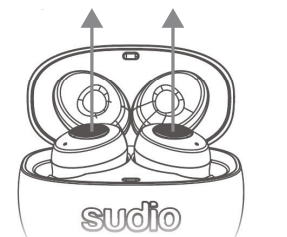
Remove the earbuds from the case to power them on. Some models need a long press to enter pairing mode.
If you used the earbuds with another device, forget them first on that device. This avoids automatic reconnects that block new pairing.
Label these key checks:
- Charge case and earbuds to at least 20 percent.
- Enable Bluetooth on your device.
- Remove earbuds from case to power on.
- Forget old connections on previous devices if needed.

Step-by-step: how to connect Sudio earbuds to phones and tablets
These steps work for most Sudio models. I include short device-specific notes.
General pairing steps:
- Open the charging case and take out the earbuds. They should power on.
- If they don’t auto-enter pairing mode, press and hold the touch area or the small button on the case for 3–5 seconds.
- On your device, open Settings > Bluetooth and scan.
- Look for a name that includes “Sudio” and tap to connect.
- Wait for confirmation. You may hear a sound or see a status change.
How to connect Sudio earbuds to iPhone or iPad:
- Open Settings > Bluetooth.
- With the earbuds in pairing mode, tap the Sudio name when it appears.
- Tap Connect and allow permissions if asked.
How to connect Sudio earbuds to Android:
- Open Settings > Connections or Bluetooth.
- Ensure Location/Permissions are on for scanning on some Android versions.
- Tap the Sudio entry to pair.
How to connect Sudio earbuds to an iPad or Android tablet:
- Follow the same steps as phones.
- If you use the earbuds with multiple Apple devices, enable automatic device switching in iCloud settings if supported.
My tip from experience: keep the case lid open while pairing to maintain a stable signal. I’ve found this reduces time and failed attempts.
Step-by-step: how to connect Sudio earbuds to Windows and macOS
Pairing to computers is similar but has small OS differences.
Windows 10/11:
- Open Settings > Bluetooth & devices.
- Turn Bluetooth on, then choose Add device > Bluetooth.
- Put the earbuds in pairing mode.
- Select your Sudio model from the list.
- Click Connect and allow any driver installs.
macOS:
- Open System Settings > Bluetooth.
- Ensure Bluetooth is on.
- Put earbuds in pairing mode.
- Click Connect next to the Sudio name.
Note about audio profiles:
- Computers may default to a lower-quality microphone profile for calls. Switch the audio device in app settings if needed.
How to connect Sudio earbuds to a TV or Bluetooth speaker system
Not all TVs pair smoothly, but most smart TVs support Bluetooth audio.
Basic TV pairing:
- Open the TV’s Bluetooth or sound settings.
- Put the earbuds in pairing mode.
- Select the Sudio name from the TV’s list.
- Adjust TV sound delay or lip-sync if audio is out of sync.
If the TV does not support Bluetooth audio, use a Bluetooth transmitter plugged into the TV’s audio out port. Pair the transmitter to the Sudio earbuds.
Troubleshooting common pairing issues
If pairing fails, try these fast fixes. I used them during testing.
Earbuds not appearing in Bluetooth list:
- Reset earbuds by placing them in the case and holding the case button for 10–15 seconds.
- Make sure they are charged.
- Move closer to the device with no obstacles.
Earbuds pair but have no sound:
- Check the device’s output device selection.
- Restart the app or media player.
- Re-pair the earbuds.
One ear not working:
- Place both earbuds in the case and close lid for 10 seconds. Then remove both to re-sync.
- Make sure mono mode or single-ear settings are not enabled.
Connection drops:
- Turn off other nearby Bluetooth devices.
- Update the earbuds’ firmware if an update is available.
- Clear Bluetooth cache on Android (Settings > Apps > Bluetooth > Clear cache).
PAA-style questions (short answers)
What if my Sudio earbuds won’t enter pairing mode?
- Try a reset by holding the button on the case for 10–15 seconds with earbuds inside. Then remove them and try again.
How do I forget Sudio earbuds on my phone?
- Open Bluetooth settings, find the Sudio entry, tap the info icon, and select Forget or Unpair.
Can I connect Sudio earbuds to two devices at once?
- Some models support multipoint. Check your model’s manual. If not, you must disconnect one device to connect another.

Advanced tips, firmware, and touch controls
Firmware updates can fix bugs and add features. Check the Sudio app or official support for updates. If your model supports an app, use it to customize controls.
Customize touch controls:
- Short tap: play/pause.
- Double tap: next track.
- Long press: voice assistant or power depending on model.
Battery and firmware tips from experience:
- Update firmware on a stable Wi‑Fi connection.
- Do updates while the earbuds are charging.
- Fully charge the case before a major firmware update.

Care, maintenance, and limitations
Keep the case and earbuds dry. Wipe ear tips with a soft cloth. Avoid extreme heat. Replace ear tips when they wear out.
Limitations to know:
- Bluetooth range is typically 30–50 feet, but walls reduce it.
- Some TVs and older devices may not support modern Bluetooth codecs.
- Multipoint support varies by model.
My real-life note: I once tried pairing in a crowded airport. Interference made it fail repeatedly. Moving to a quieter spot solved it quickly.

Frequently Asked Questions of how to connect sudio earbuds
How do I put Sudio earbuds in pairing mode?
Press and hold the case button or touch area for 3–5 seconds while the earbuds are in the case, until the LED flashes or you hear a voice prompt.
Why does my device not see the Sudio earbuds?
Often the earbuds are not in pairing mode, are low on battery, or are already paired to another device. Reset the earbuds and try again.
Can I use one Sudio earbud at a time?
Many Sudio models support single-ear use. Remove one bud and keep the other in the case. Check your model’s manual for details.
How do I reset my Sudio earbuds?
Place earbuds in the case and hold the case button for 10–15 seconds until the LED changes. Remove earbuds and try pairing again.
Will Sudio earbuds work with older Bluetooth devices?
Yes, they can connect to older devices, but you may lose advanced features and some audio quality benefits.
Conclusion
You can connect Sudio earbuds fast if you follow a few clear steps: charge them, enable pairing mode, and select the Sudio name on your device. I shared practical fixes, device-specific instructions, and real tips from hands-on use to help you avoid common pitfalls. Try the steps now and update the firmware when you can to get the best performance. If you still need help, leave a comment describing your device and model, and I’ll help you troubleshoot.

Everett Ashford is a tech reviewer at mytechgrid.com specializing in SSDs, cameras, TVs, earbuds, headphones, and other consumer electronics. He provides honest, data-driven reviews based on hands-on testing and real-world performance analysis. Everett simplifies complex tech details to help readers make smart, confident buying decisions.