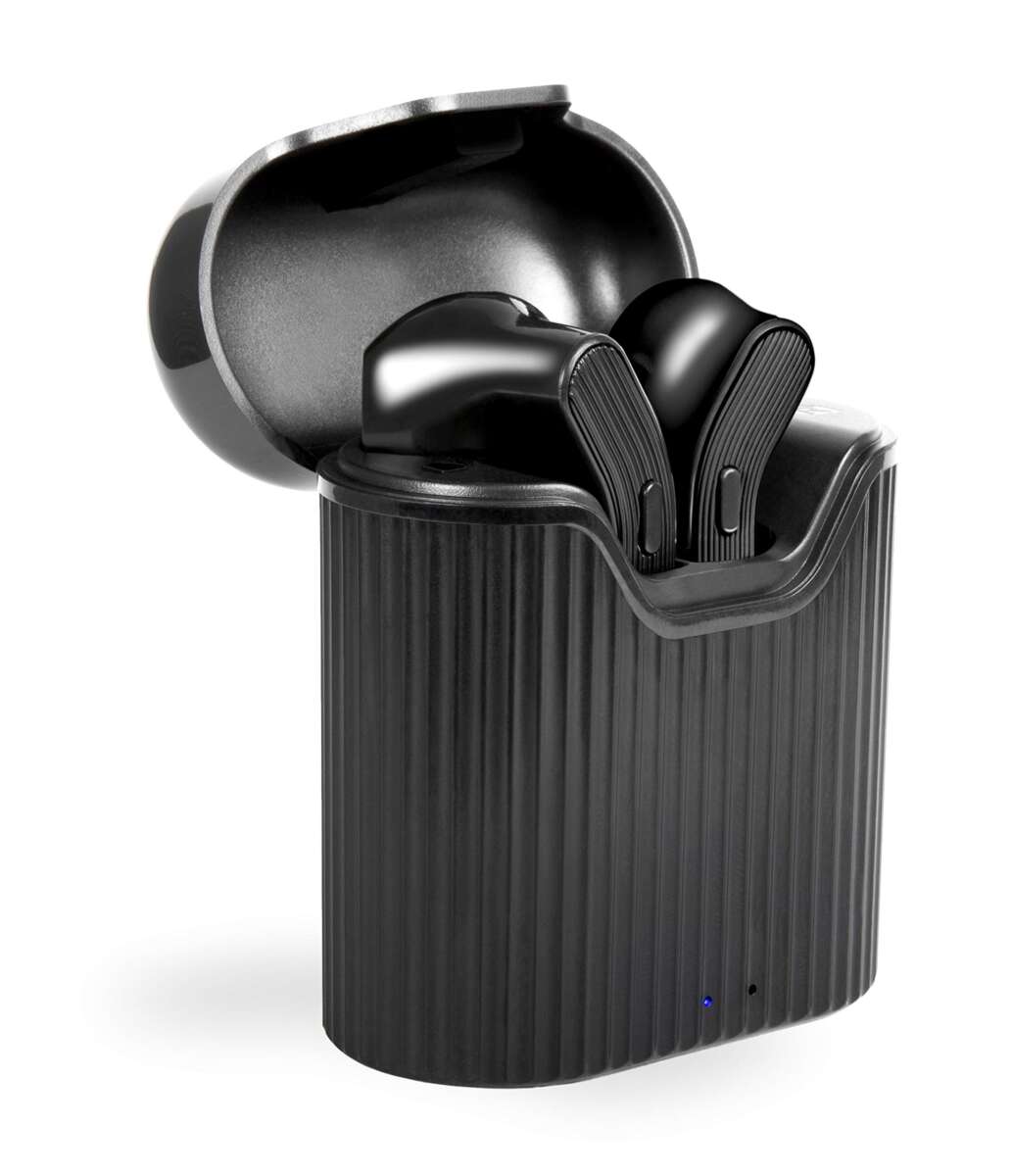
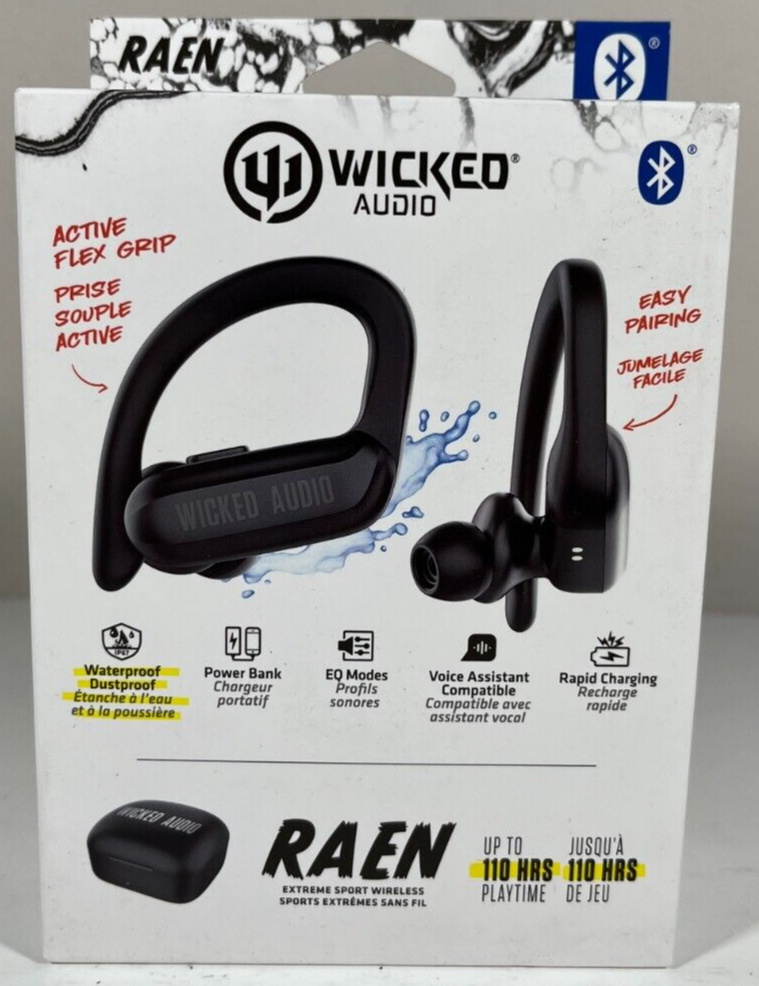
To pair Wicked Audio earbuds, charge them, enable Bluetooth, open the case, and select them from your device.
Learning how to pair Wicked Audio earbuds is usually quick, but the exact steps can vary by model. Most Wicked Audio true wireless earbuds use a simple case-based pairing process, while older models may need a button press or manual reset. This guide explains the full process for phones, tablets, computers, and common pairing problems.

Before you pair Wicked Audio earbuds
Start with a few simple checks. Pairing often fails because the earbuds are not charged, the case has low power, or the earbuds are still connected to another device.
Check these points first:
• Charge the earbuds and charging case for at least 15 minutes.
• Remove any small protective film covering the charging contacts.
• Keep the earbuds within 3 feet of your phone or computer.
• Turn off Bluetooth on nearby devices that have used the earbuds before.
• Make sure both earbuds sit correctly in the charging case.
• Install the latest software update on your phone, tablet, or computer.
Most Wicked Audio earbuds enter pairing mode when you open the case and remove both earbuds. Some models turn on when you press and hold the touch panel or power button for several seconds. If your model has a manual, check its model name and button layout before changing settings.
How to pair Wicked Audio earbuds with an iPhone
The iPhone uses a simple Bluetooth menu. Follow these steps to pair Wicked Audio earbuds:
-
Place both earbuds in the charging case.
-
Open the case lid.
-
Remove both earbuds at the same time.
-
Wait for the LED lights to flash. Flashing lights usually mean the earbuds are ready to pair.
-
Open Settings on your iPhone.
-
Tap Bluetooth.
-
Turn Bluetooth on if it is off.
-
Look under Other Devices.
-
Tap the name of your Wicked Audio earbuds.
-
Wait until the status changes to Connected.
After the first setup, the earbuds should connect automatically when you remove them from the case. Keep the case open during the first connection because some models will power down if you close it too soon.
If you do not see the earbuds, place them back in the case for 10 seconds. Then remove them again. This gives the earbuds a fresh chance to enter pairing mode.

How to pair Wicked Audio earbuds with an Android phone
Android menus can look slightly different across Samsung, Google Pixel, Motorola, and other phones. The main Bluetooth steps remain almost the same.
-
Put both Wicked Audio earbuds in the case.
-
Open the lid and remove the earbuds.
-
Open Settings on your Android phone.
-
Tap Connected devices, Connections, or Bluetooth.
-
Select Pair new device if your phone shows that option.
-
Find your Wicked Audio earbuds in the list.
-
Tap the earbud name.
-
Approve the pairing request if one appears.
Your earbuds may appear under a name such as Wicked Audio, Wicked, or a model number. Do not select an unknown device unless you are sure it belongs to your earbuds.
If Android asks for a PIN, try 0000 or 1234 only if your model manual recommends it. Most modern true wireless earbuds do not need a PIN.
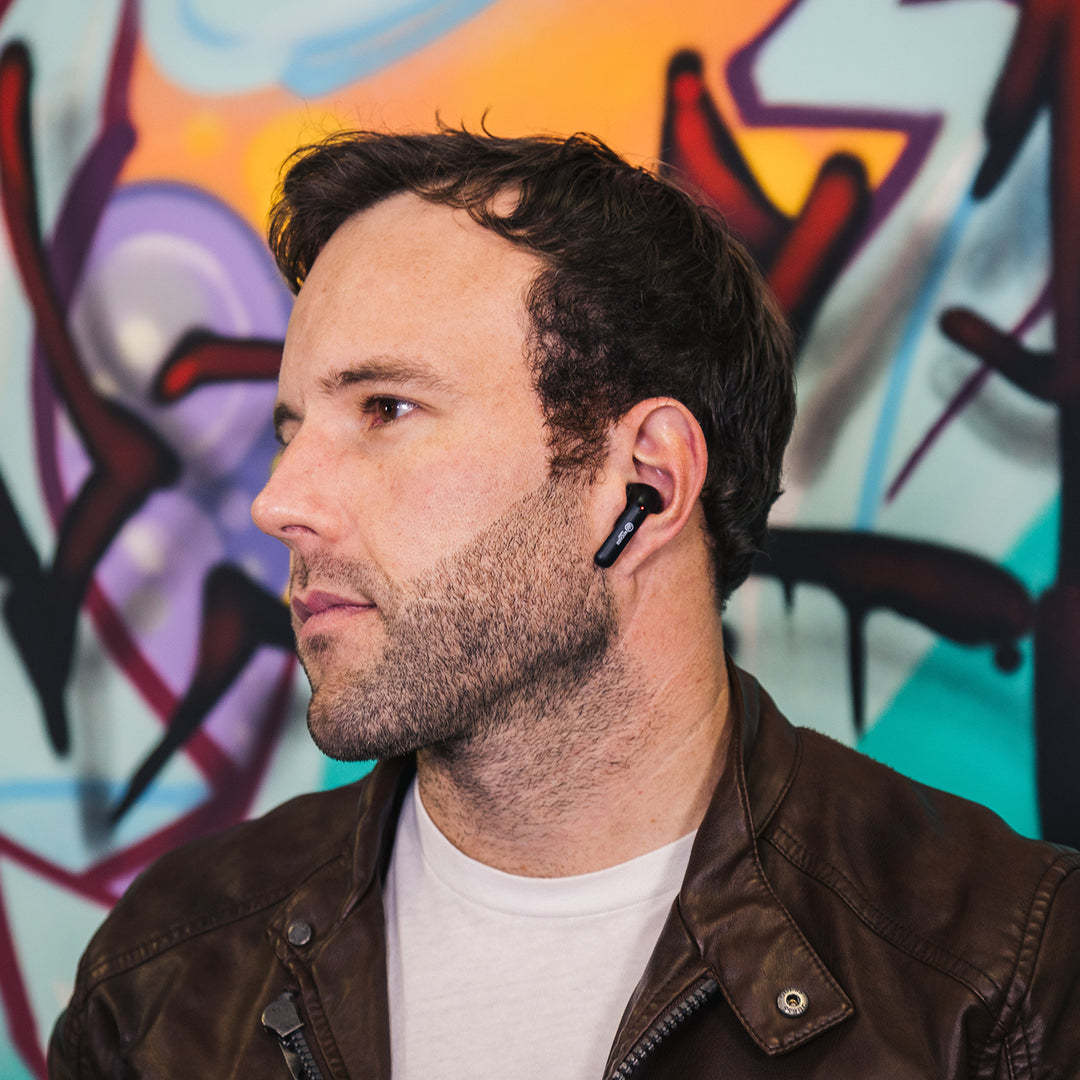
How to pair Wicked Audio earbuds with a Windows PC
Wicked Audio earbuds can work with a Windows laptop or desktop that supports Bluetooth. Pairing is useful for music, video calls, and online meetings.
-
Remove both earbuds from the charging case.
-
Open the Windows Start menu.
-
Select Settings.
-
Choose Bluetooth & devices.
-
Turn Bluetooth on.
-
Click Add device.
-
Select Bluetooth.
-
Choose your Wicked Audio earbuds from the list.
-
Click Connect.
Windows may show separate entries for the left and right earbuds if they are not synced with each other. Choose the main stereo name when possible. Selecting only one earbud can cause sound to play on one side.
After pairing, open Windows sound settings and select the Wicked Audio earbuds as the output device. For calls, you may also need to choose them as the microphone input.
Older Windows computers may have weak Bluetooth support. If the earbuds connect but sound cuts out, update the Bluetooth driver or use a newer USB Bluetooth adapter.

How to pair Wicked Audio earbuds with a Mac
Pairing Wicked Audio earbuds with a Mac takes only a few steps:
-
Remove the earbuds from the case.
-
Click the Apple menu.
-
Open System Settings or System Preferences.
-
Select Bluetooth.
-
Turn Bluetooth on.
-
Find your Wicked Audio earbuds under Nearby Devices.
-
Click Connect.
If music still plays through the Mac speakers, click the Control Center icon in the menu bar. Select Sound, then choose your Wicked Audio earbuds.
For video calls, open the audio settings inside the calling app. Select the earbuds for both the speaker and microphone. Some apps keep using the Mac’s built-in microphone even after the earbuds connect.

How to put Wicked Audio earbuds into pairing mode
Most Wicked Audio true wireless earbuds enter pairing mode automatically. The usual process is to place both earbuds in the case, open the lid, and remove them.
If automatic pairing does not start, try this process:
-
Turn off Bluetooth on your phone or computer.
-
Place both earbuds in the case.
-
Close the lid for 10 seconds.
-
Open the lid.
-
Press and hold both earbud buttons or touch panels for about 5 to 10 seconds.
-
Watch for flashing LED lights.
-
Turn Bluetooth back on.
-
Search for the earbuds again.
Button behavior can differ by model. A short press may play or pause music, while a longer press may turn the earbud off or activate pairing mode. Avoid holding the button for too long if the earbuds begin to reset.
Some Wicked Audio models use one earbud as the main connection. In that case, pair the main earbud first, then let the second earbud connect to it. The user manual is the most reliable guide for model-specific light patterns.

How to pair both Wicked Audio earbuds together
Sometimes a phone connects to only the left or right earbud. This usually means the two earbuds have lost their internal connection. The fix is often called a stereo reset or re-sync.
Try these steps:
-
Remove the Wicked Audio earbuds from your device’s Bluetooth list.
-
Turn off Bluetooth on the device.
-
Put both earbuds in the case.
-
Leave them there for at least 10 seconds.
-
Remove both earbuds together.
-
Press and hold both controls at the same time for several seconds.
-
Return them to the case.
-
Remove them again and wait for both earbuds to flash or connect.
-
Turn Bluetooth on and pair the earbuds again.
Do not pair the left and right earbuds as two separate devices unless your model specifically requires it. A normal stereo connection should appear as one device name.
I have found that removing only one earbud during setup is a common mistake. The other earbud may remain asleep in the case, which makes the phone think it is pairing with a single headset.
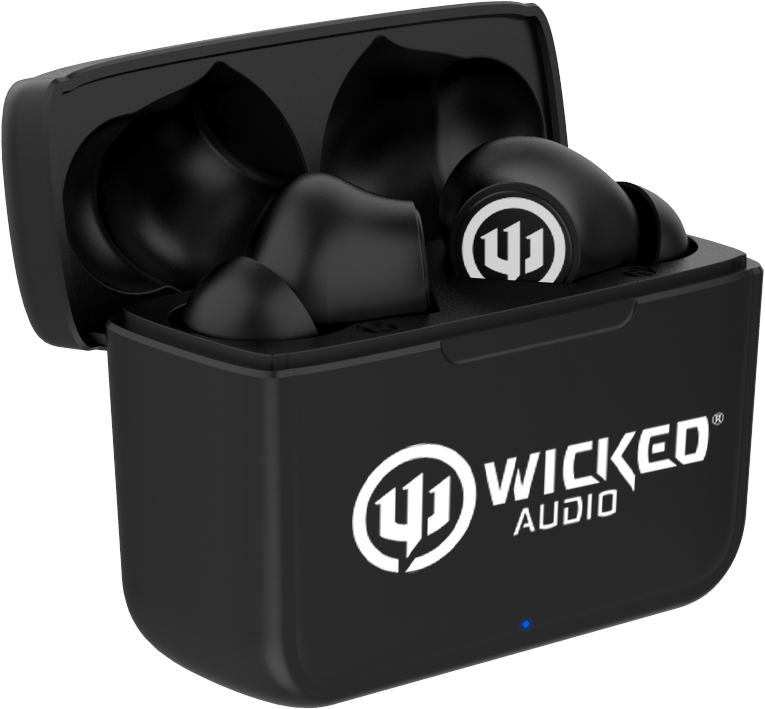
How to pair Wicked Audio earbuds after using another device
Bluetooth earbuds often reconnect to the last device they used. For example, your earbuds may connect to a tablet in another room instead of your phone.
To switch devices, follow these steps:
• Turn Bluetooth off on the old device.
• Open the Wicked Audio charging case.
• Remove both earbuds.
• Open Bluetooth settings on the new device.
• Select the Wicked Audio earbuds.
If the old device is nearby, use its Bluetooth settings to choose Forget This Device, Remove Device, or Unpair. This stops automatic reconnection.
Most basic Bluetooth earbuds do not support true multipoint pairing. That means they may remember several devices but connect actively to only one at a time. This is a normal limitation, not always a fault.
How to reset Wicked Audio earbuds
A reset can solve pairing loops, one-sided audio, failed connections, and repeated disconnections. Reset steps vary, so use the instructions for your model when available.
A common reset method is:
-
Forget the earbuds from every nearby phone, tablet, and computer.
-
Turn Bluetooth off on those devices.
-
Place both earbuds in the charging case.
-
Remove both earbuds.
-
Press and hold both buttons or touch panels for 10 to 15 seconds.
-
Watch for a change in the LED pattern.
-
Place the earbuds back in the case.
-
Wait 10 seconds.
-
Remove them and try pairing again.
Some models reset when you hold the controls while the earbuds are outside the case. Others reset when you tap a control several times. Do not assume one method works for every Wicked Audio product.
A reset deletes the old wireless connection. It does not repair a damaged battery, broken charging contact, or water damage. If one earbud never lights up, inspect the charging pins and clean them gently with a dry cotton swab.
Wicked Audio earbuds connected but have no sound
A Bluetooth connection does not always mean the earbuds are selected for audio. Your device may connect them for calls but continue sending music to its built-in speakers.
Try these fixes:
• Raise the media volume on the phone or computer.
• Check that the earbuds are selected as the audio output.
• Pause and restart the music or video.
• Disconnect other Bluetooth speakers or headphones.
• Check the left and right balance in accessibility settings.
• Close and reopen the music or call app.
On an iPhone, open Control Center, tap the audio output icon, and choose the earbuds. On Android, open the media output panel and select the Wicked Audio device. On Windows and Mac, check the system sound menu.
If only one side works, reset and re-sync both earbuds. Also check whether one earbud is out of battery. A dead earbud may look like a pairing problem when it is really a charging problem.
Wicked Audio earbuds will not show in Bluetooth
If the earbuds do not appear in the Bluetooth list, they may not be in pairing mode. They may also be connected to another device.
Use this troubleshooting order:
-
Turn Bluetooth off and on again.
-
Restart the phone or computer.
-
Charge the earbuds and case.
-
Move away from other Bluetooth devices.
-
Forget an old Wicked Audio entry.
-
Reset the earbuds.
-
Search for new Bluetooth devices again.
Bluetooth works best at short range. Walls, crowded wireless areas, and other active devices can affect discovery and audio stability. Bluetooth standards support different features across devices, so connection behavior may also vary between an older laptop and a newer phone.
The Bluetooth Special Interest Group explains that Bluetooth profiles control how devices handle functions such as audio streaming and hands-free calls. This is why an earbud can support music on one computer but have limited call features on another.
Tips for a stable Wicked Audio Bluetooth connection
Once you learn how to pair Wicked Audio earbuds, a few habits can make the connection more reliable.
• Keep the earbuds and device within about 30 feet in an open space.
• Keep the charging contacts clean and dry.
• Charge both earbuds at the same time.
• Update your phone or computer when updates are available.
• Avoid pairing the earbuds with many devices at once.
• Store the earbuds in the case when you are not using them.
• Keep the case away from extreme heat and moisture.
• Do not use a damaged charging cable or case.
Bluetooth range is not a guarantee. The advertised range usually assumes a clear path with little interference. Your body, walls, metal objects, and crowded Wi-Fi areas can reduce that range.
Battery age also matters. Lithium-ion batteries lose capacity over time. If your earbuds pair normally but shut down after a few minutes, the battery may be worn rather than improperly paired.
Common mistakes when pairing Wicked Audio earbuds
Several small mistakes can make a simple setup seem difficult.
The first is searching for the earbuds while they are still inside a closed case. Many models power down when the lid closes. The second is pairing one earbud first, which can break the stereo link.
Another mistake is tapping the device name repeatedly. This can create several failed connection attempts. Wait a few seconds, then reset the earbuds if the connection does not complete.
It is also easy to forget that Bluetooth has two parts: discovery and connection. Your phone must first find the earbuds, then complete the connection. A flashing LED usually signals discovery, while a steady light or voice prompt may signal a completed connection.
How to pair Wicked Audio earbuds for calls
After pairing, test both music and phone calls. A headset can play music correctly but use the wrong microphone during a call.
For a phone call:
-
Pair the earbuds normally.
-
Make a test call.
-
Tap the audio button on the call screen.
-
Select the Wicked Audio earbuds.
-
Speak and confirm that the other person can hear you.
For a computer call, open the meeting app’s audio settings. Choose the Wicked Audio earbuds as both the speaker and microphone. If the microphone sounds quiet, move the earbud closer to your mouth, reduce background noise, and check that the app has microphone permission.
Some entry-level earbuds have basic microphones. They may work well in a quiet room but struggle near traffic, wind, or loud office noise. This is a hardware limit, not a pairing failure.
Frequently asked questions about how to pair Wicked Audio earbuds
How do I put Wicked Audio earbuds in pairing mode?
Place both earbuds in the case, open the lid, and remove them. If they do not flash or appear in Bluetooth settings, press and hold both controls for several seconds, then search again.
Why are my Wicked Audio earbuds not showing up on Bluetooth?
They may be connected to another device, turned off, or low on battery. Turn off Bluetooth on nearby devices, charge the earbuds, reset them, and try the pairing process again.
Can I pair Wicked Audio earbuds with an iPhone?
Yes. Open the case, remove both earbuds, go to Settings, select Bluetooth, and tap the Wicked Audio device name. After the first pairing, they should reconnect automatically when removed from the case.
Can I connect Wicked Audio earbuds to a laptop?
Yes, if the laptop supports Bluetooth audio. Open the computer’s Bluetooth settings, choose Add device, select Bluetooth, and click the Wicked Audio earbuds when they appear.
Why does only one Wicked Audio earbud work?
The earbuds may have lost their stereo connection, or one side may not be charged. Forget the Bluetooth device, reset both earbuds, and remove them from the case together to re-sync them.
How do I reset Wicked Audio earbuds?
Forget the earbuds from your phone or computer, turn Bluetooth off, and place the earbuds in the case. Depending on the model, press and hold both controls for about 10 to 15 seconds before pairing them again.
Do Wicked Audio earbuds connect to more than one device at once?
Many basic models can remember several devices but connect to only one active device at a time. Turn off Bluetooth on the old device before connecting to a new phone or computer.
Conclusion
Pairing Wicked Audio earbuds usually takes less than a minute: charge them, place them in pairing mode, open Bluetooth settings, and select the correct device name. If the earbuds connect to only one side or refuse to appear, forget the old connection, reset both earbuds, and pair them again together.
Start with the simple checks before assuming the earbuds are faulty. Try the steps above with your specific model, then explore the manufacturer’s manual for unique button commands or LED signals. If this guide helped, share it with someone setting up new earbuds or leave a comment with your Wicked Audio model and pairing issue.

Everett Ashford is a tech reviewer at mytechgrid.com specializing in SSDs, cameras, TVs, earbuds, headphones, and other consumer electronics. He provides honest, data-driven reviews based on hands-on testing and real-world performance analysis. Everett simplifies complex tech details to help readers make smart, confident buying decisions.