Use the Roku TV’s composite AV input, a component cable, or an RCA converter to connect a DVD player without HDMI.
Learning how to use a DVD player on a Roku TV without HDMI is easier than it may seem. Most older DVD players send video through red, white, and yellow RCA cables, while some Roku TVs include a matching AV input. This guide explains each reliable connection method, how to select the correct input, and what to do when your TV lacks analog ports.
Check the Ports on Your Roku TV and DVD Player
Before connecting anything, look at the back or side of both devices. The available ports will decide which method works best.
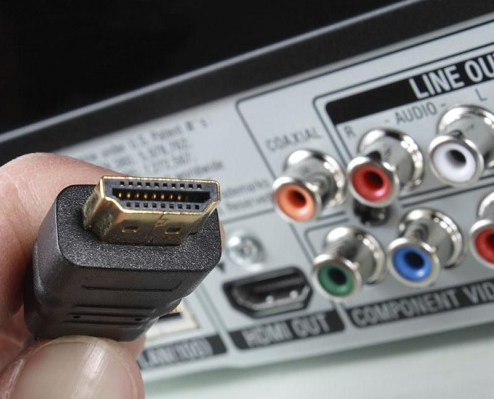
Most DVD players include one or more of these outputs:
• Yellow RCA port labeled Video Out
• White RCA port labeled Audio Left or L
• Red RCA port labeled Audio Right or R
• Red, blue, and green component video ports
• Coaxial digital audio output
• HDMI output on newer models
A Roku TV may include an AV input, component input, coaxial input, or only HDMI and USB ports. The exact port layout depends on the TV brand and model. Check the TV manual if you are unsure whether a small port is an AV input.
A common mistake is to confuse an AV input with an output. The TV must have ports labeled “AV In,” “Video In,” or “Component In.” Ports labeled “Audio Out,” “Optical,” or “Headphone” will not accept a DVD picture.
Method 1: Use Composite RCA Cables
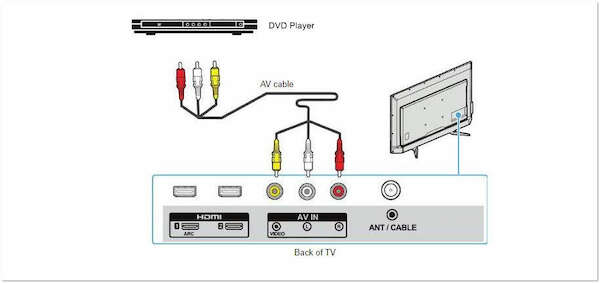
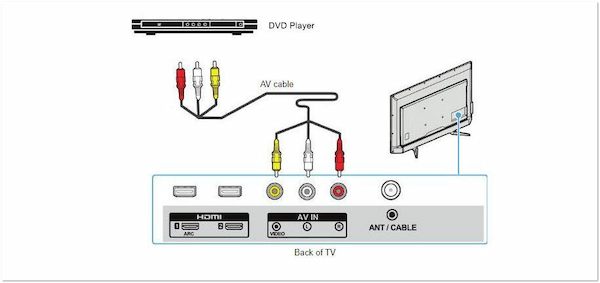
Composite RCA is the simplest way to connect a DVD player to a Roku TV without HDMI. It uses three plugs:
• Yellow for video
• White for left audio
• Red for right audio
This method works when the Roku TV has a composite AV input. Some TVs use three standard RCA ports. Others use a small 3.5 mm AV adapter that came with the television.
Steps for a composite connection
-
Turn off the Roku TV and DVD player.
-
Insert the yellow cable into the DVD player’s yellow Video Out port.
-
Connect the other end to the Roku TV’s yellow Video In port or AV adapter.
-
Connect the white cable to the white audio port on both devices.
-
Connect the red cable to the red audio port on both devices.
-
Turn on the DVD player and insert a disc.
-
Press the Home button on the Roku remote.
-
Open the Inputs or Live TV menu.
-
Select AV, Composite, Video, or the input name shown on your TV.
The screen may remain black for a few seconds while the TV detects the signal. If you see a blue screen or “No signal” message, check the cable colors and selected input first.
Composite video normally provides standard-definition picture quality. DVDs were designed for this type of signal, so the image should be watchable even though it will not look as sharp as a modern streaming video.

Method 2: Connect Through Component Video
Some DVD players and Roku TVs support component video. Component cables use three video plugs:
• Green for Y
• Blue for Pb
• Red for Pr
You also need separate red and white cables for sound. The red plug used for right audio can look similar to the red Pr video plug, so label each cable before connecting it.
Component video can provide a clearer picture than composite video. However, the TV and DVD player must both support component input and output. A component connection does not carry sound by itself.
Steps for component video
-
Connect the green cable from Y on the DVD player to Y on the TV.
-
Connect the blue cable from Pb to Pb.
-
Connect the red video cable from Pr to Pr.
-
Connect the white and red audio cables to the matching audio ports.
-
Turn on both devices.
-
Choose Component from the Roku TV input menu.
-
Start the DVD and check the picture and sound.
Do not connect the green component cable to a yellow composite port. Both may carry video, but they use different signal formats. A wrong connection can produce a distorted picture, unusual colors, or no image at all.
Method 3: Use a Coaxial Connection With an RF Modulator
Older televisions can receive a DVD signal through a coaxial antenna input. A DVD player usually cannot connect directly to that port because its RCA output is not the same as an antenna signal.
You need an RF modulator. This device converts the DVD player’s composite signal into a television channel, often channel 3 or channel 4.
What you need
• DVD player
• Yellow, red, and white RCA cables
• RF modulator
• Coaxial cable
• Roku TV with a coaxial antenna input
How to set it up
-
Connect the DVD player’s yellow, red, and white outputs to the RF modulator’s inputs.
-
Connect a coaxial cable from the modulator’s RF output to the Roku TV’s antenna or coaxial input.
-
Set the RF modulator to channel 3 or 4.
-
Set the TV to the same channel.
-
Select the antenna or Live TV input on the Roku TV.
-
Start the DVD player.
This method may require a channel scan on some Roku TVs. It also gives lower picture quality than composite or component video. Still, it can solve the problem when the television has a coaxial port but no AV input.
A cable box, antenna, or satellite receiver may need to be disconnected during setup. Once the DVD player works, you can reconnect the other device using an available splitter or switch designed for the correct signal type.

Method 4: Use an AV-to-HDMI Converter
If the Roku TV has HDMI ports but no composite or component input, an AV-to-HDMI converter may help. This is different from a simple cable. A converter changes the analog RCA signal into a digital HDMI signal.
Connect the DVD player to the converter with red, white, and yellow RCA cables. Then connect the converter to an HDMI port on the Roku TV with an HDMI cable.
Setup instructions
-
Plug the RCA cables into the DVD player’s output ports.
-
Connect the other ends to the converter’s input ports.
-
Connect an HDMI cable from the converter to the Roku TV.
-
Plug the converter into its power adapter.
-
Turn on the DVD player and television.
-
Select the HDMI input used by the converter.
-
Set the converter to the correct output mode, such as 720p or 1080p, if it has a switch.
The converter does not improve the original DVD’s detail. It only changes the signal format so the TV can read it. Low-cost converters can also introduce a short delay, a soft image, or audio problems.
Make sure you buy an AV-to-HDMI converter, not an HDMI-to-AV converter. The signal direction matters. An HDMI-to-AV unit is meant to send an HDMI source to an older analog TV and will not normally connect an RCA DVD player to a modern television.

How to Select the DVD Input on a Roku TV
Connecting the cables is only half the process. The Roku TV must display the correct input.
Use one of these methods:
• Press the Input, Source, or TV/Input button on the remote.
• Press Home, then open the input tile shown on the Roku home screen.
• Choose Live TV if the DVD player uses an RF modulator.
• Select AV or Composite for RCA cables.
• Select Component for component cables.
• Select the HDMI port used by an AV-to-HDMI converter.
Some Roku TVs let you rename inputs. Renaming an input “DVD Player” can make future use easier. You may also be able to add the input to the home screen if it is hidden.
If the input does not appear, unplug the TV for about one minute. Reconnect it, turn on the DVD player, and check the input list again. Some models only show an AV input after the included adapter is inserted.

Troubleshooting a DVD Player With No Picture
A blank screen does not always mean the DVD player is broken. In many cases, the TV is on the wrong input or one cable is connected to an output instead of an input.
Try these fixes in order:
-
Confirm that the DVD player is powered on.
-
Check that the disc is clean and inserted correctly.
-
Verify that the yellow video cable is connected to Video Out on the DVD player and Video In on the TV.
-
Check the red and white audio connections.
-
Select the correct Roku TV input.
-
Test another set of RCA cables.
-
Restart both devices.
-
Try a different disc.
-
Check the DVD player’s video output settings.
-
Test the DVD player on another television if possible.
If the picture is black and white, the DVD player may be set to a video standard that the TV does not support. This is more common with imported equipment. A disc from another region can also fail to play because DVD players and discs may use regional formats.
If the picture rolls, flickers, or appears in strange colors, check whether a component cable was connected to a composite port. This is one of the most common errors when people connect older equipment.

Troubleshooting Sound Problems
A picture with no sound usually points to an audio cable, TV setting, or converter issue.
Check that the white cable is connected to the left audio channel and the red cable is connected to the right audio channel. The sound will often still work if these are reversed, but the left and right channels will be swapped.
Also check the following:
• Raise the TV volume.
• Turn off mute.
• Raise the DVD player volume if it has a volume control.
• Confirm that the TV audio output is not set to Bluetooth or optical audio.
• Check the converter’s audio mode.
• Try another red and white cable pair.
Some DVD players offer PCM, Bitstream, or Dolby audio settings. If a converter or older TV does not understand the selected format, change the DVD player’s digital audio setting to PCM or stereo. This setting is especially useful when sound works in the DVD menu but disappears during movie playback.
Picture Quality and Compatibility Limits
Using a DVD player on a Roku TV without HDMI can work well, but there are limits. Composite video is usually standard definition, so the image may look softer than Roku streaming content.
Component video can offer better quality, but it is not available on every television. An AV-to-HDMI converter may make the connection possible, but it cannot create high-definition detail that is not present in the original DVD signal.
You may also notice black bars around some movies. DVDs use different aspect ratios, such as 4:3 and widescreen. Use the Roku TV’s picture-size setting carefully. Stretching a 4:3 image to fill a wide screen can make people and objects look too broad.
Copy-protected discs may also behave differently with certain converters. A converter that works with home videos may show a distorted or unstable picture with commercial DVDs. This is a compatibility issue, not always a cable failure.

Common Mistakes to Avoid
A few simple mistakes cause most connection problems.
• Do not connect cables to the DVD player’s Audio In ports when you need Audio Out.
• Do not assume every Roku TV includes a composite adapter.
• Do not buy an HDMI-to-AV converter when you need AV-to-HDMI.
• Do not connect a coaxial cable directly to a DVD player’s RCA output.
• Do not expect a USB port to play a DVD signal.
• Do not force an adapter into a port with a different shape.
• Do not use a passive RCA-to-HDMI cable. It cannot convert the signal by itself.
• Do not overlook the TV input menu after plugging in the cables.
In setups I have helped troubleshoot, the most frequent issue was not damaged equipment. It was a red cable plugged into the red component video port instead of the red audio port. Color labels are helpful, but port names matter more.
Which Connection Method Should You Choose?
The best method depends on the ports available.
• Choose composite RCA when both devices have yellow, red, and white connections.
• Choose component video when both devices support green, blue, and red video inputs.
• Choose an RF modulator when the TV has a coaxial input but no AV input.
• Choose an AV-to-HDMI converter when the TV has HDMI ports but no analog video input.
Composite is normally the easiest and least expensive option. Component is better when you want improved analog picture quality. An RF modulator is useful for very old televisions, while an AV-to-HDMI converter is practical for newer Roku TVs without legacy inputs.
Frequently Asked Questions
Can I connect a DVD player to a Roku TV with red, white, and yellow cables?
Yes, if the Roku TV has a composite AV input or a compatible AV adapter. Connect yellow to video, white to left audio, and red to right audio, then select the AV input.
What if my Roku TV has no yellow, red, or white ports?
Use an AV-to-HDMI converter. Connect the DVD player to the converter with RCA cables, connect the converter to the TV with HDMI, and select the correct HDMI input.
Can I use a USB cable to connect the DVD player?
No. A Roku TV USB port is not designed to receive video from a DVD player. USB ports are mainly used for compatible media files, power, or service functions.
Why does my Roku TV say “No signal” from the DVD player?
The TV may be on the wrong input, the cables may be connected to output ports, or the DVD player may not be sending a compatible signal. Confirm every connection and restart both devices.
Do I need an adapter for every Roku TV?
No. Some Roku TVs have built-in composite or component inputs. Others require a brand-specific AV adapter, and some need an AV-to-HDMI converter.
Can I connect a DVD player to a Roku TV through Wi-Fi?
No. Standard DVD players do not send video over Wi-Fi. The connection must use a compatible wired input or a separate device that can convert the signal.
Will an AV-to-HDMI converter improve DVD picture quality?
It may make the signal compatible with the TV, but it cannot add detail that is not on the DVD. The final image may still look softer than HD streaming video.
Conclusion
You can use a DVD player on a Roku TV without HDMI by choosing the right connection for your equipment. Composite RCA is the easiest option, component video can provide a cleaner analog picture, an RF modulator works with coaxial inputs, and an AV-to-HDMI converter helps when the TV has only HDMI ports.
Start by checking the labels on both devices. Match outputs to inputs, select the correct Roku TV source, and avoid confusing AV-to-HDMI with HDMI-to-AV converters. Once the setup works, consider renaming the input to “DVD Player” so movie night is only a few button presses away.

Everett Ashford is a tech reviewer at mytechgrid.com specializing in SSDs, cameras, TVs, earbuds, headphones, and other consumer electronics. He provides honest, data-driven reviews based on hands-on testing and real-world performance analysis. Everett simplifies complex tech details to help readers make smart, confident buying decisions.