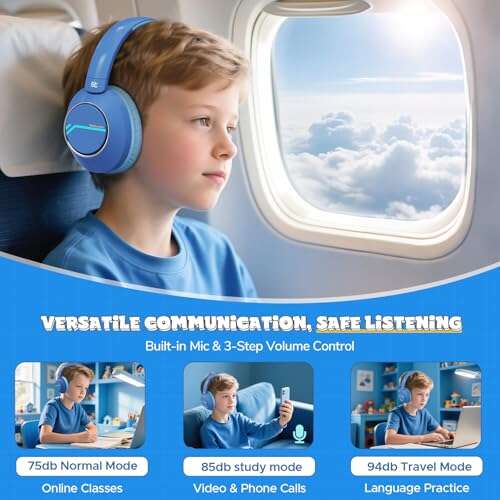
In the United States, people use headphones to talk on phone calls, Zoom meetings, online games, Discord, FaceTime, and work apps. To talk through headphones, connect a headset with a microphone, select its mic as the input device, and choose the headphones as the output device. Then open the app you want to use and test your voice.
The steps vary by device. A wired headset may work as soon as you plug it in. A bluetooth headset needs to pair first. Some headphones also have a mute switch, a detachable mic, or separate settings for calls and media.

What does “talk through headphones” mean?
Talking through headphones means using the headphones’ built-in or attached microphone to send your voice to another person. The headphones play the other person’s voice in your ears.


A complete headset has two parts:
- Output: The speakers in the headphones let you hear.
- Input: The microphone captures your voice.
Many people call both parts “headphones,” but headphones without a microphone cannot send your voice. You can still use them for a call if your phone or computer uses its own built-in microphone.
Common headphone types include:
- Wired headsets: Connect through a 3.5-millimeter plug, USB port, or USB-C port.
- Bluetooth headsets: Connect wirelessly after pairing.
- Gaming headsets: Often include a boom mic and a mute control.
- Earbuds: May use small microphones built into each earbud.
- Noise–canceling headphones: Can reduce outside sound, but their microphones may process your voice in different ways.
The most important setting is the input device. If the wrong input is selected, other people may hear the laptop microphone, phone microphone, or no sound at all.
How to talk through headphones on a phone
The fastest method is to connect the headphones before starting the call. Your phone should then route the call audio through the headphones and use the headset microphone.
Using wired headphones
- Plug the headset into the phone.
- If the phone has no headphone jack, use a compatible USB-C or Lightning adapter.
- Start a phone call or open your calling app.
- Ask the other person if they can hear you.
- Use the headset’s inline controls to mute, unmute, raise the volume, or end the call if supported.
Some low-cost adapters support audio output but not a microphone. If you can hear the other person but they cannot hear you, the adapter may be the cause.


A headset with a four-contact 3.5-millimeter plug is commonly made for both sound and voice. However, plug standards can differ. If the headset works on one device but not another, check the headset and adapter instructions.
Using Bluetooth headphones
- Charge the headphones.
- Turn on Bluetooth on the phone.
- Put the headphones in pairing mode.
- Select the headphones in the phone’s Bluetooth menu.
- Wait for the status to show that they are connected.
- Start the call.
- Check that the call audio is routed to the headphones.
On an iPhone, tap the audio button during a call if you need to choose between the iPhone, speaker, and Bluetooth headset. On an Android phone, look for the audio or Bluetooth option on the call screen. Menu names can differ by phone maker and Android version.
If music plays through the headphones but calls do not, the headphones may be connected only for media. Disconnect and pair them again. Also check whether the calling app has permission to use the microphone.
Using headphones with FaceTime or another calling app
Open the app’s audio settings before the call when possible. Confirm these two choices:
- Microphone: Your headphones or headset
- Speaker: Your headphones or headset
Apps such as FaceTime, Zoom, Microsoft Teams, Google Meet, and WhatsApp may have their own audio controls. A phone’s system setting and the app setting may not always match.

How to talk through headphones on a Windows PC
On a Windows computer, set the headset as both the input and output device. Microsoft provides sound controls in Settings > System > Sound, though the exact layout can change with Windows updates.
- Connect the wired headset or pair the Bluetooth headset.
- Open Settings.
- Select System, then Sound.
- Under Output, choose your headphones.
- Under Input, choose the headset microphone.
- Speak and watch the input level move.
- Open your call, meeting, or game app.
- Select the same headset in the app’s audio settings.
- Make a short test call or use the app’s microphone test.
If the microphone level moves when you speak, the computer is receiving your voice. If you hear your own voice through the headset, the app may have a monitoring feature turned on. That feature can help with setup, but it may feel distracting during a call.
USB headset setup
A USB headset usually appears as a separate sound device. Connect it directly to the computer when possible. Some USB hubs may cause connection or power problems.
If the headset has a physical mute button, check it before joining a meeting. Many USB headsets show mute status with a light, but the light may not match the app’s mute status in every program.
Bluetooth headset setup on Windows
Bluetooth headphones can show more than one sound option. One option may provide higher-quality music, while another supports two-way call audio. This happens because a microphone and high-quality stereo sound may use different Bluetooth audio modes.
During a call, sound quality may drop. That does not always mean the headset is damaged. The computer may switch to a call mode so it can send your voice and receive sound at the same time.
For reliable voice chat, a USB or wired headset may be easier to manage. Bluetooth remains useful when you need freedom from cables.

How to talk through headphones on a Mac
A Mac can use headphones for sound and a headset microphone for voice calls.


- Connect the headset or pair it through Bluetooth.
- Open the Apple menu.
- Select System Settings.
- Choose Sound.
- Select your headphones under Output.
- Select the headset microphone under Input.
- Speak and watch the input meter.
- Open your call or meeting app.
- Confirm the same devices in the app’s audio settings.
Apple explains sound input and output choices in its Mac support documentation. App menus may use names such as Audio, Microphone, Speaker, or Sound.
If the Mac uses the built-in microphone, other people may hear room noise even though you are wearing headphones. Selecting the headset microphone fixes that problem when the headset supports microphone input.
A Mac may also show separate Bluetooth profiles. As with Windows, call mode can reduce music quality while the microphone is active. This is a normal limitation of some Bluetooth connections.

How to talk through headphones in Zoom, Teams, Discord, and games
The app must use the correct microphone and speaker. Choosing the headset only in your computer settings may not be enough.
Zoom
In Zoom:
- Open Settings.
- Select Audio.
- Choose your headphones under Speaker.
- Choose the headset microphone under Microphone.
- Use Zoom’s speaker and microphone tests.
- Check the mute button before joining the meeting.
Zoom also has automatic microphone settings and background-noise controls. These can reduce fan noise and keyboard sounds, but strong processing may change your voice. Adjust them if your voice sounds cut off or unnatural.
Microsoft Teams
In Teams:
- Open Settings.
- Select Devices.
- Choose the headphones as the speaker.
- Choose the headset microphone as the microphone.
- Use the test call if it is available.
- Check the meeting mute control and the headset’s physical mute control.
If both are active, either one can stop your voice. A headset light may show one status while the app shows another, so check both.
Discord
In Discord:
- Open User Settings.
- Select Voice & Video.
- Choose the headset under Input Device.
- Choose the headset under Output Device.
- Use the mic test.
- Select the right input mode, such as voice activity or push-to-talk.
Voice activity can pick up background sound. Push-to-talk gives you more control, but you must hold the assigned key while speaking.
Online games
Open the game’s audio or voice-chat menu. Look for:
- Voice chat enabled
- Input device
- Output device
- Microphone volume
- Open microphone or push-to-talk
- Team chat or party chat
- Voice chat mute
Console games may use the headset connected to the controller or console. If the headset has a mute switch on the cable, check it first. Also check whether the game has muted you or placed you in the wrong chat channel.

How to test whether your headphone microphone works
A short test can find most setup problems before a meeting or game.


Basic microphone test
- Open the device’s sound settings.
- Select the headset microphone.
- Speak in a normal voice.
- Watch the input meter.
- Record a short clip if the device offers a recording tool.
- Play the clip back through the headphones.
A working test has three signs:
- The input meter moves when you speak.
- The recording contains your voice.
- The playback has no severe crackling, dropouts, or echo.
Do not shout into the microphone. Speak at a normal volume from the distance recommended by the headset maker.
Test the microphone in the app
A system test does not always prove that the app is using the same microphone. Run the app’s own test as well.
If the system test works but the app test fails, the likely cause is an app setting or permission. If both tests fail, focus on the connection, mute control, device selection, or microphone hardware.
How to fix a headphone microphone that does not work
Start with simple and safe checks. Do not change many settings at once, because that makes the cause harder to find.
1. Check mute controls
Look for:
- A mute button on the headset
- A sliding mute switch
- A microphone boom that mutes when raised
- A mute icon in the app
- A keyboard mute key
- A system privacy control
Unmute the headset and the app. Some headsets mute when the boom is folded upward.
2. Confirm the input device
Open the device’s sound settings and choose the headset microphone. Then open the calling or gaming app and choose it there too.
The name may appear as:
- Headset microphone
- USB audio device
- Bluetooth headset
- External microphone
- The headset brand or model
Do not select “Default” if the computer keeps choosing the wrong device. Select the exact headset when possible.
3. Check microphone permission
Windows, macOS, iOS, and Android can block microphone access for privacy. Open the privacy settings and allow the app to use the microphone.
If permission is blocked, the headset may look connected while the app receives no voice.
4. Check the connection
For a wired headset:
- Push the plug in fully.
- Try another port.
- Remove lint or debris from the port without forcing tools into it.
- Test the headset on another compatible device.
For Bluetooth:
- Keep the headphones close to the device.
- Charge them.
- Disconnect them from another nearby device.
- Turn Bluetooth off and on.
- Remove the pairing and pair again.
5. Raise the input level
If the input meter moves only slightly, raise the microphone level in the device or app settings. Increase it in small steps.


A high level can create distortion. If your voice sounds harsh, clipped, or distorted, lower the level and move the microphone slightly farther away.
6. Restart the app or device
Close the calling app and reopen it. If that does not help, restart the computer or phone. This can reset a stuck audio connection.
7. Check for hardware failure
Test the headset on another supported device. If the microphone fails everywhere, the headset, cable, adapter, or microphone may be defective.
If it works on another device, the original device or app is more likely to be the cause.

How to stop echo, feedback, and background noise
Echo usually occurs when the microphone captures sound from the headphones’ speakers. Headphones normally reduce this problem, but echo can still happen.
Try these fixes:
- Lower the headphone volume.
- Move the microphone closer to your mouth.
- Keep the microphone away from the ear cups.
- Turn off speaker output on a second connected device.
- Leave only one call or meeting session active.
- Ask the other person to use headphones.
- Turn off microphone monitoring if you hear your own voice.
- Use the app’s echo cancellation or noise suppression.
- Move away from fans, air conditioners, TVs, and open windows.
A boom microphone often gives clearer voice pickup than a microphone built into a small earbud. However, placement matters more than appearance. Keep the mic near the corner of your mouth, not directly in front of your lips, to reduce breath sounds.
If people hear keyboard taps, use push-to-talk, lower microphone sensitivity, or enable a moderate noise filter. Strong filters can remove parts of words, so test the result before an important call.

How to sound clear when talking through headphones
Clear speech depends on the room, microphone position, input level, and connection.
Use these habits:
- Speak at a steady, normal volume.
- Place the microphone near your mouth.
- Keep the microphone slightly to the side of your lips.
- Do not cover the mic with clothing.
- Avoid touching the cable or ear cups.
- Use a quiet room.
- Pause briefly after joining a call.
- Ask whether your voice is clear before discussing important details.
A wired headset may provide a stable connection. A Bluetooth headset may be more comfortable for movement. A USB headset can offer simple computer setup. The best choice depends on what you value most: mobility, battery life, connection stability, or ease of use.
| Situation | Usually practical choice | Main trade-off |
|---|---|---|
| Phone calls | Wired headset or Bluetooth earbuds | Adapters and battery can affect use |
| Long computer meetings | USB or wired headset | Cable limits movement |
| Gaming voice chat | Headset with boom mic | More bulk than earbuds |
| Shared or noisy room | Closed-back headset with a close mic | You may hear less of your surroundings |
| Walking or moving | Bluetooth headphones | Battery and wireless connection matter |
These are general setup choices, not universal performance rankings. Individual models can differ.
Safe headphone use during calls
Keep the volume low enough that speech is clear without discomfort. If you need to raise the volume often, check the fit, microphone level, background noise, and app settings first.
The National Institute for Occupational Safety and Health uses an occupational noise exposure limit of 85 decibels averaged over an eight-hour workday. That workplace limit is not a personal guarantee of safe listening for every situation. Sudden loud sounds, long listening sessions, and individual health factors can change the risk.
Stop using the headphones if you feel pain, ringing, pressure, dizziness, or a sudden change in hearing. If symptoms continue, contact a qualified health professional. Do not use noise-canceling headphones when you must hear alarms, traffic, or other safety signals.
For driving, follow the laws where you live. In the United States, rules for headphones and earbuds can differ by state and by whether you are driving, cycling, or walking. Never let a call distract you from traffic or other hazards.

Common mistakes when talking through headphones
Choosing headphones but not the microphone
Selecting the headphones under output does not always select their microphone under input. Choose both devices.
Forgetting the physical mute switch
A headset can appear connected while its boom or cable switch is muted. Check the hardware before changing software settings.
Using the wrong Bluetooth device
A phone or computer may connect to a nearby car, speaker, or second pair of earbuds. Confirm the device name before the call.
Using two microphones at once
Using the headset microphone and a laptop microphone can cause echo or inconsistent sound. Select one input device.
Testing only music
Music proves that output works. It does not prove that the microphone works. Record or test your voice separately.
Ignoring battery level
Wireless headphones may lower performance, disconnect, or stop working when the battery is nearly empty. Charge them before long calls.
Blocking the microphone
A hand, scarf, hair, or case can cover a small microphone. Move the covering material and test again.
Frequently asked questions
Can I talk through headphones without a microphone?
Yes, but the device must use another microphone. For example, you can hear a call through headphones while the phone or laptop captures your voice.
Why can I hear people, but they cannot hear me?
The microphone may be muted, the wrong input device may be selected, the app may lack microphone permission, or the headset may not support microphone input. Check those items in that order.
Can I use Bluetooth headphones for phone calls?
Yes. Most Bluetooth headsets made for calls support two-way audio. They need to be paired, charged, and selected as the call’s audio device.
Why does Bluetooth sound worse during a call?
Some Bluetooth connections switch to a call mode when the microphone is active. That mode supports two-way voice but may provide lower music quality than the normal stereo mode.
Can I talk through headphones on a TV?
Only if the TV, headset, and connection method support microphone input. Many TVs send sound to headphones but do not accept voice from them. A phone, console, or computer may need to handle the microphone instead.
Key takeaways
- Connect or pair the headset before starting the call.
- Select the headset for both input and output.
- Check the app’s audio settings, not just the device settings.
- Test the microphone before an important meeting or game.
- Check mute controls, permissions, battery, and Bluetooth connections when voice fails.
- Keep volume comfortable and stay aware of traffic, alarms, and other safety sounds.
Conclusion
To talk through headphones, you need a working microphone and a device that uses it for input. Connect the headset, select it for output and input, test your voice, and check the app’s mute controls.
If the microphone fails, begin with the mute switch and device selection. Then check permissions, the connection, input level, and the headset on another device. Most problems come from a wrong setting rather than a broken headset.

Everett Ashford is a tech reviewer at mytechgrid.com specializing in SSDs, cameras, TVs, earbuds, headphones, and other consumer electronics. He provides honest, data-driven reviews based on hands-on testing and real-world performance analysis. Everett simplifies complex tech details to help readers make smart, confident buying decisions.