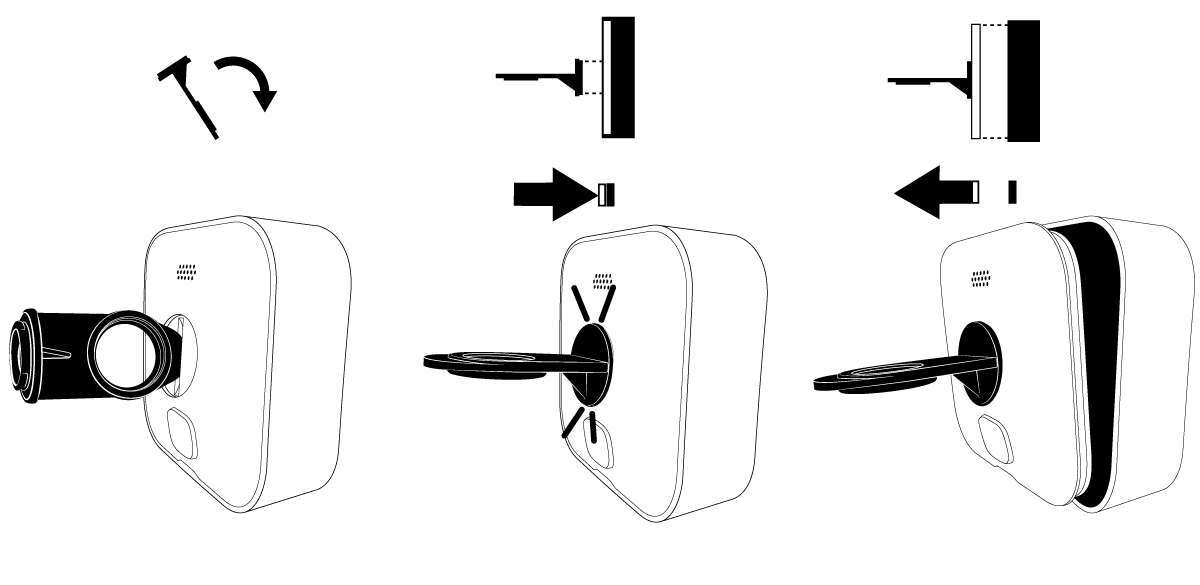
Open the Blink app, add Sync Module, scan camera QR, connect Wi‑Fi.
If you want a smooth setup, you’re in the right place. I’ve set up and managed dozens of Blink systems in homes and small offices. This guide shows how to add a Blink camera step by step, with field-tested tips on mounting, Wi‑Fi, storage, and privacy. Read on to avoid common mistakes and get reliable results fast.

What you need before you begin
Before you learn how to add a Blink camera, gather a short checklist. It makes the process quick and stress-free.
- A smartphone or tablet with the Blink app installed. iOS or Android both work well.
- A Blink account with email and phone verified. Turn on two-factor for safety.
- A 2.4 GHz Wi‑Fi network and password. Blink does not support 5 GHz.
- A Sync Module 2 for Outdoor, Indoor, and Doorbell (recommended). It supports local storage with a USB drive.
- Fresh AA 1.5V lithium batteries for battery-powered models. Do not use alkaline or rechargeable.
- The camera mount, screws, and a screwdriver or drill.
Tip from the field: Name your 2.4 GHz network clearly. Avoid special characters. It saves time during setup.
Step-by-step: how to add a Blink camera in the app
Here is the proven flow I use when I show someone how to add a Blink camera. The exact steps vary by model, so follow the right path below.
Add or confirm your Sync Module
- Open the Blink app and log in.
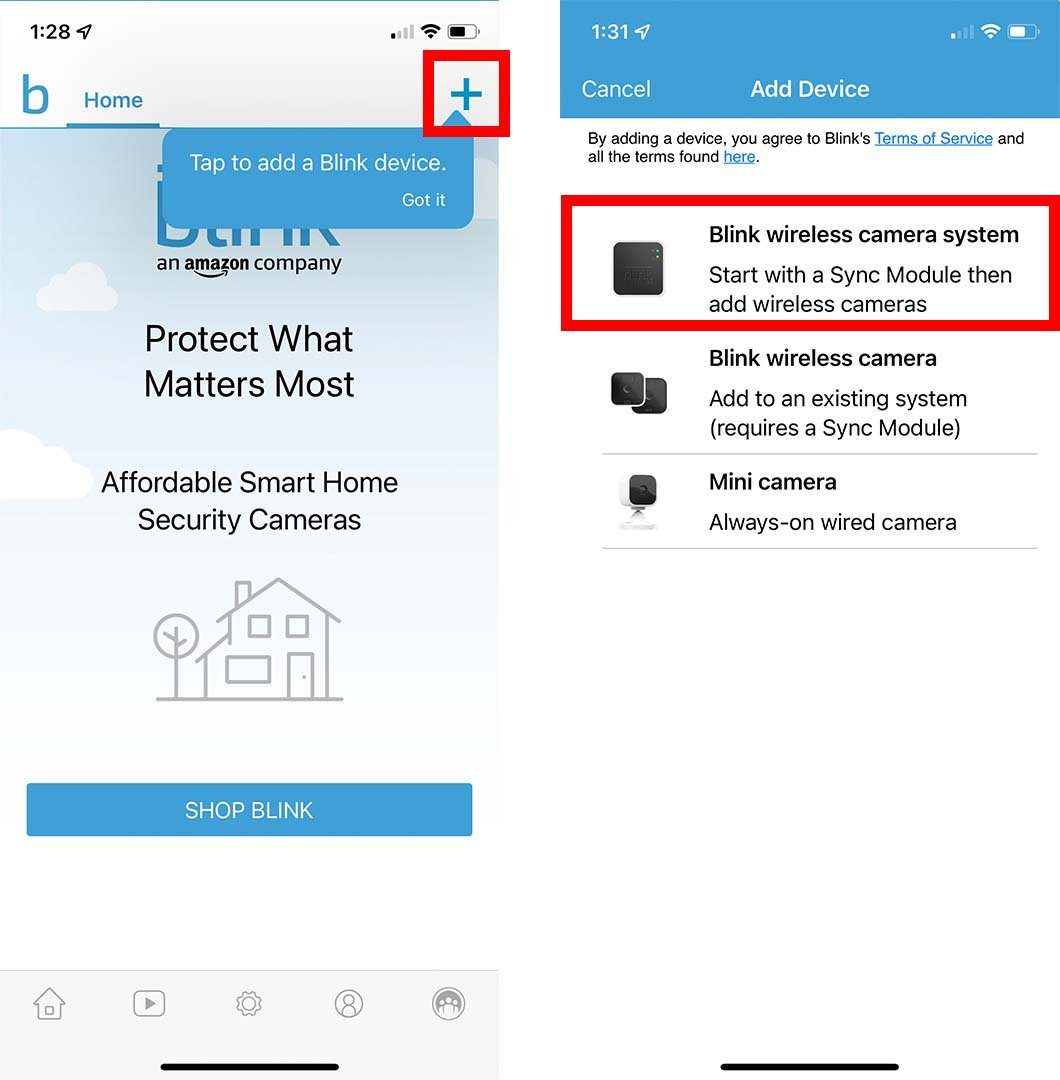
- Tap the plus icon to add a device. Choose Sync Module.
- Scan the QR code on the back. Name your system.
- When the app asks, join the Blink network (Blink-XXXX). Then return to the app.
- Pick your home Wi‑Fi, enter the password, and wait for the Sync Module to go online. Look for solid green and solid blue lights.
Tip: One Sync Module supports up to 10 Blink devices. Keep it central, off the floor, and away from thick walls.
Add Blink Outdoor or Indoor (battery-powered)
- Tap the plus icon. Choose your camera model.
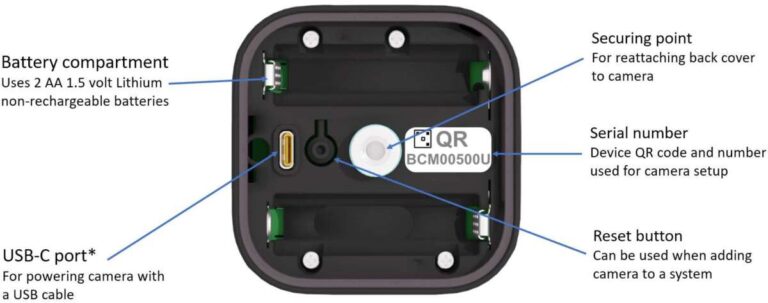
- Open the battery door. Insert two AA lithium batteries.
- Scan the QR code inside the battery tray.
- Choose the system you created with your Sync Module.
- Wait for the app to show a live thumbnail. Run a brief Live View test.
Add Blink Mini (wired)
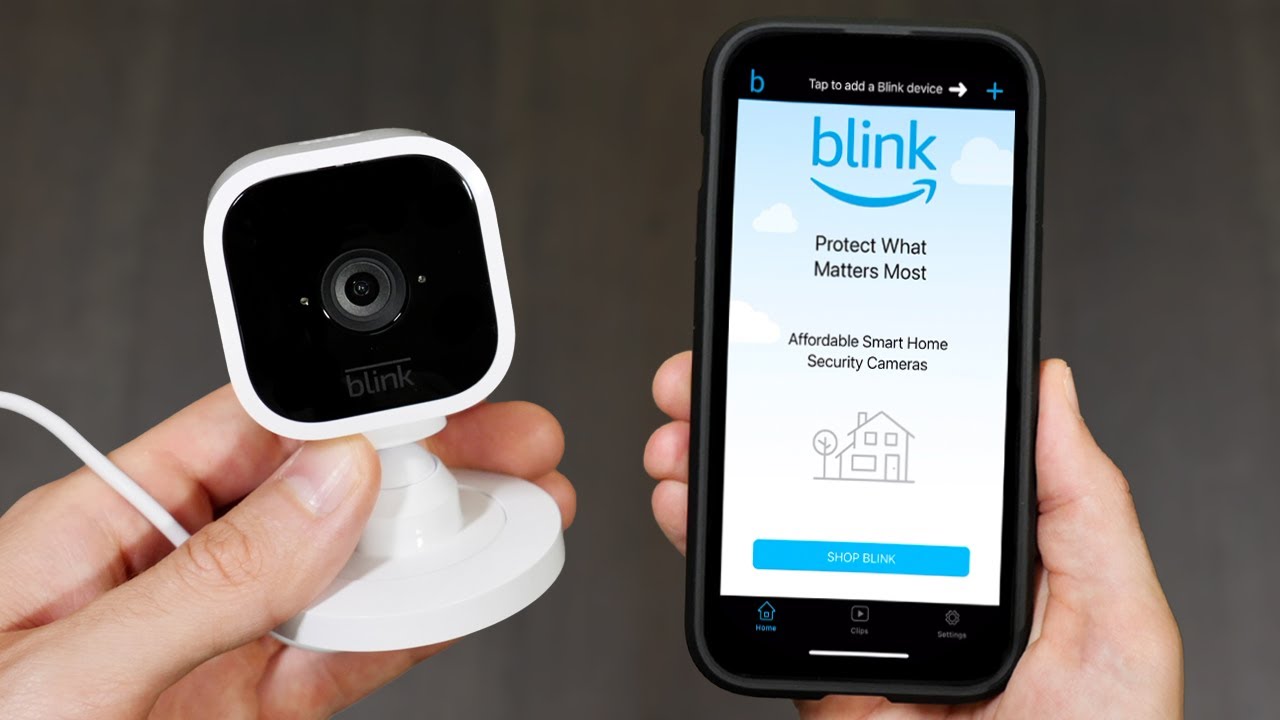
- Plug the Mini into power. Wait for the status light to blink.
- Tap the plus icon in the app. Choose Blink Mini.
- Scan the QR code. Follow prompts to join Wi‑Fi.
- Place the Mini where you need a steady powered view.
Add Blink Video Doorbell
- Tap the plus icon. Choose Video Doorbell.
- Scan the QR code on the back.
- Choose battery-only or wired setup. Follow the on‑screen steps.
- If you have a Sync Module, link it now for faster alerts and local storage.
After you finish, update firmware if prompted. Then set motion zones, clip length, and notifications. This locks in a stable day-one experience.

Placement and mounting best practices
When you plan how to add a Blink camera, placement matters more than people think. Great placement reduces false alerts and saves battery.
- Height and angle. Mount 6–8 feet high. Tilt toward the walkway, not the street.
- Avoid glare. Keep lenses away from bright lights, windows, and shiny siding.
- Night vision. Do not aim at glass. IR will reflect and wash the image.
- Weather. Use the silicone gasket on outdoor mounts. Point away from direct rain.
- Wi‑Fi line of sight. Fewer walls and appliances between camera and Sync Module is best.
Real-world tip: I do a quick Live View at the ladder. I adjust until faces fill the top third of the frame. Then I tighten the mount.
Network and power tips for reliable performance
A strong network is the secret sauce when you learn how to add a Blink camera the right way. Small tweaks make a big difference.
- Use 2.4 GHz Wi‑Fi. Keep your SSID simple. WPA2 with AES is ideal.
- Place the router off the floor and away from metal. Height helps signal.
- Keep the Sync Module within about 30–100 feet of cameras, line of sight.
- If signal is weak, add a Wi‑Fi extender, or move the Sync Module closer.
- For Minis or doorbells, stable power is key. Use the original adapter and cable.
Pro note: Look at RSSI in the device settings. Aim for a stronger signal (closer to zero). If it shows weak, fix placement first.
Store, share, and manage your video
Once you know how to add a Blink camera, set up storage and sharing. This is where you turn clips into a real security plan.
- Cloud plans. A Basic plan covers one device. A Plus plan covers all on your account.
- Local storage. Use a Sync Module 2 plus a USB flash drive for local clips.
- Live View. View cameras on demand in the app. Use with Echo Show as well.
- Sharing. Add trusted users by signing them into the same Blink account.
- Smart alerts. Set motion zones, sensitivity, and schedules to cut false notifications.
Practical tip: For porches, use narrower activity zones. It cuts alerts from street traffic. You still catch each delivery.

Troubleshooting when you add a Blink camera
If you feel stuck on how to add a Blink camera, start with these fast checks. They solve most issues I see in the field.
- The app cannot find the device. Reboot your phone. Toggle airplane mode. Try again near the router.
- QR code will not scan. Clean the label. Or tap Enter Serial Manually in the app.
- Camera shows a red LED. Replace batteries with 1.5V lithium. Check Wi‑Fi and Sync Module lights.
- Sync Module will not join Wi‑Fi. Power cycle it. Move it away from the router, then try again. Some routers need a channel change.
- Live View drops. Update firmware. Shorten clip length. Improve Wi‑Fi placement.
If nothing helps, delete the device in the app, reboot phone and router, then add it again. This reset flow fixes many odd bugs.

Privacy and security essentials
Safety is part of how to add a Blink camera with care. Tune a few settings on day one.
- Turn on two-factor authentication in the Blink app.
- Use a strong, unique password. Do not reuse your email password.
- Set privacy zones to block neighbors or public spaces.
- Disable audio if you do not need it in certain rooms.
- Keep firmware up to date. Updates patch issues and add features.
I also set a rule: if a camera points indoors, I add a privacy zone over doorways to limit sensitive views. It helps trust at home.

Advanced integrations and automations
After you master how to add a Blink camera, make it work with your smart home. Simple links add real value.
- Alexa. Link Blink in the Alexa app. Say “Alexa, show the front door” on Echo Show or Fire TV.
- Routines. Trigger a voice alert when motion is detected. Or turn on a smart light for 2 minutes.
- Shared announcements. Use an Echo to announce “Motion at the driveway.”
- Doorbell chime. If not wired, set a Blink Mini as a chime in the app.
Small win: I set a routine so porch motion plays a chime on kitchen Echo speakers. Family hears it even with phones away.

Maintenance and battery life tips
Part of learning how to add a Blink camera is learning how to keep it running. These tweaks extend life and reduce noise.
- Use only AA 1.5V lithium batteries. Keep a spare set handy.
- Clip length. Try 10–20 seconds. It saves power and cloud space.
- Retrigger time. Set to 15–30 seconds. It stops back-to-back alerts.
- Sensitivity. Start mid-level. Raise or lower based on false alarms.
- Cold weather. Lithium works well in cold, but check battery levels more often in winter.
If battery life drops fast, reduce motion zones that face roads or trees. Small plants on windy days can create a lot of clips.
Frequently Asked Questions of how to add a blink camera
Do I need a Sync Module to add a Blink camera?
Battery models work best with a Sync Module, and local storage needs it. Blink Mini can run without one, but linking a Sync Module improves connectivity.
Can Blink cameras connect to 5 GHz Wi‑Fi?
No. Blink only uses 2.4 GHz Wi‑Fi. If your router combines bands, create a separate 2.4 GHz SSID for setup.
How many Blink cameras can I add to one system?
A Sync Module supports up to 10 devices. You can add more by setting up another Sync Module and naming a second system.
Can I record without a cloud subscription?
Yes. Use a Sync Module 2 with a USB flash drive for local storage. You’ll still get motion alerts and Live View.
How do I move a camera to a new Wi‑Fi network?
In the app, change Wi‑Fi for the Sync Module first. Then update each camera, or remove and re-add them to the new network.
Why won’t my QR code scan during setup?
Clean the label and increase screen brightness. If needed, tap Enter Serial Manually and type the code printed on the device.
Will my wired doorbell chime still work with Blink?
If you wire the Blink Video Doorbell to a compatible chime, it can ring. If not wired, set a Blink Mini as a chime or use Alexa announcements.
Conclusion
Adding a Blink camera is simple when you follow a clear plan. Set up the Sync Module, scan the camera, test placement, and fine-tune alerts. Lock in security with strong Wi‑Fi, two-factor login, and smart storage choices.
Take the next step today. Open the app, add your first camera, and run a quick Live View test. If you found this guide helpful, subscribe for more tips or drop your questions in the comments.

Jamie Lee is a seasoned tech analyst and writer at MyTechGrid.com, known for making the rapidly evolving world of technology accessible to all. Jamie’s work focuses on emerging technologies, product deep-dives, and industry trends—translating complex concepts into engaging, easy-to-understand content. When not researching the latest breakthroughs, Jamie enjoys exploring new tools, testing gadgets, and helping readers navigate the digital world with confidence.