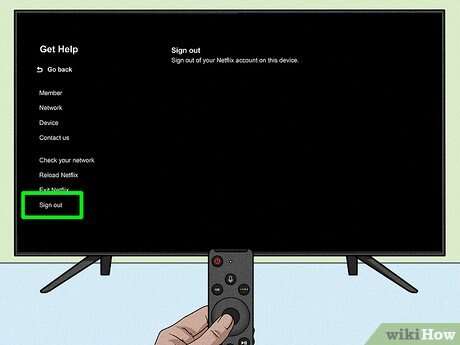
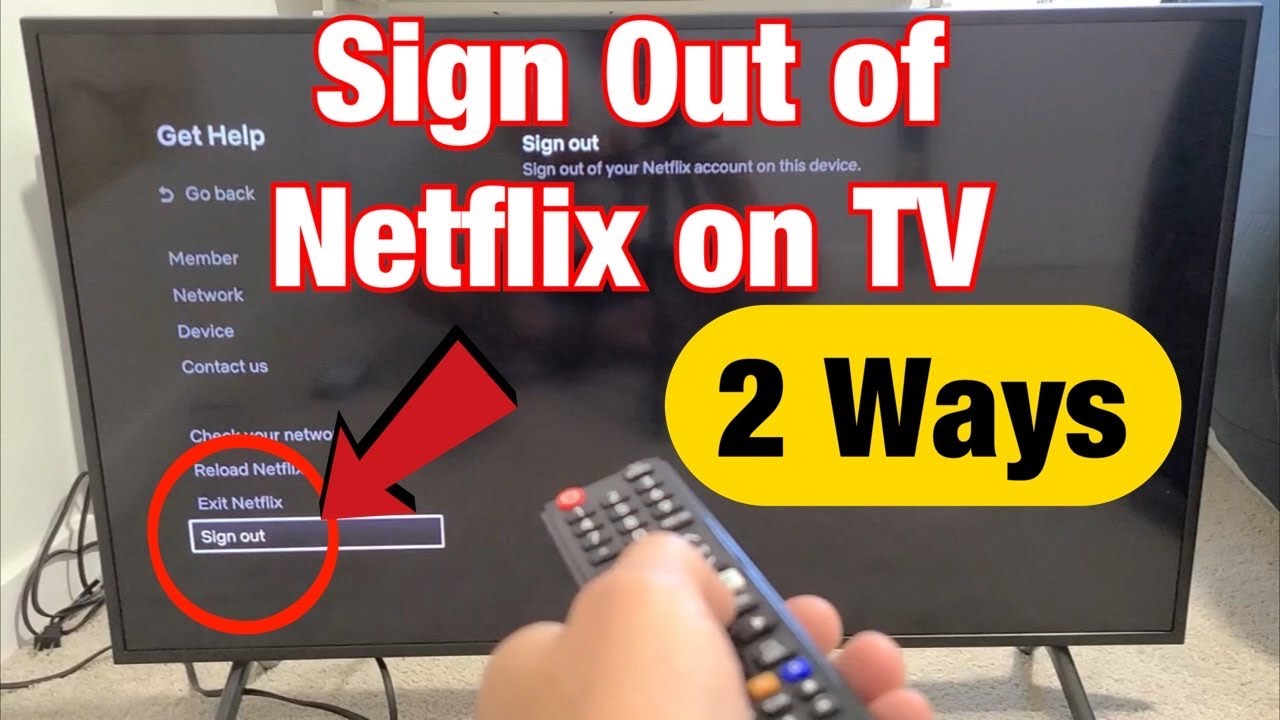
Open the Netflix app, go to Settings or Get Help, then choose Sign Out (or Sign out on this device).
I have spent years fixing streaming issues and helping friends clean up shared accounts. In this guide I explain clear, tested steps for how to logout of Netflix on smart TV, cover brand-specific routes, remote sign-out methods, and fixes when the app hides the logout option. Read on to get simple, reliable steps you can use right now to sign out from any smart TV.
Why you should sign out of Netflix on smart TV
Signing out keeps your account private. It stops others from viewing your watch history and using your profile. It also prevents unwanted charges if someone changes settings. If you lend a TV or sell it, always sign out to protect your account and data.

How to logout of Netflix on smart TV — step-by-step
Below are general steps that work on most smart TVs. Follow them slowly. If a menu name differs, look for similar words like Settings, Get Help, or Sign Out.
- Open the Netflix app on your smart TV.
- Use your remote to move to the left side menu or to the top of the screen.
- Select your profile icon or the menu gear (Settings) if visible.
- Look for Get Help, Settings, or Sign Out in the list.
- Choose Sign Out or Log Out. Confirm when asked.
- Close and restart the Netflix app to ensure the sign-out took effect.
If you do not see Settings or Sign Out, scroll to the bottom of the app menu. Many Netflix apps hide logout under Help or Get Help. If nothing appears, try restarting the TV, then open the app and repeat the steps.
How to logout of Netflix on smart TV works the same way on most devices. If the app was recently updated, the layout can change. Always check menu options and help screens after updates.
Alternate methods by TV brand
Different smart TV makers place the Sign Out option in different spots. These short brand tips help you find the option faster when learning how to logout of Netflix on smart TV.
- Samsung Smart TV
- Open Netflix. Press the left button to open the menu. Select Settings or the gear icon. Choose Sign Out or Get Help then Sign Out.
- LG Smart TV (webOS)
- Launch Netflix. Press the left button to open the menu. Scroll to Settings or the profile icon, then select Sign Out.
- Android TV / Google TV
- Open Netflix. Select your profile image or the left menu. Go to Settings or Get Help. Choose Sign Out.
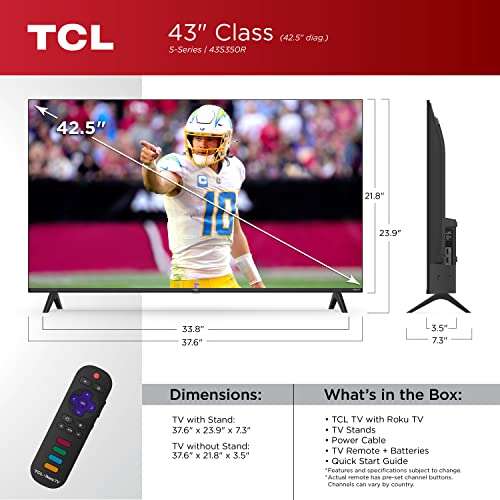
- Roku TV
- Open the Netflix channel. Press the left arrow to open the menu. If Sign Out is not visible, remove the channel: press * on the remote, or remove the app and reinstall it.
- Amazon Fire TV
- Open Netflix. Go to Settings or the profile icon. Select Sign Out. If missing, go to Apps > Netflix > Force stop and Clear data, then open app again.
- Vizio SmartCast
- Launch Netflix. Use the left menu to find Settings or Help. Select Sign Out. If not present, power-cycle the TV and try again.
These brand tips make how to logout of Netflix on smart TV easier to find. If one path fails, try another on the same TV.

Sign out of Netflix on smart TV remotely from your account
If you cannot access the TV, you can log it out from your Netflix account on the web or with a phone.
- Sign in to your Netflix account on a web browser or the mobile app.
- Go to Account settings.
- Find the option labeled Sign out of all devices or a similar phrase.
- Confirm sign out. It may take a few minutes to several hours to apply on every device.
- Optionally, change your password and select the option to require all devices to sign in again.
Using sign out of all devices is a good way to learn how to logout of Netflix on smart TV when the TV is not with you. Changing your password forces most devices to re-login immediately.
Troubleshooting: when you can’t logout of Netflix on smart TV
If the sign-out option is missing, try these fixes. They are quick and safe.
- Restart the TV and reopen Netflix. Small bugs often clear with a reboot.
- Update the Netflix app through the TV’s app store. Outdated apps can hide options.
- Clear the app cache or data from the TV settings. This often restores the normal menu.
- Uninstall and reinstall the Netflix app. Reinstalling resets the app and shows logout options.
- Use the remote account pairing on a phone or a web logout if the TV is not accessible.
If none of these work, contact your TV maker support or Netflix help through their official help channel. Be ready to share the TV model and app version.

Security tips and best practices
Treat your streaming account like a bank account. Simple steps make a big difference.
- Sign out of Netflix on smart TV before lending or selling the TV.
- Change your password if an unknown person used your account.
- Use strong, unique passwords and a password manager to keep track.
- Regularly review your account’s viewing profiles and devices from the Account page.
- Remove devices you no longer use via the Sign out of all devices option if you suspect misuse.
These steps keep your profile clean and protect your personal info when learning how to logout of Netflix on smart TV.

Personal experience: mistakes I made and how to avoid them
I once sold a TV without signing out. The buyer used my profile for weeks. I had to change the password and wait for devices to log out. Now I always sign out and remove the device from my account first. If you share a TV, create a guest profile or a separate profile for visitors to avoid slips like mine.

Frequently Asked Questions of how to logout of netflix on smart tv
How do I find Sign Out if my Netflix app looks different?
Search the left menu for Settings, Get Help, or your profile icon. The Sign Out option is often under one of these items.
Will signing out delete my saved shows or downloads?
Signing out does not delete your saved lists in the cloud. Downloads on the TV may be removed when you sign out or uninstall the app.
How long does it take when I sign out of all devices?
Sign out of all devices can take a few minutes to several hours to apply across all devices. Changing your password speeds up the process for most devices.
Can I force a smart TV to log out if I don’t have access to it?
Yes. Use your Netflix account on the web and choose Sign out of all devices or change your password and require sign-in on all devices.
What if Sign Out is missing from the Netflix app on my TV?
Try restarting the TV, updating the app, clearing app data, or reinstalling Netflix. If that fails, use the web sign out method or contact support.
Conclusion
You now have a clear plan for how to logout of Netflix on smart TV. Use the app menu, brand-specific tips, or a web sign-out to secure your account fast. Take the small step now: sign out from any device you no longer use, change your password if needed, and keep your account under your control. If this guide helped you, leave a comment, share your experience, or subscribe for more streaming tips.

Everett Ashford is a tech reviewer at mytechgrid.com specializing in SSDs, cameras, TVs, earbuds, headphones, and other consumer electronics. He provides honest, data-driven reviews based on hands-on testing and real-world performance analysis. Everett simplifies complex tech details to help readers make smart, confident buying decisions.