Use your TV's built-in app store or platform-specific store to download apps quickly.
I’ve guided hundreds of people through smart TV setup and app installs. In this article I explain exactly how do you download apps to a smart TV, step by step, for every major platform. You’ll get clear instructions, real-life tips I learned the hard way, and quick fixes for common problems. Read on and you’ll be installing Netflix, games, and utilities in minutes.

Which smart TVs support apps?
Most modern smart TVs include an app store. Brands such as Samsung, LG, Sony, TCL, Hisense, and Amazon Fire all let you add apps. Even older models often support basic app installs through their platform.
Key points to check before you start:
- Your TV must be connected to the internet via Wi-Fi or Ethernet.
- The TV firmware should be up to date for the app store to appear.
- Some cheap or older “smart” TVs have limited or locked app libraries.
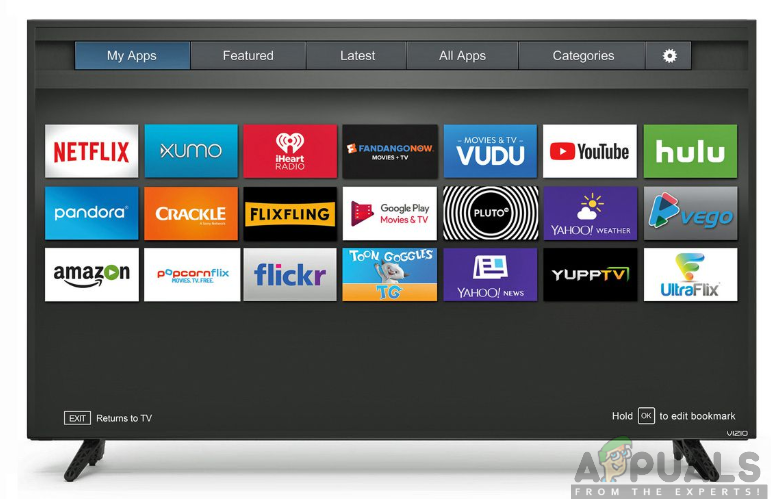
If you are unsure, check the TV settings menu for an “Apps,” “Smart Hub,” “LG Content Store,” “Google Play,” or “Roku Channel Store” entry. That is your entry point for downloads.

Step-by-step: how do you download apps to a smart tv
This is the core process you’ll use on nearly every platform.
- Connect to the internet.
- Open the TV’s app or channel store.
- Search for the app name or browse by category.
- Select the app and choose Install or Add.
- Wait for download and open the app.
- Sign in if the app requires an account.
Tips to speed things up:
- Use a wired Ethernet connection for faster installs.
- Use the TV remote’s voice search to find apps quickly.
- Create or sign into a manufacturer account when prompted for access to more apps.
If you follow these steps, you will answer the question of how do you download apps to a smart TV for most devices within minutes.
Platform-specific guides
Different smart TV systems vary a bit. Below are concise, tested steps for the most common platforms.
Samsung (Tizen)
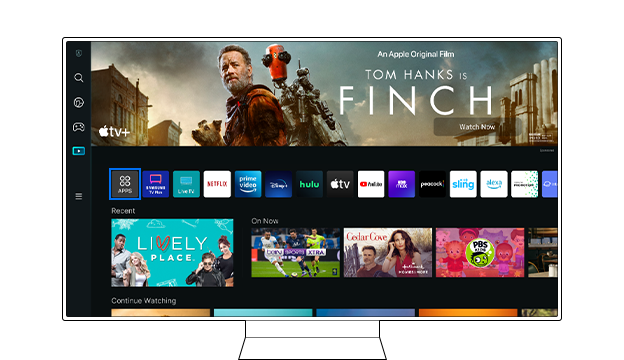
- Press Home, then select Apps.
- Use the search bar or browse categories.
- Select the app and choose Install.
- Find installed apps on the Home screen.
I once missed the search bar on an older Samsung. If you can’t find an app, update the TV software first.
LG (webOS)
- Press the Home button and open LG Content Store.
- Browse or search for an app.
- Select Install or Download.
- Return to the launcher to open it.
LG sometimes requires an LG account for some apps. Create one if needed.
Android TV / Google TV
- Open Google Play Store on the TV.
- Search or browse apps.
- Select Install and wait for completion.
- Use the Apps row or input to launch.
Android TV also supports sideloading on some models. That is advanced and needs USB or ADB and a compatible APK.
Roku
- Press Home, then select Streaming Channels.
- Search or browse the Channel Store.
- Select Add channel to install.
- Launch from Home screen after install.
Roku channels are often called “channels” rather than apps. Some private channels require codes.
Amazon Fire TV
- From the Fire TV home, go to Apps.
- Search or browse in the Amazon Appstore.
- Select Get or Download.
- Open from the home row or Apps library.
Fire TV lets you sideload Android apps too, but that carries risk and may void support.
If your TV uses a custom OS, check its manual. Many boxes, sticks, and built-in systems follow a similar flow.

Managing and updating apps
Keeping apps up to date improves performance and security.
How to update:
- Check for system updates in the TV settings.
- Open the app store and look for an Updates section or automatic update toggle.
- Enable automatic updates if you want apps updated without prompts.
How to uninstall:
- Open the app list or store page.
- Choose Remove, Uninstall, or Delete.
- Restart the TV if the app persists after removal.
I recommend cleaning unused apps every few months. It frees space and speeds up the menu.
Troubleshooting common problems
If an app won’t install or work, try these quick fixes.
Common fixes:
- Reboot the TV by unplugging it for 10 seconds.
- Check internet speed with another device.
- Clear the app cache or data from settings if available.
- Remove and reinstall the app.
- Update TV firmware to the latest version.
If an app is missing from the store, it may not be supported in your region or on that TV model. In those cases, using a streaming stick or casting from a phone are practical alternatives.
I once spent hours troubleshooting a streaming app until I realized region locks prevented install. A simple VPN at source or different device fixed it.
Security and privacy tips
Apps are powerful but can introduce risks. Follow these safety steps.
Practical safety rules:
- Only download apps from the TV’s official store.
- Avoid sideloading from unknown sources unless you know what you’re doing.
- Use strong passwords for streaming accounts.
- Regularly check app permissions and disable ones that seem unnecessary.
Smart TVs collect data. Review privacy settings and disable voice or ad personalization if you prefer less tracking. These steps keep your TV safer and your data private.
Best apps to try right away
Here are reliable apps most people want after they learn how do you download apps to a smart TV.
Top picks:
- Streaming: Netflix, Disney+, Hulu, Amazon Prime Video, YouTube
- Live TV and News: Sling, Pluto TV, Peacock
- Music and Audio: Spotify, Pandora, TuneIn
- Utilities: Plex, VLC for media playback, a web browser if available
- Fitness and Games: Peloton, YouTube Fitness, casual arcade games
Choose apps that match how you use your TV. I favor Plex for local media and YouTube for free, easy content.
Frequently Asked Questions of how do you download apps to a smart tv
How do I find the app store on my smart TV?
Look for entries named Apps, App Store, Smart Hub, LG Content Store, Google Play, Roku Channel Store, or Amazon Appstore in the main menu. The store is usually on the home screen or in settings.
Can I install Android apps on any smart TV?
Only TVs running Android TV or Google TV natively support Android apps officially. Other systems may allow sideloading, but that can be risky and is not guaranteed to work.
Why is an app not available to download?
Apps can be region locked, removed by the developer, or unsupported on your TV model. Updating the TV firmware or using a different device often helps.
Do I need an account to download apps?
Some platforms require a manufacturer account, such as Samsung, LG, Google, Amazon, or Roku, to access certain apps or features. Basic apps sometimes work without one.
How do I update smart TV apps automatically?
Open the TV’s app store and enable automatic updates in the store settings if that option exists. You can also enable system automatic updates in the TV settings.
Conclusion
You now have clear, practical steps for how do you download apps to a smart TV across major platforms. Start by connecting to the internet, visit your TV’s app store, and install apps you trust. Keep apps and firmware updated, uninstall what you no longer use, and follow simple security steps to protect your data. Try adding one new app today to get comfortable with the process, and come back to fine-tune settings or explore more apps. If this guide helped, leave a comment with your TV model and the app you want next — I’ll share tips for your setup.

Everett Ashford is a tech reviewer at mytechgrid.com specializing in SSDs, cameras, TVs, earbuds, headphones, and other consumer electronics. He provides honest, data-driven reviews based on hands-on testing and real-world performance analysis. Everett simplifies complex tech details to help readers make smart, confident buying decisions.