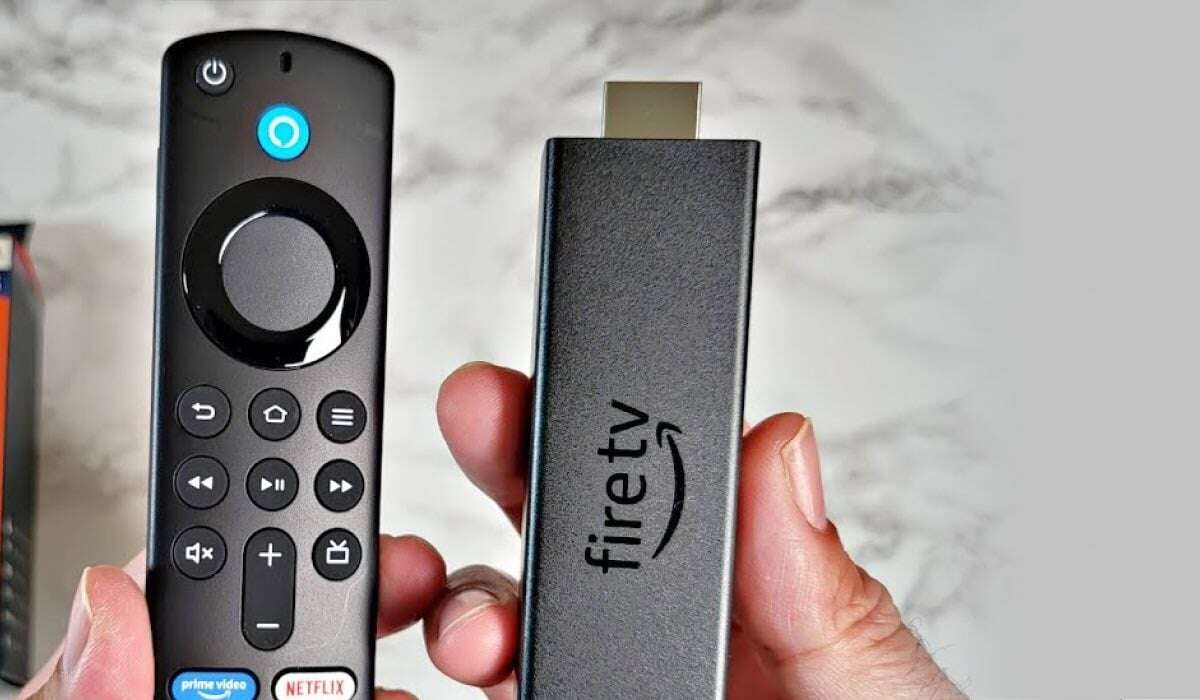
Connect your Fire TV Stick to an HDMI port, power it, select the input, and follow the on-screen setup steps.
If you are wondering how do i connect a firestick to my tv, the process is simple once you know which ports, cables, and settings matter. I have set up Fire TV Sticks on newer smart TVs, older HD TVs, and crowded entertainment centers, and most problems come from one small mistake: using the wrong HDMI input or a weak power source. This guide walks you through the full setup, from opening the box to streaming your first show.
What you need before connecting a Firestick
A Fire TV Stick is a small streaming device that connects to your television through an HDMI port. It uses your home Wi-Fi network to stream movies, shows, music, live content, and apps.
Before you begin, gather these items:
• A Fire TV Stick and its remote
• The included USB power cable
• The Amazon power adapter
• A working HDMI port on your TV
• Your Wi-Fi name and password
• An Amazon account
• Two fresh AAA batteries for the remote
Most Fire TV Stick models include an HDMI extender. This short adapter can help when the Firestick does not fit well behind the TV or when the HDMI port is hard to reach.
Your TV does not need to be a smart TV. It only needs an HDMI input and a way to receive power. However, very old TVs may need an HDMI-to-AV converter, and those converters can reduce picture quality or cause compatibility issues.

How do i connect a firestick to my tv step by step
The physical connection takes only a few minutes. Keep the TV turned off while you connect the cables if that feels safer, although modern HDMI ports usually support connection while powered on.
-
Insert the Firestick into an open HDMI port on your TV.
-
Use the HDMI extender if the Firestick is blocked, bent, or pressed against the wall.
-
Connect the USB power cable to the Firestick.
-
Connect the other end of the cable to the Amazon power adapter.
-
Plug the power adapter into a wall outlet.
-
Turn on your TV.
-
Press the Input, Source, or TV button on your television remote.
-
Select the HDMI input that matches the port holding the Firestick.
For example, if you used HDMI 2, choose HDMI 2 from the TV’s input menu. The Fire TV logo should appear after a few seconds.
A common mistake is plugging the USB cable into the TV’s USB port instead of the wall adapter. Some TVs do not provide enough power through USB. The Firestick may restart, show a black screen, or display a low-power warning. In my experience, using the included wall adapter fixes this issue right away.

How to set up the Fire TV Stick on your television
Once the Firestick appears on the screen, the setup process will guide you through several basic steps. The remote should pair automatically, but you may need to hold the Home button for about 10 seconds if it does not respond.
Follow these steps:
-
Choose your preferred language.
-
Connect to your Wi-Fi network.
-
Enter your Wi-Fi password carefully.
-
Sign in with your Amazon account.
-
Install available software updates.
-
Choose whether to enable parental controls.
-
Select the streaming apps you want to install.
The Firestick may restart during an update. Do not unplug it while the update is running. The time can vary based on your internet speed and the number of updates waiting to install.
If you bought the Firestick for someone else, you can register it to their Amazon account during setup. Make sure the account has the correct payment settings if you plan to rent movies or buy apps.
When readers ask how do i connect a firestick to my tv, they often expect the device to work without an internet connection. The Firestick needs Wi-Fi for most streaming features, app downloads, updates, and account services.

How to pair or fix the Firestick remote
The Firestick remote normally pairs during the first setup. If it does not, place fresh AAA batteries inside and keep the remote close to the device.
Try these steps:
• Hold the Home button for about 10 seconds.
• Remove the batteries, wait 30 seconds, and put them back.
• Unplug the Firestick for 60 seconds, reconnect it, and try again.
• Move other wireless devices away from the Firestick.
• Make sure nothing blocks the front or side of the device.
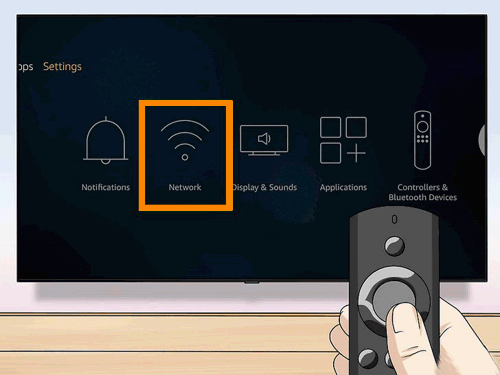
If you have a second compatible Fire TV remote, you can pair it through Settings. Use the existing remote or the Fire TV app on a phone to open Controllers & Bluetooth Devices, then choose Amazon Fire TV Remotes and Add New Remote.
The Fire TV app can act as a temporary remote, but your phone and Firestick must usually be connected to the same Wi-Fi network. This option is useful when the original remote is lost, damaged, or out of battery.
One lesson I learned from many home setups is to check the batteries before troubleshooting the television. A remote that looks fine may still fail because one battery is weak or installed backward.

How do i connect a firestick to my tv when there is no picture
A blank screen does not always mean the Firestick is broken. In many cases, the TV is simply set to the wrong input or the device is not receiving enough power.
Try the following fixes in order:
-
Confirm that the Firestick is fully inserted into the HDMI port.
-
Select every HDMI input on the TV until the Fire TV screen appears.
-
Disconnect the Firestick from power for one minute.
-
Plug the power adapter directly into a wall outlet.
-
Test another HDMI port on the TV.
-
Try the Firestick on another television if possible.
-
Check the HDMI extender for damage.
If the screen says No Signal, focus first on the HDMI connection and TV input. If the screen shows the Fire TV logo and then goes dark, power delivery, overheating, or a software issue may be more likely.
Avoid hiding the Firestick inside a closed cabinet. Streaming devices need airflow, and heat can cause freezing, restarts, or slow performance. A short HDMI extender can improve both access and ventilation.
If your television supports 4K but the Firestick is connected through an older receiver, HDMI switch, or soundbar, that device may limit the signal. Test the Firestick directly on the TV before adding other equipment.

How do i connect a firestick to my tv without Wi-Fi
You can connect the Firestick to a TV without Wi-Fi, but you cannot use most streaming services normally. The device needs an internet connection to play online video, download apps, update software, and verify your account.
You may use one of these options:
• A mobile phone hotspot
• A portable Wi-Fi hotspot
• A home router connected to mobile broadband
• An Ethernet adapter made for compatible Fire TV devices
To use a phone hotspot, turn on Personal Hotspot or Mobile Hotspot in your phone settings. Then choose the phone’s network from the Firestick Wi-Fi list and enter the hotspot password.
Be careful with mobile data. HD and 4K video can use a large amount of data, and your carrier may slow the connection after a certain limit. A hotspot is best for short use, travel, or emergencies.
You can also mirror some phone content to a Fire TV device, but mirroring support depends on the phone, the Firestick model, and the app. Screen mirroring is not the same as streaming through a regular Firestick app.

How to connect a Firestick to an older TV
An older TV can often work with a Firestick if it has an HDMI port. Look along the side or back of the television for a port labeled HDMI, HDMI 1, or HDMI 2.
If the TV only has red, white, and yellow RCA ports, you will need an HDMI-to-AV converter. The converter must support the correct direction of the signal:
• HDMI from the Firestick enters the converter.
• Red and white cables carry audio to the TV.
• The yellow cable carries video to the TV.
• The converter may need its own USB power.
Cheap converters can produce soft images, stretched screens, or no sound. They may also fail to support protected streaming content. For the best results, use a reputable converter and confirm that it supports HDMI input to AV output.
Older TVs may also have limited resolution. The Firestick will usually adjust the picture to a supported format, but you should not expect 4K quality from a standard HD or analog television.
Improve Firestick picture, sound, and Wi-Fi performance
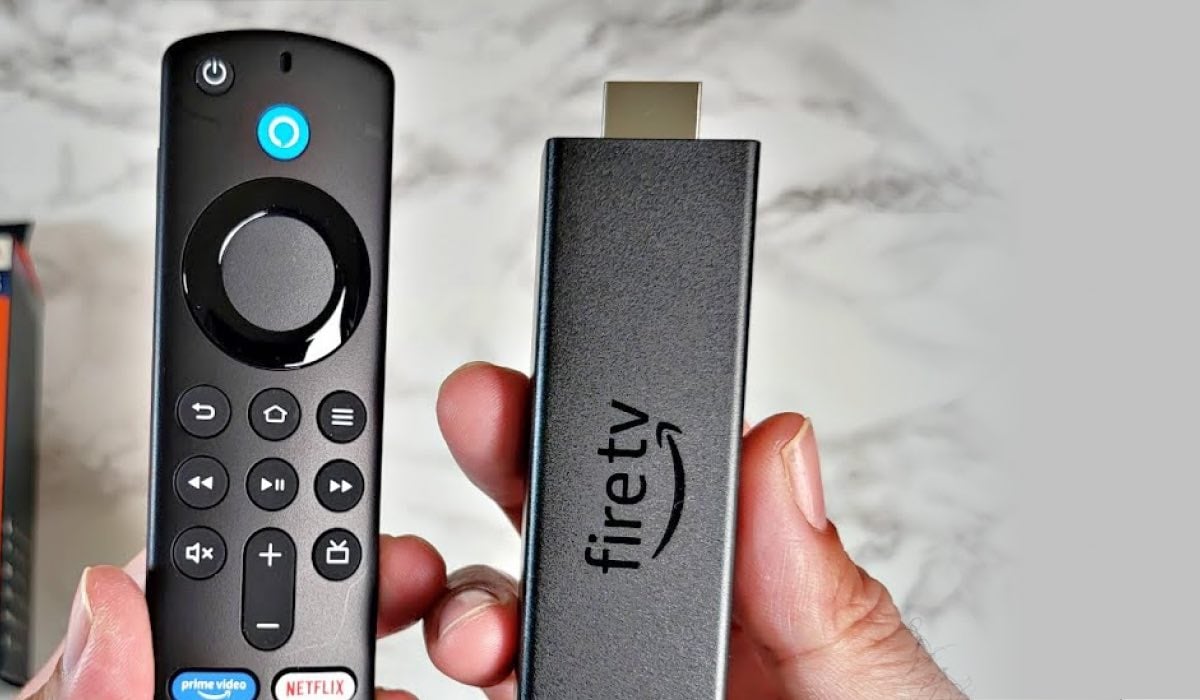
After learning how do i connect a firestick to my tv, the next goal is smooth playback. A correct setup is only the first step. Network strength, TV settings, and device placement also affect performance.
Use these practical tips:
• Place the Firestick where it has open airflow.
• Keep the device away from thick metal panels and crowded cables.
• Use the included power adapter when possible.
• Move your router closer if the Wi-Fi signal is weak.
• Connect to a 5 GHz Wi-Fi network when the Firestick is near the router.
• Use a 2.4 GHz network when the device is far away or separated by thick walls.
• Restart the Firestick and router when video keeps buffering.
• Remove apps you no longer use to free storage space.
• Install system updates when they become available.
For better sound, check Settings, Display & Sounds, and Audio. The correct choices depend on whether sound comes from the TV speakers, a soundbar, or a home theater receiver.
If the picture looks stretched, open Display settings and try a different resolution or screen calibration. Some TVs have a Picture Size, Aspect Ratio, or Screen Fit setting that can correct cropped menus.
Streaming quality also depends on the service, subscription, and internet connection. A fast Firestick cannot fix a weak Wi-Fi signal or a network that is busy with many devices.

Common Firestick setup mistakes to avoid
Knowing how do i connect a firestick to my tv is useful, but avoiding setup mistakes saves even more time. These problems are common because the cables and ports look simple, yet each one has a different job.
Avoid these errors:
• Plugging the Firestick into an HDMI port without connecting power
• Selecting HDMI 1 when the device is connected to HDMI 2
• Using a damaged USB cable
• Powering the Firestick from a weak TV USB port
• Entering the wrong Wi-Fi password
• Blocking the Firestick inside a tight cabinet
• Unplugging the device during a software update
• Expecting the Firestick to work without an Amazon account
• Assuming every remote works with every Fire TV model
• Using an HDMI splitter that does not support protected video
A factory reset should be a last resort. It removes account information, downloaded apps, and personal settings. Before resetting, restart the device, check the input, test the power source, and confirm the Wi-Fi connection.
If the Firestick still fails on several TVs and with more than one power adapter, contact Amazon device support or check the device’s warranty status. Do not open the Firestick, since this can create a safety risk and may affect warranty coverage.
Firestick features and limitations
A Firestick can turn a standard HDMI television into a connected streaming display. It provides access to supported apps, voice search through Alexa, screen settings, accessibility tools, and parental controls.
Its main benefits include:
• Simple setup
• Portable design
• Access to many streaming apps
• Voice search on compatible remotes
• Automatic software updates
• Support for HD or 4K video on compatible models and TVs
There are also limits. App availability varies by country, device model, and operating system. Some content requires a paid subscription, and certain services may not support every Fire TV feature.
A 4K Firestick also needs a 4K television and suitable HDMI equipment to display 4K content. Your internet plan must support the higher data demand, and the streaming service must offer the program in 4K.
Privacy settings also deserve attention. Review app permissions, voice control options, and purchase restrictions. Parents should enable a PIN for purchases and content access when children use the device.
Frequently asked questions about how do i connect a firestick to my tv
Can I connect a Firestick to any TV?
You can connect a Firestick to most TVs with an HDMI port and a power source. TVs without HDMI may need an HDMI-to-AV converter, but compatibility and picture quality can vary.
Why does my TV say No Signal with the Firestick?
The TV may be using the wrong HDMI input, or the Firestick may not have enough power. Select the matching input, connect the power adapter to a wall outlet, and test another HDMI port.
Does a Firestick need Wi-Fi to work?
A Firestick needs internet access for streaming apps, updates, and most online features. You can use home Wi-Fi, a phone hotspot, or a compatible Ethernet adapter.
How do I connect a Firestick to a smart TV?
Insert the Firestick into an HDMI port, connect its power cable, choose the correct TV input, and complete the Wi-Fi and Amazon account setup. A smart TV can use a Firestick even though it already has built-in apps.
Can I use a Firestick without an Amazon account?
An Amazon account is normally required to register and use a Firestick. You can create a free account, but some apps and content require separate paid subscriptions.
Why is my Firestick remote not pairing?
Install fresh AAA batteries, hold the Home button near the Firestick, and restart the device if needed. You can also use the Fire TV phone app temporarily when both devices share the same Wi-Fi network.
Conclusion
Connecting a Firestick to your TV is mainly a matter of using the correct HDMI port, providing steady power, selecting the matching input, and completing the Wi-Fi setup. Most issues come from weak TV USB power, the wrong source setting, poor Wi-Fi, or a remote that needs new batteries.
Now that you know how do i connect a firestick to my tv, start with the included cables and wall adapter. Test the device directly on the TV before adding a soundbar, switch, or converter. If this guide helped, explore your Fire TV settings, install your favorite apps, and share your setup experience in the comments.

Everett Ashford is a tech reviewer at mytechgrid.com specializing in SSDs, cameras, TVs, earbuds, headphones, and other consumer electronics. He provides honest, data-driven reviews based on hands-on testing and real-world performance analysis. Everett simplifies complex tech details to help readers make smart, confident buying decisions.