Set up your Fire TV without a remote using the Fire TV mobile app or HDMI-CEC control.
If you lost your remote or it stopped working, this guide will show you how to set up Fire TV without remote step by step. I’ve helped dozens of friends and clients recover and configure their Fire TV devices using simple tools like the Fire TV app, HDMI-CEC, a keyboard, and Alexa. I know the common pitfalls, the fastest methods, and the exact sequence that gets you streaming again. Read on to learn practical, tested ways to set up Fire TV without remote and avoid wasted time or extra purchases.
Why you might need to set up Fire TV without remote
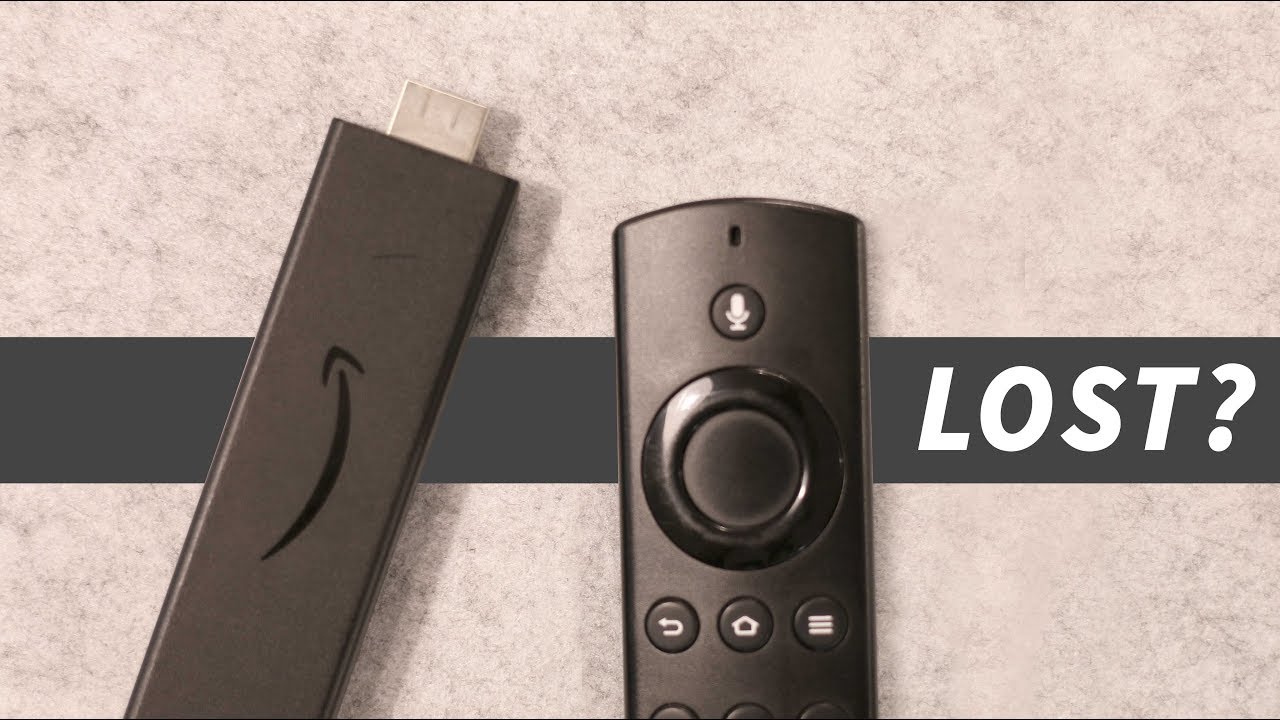
Losing the remote, a drained battery, or a broken infrared sensor can leave your Fire TV unusable. Many people assume they must buy a replacement remote. That’s not true. You can set up Fire TV without remote using a phone, TV remote via HDMI-CEC, a keyboard, or voice devices like Echo. Knowing multiple approaches saves money and stress and gets your Fire TV working fast.
What you'll need before you begin
Preparation speeds things up. Gather the following tools so you can set up Fire TV without remote smoothly.
- A smartphone with the Fire TV app installed and on the same Wi-Fi network you plan to use.
- A TV that supports HDMI-CEC if you want to use the TV remote.
- A USB keyboard or mouse and an OTG adapter for older Fire TV models lacking Bluetooth pairing.
- An Amazon Echo or Alexa-enabled speaker for voice setup if available.
- A working Wi-Fi network name and password.
If you don’t have all items, follow the sections below for alternatives. Each method covers when it works and when it won’t.

Step-by-step methods to set up Fire TV without remote
Below are the most reliable methods to set up Fire TV without remote. Use the first one that matches the gear you have. I list them in order from easiest to advanced.
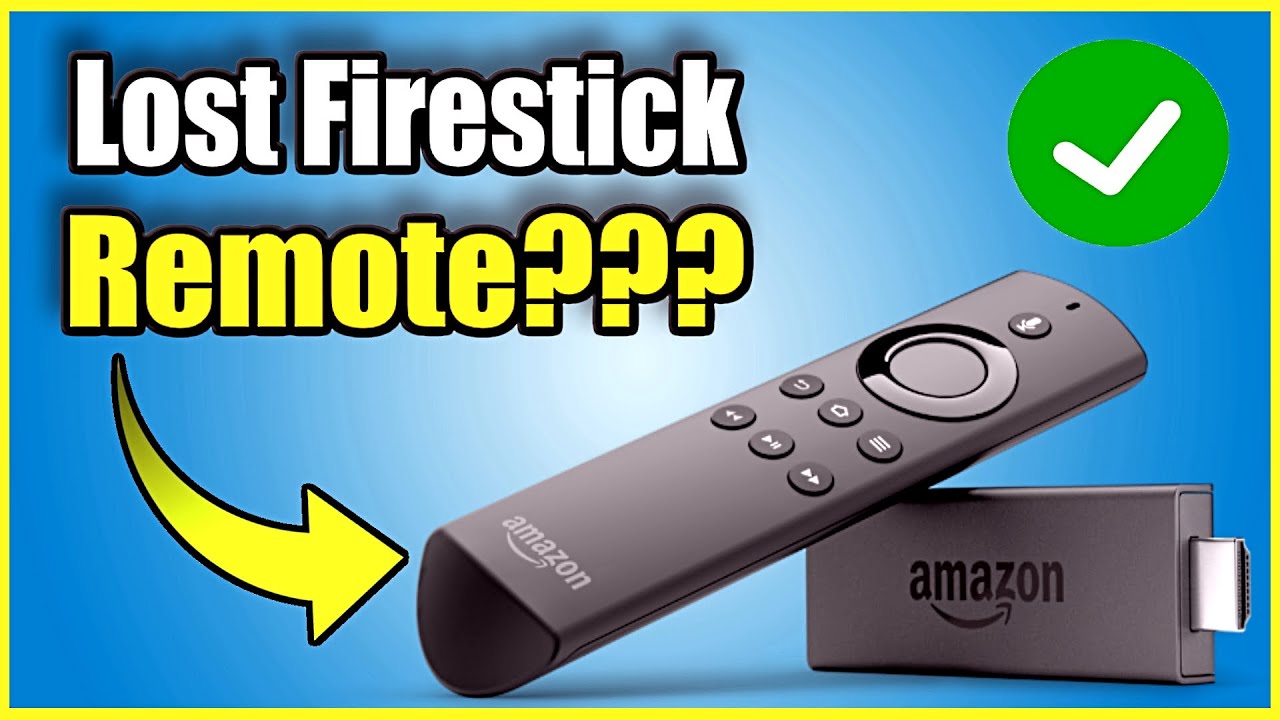
Method 1: Use the Fire TV mobile app
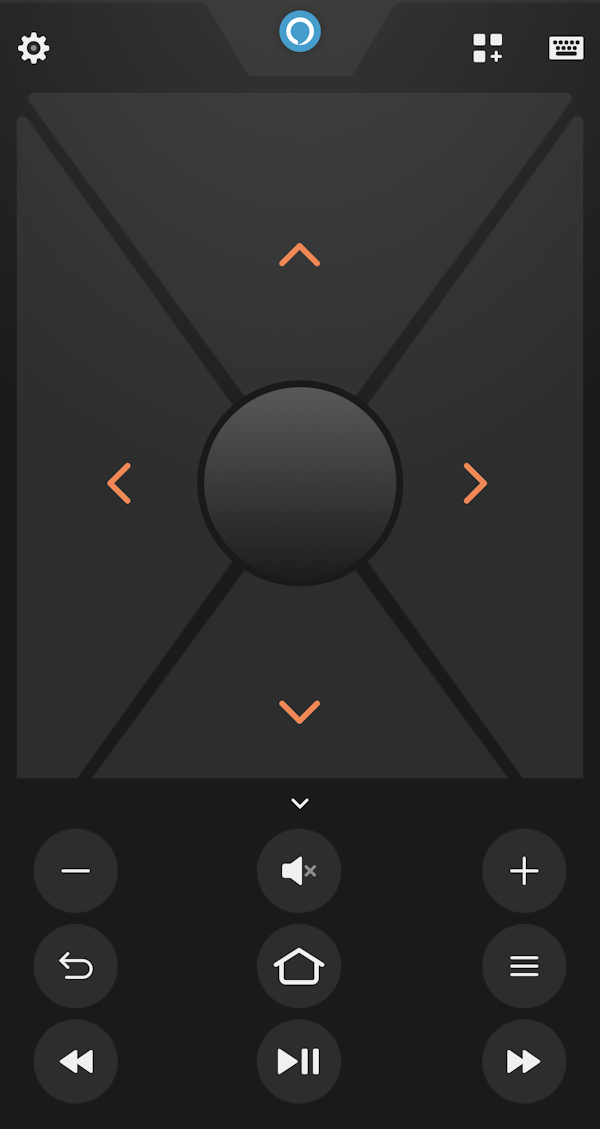
The Fire TV app mirrors the remote on your phone. It’s usually the fastest way to set up Fire TV without remote.
- Install the Fire TV app from your phone’s app store.
- Connect your phone to the same Wi‑Fi network the Fire TV was last on.
- Open the app and wait for your Fire TV device to appear.
- Tap the device name and use the on‑screen remote to navigate the setup menus.
- Enter Wi‑Fi credentials and sign in to your Amazon account if prompted.
Tips: If your Fire TV does not appear, the device may be offline or on a different network. Try restarting the Fire TV by unplugging it for 30 seconds.
Method 2: Use HDMI-CEC and your TV remote
Many TVs let your TV remote control attached HDMI devices through HDMI-CEC. This method lets you set up Fire TV without remote quickly.
- Ensure HDMI-CEC is enabled in your TV settings (labels vary: CEC, Anynet+, simplink).
- Plug the Fire TV into the TV and power it on.
- Use the TV remote arrow and OK buttons to control the Fire TV setup screens.
- Enter Wi‑Fi details and sign in.
Limitations: Some TV remotes provide limited control. HDMI-CEC must be supported and enabled on both devices.
Method 3: Pair a Bluetooth keyboard or mouse
If Bluetooth pairing was previously allowed or the device is discoverable, you can use a Bluetooth keyboard or mouse to set up Fire TV without remote.
- Power on the Fire TV and wait for the pairing screen.
- Put your keyboard/mouse into pairing mode.
- Go to Settings > Controllers & Bluetooth Devices using any available control method.
- Select Add Bluetooth Device and pair.
If you cannot access Settings because the Fire TV is unconfigured, use the Fire TV app first to reach Bluetooth settings, then pair your keyboard.
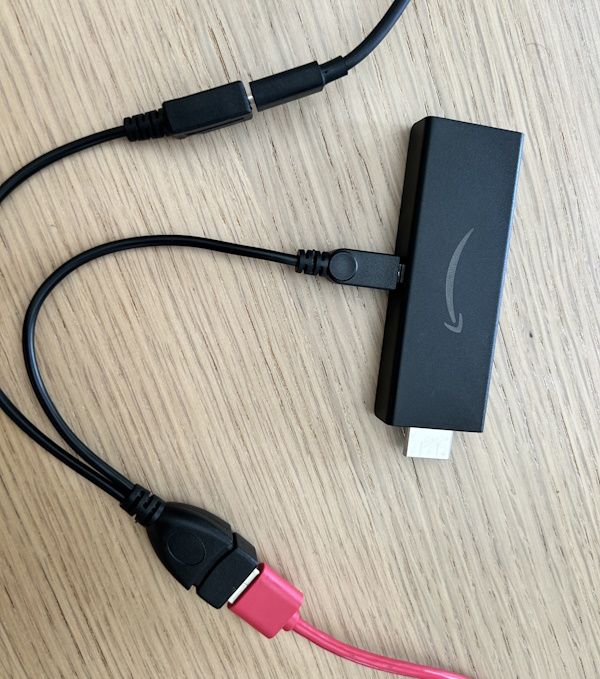
Method 4: Use a USB keyboard with OTG (for devices that support it)
Some Fire TV models accept USB input via an OTG adapter. This is helpful when Bluetooth is impossible.
- Plug a USB keyboard into an OTG adapter and connect to the Fire TV.
- Use arrow keys and Enter to navigate setup.
- Enter Wi‑Fi and account information.
Note: Newer Fire TV Sticks often lack USB host support, so this won’t work for all models.
Method 5: Use an Amazon Echo or Alexa device
If your Fire TV and Echo share the same Amazon account, you can use voice commands to perform certain setup tasks.
- Say “Alexa, open Fire TV” or “Alexa, go home” to wake the Fire TV.
- Use voice commands to navigate or launch specific apps.
- For full setup, you may still need the Fire TV app to enter Wi‑Fi or sign‑in details.
Voice control is great for navigation but limited when you must type text.
Method 6: Use a universal remote or replacement Fire TV remote
If other options fail, a compatible universal remote or an official replacement remote will let you set up Fire TV without remote quickly.
- Program the universal remote to your TV or Fire TV (follow remote instructions).
- Use the remote to complete setup steps.
A replacement remote is a last resort if you lack a smartphone or HDMI-CEC support.
Troubleshooting and tips
If a method fails, try these quick fixes to set up Fire TV without remote successfully.
- Restart the Fire TV by unplugging it for 30 seconds and plugging it back in.
- Move your router closer to reduce Wi‑Fi issues during setup.
- Confirm your phone and Fire TV are on the same Wi‑Fi network for app pairing.
- Try a different USB port or adapter if USB keyboard pairing fails.
- Disable VPNs on your phone during app pairing; VPNs can block discovery.
If you see no device in the Fire TV app, the Fire TV may be on a guest network or using a different router band. Temporarily switch your phone to the correct network.
Personal experience and practical tips
I once helped a neighbor set up a Fire TV Stick after their remote stopped working mid-update. The Fire TV app saved us, but we learned two lessons. First, always enable HDMI-CEC on your TV ahead of time. Second, keep the Fire TV app installed on your phone; it’s a small habit that prevents big headaches.
Practical tips I use myself:
- Keep a cheap spare remote or universal remote in a drawer for emergencies.
- Save Wi‑Fi credentials in a secure notes app so you can type them quickly.
- Pair a Bluetooth keyboard if you often type passwords on streaming devices.
These small steps make it simple next time you need to set up Fire TV without remote.

Frequently Asked Questions of how to set up fire tv without remote
Can I set up Fire TV without remote using only my phone?
Yes. Use the Fire TV mobile app on a phone connected to the same Wi‑Fi network to control and complete setup. The app offers a full remote interface, including keyboard input for passwords.
What if the Fire TV app doesn’t find my device?
If the app cannot find your device, verify both devices are on the same network and restart the Fire TV. Also disable VPNs and ensure network isolation settings are off on your router.
Will HDMI-CEC work with any TV to set up Fire TV without remote?
Most modern TVs support HDMI-CEC, but labels differ. Enable HDMI-CEC in the TV settings and it often lets the TV remote control basic Fire TV navigation during setup.
Can I use a Bluetooth keyboard to set up my Fire TV without remote?
Yes, if you can access Bluetooth pairing on the Fire TV. Use the Fire TV app first to reach Bluetooth settings if the device isn’t yet paired.
Do I need an Amazon account to set up Fire TV without remote?
Yes. An Amazon account is required to register the Fire TV and access most apps. You can create an account on a phone or computer and then sign in during setup.
Conclusion
You don’t need to panic if you must set up Fire TV without remote. The Fire TV app, HDMI-CEC, keyboards, and Alexa give you multiple reliable paths to finish setup quickly. Try the easiest method first, and work your way down the list if needed. Now pick the method that matches your gear, follow the steps, and get back to streaming. If this guide helped you, leave a comment, subscribe for more tips, or share your rescue story so others can learn from your experience.

Everett Ashford is a tech reviewer at mytechgrid.com specializing in SSDs, cameras, TVs, earbuds, headphones, and other consumer electronics. He provides honest, data-driven reviews based on hands-on testing and real-world performance analysis. Everett simplifies complex tech details to help readers make smart, confident buying decisions.