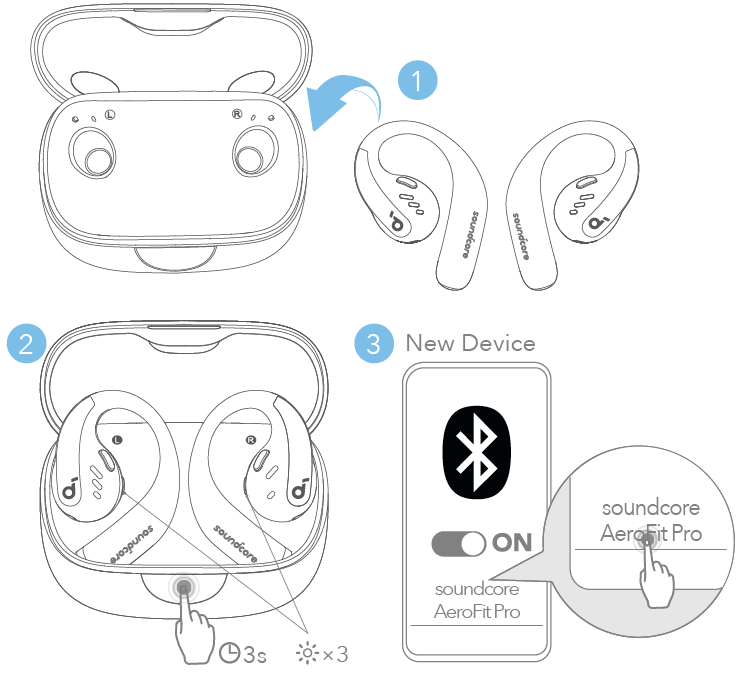
Turn on Bluetooth, open the Soundcore case or hold the pairing button, then select the earbuds on your device.
I’ve paired and tested many earbuds, including several Soundcore models, so you’ll get clear, practical steps and real tips that work. This guide covers how to connect Soundcore earbuds to phones, tablets, and computers, fixes common pairing issues, and shares proven tricks to keep your earbuds connected and sounding great.

Why pairing correctly matters
Pairing sets up the secure Bluetooth link between your device and earbuds. If pairing fails, sound skips, calls drop, or one bud won’t work. Knowing how to connect Soundcore earbuds right the first time saves time and prevents frustration.
I’ve seen users try random fixes and erase settings unnecessarily. Follow the steps below to pair reliably and avoid common mistakes.

Preparing your devices before pairing
Keep both devices close. Bluetooth range is short during pairing, so stay within a foot or two.
Charge the earbuds and your phone. Low battery can stop pairing or make it unstable.
Turn off other nearby Bluetooth devices to reduce interference. Airplane mode may block Bluetooth on some devices, so check settings before pairing.
How to connect Soundcore earbuds: step-by-step
These steps cover true wireless Soundcore earbuds, like Liberty, Life, and Soundcore models. If you have a case with a pairing button, the method is similar.
- Make sure the earbuds are charged and inside the charging case.
- Open the charging case lid. Many Soundcore earbuds enter pairing mode automatically when first opened.
- If they don’t auto-pair, press and hold the pairing button on the case for 3–5 seconds until the LED flashes or you hear a voice prompt.
- On your phone or computer, open Bluetooth settings and enable Bluetooth.
- Look for the device name that starts with Soundcore or the model name (for example, Soundcore Liberty 3 Pro) and tap to pair.
- Confirm any pairing prompts and allow permissions if asked for audio or contacts.
- Once paired, the earbuds will say “connected” or the LED will change to a steady light.
If you only want one bud in mono mode, remove just that bud from the case after pairing and follow the single-earbud instructions in the manual. Practice this once so you can switch between mono and stereo easily.

Pairing with specific platforms
Windows PC
- Open Settings > Bluetooth & devices. Turn on Bluetooth. Select the Soundcore name from available devices and click Connect.
Android - Open Settings > Connected devices > Pair new device. Tap the Soundcore name to connect. Enable high-quality audio codec in developer or Bluetooth settings if needed.
iPhone and iPad - Open Settings > Bluetooth. Tap the Soundcore device name under Other Devices. Approve any prompts.
Mac - Open System Settings > Bluetooth, find Soundcore, and choose Connect. You may need to select the device as the audio output in Sound settings.
Each platform’s Bluetooth UI is different, but the basic pairing steps remain the same. Keep instructions handy for the device you use most.

Common troubleshooting and fixes
If pairing fails, try these fixes in order. They are quick and often solve the issue.
- Restart both earbuds and your device. A reboot clears temporary Bluetooth conflicts.
- Forget the device in Bluetooth settings, then retry pairing from scratch.
- Reset the earbuds. Most Soundcore models have a reset sequence: remove buds, hold touch sensors or press case button for 10 seconds until LED flashes. Check your model’s manual for exact steps.
- Update firmware. Use the Soundcore app to check and install updates. Firmware often fixes stability and audio bugs.
- Try pairing to another device to isolate the issue. If earbuds pair to a second device but not your main device, the problem is with that device’s Bluetooth.
If issues persist after these steps, contact support or try pairing on a different network location with less wireless interference.

Tips for stable connection and better sound
Small changes make a big difference in connection quality and battery life.
- Keep firmware updated through the Soundcore app to get bug fixes and performance improvements.
- Make sure earbuds sit properly in your ear. A good seal improves both sound and microphone performance.
- Use one device at a time for streaming. Switching frequently can cause temporary disconnects.
- Disable Wi‑Fi 2.4 GHz temporarily while testing if you suspect interference; many devices share that band.
- Clean charging contacts periodically. Dirt can prevent charging and cause odd behavior.
I learned the hard way that firmware updates fixed an intermittent left-bud dropout. Update first before chasing hardware fixes.

Advanced pairing tips and multi-device use
Soundcore models vary in multi-device support. Some allow seamless switching; others require manual reconnect.
- Enable multipoint in the Soundcore app if your model supports it to connect two devices at once.
- When switching devices, pause audio on the current device first. Then connect on the other device to avoid conflicts.
- Use the app to rename your earbuds for easier identification in Bluetooth lists.
If your earbuds support Google Fast Pair or Apple H1-like features, they will connect faster to compatible phones. Check the product specs for these conveniences.

Frequently Asked Questions of how to connect soundcore earbuds
How do I enter pairing mode on Soundcore earbuds?
Most Soundcore earbuds enter pairing mode when you open the case for the first time or hold the case button for 3–5 seconds. Some models require holding the touch sensor on the earbuds; check your manual for the exact method.
Why won’t my phone find my Soundcore earbuds?
Your phone may have Bluetooth turned off, or the earbuds might not be in pairing mode. Restart both devices, move them closer together, and ensure other Bluetooth devices are turned off before trying again.
How do I reset my Soundcore earbuds?
Reset methods vary by model but typically involve holding the touch sensors or pressing and holding the case button for 10–15 seconds until LEDs flash. Performing a reset clears pairing history so you can pair anew.
Can I connect Soundcore earbuds to two devices at once?
Some Soundcore models support multipoint pairing through the Soundcore app. If multipoint isn’t supported, you can only pair with one device at a time and must reconnect when switching devices.
Why does only one earbud play audio after pairing?
This often happens if the earbuds lost sync. Put both earbuds back in the case, close the lid, reopen, and reconnect. If the issue persists, reset the earbuds and pair again.
How do I update Soundcore earbud firmware?
Open the Soundcore app, connect your earbuds, and follow prompts to check for firmware updates. Install updates while the earbuds are charging to avoid interruptions.
Conclusion
You now have clear, tested steps for how to connect Soundcore earbuds across phones, tablets, and computers. Follow the simple pairing steps, try the troubleshooting tips if needed, and use the Soundcore app to maintain firmware and settings. Take action: pair your earbuds now, update firmware if available, and leave a comment about your experience or questions.

Everett Ashford is a tech reviewer at mytechgrid.com specializing in SSDs, cameras, TVs, earbuds, headphones, and other consumer electronics. He provides honest, data-driven reviews based on hands-on testing and real-world performance analysis. Everett simplifies complex tech details to help readers make smart, confident buying decisions.