Use Bluetooth pairing or plug a 3.5mm/USB adapter to connect earbuds to laptop.
I’ve spent years helping people set up audio gear and fixing connection issues. This guide shows clear, tested steps for how to connect earbuds to laptop across Windows, macOS, and wired setups. Read on for step-by-step instructions, real-world tips, and simple fixes so your earbuds work smoothly every time.

Overview: wired vs wireless earbuds and laptop compatibility
Choosing the right method makes connecting fast and reliable. Wireless earbuds use Bluetooth. Wired earbuds use a 3.5mm jack or USB/USB-C. Some laptops lack a headphone jack and need an adapter.
Key points to decide which route to use:
- Wireless is cleaner and lets you move around. Battery and pairing matter.
- Wired gives lower latency and no battery worries. You need the right jack or adapter.
- USB-C earbuds may require drivers or specific ports.
This section sets the stage for how to connect earbuds to laptop for different setups. Follow the steps in the next sections for your OS and hardware.
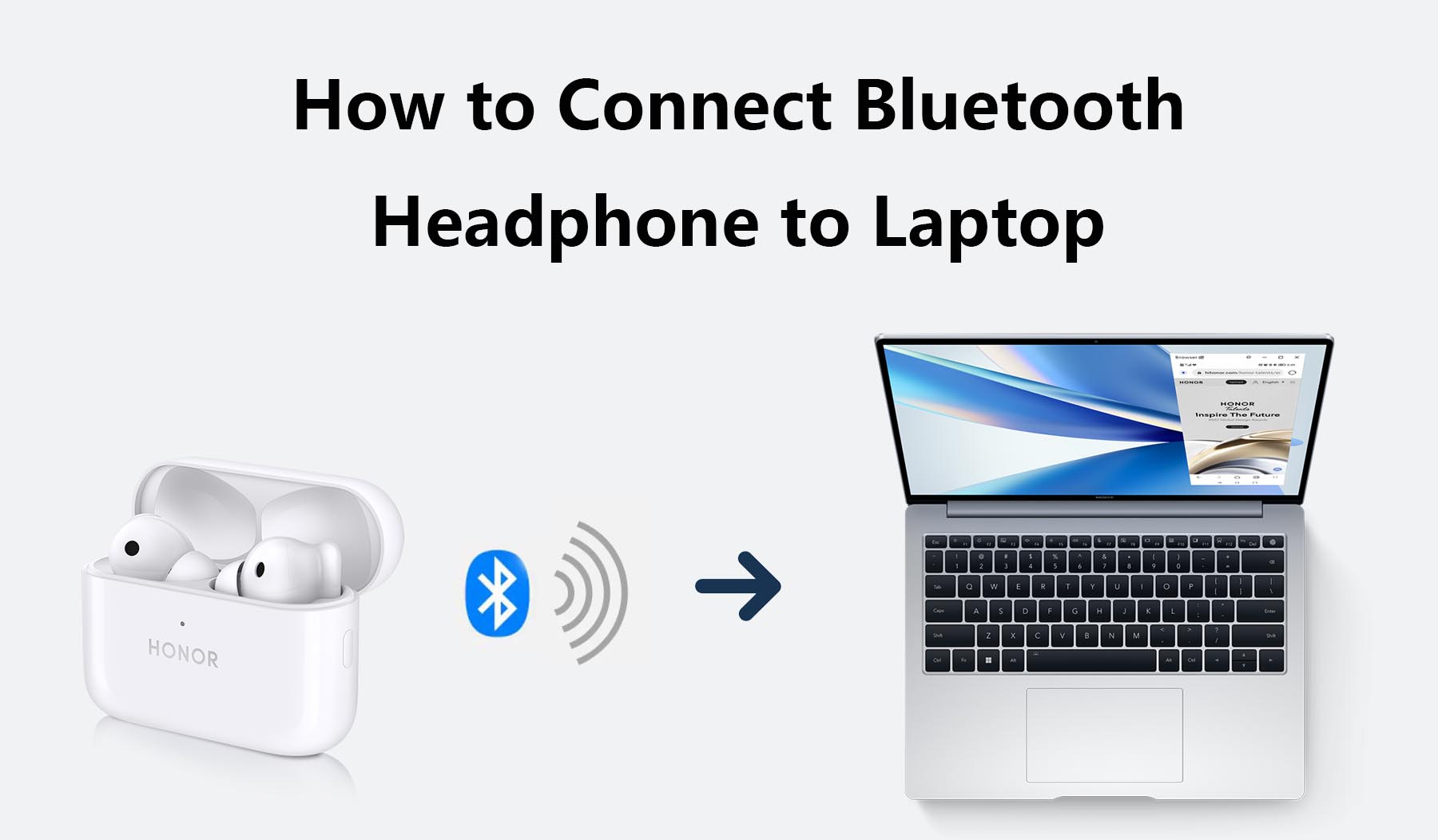
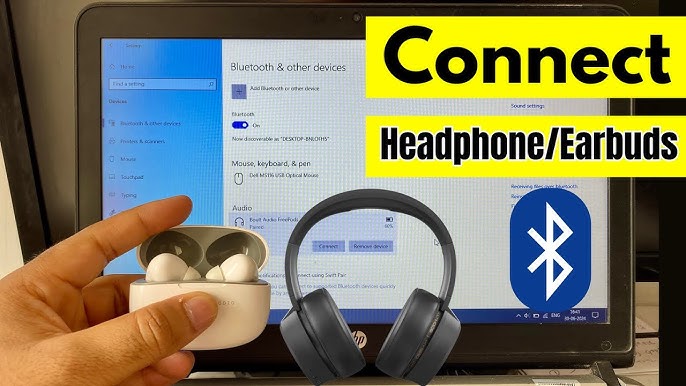
How to connect earbuds to laptop: Bluetooth pairing on Windows 10 and 11
Follow these short steps to pair Bluetooth earbuds on Windows. Most Windows laptops handle Bluetooth well when drivers are up to date.
Steps:
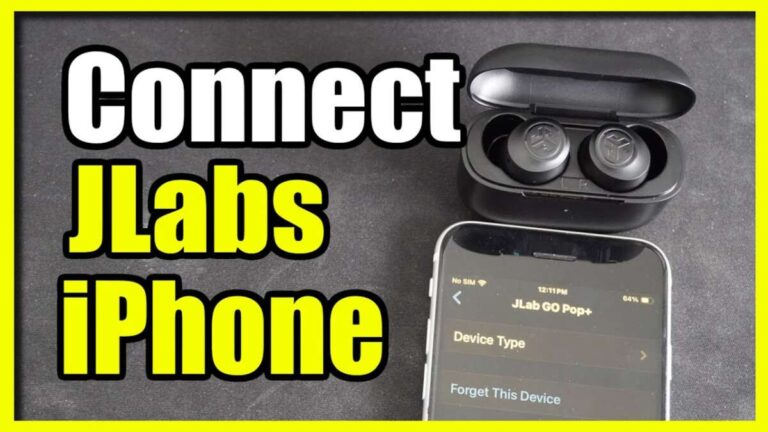
- Turn on your earbuds and enable pairing mode according to the earbud manual.
- On the laptop, open Settings > Devices > Bluetooth & other devices.
- Toggle Bluetooth on, then choose Add Bluetooth or other device > Bluetooth.
- Select your earbuds from the list and click Connect.
- Set the earbuds as default playback device in Sound settings if needed.
Troubleshooting tips:
- If earbuds don’t appear, toggle Bluetooth off and on, and restart pairing on the earbuds.
- Update Bluetooth drivers in Device Manager to fix persistent issues.
- For audio only, choose the hands-free or stereo profile depending on your needs.
How you follow these steps defines how to connect earbuds to laptop reliably on Windows. Keep firmware and drivers current for best results.
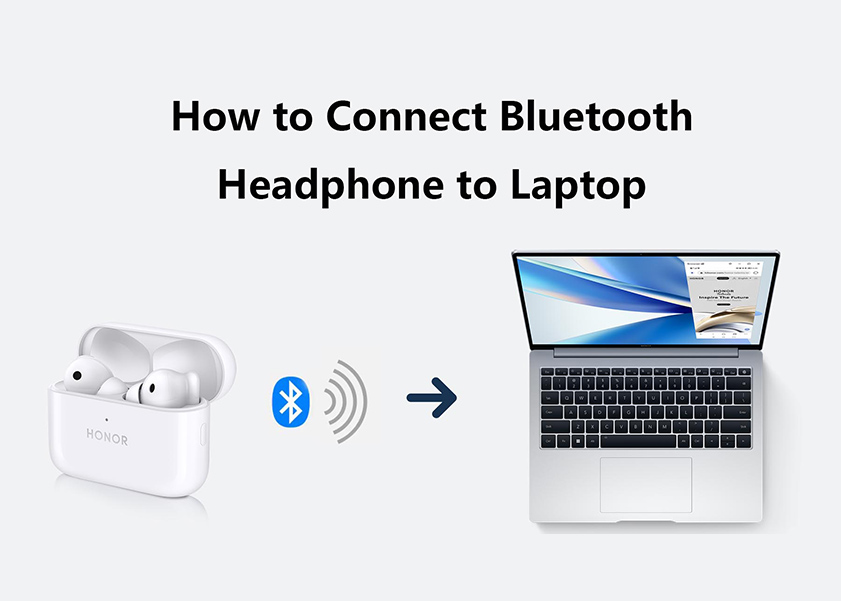
How to connect earbuds to laptop: Bluetooth pairing on macOS
Pairing on a Mac is straightforward. macOS usually recognizes modern earbuds quickly.
Steps:
- Turn on your earbuds and enter pairing mode.
- Click the Apple menu > System Settings (or System Preferences) > Bluetooth.
- Wait for the earbuds to appear, then click Connect.
- Optional: open Sound settings to select the earbuds for input and output.
Common Mac checks:
- Make sure Bluetooth is enabled and not blocked by another paired device.
- Restart Bluetooth from the menu bar if pairing fails.
- Reset the earbuds’ pairing list if they won’t connect.
These steps explain how to connect earbuds to laptop when using a Mac and ensure smooth audio switching.

How to connect earbuds to laptop: wired earbuds through 3.5mm jack or combo jacks
Wired earbuds are often the simplest route. The key is matching connectors and ports.
Steps for a laptop with a dedicated headphone jack:
- Plug the 3.5mm plug into the headphone jack. The laptop should auto-detect and route audio.
- If audio does not switch, open sound settings and choose the headphone output.
Steps for a laptop with a combined mic/headphone jack:
- Use a TRRS plug that supports mic and stereo. Most phone earbuds work.
- If the laptop needs separate mic and headphone ports, use a TRRS splitter.
When your laptop lacks a headphone jack:
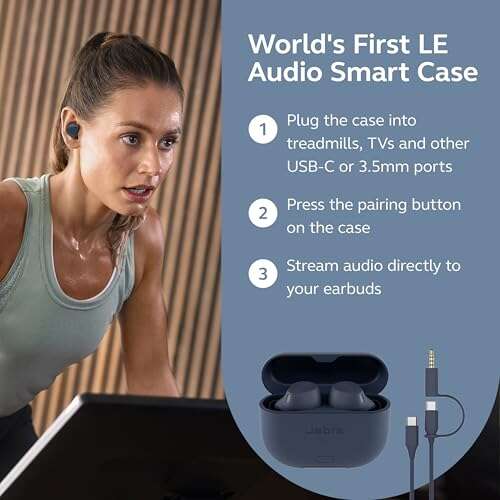
- Use a USB-A or USB-C to 3.5mm adapter. Plug the adapter into the laptop, then plug the earbuds into the adapter.
- Some adapters include a built-in sound card. In that case, set the adapter as the default audio device.
This explains how to connect earbuds to laptop by wire. Wired setups often give the best sync for video and gaming.
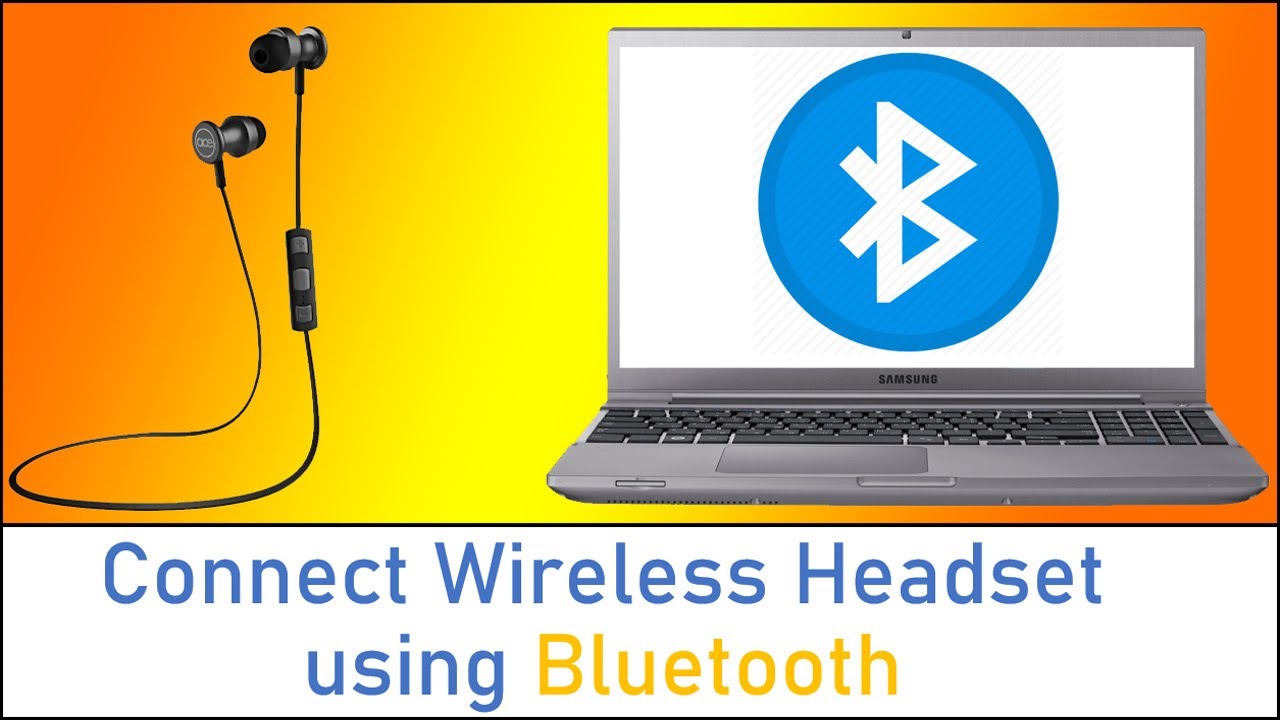
USB and USB-C earbuds: drivers, power, and recognition
USB and USB-C earbuds connect as digital audio devices. They can offer higher quality or built-in mics.
What to do:
- Plug the USB or USB-C earbuds into the correct port. Some USB-C ports only power and don’t support audio—check your laptop specs.
- If the earbuds have drivers, install them from the manufacturer if the laptop doesn’t auto-recognize the device.
- Choose the earbuds in sound settings as both input and output.
Troubleshooting:
- Update system firmware and USB drivers for recognition issues.
- Use the vendor’s app when available to tune EQ or mic settings.
This part covers how to connect earbuds to laptop when using USB or USB-C earbuds and how to fix recognition problems.
Troubleshooting common problems when connecting earbuds to laptop
If your earbuds won’t connect or audio is poor, try these fixes. I use them often when clients call for quick help.
Common issues and fixes:
- Earbuds not pairing: Turn Bluetooth off and on, restart earbuds, then remove old pairings on the laptop.
- No sound but connected: Check the laptop’s volume and the playback device in sound settings.
- Mic not working: Select the correct input device and grant apps permission to use the mic.
- Static or dropouts: Move closer to the laptop, remove interference, and turn off unused Bluetooth devices.
- Latency for video or games: Use wired mode or low-latency codecs if supported by earbuds and laptop.
These checks address the usual roadblocks and explain how to connect earbuds to laptop reliably after common errors.
Practical tips, personal experience, and mistakes to avoid
I’ve set up earbuds on many laptops and made common mistakes. These tips save time and frustration.
Real-world tips:
- Always check battery level on wireless earbuds before pairing sessions.
- When trouble appears, reboot the laptop. I fix 70% of issues this way.
- Label frequently used earbuds in Bluetooth settings to avoid pairing the wrong device.
- Keep one versatile adapter in your bag for laptops without a jack.
Mistakes I learned from:
- Ignoring firmware updates. A bad Bluetooth firmware can break connectivity.
- Forcing a device profile. Let the OS choose stereo or hands-free based on needs.
- Using cheap adapters without reviews. They can add noise or fail.
These lessons highlight practical ways to connect earbuds to laptop with fewer headaches.
Audio quality, codecs, and privacy considerations
Audio quality depends on hardware and codecs. Privacy matters when using earbuds with voice assistants.
What affects audio:
- Codec support (SBC, AAC, aptX, LDAC) affects fidelity and latency. Use devices that share a common codec.
- Built-in DACs on USB adapters can improve sound over cheap analog paths.
Privacy and security:
- Bluetooth pairing should be done in private places to avoid unintended connections.
- Keep firmware updated to patch known vulnerabilities.
These pointers help you make better choices when you connect earbuds to laptop and when you use them daily.
Frequently Asked Questions of how to connect earbuds to laptop
How do I pair wireless earbuds to my laptop if they don't show up?
Put the earbuds in pairing mode and restart the laptop’s Bluetooth. Remove old pairings from both devices and try again.
Why is one earbud louder than the other after connecting?
Check balance settings in sound preferences and clean the earbuds gently. If the problem persists, reset the earbuds or test them on another device.
Can I use earbuds with both audio and mic on my laptop?
Yes. Use a TRRS plug for wired earbud mics or select the USB/ Bluetooth mic profile in sound settings for wireless earbuds.
My laptop has no headphone jack. What is the best adapter?
Choose a quality USB-C or USB-A adapter with a built-in DAC and good reviews. Confirm the adapter supports audio and the laptop’s port type.
How do I reduce audio lag when gaming or watching video?
Use wired earbuds or low-latency Bluetooth codecs if supported. Close background apps and disable audio enhancements to reduce processing delay.
Conclusion
You now have clear, practical steps to connect earbuds to laptop for Bluetooth, wired, USB, and USB-C setups. Test battery levels, keep drivers updated, and choose wired when low latency matters. Try one change at a time and use the troubleshooting checklist above if problems arise. If this guide helped, leave a comment, share your setup tips, or subscribe for more straightforward tech guides.

Everett Ashford is a tech reviewer at mytechgrid.com specializing in SSDs, cameras, TVs, earbuds, headphones, and other consumer electronics. He provides honest, data-driven reviews based on hands-on testing and real-world performance analysis. Everett simplifies complex tech details to help readers make smart, confident buying decisions.