To pair Lenovo ThinkPlus earbuds, open the case, enter pairing mode, and select them in your device’s Bluetooth settings.
Knowing how to pair Lenovo ThinkPlus earbuds saves time when you are setting them up with a phone, tablet, laptop, or smart TV. The process is simple, but small details such as charging, pairing mode, and old Bluetooth records can cause trouble. This guide explains the setup process, common errors, model differences, and practical fixes in clear steps.
How to pair Lenovo ThinkPlus earbuds for the first time
Most Lenovo ThinkPlus earbuds use the same basic Bluetooth process. The earbuds must first be awake and discoverable. Your phone or computer can then find and connect to them.
Before you begin, keep the earbuds and your device close together. A distance of less than three feet is best for the first connection.
- Charge the earbuds and charging case for a few minutes.
- Turn on Bluetooth on your phone, tablet, or computer.
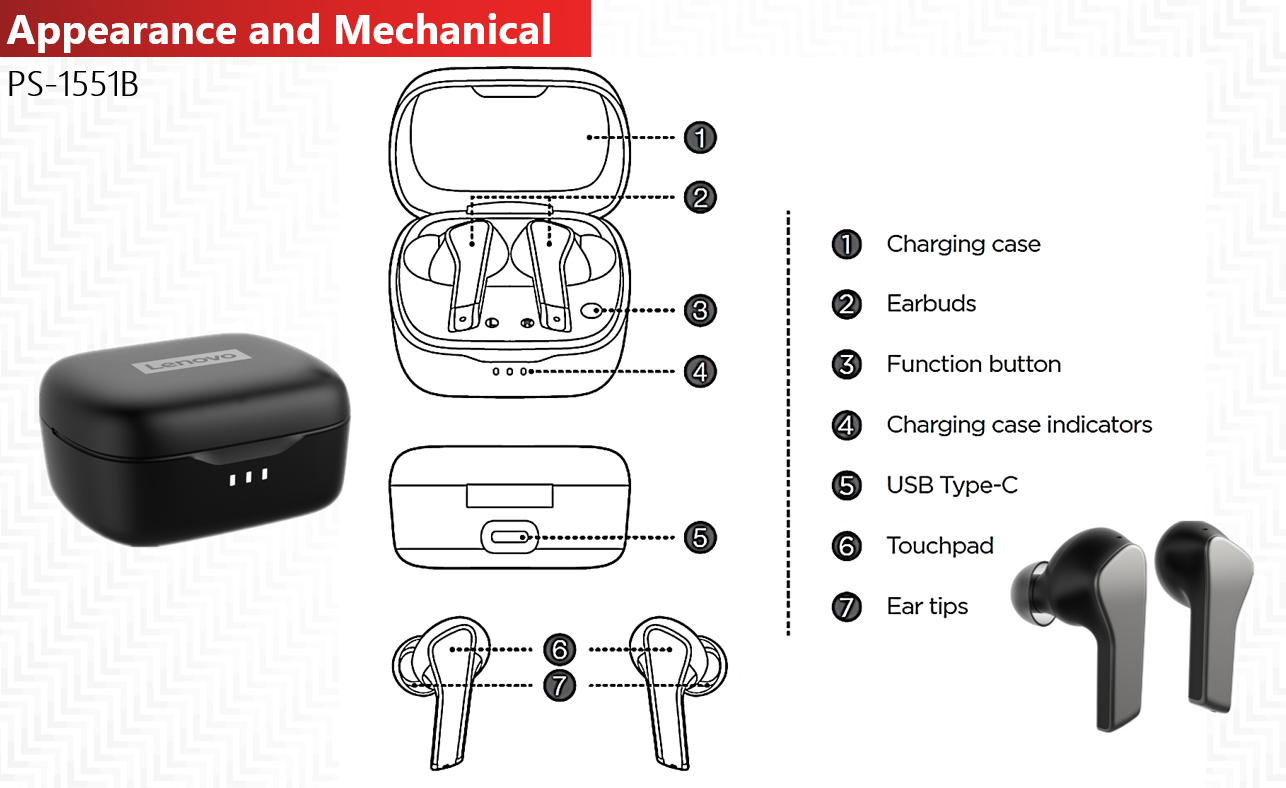
- Open the charging case.
- Remove both earbuds, or leave them inside if your model uses a case pairing button.
- Wait for the earbud indicator lights to flash.
- Open the Bluetooth menu on your device.
- Look for a name such as “Lenovo ThinkPlus,” “XT60,” “LP40,” “GM2 Pro,” or a similar model name.
- Tap or click the Lenovo device name.
- Select Pair, Connect, or Allow if your device asks for confirmation.
- Play audio to test the connection.
If the earbuds do not appear, place them back in the case, close the lid, and try again. This often resets the startup process without requiring a full reset.
How to pair Lenovo ThinkPlus earbuds with an Android phone
Android phones usually connect to Lenovo ThinkPlus earbuds in less than a minute. Menu names can vary by brand, but the main steps remain nearly the same.
- Open Settings on your Android phone.
- Tap Connected devices, Connections, or Bluetooth.
- Turn Bluetooth on.
- Tap Pair new device if the option appears.
- Open the ThinkPlus charging case.
- Remove both earbuds and wait for the lights to blink.
- Tap the Lenovo ThinkPlus name under Available devices.
- Accept the pairing request.
After the first connection, the earbuds should connect automatically when you open the case. If Android shows separate names for the left and right earbuds, do not connect to both at once. Put both earbuds in the case, reset them, and pair with the single combined name instead.
Some Android phones show a Fast Pair pop-up. If it appears, tap Connect. This feature can make how to pair Lenovo ThinkPlus earbuds even faster, but it may not appear on every ThinkPlus model.
How to pair Lenovo ThinkPlus earbuds with an iPhone or iPad
The iPhone pairing process is also straightforward. iOS may display the earbuds under Other Devices instead of listing them as a familiar Lenovo product.
- Open Settings.
- Tap Bluetooth.
- Turn Bluetooth on.
- Open the charging case.
- Take out both earbuds.
- Wait for the status lights to flash.
- Find the Lenovo ThinkPlus model name under Other Devices.
- Tap the name.
- Wait until the status changes to Connected.
If the earbuds connect but no sound comes through them, open Control Center. Tap the audio output button in the media panel and choose the Lenovo earbuds.
When learning how to pair Lenovo ThinkPlus earbuds with an iPhone, remember that the earbuds may connect to another nearby device first. Turn off Bluetooth on that old device for a moment. Then repeat the steps above.

How to pair Lenovo ThinkPlus earbuds with a Windows laptop
ThinkPlus earbuds work with most Windows 10 and Windows 11 laptops that support Bluetooth. The laptop must have Bluetooth hardware or a compatible USB Bluetooth adapter.
Windows 11 steps
- Open Settings.
- Select Bluetooth & devices.
- Turn Bluetooth on.
- Click Add device.
- Choose Bluetooth.
- Open the ThinkPlus charging case.
- Remove the earbuds or press the case pairing button, if available.
- Select the Lenovo ThinkPlus name.
- Click Done.
Windows 10 steps
- Open Settings.
- Select Devices.
- Click Bluetooth & other devices.
- Turn Bluetooth on.
- Click Add Bluetooth or other device.
- Choose Bluetooth.
- Select your ThinkPlus earbuds from the list.
- Click Connect.
After pairing, click the speaker icon in the Windows taskbar. Choose the earbuds as the sound output device. This matters because Windows may connect the earbuds but continue sending sound through the laptop speakers.
If the microphone sounds poor during a call, Windows may switch to a headset profile. That profile gives the microphone access but can reduce music quality. This is a normal Bluetooth limitation, not always an earbud fault.
How to pair Lenovo ThinkPlus earbuds with a Mac
A Mac can connect to ThinkPlus earbuds through System Settings or System Preferences, depending on the macOS version.
- Open the Apple menu.
- Choose System Settings or System Preferences.
- Select Bluetooth.
- Turn Bluetooth on.
- Open the earbud case.
- Put the earbuds into pairing mode.
- Find the Lenovo ThinkPlus name.
- Click Connect.
If the Mac connects but audio still plays from the built-in speakers, open Control Center. Select Sound, then choose the Lenovo earbuds.
For a stable connection, keep the case open during the first setup. Once the Mac remembers the earbuds, close the case after they connect. The next connection should happen automatically when you remove the earbuds.
How to put Lenovo ThinkPlus earbuds in pairing mode
Pairing mode allows another device to find the earbuds. Many ThinkPlus models enter pairing mode automatically when they are removed from the case. Others need a button press or touch-control command.
Try these methods:
• Open the case and remove both earbuds.
• Press and hold the case button for several seconds.
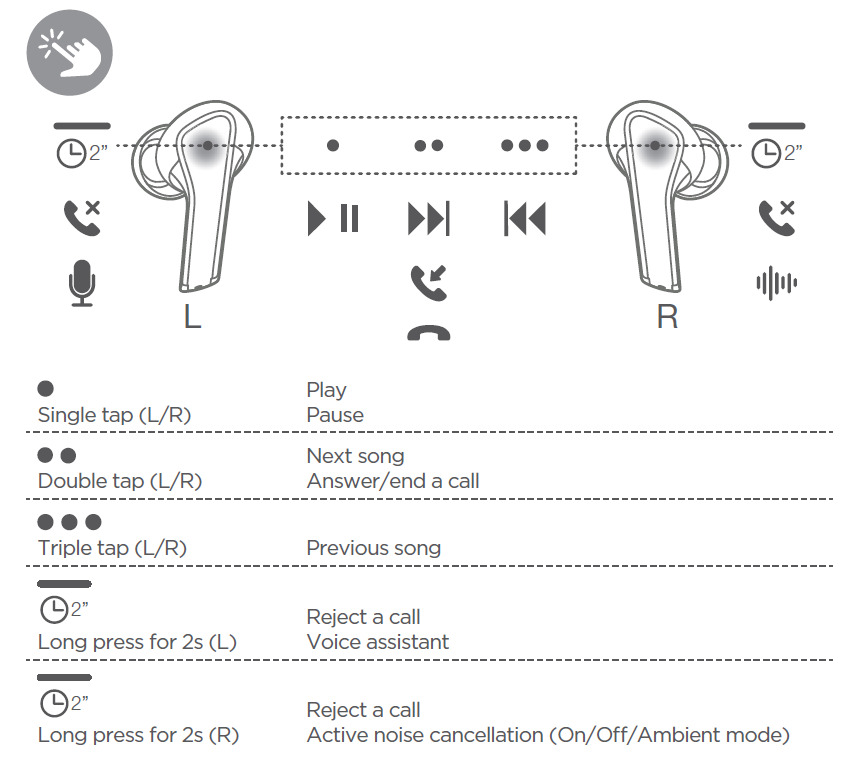
• Press and hold both earbud touch panels for about five seconds.
• Place the earbuds in the case, close the lid, reopen it, and remove them again.
• Turn off Bluetooth on devices that previously used the earbuds.
Flashing white, blue, or red-and-blue lights often indicate pairing mode. Light patterns differ by model, so check the manual for your exact product name.
If only one earbud flashes, the earbuds may have lost their connection with each other. This is called an earbud synchronization problem. A factory reset usually restores the left and right connection.
How to pair Lenovo ThinkPlus earbuds depends slightly on the model, but the goal is always the same: both earbuds must be active, synchronized, and visible to the host device.
How to pair Lenovo ThinkPlus earbuds after a factory reset
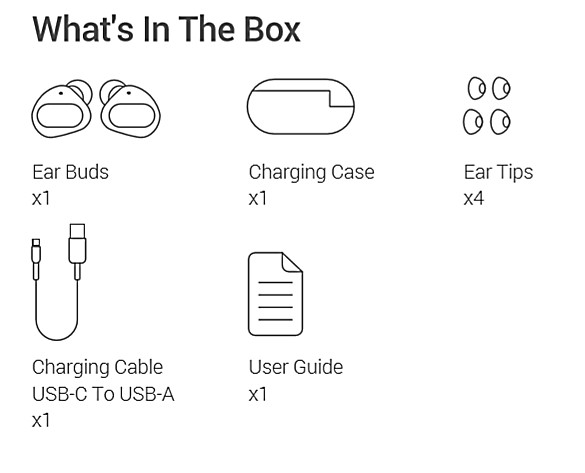
A reset removes old Bluetooth information and gives the earbuds a clean start. Use it when the earbuds connect to only one side, appear twice, or refuse to pair.
The reset method varies, but this general process works for many ThinkPlus models:
- Forget the earbuds from your phone or computer.
- Turn off Bluetooth on nearby devices.
- Place both earbuds inside the charging case.
- Keep the case open.
- Press and hold the case button for 10 to 15 seconds, if present.
- If there is no case button, press and hold both earbud touch controls.
- Watch for several flashes or a change in the indicator lights.
- Close the case for 10 seconds.
- Reopen the case and remove both earbuds.
- Turn Bluetooth back on and pair again.
Do not reset the earbuds while they are connected to a charger unless the manual says it is safe. Also, do not release the button too early. Some models need a long press before the reset begins.
A reset does not repair a damaged battery, blocked speaker grille, or broken charging contact. It only clears software and connection data.
How to fix Lenovo ThinkPlus earbuds that will not pair
When how to pair Lenovo ThinkPlus earbuds does not work, the problem is often basic rather than serious. Start with the easiest checks before trying advanced steps.
Check the battery
Low power can prevent pairing. Charge both earbuds and the case for at least 15 minutes. Make sure the charging contacts are clean and that each earbud sits firmly in its slot.
Remove old Bluetooth records
Your phone may remember an incomplete connection. Open Bluetooth settings, tap the gear or information icon beside the Lenovo earbuds, and choose Forget, Unpair, or Remove device. Then restart the pairing process.
Move away from other Bluetooth devices
Nearby earbuds, watches, speakers, and laptops can compete for the connection. Turn off Bluetooth on devices you are not using. Keep the earbuds close to the device during setup.
Restart the host device
A quick restart can clear a stuck Bluetooth service. This is especially useful on Windows laptops and older Android phones.
Clean the charging contacts
Dust or skin oil can stop the earbuds from charging. Use a dry cotton swab or a soft, dry cloth. Do not pour liquid into the case or use metal tools on the contacts.
Check the audio output
The earbuds may be connected but not selected for sound. Check the output menu on Android, iPhone, Windows, or macOS and choose the ThinkPlus earbuds.
In my experience troubleshooting wireless earbuds, the most common mistake is trying to pair one earbud at a time. The left and right units often need to sync with each other before they connect to a phone. Putting both earbuds in the case and resetting them usually solves that issue.

Common Lenovo ThinkPlus pairing problems and solutions
Different symptoms point to different causes. Use this quick guide before assuming the earbuds are defective.
| Problem | Likely cause | Best solution |
|---|---|---|
| Earbuds do not appear | Pairing mode is not active | Open the case, remove both earbuds, or hold the case button |
| Only one earbud works | Left and right earbuds are not synchronized | Forget the device and perform a factory reset |
| Earbuds connect to the wrong device | Another device has auto-connect enabled | Turn off Bluetooth on the old device |
| Connected but no sound | Wrong audio output selected | Choose ThinkPlus in the sound output menu |
| Audio cuts out | Distance, interference, or low battery | Keep the device nearby and charge the earbuds |
| One earbud is silent | Dirty contact or blocked speaker | Clean the contact and speaker grille |
| Pairing works once only | Saved Bluetooth profile is corrupted | Forget the earbuds and pair again |
| Earbuds disconnect during calls | Bluetooth profile changes | Select the earbuds as the call and microphone device |
Bluetooth uses short-range radio signals. Walls, crowded wireless areas, and nearby USB 3.0 devices can sometimes affect performance. Keeping the phone on the same side as the connected earbud may also improve stability.
Tips for a stronger and faster connection
Once you understand how to pair Lenovo ThinkPlus earbuds, a few habits can make future connections smoother.
• Keep the earbud firmware and phone software updated when updates are available.
• Charge the case before traveling or taking calls.
• Store both earbuds in the case after use.
• Keep the charging contacts clean.
• Avoid pairing the earbuds with many devices at the same time.
• Turn off Bluetooth on devices that should not connect automatically.
• Keep the phone within 30 feet for normal use, with fewer obstacles between the devices.
• Use the exact model name from the manual when searching for reset instructions.
Bluetooth standards support backward compatibility, but features can vary between phones and earbud models. Basic audio pairing is widely supported, while low-latency modes, app controls, and advanced codecs may not work on every device.
In a busy office, I have found that closing unused Bluetooth connections can save more time than repeating the pairing steps. Think of Bluetooth memory like a crowded desk: clearing old items makes it easier to find what you need.
How to prevent repeated pairing issues
You should not need to pair the earbuds every time. After the first successful setup, the saved Bluetooth profile should reconnect automatically.
If reconnection fails often, follow these practices:
- Put both earbuds in the case before storing them.
- Close the lid fully.
- Keep the case charged.
- Avoid removing only one earbud when the other stays unused for long periods.
- Delete duplicate ThinkPlus entries from your device.
- Reset the earbuds if the device shows “Connected” but no audio plays.
- Pair them with one main device first before adding a second device.
Some ThinkPlus models do not support true multipoint Bluetooth. This means they may remember several devices but actively connect to only one at a time. If you move from a phone to a laptop, disconnect the earbuds from the phone first.
Also, a Bluetooth connection does not guarantee good sound. A blocked speaker mesh, poor earbud fit, or low-quality audio file can affect the listening experience even when pairing is successful.

Frequently asked questions about how to pair Lenovo ThinkPlus earbuds
Why are my Lenovo ThinkPlus earbuds not showing in Bluetooth?
They may not be in pairing mode, or they may already be connected to another device. Charge them, turn off nearby Bluetooth connections, reset the earbuds if needed, and search again.
How do I reset Lenovo ThinkPlus earbuds?
Place both earbuds in the case and hold the case button or both touch controls for about 10 to 15 seconds. The exact method varies by model, so use the instructions for your specific ThinkPlus product.
Can I pair Lenovo ThinkPlus earbuds with an iPhone?
Yes. Open Settings, choose Bluetooth, and select the ThinkPlus model when it appears under Other Devices. If there is no sound, choose the earbuds from the iPhone’s audio output menu.
Why does only one Lenovo ThinkPlus earbud connect?
The earbuds may have lost their left-and-right synchronization. Forget the Bluetooth record, reset both earbuds together, and pair the single combined device name.
Do Lenovo ThinkPlus earbuds connect automatically?
Usually, yes. After the first pairing, removing the earbuds from a charged case should reconnect them to the last compatible device. Auto-connection may fail if another saved device connects first.
How far can Lenovo ThinkPlus earbuds be from a phone?
Many Bluetooth earbuds work within about 30 feet in open space. Walls, wireless interference, and the phone’s Bluetooth hardware can reduce that range.
Can I pair Lenovo ThinkPlus earbuds with two devices?
Some models can remember multiple devices, but many do not support active multipoint connections. In that case, disconnect from one device before connecting to another.
Conclusion
Learning how to pair Lenovo ThinkPlus earbuds is mostly a matter of charging the earbuds, entering pairing mode, selecting the correct Bluetooth name, and choosing the right audio output. If pairing fails, forget the old connection, reset both earbuds together, and keep nearby Bluetooth devices turned off during setup.
Use the steps for your phone, computer, or tablet, then store the earbuds in their case after each use. If this guide helped, explore more Bluetooth troubleshooting tips or share your ThinkPlus model and experience in the comments.

Everett Ashford is a tech reviewer at mytechgrid.com specializing in SSDs, cameras, TVs, earbuds, headphones, and other consumer electronics. He provides honest, data-driven reviews based on hands-on testing and real-world performance analysis. Everett simplifies complex tech details to help readers make smart, confident buying decisions.