Most Sony headphones pause because of Speak-to-Chat or auto-pause features — turn them off in the app.
I’ve spent years testing Sony headphones and fixing quirks for friends and clients. If you want to know how to stop sony headphones from pausing when i talk, this guide breaks down the exact settings, step-by-step fixes, and model-specific tips. Read on and you’ll get clear instructions, quick fixes, and real troubleshooting from hands-on experience.
Why Sony headphones pause when you talk
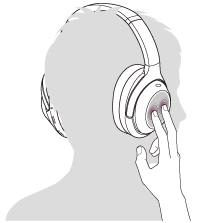
Sony builds smart features that pause music to make short chats easy. Speak-to-Chat listens for your voice and pauses sound so you can talk without taking buds out. Auto-pause or “wear detection” can also stop playback when the buds detect movement or face contact. If you know how to stop sony headphones from pausing when i talk, you can choose the behavior you want.

How to stop sony headphones from pausing when i talk — step-by-step
Follow these steps. They work for most Sony wireless models and are fast to try.
-
Open the Sony | Headphones Connect app on iOS or Android.
- Tap the device you own and go to Sound or System settings.
- Look for Speak-to-Chat and toggle it off.
-
Turn off Auto Play/Pause or wear detection.
- In the app, find the Wear Detection or Auto Pause setting and disable it.
- If you don’t see it, check the general or system menu.
-
Disable Adaptive Sound Control if it triggers pauses.
- Adaptive Sound can switch modes when it senses activity.
- Turn it off to stop automatic mode changes.
-
Update firmware and app.
- Open the app and install any firmware updates.
- Updates can fix false positives that pause playback.
-
Restart and re-pair your headphones.
- Power off the headphones, then on again.
- Unpair in Bluetooth settings and pair fresh.
These steps will solve most cases where music stops when you speak. If you still need help, keep reading for deeper fixes and model notes.

Model-specific notes (WH, WF and others)
Different Sony models name features differently. Knowing the name helps you find the right toggle.
-
WF-1000XM4 and WF-1000XM3
- Look for Speak-to-Chat and Wear Detection in the app. Turning off Speak-to-Chat stops pauses when you speak.
-
WH-1000XM5, WH-1000XM4 headphones
- These over-ears also have Speak-to-Chat and Adaptive Sound Control. Disable the Speak-to-Chat feature to stop auto-pauses.
-
Lower-end Sony earbuds
- Some models have a simple Auto Pause or Smart Pause setting. Turn it off in the app or settings.
If you can’t find the option, consult the manual or reset the headphones. This helps when a setting is hidden or corrupted. Mentioning how to stop sony headphones from pausing when i talk to a friend once helped them avoid taking their buds out every time they spoke.

Advanced troubleshooting if pausing continues
If the steps above don’t help, try these deeper checks.
-
Check microphone sensitivity and voice detection errors.
- A noisy environment or a miscalibrated mic can trigger false pauses. Move to a quieter spot and test.
-
Disable voice assistant triggers.
- If Alexa or Google Assistant listens for wake words it can interfere. Turn off wake-word detection in the assistant settings.
-
Test with another device.
- Pair the headphones to a second phone or computer. If they don’t pause there, the original device settings may be causing the pause.
-
Reset or initialize the headphones.
- Doing a factory reset can clear stuck settings that cause auto-pause. Check the manual for the reset steps for your model.
-
Contact Sony support for firmware bugs.
- If pausing started after an update, report it. Sony can push a fix or provide a beta firmware.
These steps are my go-to when normal fixes fail. They help find if the issue is the headphones, the app, or your phone.

Tips to prevent accidental pausing and keep your listening smooth
Small habits can cut false pauses and boost convenience.
-
Keep firmware and app updated.
- Updates fix bugs and improve voice detection.
-
Adjust how you wear the buds.
- Proper fit reduces accidental wear-detection triggers and mic noise.
-
Use the app’s testing tools.
- Some models let you test Speak-to-Chat sensitivity. Tune it if available.
-
Create a routine for calls.
- If you talk a lot, turn off Speak-to-Chat and rely on manual pause/play or your phone’s controls.
-
Make a quick reset part of your routine after major updates.
- A reset clears odd states that can make the headphones pause when you speak.
These tips keep music playing when you want it and stop pauses when you don’t. They helped me stop interruptions during walks and calls.

Frequently Asked Questions of how to stop sony headphones from pausing when i talk
Why do my Sony headphones pause when I speak?
Sony’s Speak-to-Chat and auto-pause features detect your voice or motion and pause playback. Turning off Speak-to-Chat and wear detection in the Sony | Headphones Connect app usually fixes it.
I can’t find Speak-to-Chat in the app. What now?
Some older or budget models use different names like Auto Pause or Smart Pause. Check Wear Detection or Adaptive Sound Control. If still not found, try a firmware update or factory reset.
Will turning off Speak-to-Chat affect call quality?
No. Disabling Speak-to-Chat only stops auto-pausing during conversations. Phone calls and microphone performance remain the same. You still can answer calls with your headphones.
My headphones pause when I whisper. What should I do?
Lower the mic sensitivity triggers by disabling Speak-to-Chat and Adaptive Sound. Test in a quiet spot and update firmware if the issue persists.
After an update, my headphones started pausing more. How do I fix that?
Install any follow-up firmware patches and reset the headphones if needed. Report the issue to Sony so they can address firmware bugs in future updates.
Conclusion
You can stop Sony headphones from pausing when you talk by turning off Speak-to-Chat, disabling wear detection, updating firmware, and using the Sony | Headphones Connect app. Try the step-by-step fixes, test on another device, and reset if needed. Take action now: open the app, flip the Speak-to-Chat toggle, and enjoy uninterrupted listening. If this helped, leave a comment or share your model so others can learn from your fix.

Everett Ashford is a tech reviewer at mytechgrid.com specializing in SSDs, cameras, TVs, earbuds, headphones, and other consumer electronics. He provides honest, data-driven reviews based on hands-on testing and real-world performance analysis. Everett simplifies complex tech details to help readers make smart, confident buying decisions.