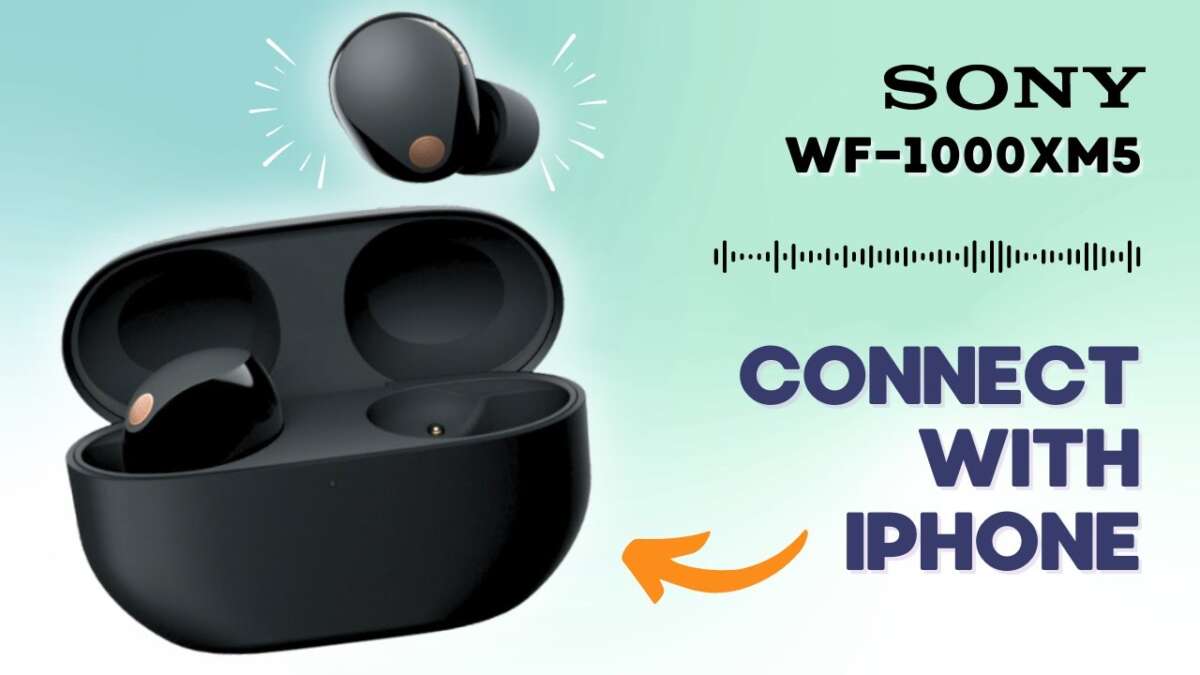
Connect Sony earbuds to iPhone by enabling pairing mode on the earbuds, then selecting them in iPhone Settings > Bluetooth.
I’ve spent years testing earbuds with iPhones and helping people pair Bluetooth devices. This guide walks you through exactly how to connect sony earbuds to iphone, step by step, with real-world tips, fixes, and settings that work across Sony models. Read on to pair quickly, fix common problems, and get the best sound from your Sony earbuds on an iPhone.
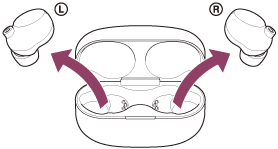
Step-by-step: How to connect sony earbuds to iphone
Follow these simple steps to pair most Sony earbuds with an iPhone. The steps below explain how to connect sony earbuds to iphone reliably, even if you are new to Bluetooth pairing.
- Charge your earbuds and iPhone
- Make sure earbuds have battery and the iPhone is on and unlocked.
- Turn on Bluetooth on the iPhone
- Open Settings > Bluetooth and keep the screen active so you can see new devices.
- Put the Sony earbuds into pairing mode
- For most models, open the case or hold the power/touch sensor for 5–7 seconds until an LED flashes or you hear a voice prompt. This starts pairing mode.
- Select the earbuds on the iPhone
- On the iPhone under Other Devices, tap the Sony model name to connect. The iPhone will show Connected once pairing succeeds.
- Confirm audio and calls
- Play music and test a call. If audio routes to the earbuds, pairing worked.
If your earbuds show up but won’t connect, turn Bluetooth off and back on and try again. I often repeat steps 2–4 to clear transient issues. This method is the quickest way to connect sony earbuds to iphone for most users.
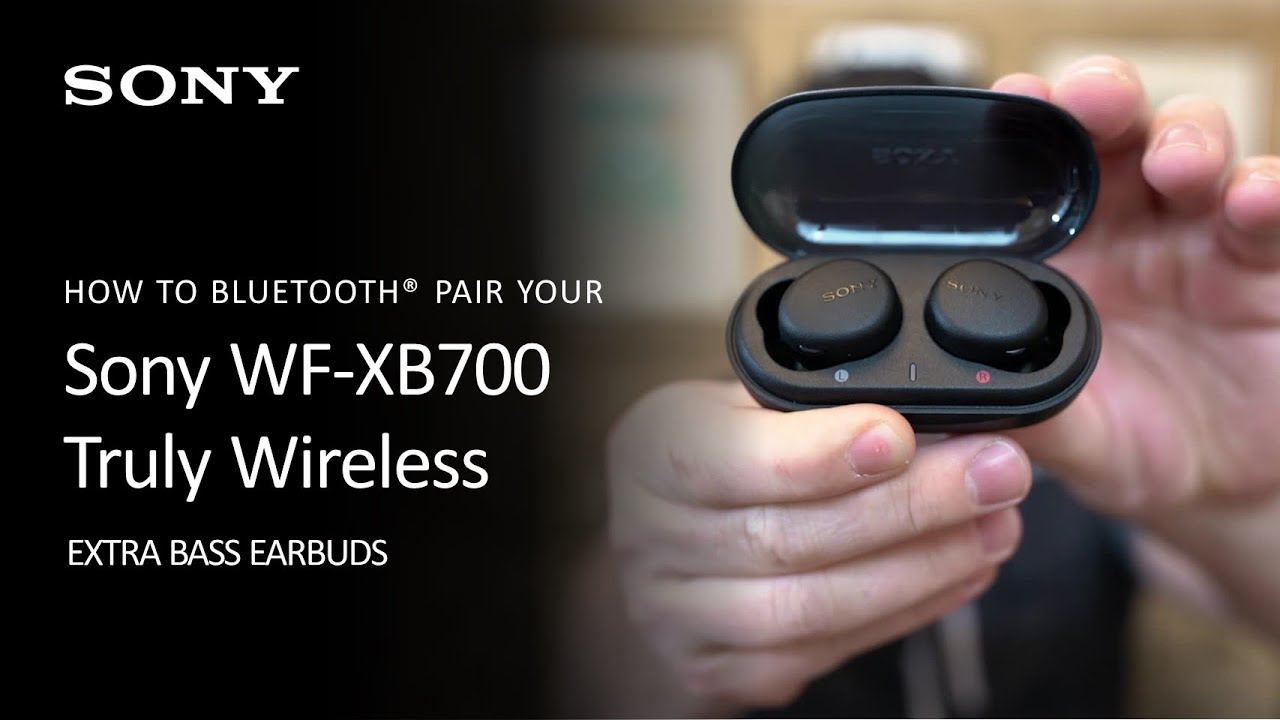
Pairing specific Sony earbuds models with an iPhone
Different Sony models have slight pairing quirks. Below are model-focused notes to help you know exactly how to connect sony earbuds to iphone for popular models.
WF-1000XM5 / WF-1000XM4
- Press and hold the touch area on both buds until the LED flashes and you hear “Bluetooth pairing.” Then choose the device in iPhone Bluetooth. These models support advanced features in the Sony app but pair like standard Bluetooth devices.
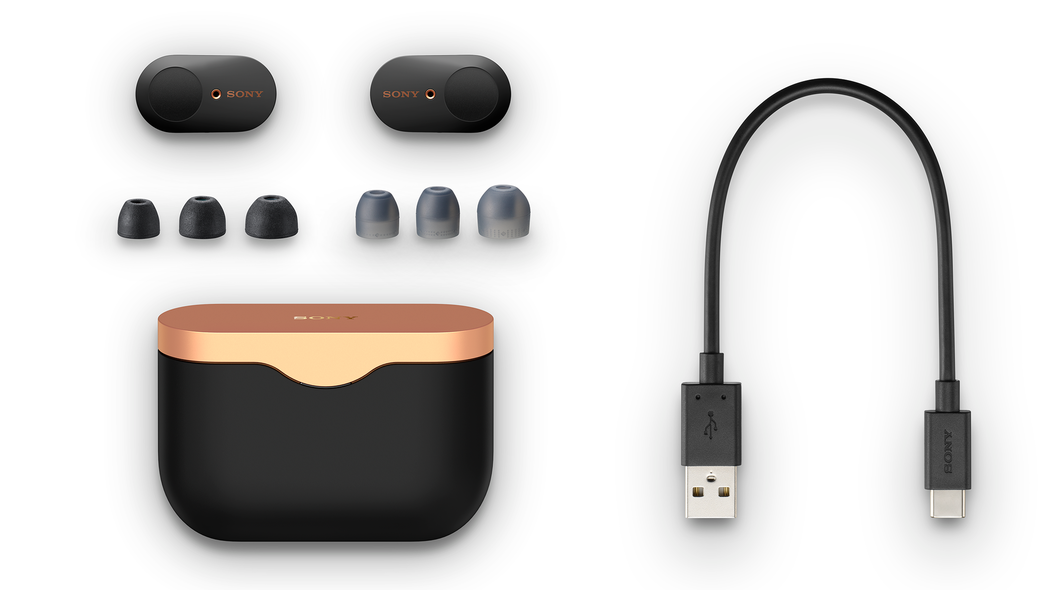
WF-1000XM3
- Place both buds in the case and hold the case button to enter pairing mode. The iPhone will detect the earbuds as "WF-1000XM3."
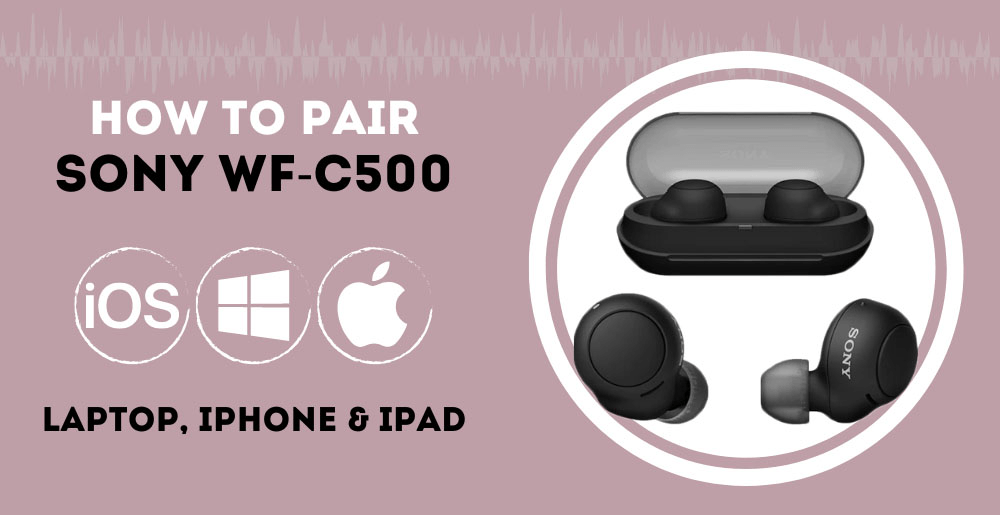
WF-C500 and WF-C700N
- Tap and hold the earbud buttons for a few seconds. A blue LED flash means pairing mode is active. Select the Sony name on iPhone.
WF-SP800N and sports models
- These may automatically enter pairing when first taken out of the case. If not, press and hold the power button. For runners, confirm the iPhone shows “Connected” before starting.
No matter the model, the core steps remain the same: enter earbud pairing mode, open iPhone Bluetooth, and tap the device name. Keep these model notes handy when you need to connect sony earbuds to iphone.
Troubleshooting: When you can’t connect Sony earbuds to iPhone
If pairing fails, try these practical fixes. I’ve used each one when helping friends and clients, and they work most of the time.
- Forget and re-pair the device
- Go to Settings > Bluetooth, tap the info icon next to the Sony device, choose Forget This Device, then repeat pairing steps.
- Reset the earbuds
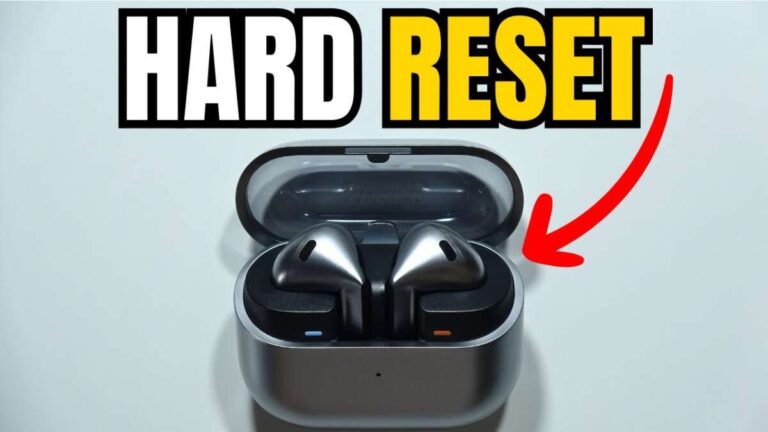
- Many Sony models have a factory reset sequence (hold power for 10–20 seconds or use the case button). Reset clears corrupted pairing data.
- Restart your iPhone
- A quick iPhone reboot often clears Bluetooth cache and resolves connection issues.
- Update firmware and iOS
- Install iOS updates on the iPhone. Use the Sony Headphones Connect app on Android or supported ways to update firmware when possible.
- Check interference and range
- Move away from Wi‑Fi routers or other Bluetooth devices. Stay within 10 meters with a clear line of sight.
- Test with another device
- Pair the earbuds to another phone to confirm the earbuds themselves are working.
These troubleshooting steps will solve most problems when learning how to connect sony earbuds to iphone. If issues persist, note the LED behavior and voice prompts to guide support agents.

Optimizing sound, firmware, and the Sony app for iPhone
After you learn how to connect sony earbuds to iphone, tweak these settings for better audio and stability.
- Use the Sony Headphones Connect app when available
- The app provides firmware updates, EQ, noise control, and sound presets. Some features require initial setup through Android; still, the app helps with updates and settings on iPhone when supported.
- Understand codec limitations on iPhone
- iPhones use AAC for high-quality Bluetooth audio. iPhone does not support LDAC, so expect AAC-level performance when connecting Sony earbuds to iPhone.
- Enable/disable noise cancellation and adaptive sound
- Control ANC from the app or earbud touch controls for the best balance between sound and battery life.
- Keep firmware current
- Updating firmware fixes connectivity bugs. Check the Sony app regularly and update when prompted.
- Adjust microphone and call settings
- If call quality is poor, toggle Bluetooth off and on or reconnect the earbuds to force the iPhone to select the best audio profile.
I try different EQ profiles and call settings when I pair a new Sony model. These small tweaks help you get the most from how to connect sony earbuds to iphone.
Best practices and security when using Sony earbuds with iPhone
Use these habits to keep pairing smooth and protect your privacy. They reflect real-world lessons from daily use.
- Keep earbuds and iPhone updated
- Regular updates reduce bugs and improve security.
- Remove unused Bluetooth pairings
- Delete devices you no longer use to avoid accidental connections.
- Turn off Bluetooth when not in use
- This saves battery and reduces background exposure.
- Use strong device passcodes
- If you lose your earbuds, a locked iPhone prevents easy access to paired device features.
- Store earbuds in the case when not in use
- This prevents unintended pairing triggers and preserves battery.
Following these tips reduces headaches and makes the process of how to connect sony earbuds to iphone smoother over time.

Frequently Asked Questions of how to connect sony earbuds to iphone
Can I pair Sony earbuds with any iPhone model?
Yes. Most Sony earbuds use standard Bluetooth and pair with iPhone models running iOS 10 or later. Newer iOS versions offer better stability and codec support.
Why won’t my iPhone find my Sony earbuds?
The earbuds may not be in pairing mode, or they might already be connected to another device. Reset the earbuds, enable pairing mode, and try again in iPhone Settings > Bluetooth.
Do I need the Sony Headphones Connect app to pair?
No. You can pair without the app, but the app adds firmware updates, EQ controls, and extra features that improve long-term performance on iPhone.
How do I reset Sony earbuds for a fresh pairing?
Reset methods vary by model, but commonly you hold the power or case button for 10–20 seconds. Check the specific reset prompt (LED or voice) for confirmation.
Will iPhone support Sony’s LDAC codec?
iPhone does not natively support LDAC. When you connect Sony earbuds to iPhone, audio typically uses AAC, which still provides good quality.
My calls sound bad over earbuds. What should I do?
Toggle Bluetooth, forget and re-pair the earbuds, or restart the iPhone. Also check microphone permissions and try using one earbud to see if the headset profile changes.
Conclusion
Pairing your Sony earbuds with an iPhone is simple when you follow the right steps: enable pairing mode, open iPhone Bluetooth, and select the earbuds. Use resets, firmware updates, and the Sony app when needed to fix stubborn issues. Try the tips above and you’ll master how to connect sony earbuds to iphone quickly and keep them working well.
Take action now: pair your earbuds, test audio and calls, and share your experience or questions below. If you found this useful, subscribe or leave a comment so I can cover specific Sony models and troubleshooting scenarios next.

Everett Ashford is a tech reviewer at mytechgrid.com specializing in SSDs, cameras, TVs, earbuds, headphones, and other consumer electronics. He provides honest, data-driven reviews based on hands-on testing and real-world performance analysis. Everett simplifies complex tech details to help readers make smart, confident buying decisions.