Use the Bose Music or Bose Connect app, or Bose Updater on PC, and follow prompts.
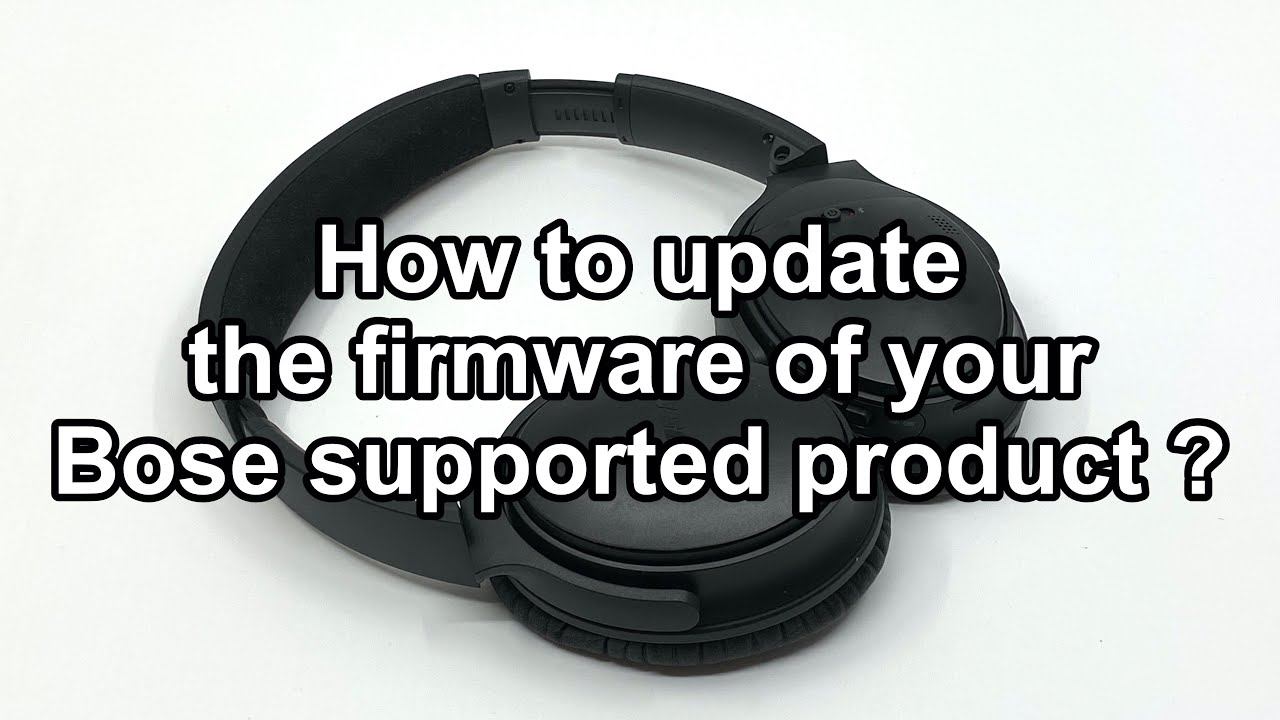
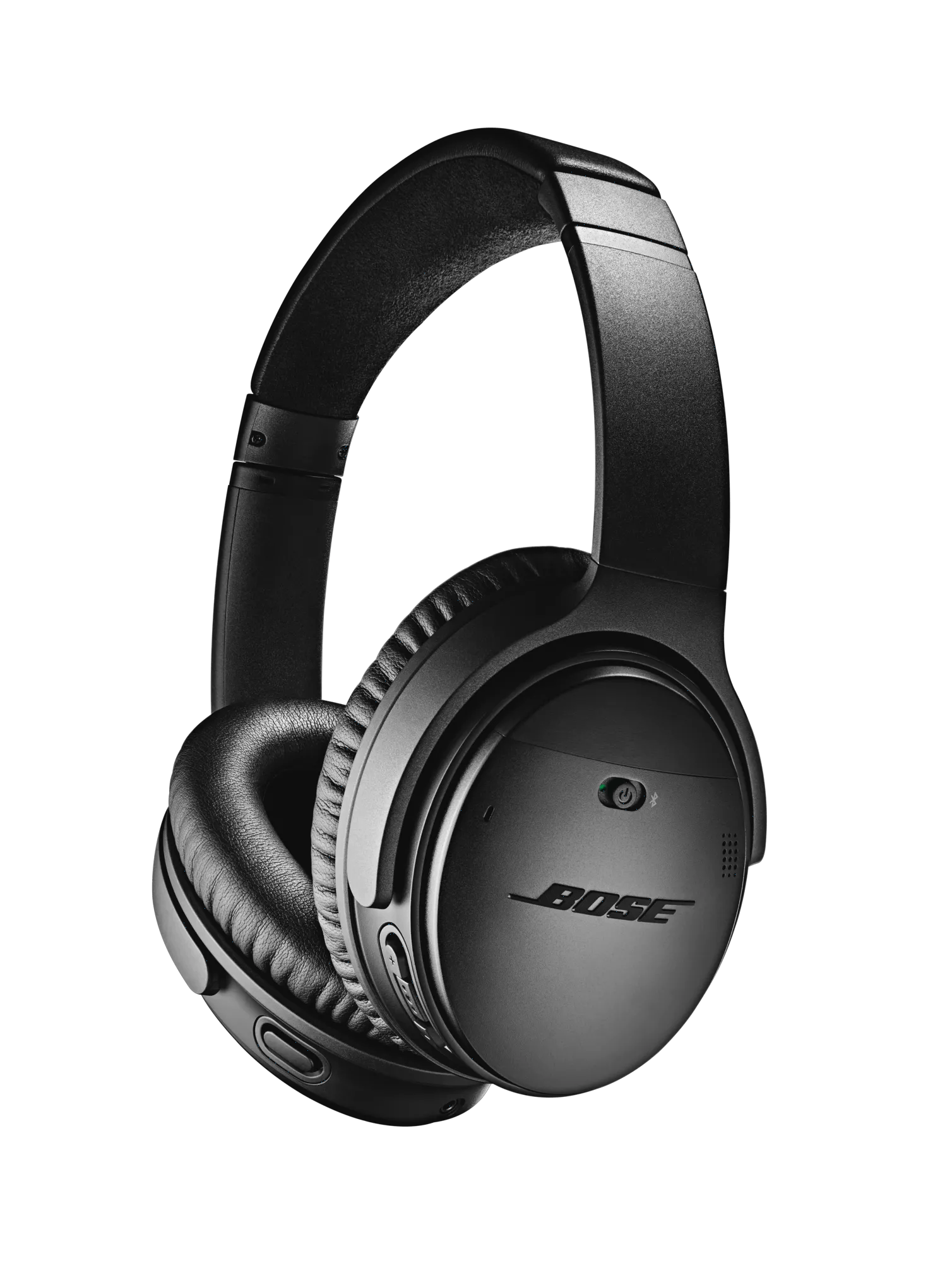
Updating your Bose headphones keeps sound sharp, fixes bugs, and adds features. I’ve updated dozens of Bose models in the field and at home, so I know the common snags and the fastest, safest ways to update. This guide walks through what you need, step-by-step methods for phones and computers, troubleshooting tips, and best practices so you can update with confidence and avoid mistakes.
Why updating your Bose headphones matters
Firmware updates improve audio quality, battery life, and connection stability. They also patch security issues and may add new features your headphones didn’t have at purchase. If you skip updates, you risk glitches, poorer performance, or incompatibility with new phones and apps. Learning how to update Bose headphones is quick and gives the gear a longer, smoother life.

What you need before updating
- A charged headset or at least 50% battery so the update won't stop midway.
- A smartphone with the Bose Music or Bose Connect app, depending on model.
- A stable Wi‑Fi or wired internet connection for downloads.
- A USB cable and a computer with the Bose Updater app for some older models.
- Patience—updates can take 5–30 minutes depending on size.
Take a moment to back up custom settings you rely on, like EQ presets or saved pairings. That helps if you ever need to reset and reconfigure.
Update methods overview: phone app, Bose Updater for PC/Mac, and in-headphone prompts
There are three common ways to update Bose headphones:
- Using the Bose Music app
- Using the Bose Connect app (older models)
- Using the Bose Updater on a PC or Mac
Most new Bose models use the Bose Music app. Older QuietComfort and SoundLink models often use Bose Connect. If neither app prompts an update, try the Bose Updater on a computer. Knowing which method applies to your model makes the process smooth.

Step-by-step: Update using Bose Music or Bose Connect app
- Charge your headphones to above 50% and keep them near your phone.
- Install or open the Bose Music or Bose Connect app.
- Sign in or skip sign-in if allowed. Grant Bluetooth and location permissions when asked.
- Choose your headphone model from the device list.
- If an update is available, the app will show an update banner or button. Tap Update.
- Follow on-screen prompts. Keep the app open and the headphones nearby.
- Wait until the app confirms the update is complete. Do not turn off the headphones until finished.
If the update fails, the app usually offers retry steps. I once had an update stall because my phone switched Wi‑Fi networks mid-download—keeping connectivity stable solved it instantly.
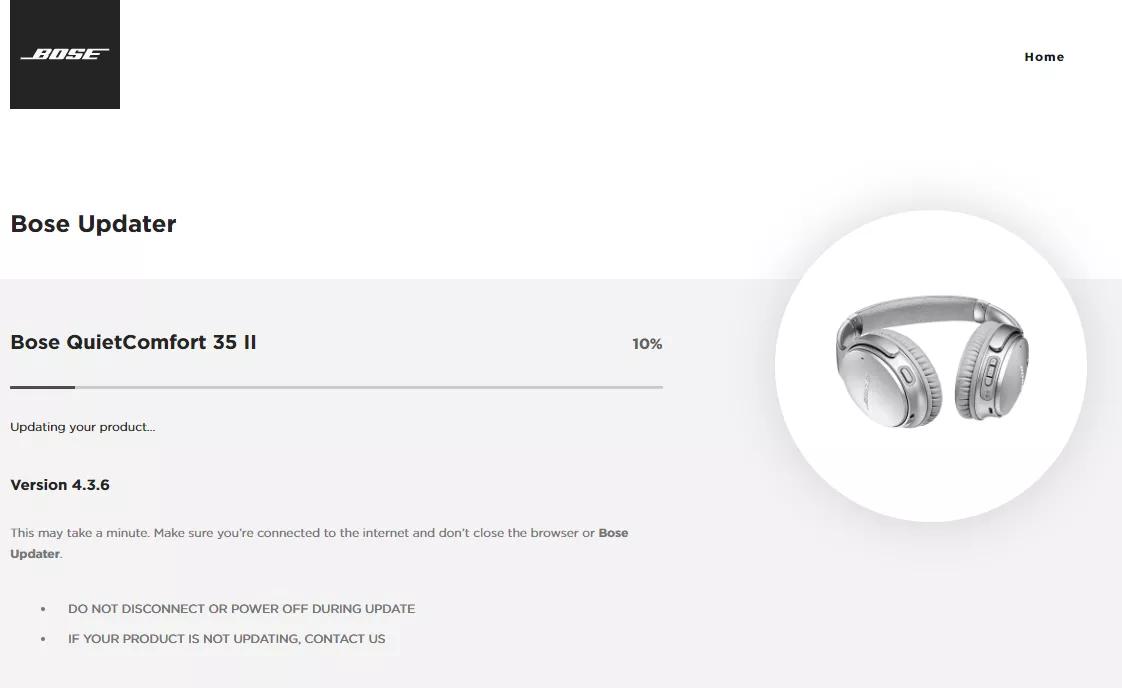
Update via Bose Updater (PC or Mac)
- Charge your headphones and connect them to your computer with a data-capable USB cable.
- Download and install the Bose Updater software from Bose’s support page.
- Open the Bose Updater. It should detect your headphones automatically.
- If an update is available, the updater will show an Install or Update button. Click it.
- Follow on-screen steps. The process may take 10–20 minutes.
- When complete, safely eject or unplug the headphones.
This method is useful when the phone app won’t detect updates or when troubleshooting firmware issues. I’ve used the updater to recover headphones that would not finish app-based updates.
Common issues and fixes when updating Bose headphones
- Update fails or stalls
- Ensure battery is charged. Restart the app and headphones, then retry.
- App doesn’t detect headphones
- Turn Bluetooth off and on, restart phone, and re-pair the device in the app.
- Update keeps retrying
- Delete the headphone from Bluetooth settings, re-pair, and start the update fresh.
- Update completes but headphones behave oddly
- Reset the headphones to factory defaults and re-pair with your device.
- Slow download on app
- Move to a faster Wi‑Fi or use the PC updater for a stable wired connection.
If you hit repeated failures, record the error message and contact Bose support for guided help. Be honest about what you tried; it speeds the fix.
Best practices and tips from experience
- Always update when you have time. Interruptions cause issues.
- Keep your phone and the Bose app updated before updating firmware.
- Use the official Bose apps and updater to avoid corrupted firmware.
- Avoid public Wi‑Fi for large updates; use private or wired connections.
- After updates, test key features: ANC, call quality, and multipoint pairing.
- If you manage multiple Bose devices, update them one at a time to reduce confusion.
From my experience, patience is the best tool. Treat firmware like a delicate tune-up. It’s quick when done right, and it keeps your headset sounding its best.

Frequently Asked Questions of how to update bose headphones
How do I know if my Bose headphones need an update?
Open the Bose Music or Bose Connect app and select your device. The app shows available firmware updates and will prompt you if one is required.
Can I update Bose headphones without a smartphone?
Yes. Some models can be updated using the Bose Updater on a PC or Mac by connecting via USB and following the updater prompts.
What happens if the update fails mid-way?
If it fails, restart the headphones and app, then retry. If failures continue, use the Bose Updater on a computer or contact support for repair steps.
Will updating erase my settings or presets?
Most firmware updates do not erase presets, but occasional resets happen. Back up any settings you care about and note pairing lists before updating.
How long does a typical firmware update take?
Most updates take 5–20 minutes, depending on size and connection speed. Plan for up to 30 minutes to be safe.
Are firmware updates reversible?
Generally, firmware updates cannot be reverted by the user. If an update causes problems, contact Bose support for advice or possible fixes.
Conclusion
Updating your headphones keeps them secure, reliable, and enjoyable to use. Use the Bose Music or Bose Connect app for most models, or the Bose Updater on a computer when needed. Charge your device, keep connections stable, and follow prompts carefully to avoid hiccups. Now that you know how to update Bose headphones, take a few minutes to check for updates and keep your audio crisp. If this guide helped, try the update now, share your experience, or leave a comment with any questions.

Everett Ashford is a tech reviewer at mytechgrid.com specializing in SSDs, cameras, TVs, earbuds, headphones, and other consumer electronics. He provides honest, data-driven reviews based on hands-on testing and real-world performance analysis. Everett simplifies complex tech details to help readers make smart, confident buying decisions.