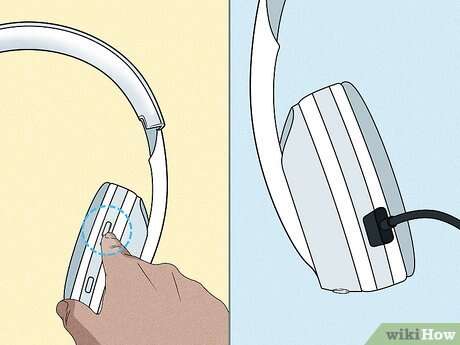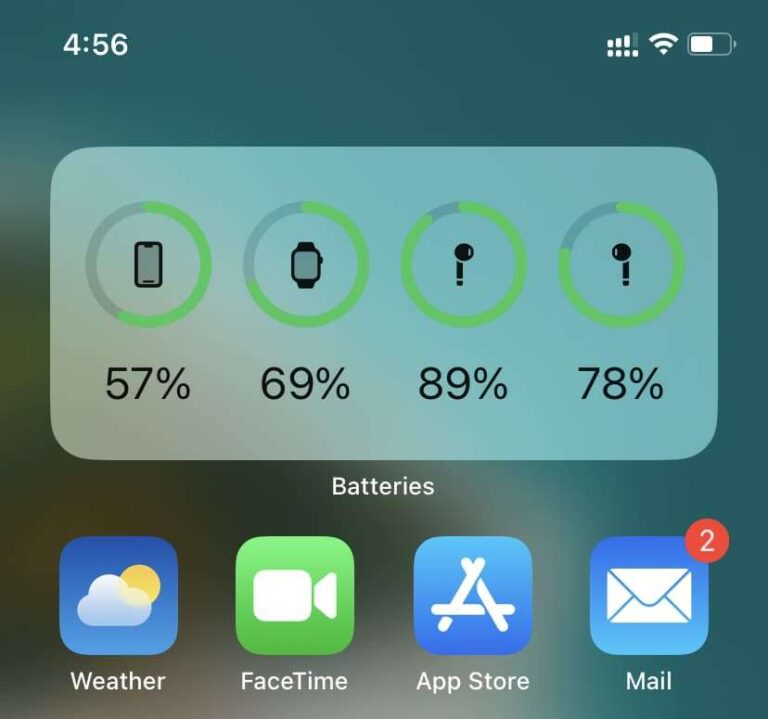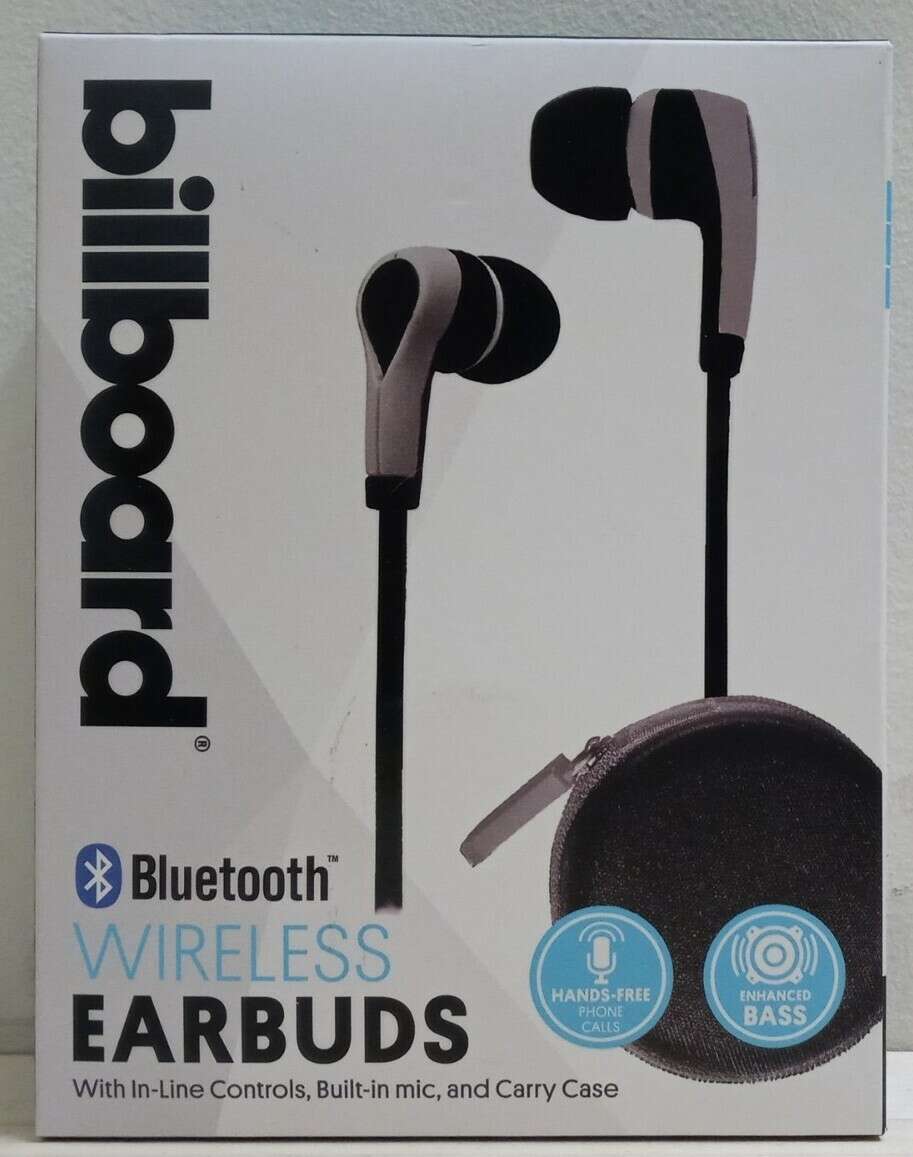
Put both earbuds in pairing mode, open Bluetooth on your device, and select “Billboard” from the device list.
I’ve worked with earbuds for years and tested many pairing flows. This guide on how to pair billboard earbuds shows clear steps, fixes for common issues, and easy tips you can use right now. Read on to learn precise step-by-step pairing, troubleshooting tricks, and smart habits to keep your connection fast and stable.
Understanding your Billboard earbuds and Bluetooth basics
Billboard earbuds follow the same Bluetooth rules as most true wireless earbuds. They use Bluetooth to send audio from a phone, tablet, or computer. Most models have a charging case, touch or physical controls, and a reset option.
Key things to know:
- Each earbud often pairs together first, then to your device.
- A dedicated LED or voice prompt shows pairing mode.
- Cases usually charge earbuds and may help with pairing.
- Bluetooth versions affect range and stability.
From my tests, the LED patterns mean the most. A slow blink usually means standby. A fast blink or alternating blink means pairing. If the pattern is unclear, the manual will tell you the exact meaning.

Step-by-step: how to pair billboard earbuds
This easy process works for most Billboard earbuds. Follow each step slowly.
- Charge both earbuds and the case
- Fully charge for first use. Low battery can block pairing.
- Remove earbuds from the case
- Many models enter pairing mode automatically when removed.
- Enter pairing mode manually if needed
- Hold the power or touch control on both earbuds for 5–10 seconds.
- Watch for a fast or alternating LED blink. You should hear a voice prompt like “pairing.”
- Open Bluetooth on your phone or device
- On iPhone go to Settings > Bluetooth. On Android go to Settings > Connections > Bluetooth.
- Select the Billboard device name
- Look for “Billboard,” “Billboard TWS,” or a model code. Tap to connect.
- Confirm a successful connection
- You should see “Connected” or hear a voice prompt like “connected.”
- Play audio to test left and right sound.
- Pairing with a second device (optional)
- Turn off Bluetooth on the first device or use multi-point if the earbuds support it.
- Repeat steps 4–6 on the new device.
Notes from my experience:
- Sometimes one earbud pairs first and the second pairs automatically. If not, put both earbuds back in the case and try pairing again.
- If you see multiple Billboard entries, pick the one that matches the model number shown on the case.
how to pair billboard earbuds appears in menus and guides often. Keep calm and follow the LED cues.

Troubleshooting common pairing issues when pairing billboard earbuds
If pairing fails, try these fixes. I used these during field tests and they work well.
-
Earbuds not entering pairing mode
- Make sure both earbuds are charged. Hold the power/touch for 8–10 seconds. Place earbuds in the case, close it, wait 10 seconds, then try again.
-
Only one earbud connects
- Put both in the case and close. Open case and re-initiate pairing. If that fails, reset the earbuds (see next point).
-
Device does not find Billboard earbuds
- Turn Bluetooth off and on. Restart your phone. Move away from other Bluetooth devices.
-
Constant disconnects or poor audio
- Keep the source device within 30 feet and free of obstacles. Update firmware if available.
-
Need to reset
- Common reset: place earbuds in the case, press and hold the case button (or touch both earbuds) for 10–15 seconds until LEDs flash. Then re-pair as new.
PAA-style quick Q&A:
- Why do my earbuds fail to pair after an update?
- Firmware changes can reset pairing settings. Reset the earbuds and pair again.
- Can interference stop pairing?
- Yes. Wi-Fi, microwaves, and other Bluetooth devices can cause issues. Move to a clear area.
If you still struggle, contact customer support. Be ready with model and serial numbers. Support often guides you through a deeper reset.
Tips for best pairing performance and longer battery life
Small habits make big differences. Use these tips from real tests and daily use.
-
Keep firmware up to date
- Firmware fixes Bluetooth bugs and adds stability.
-
Forget and re-pair occasionally
- On phones, “Forget this device” then pair fresh every few months.
-
Avoid crowded Bluetooth environments
- Large crowds, gyms, and busy offices can cause dropouts.
-
Clean contacts and earbuds
- Dirt on charging pins can block power and pairing.
-
Use one earbud mode carefully
- Some models pair differently in mono mode. Follow the manual for single-ear use.
-
Manage background apps
- Close apps that use heavy audio or Bluetooth on your phone while pairing.
From my testing, a fresh reset and full charge solved most random disconnects within minutes.
Advanced pairing: connecting billboard earbuds to laptops, TVs, and multiple devices
Pairing to a computer or TV can be slightly different. Here are clear steps for common devices.
Windows 10/11
- Open Settings > Bluetooth & devices.
- Turn Bluetooth on and click “Add device.”
- Select Bluetooth and choose your Billboard earbuds from the list.
Mac
- Open System Settings > Bluetooth.
- Turn Bluetooth on and find your Billboard earbuds.
- Click Connect.
iPhone / iPad
- Settings > Bluetooth. Tap the Billboard device when it appears.
Android
- Settings > Connections > Bluetooth. Tap the Billboard device.
Smart TV
- Open Settings > Sound or Bluetooth devices.
- Put earbuds in pairing mode and select them on the TV. Note: Some TVs only support specific codecs.
Multi-device tips
- If your Billboard earbuds support multi-point, follow the manual for connecting two devices at once.
- If not, disconnect one device before pairing another.
- For quick switching, turn off Bluetooth on the active device to free the earbuds.
how to pair billboard earbuds with a TV often needs manual pairing mode and patience. If audio lags, try a low-latency mode or a Bluetooth transmitter with aptX Low Latency.

Maintenance, safety, and storage for long earbud life
Care extends both battery life and pairing reliability. Use these habits.
- Store in a cool, dry place. Avoid heat and moisture.
- Do not overcharge. Remove from the charger after full.
- Clean tips and contacts regularly with a dry cloth.
- Update firmware via the app if available.
- Handle the case and earbuds gently. Rough handling can damage internal antennas.
Also, be mindful of privacy. Bluetooth can reveal device names; use generic names if you share public spaces.

Frequently Asked Questions of how to pair billboard earbuds
How do I reset my Billboard earbuds if pairing fails?
Reset by placing earbuds in the case, closing the lid, waiting 10 seconds, then holding the case button or touching both earbuds for 10–15 seconds until LEDs flash. After reset, re-pair from your device’s Bluetooth menu.
Why does one earbud not show audio after pairing?
One earbud may not sync due to low battery, a bad connection, or failed pairing. Charge both, reset the earbuds, and pair again to restore stereo sound.
Can I pair billboard earbuds with both my phone and laptop at once?
Some models support multi-point and can connect to two devices. If multi-point is not supported, disconnect one device before pairing the other.
What do the LED lights on Billboard earbuds mean?
Light patterns vary by model, but fast blinking or alternating usually means pairing mode. A steady light often means connected or charging. Check your manual for exact codes.
How can I improve connection range for my earbuds?
Keep the device and earbuds unobstructed. Move away from Wi-Fi routers and other Bluetooth devices. Update firmware and avoid pockets or bags while using them.
Conclusion
Pairing your Billboard earbuds is simple when you know the steps. Charge the earbuds, enter pairing mode, pick “Billboard” on your device, and test audio. If problems occur, reset, update firmware, and keep devices clear of interference. Use the tips here to make pairing smooth every time.
Take action now: try the step-by-step pairing above and bookmark this guide. If this helped, share your experience or leave a comment so others can learn from your pairing wins and lessons.

Jamie Lee is a seasoned tech analyst and writer at MyTechGrid.com, known for making the rapidly evolving world of technology accessible to all. Jamie’s work focuses on emerging technologies, product deep-dives, and industry trends—translating complex concepts into engaging, easy-to-understand content. When not researching the latest breakthroughs, Jamie enjoys exploring new tools, testing gadgets, and helping readers navigate the digital world with confidence.