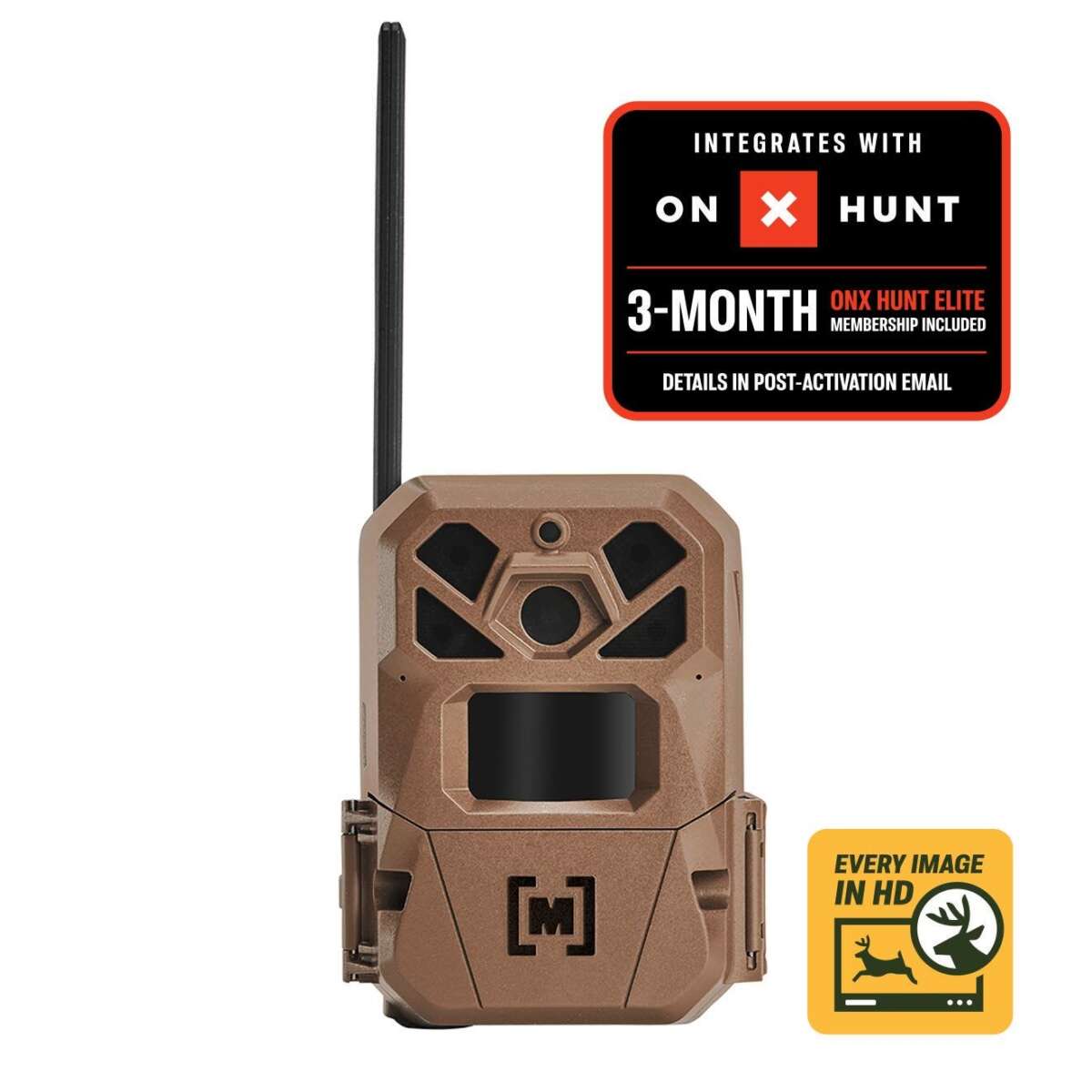
Open the Moultrie app, select your camera, and tap Check-In or Preview to view live status.
I have used Moultrie trail cameras and the Moultrie Mobile system for years. This guide explains how to check in Moultrie camera setups step by step, with clear actions, common fixes, and tips to keep your camera online. I combine hands-on experience with best practices so you can quickly confirm camera status, view images, and solve connection issues.
Understanding Moultrie cameras and check-in options
Moultrie makes several camera models and a cloud service called Moultrie Mobile. Check-in means verifying the camera is online, confirming battery and SIM or Wi-Fi status, and retrieving the latest images or video. You can check in via the Moultrie Mobile app, web portal, or by removing the SD card for a manual check. Knowing which method fits your model saves time and keeps your setup reliable.

What you need before you check in
Prepare a short checklist before you check in Moultrie camera to avoid wasted trips.
- Camera model name and serial number ready so you can match it in the app.
- Charged or fresh batteries and a working SIM card for cellular models.
- Recent app version installed and your account logged in.
- Strong phone signal or Wi-Fi where you plan to check in, for reliable connection.
Double-check these items before you try to check in Moultrie camera. A small prep step fixes most problems.

Step-by-step: how to check in moultrie camera
Follow this clear, short sequence to check in Moultrie camera using the mobile app. These steps assume you use Moultrie Mobile and a compatible camera.
- Open the Moultrie Mobile app and sign in.
- From the home screen, select the camera you want to check in.
- Tap the camera thumbnail to open its dashboard.
- Look for a Check-In, Preview, or Sync button and tap it.
- Wait for status updates: signal strength, battery level, last image timestamp.
- If available, tap View Images or Live Preview to download recent photos.
- Confirm the camera reports “Online” or shows a recent activity time stamp.
If the check-in takes longer than 2 minutes, try closing and reopening the app or moving to a stronger signal area. Repeating these steps helps when a camera is slow to respond.

Remote check-in options: Mobile app and web
You can check in Moultrie camera remotely. Use the mobile app for quick access and the web portal for bulk checks.
- Mobile app: Best for on-the-go checks and live previews. The app shows signal bars, battery percent, and last activity.
- Web portal: Better for reviewing multiple cameras and downloading batches of images. It also shows account settings and billing for cellular service.
- Manual SD check: Remove the SD card to read images locally when remote checks fail. This works when the camera is powered but out of cellular range.
Use the method that matches your need: quick status checks use the app, deep reviews use the web portal. Remote checks cut down on field visits.
Troubleshooting common check-in issues
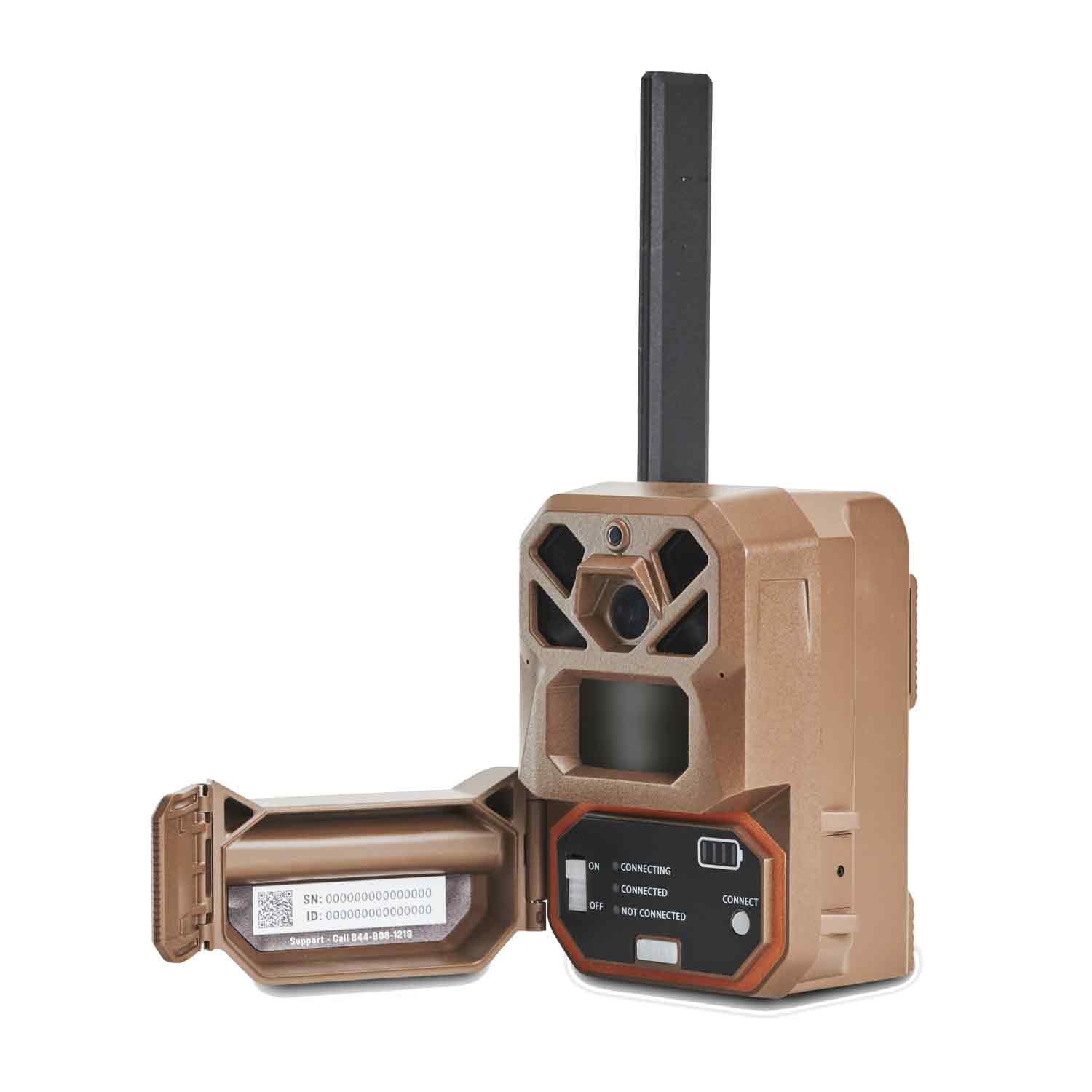
When a check-in fails, the cause is usually simple. These quick fixes solve most problems.
- No connection or "Offline" status: Check batteries, SIM activation, and coverage map for your carrier. Swap to fresh batteries and test again.
- Low signal: Move the camera a few feet up or try a different tree. Metal objects and dense foliage block cellular signals.
- No images after check-in: Confirm SD card is inserted and formatted. Try reformatting the SD card in-camera to fix write errors.
- App shows wrong camera: Log out and log back in, then clear app cache or reinstall. This often resolves account sync errors.
- Firmware or app errors: Update camera firmware if available and update the Moultrie Mobile app on your phone. Firmware updates fix known bugs.
I once drove two hours to a camera only to find dead batteries. Now I always check battery percent in the app before a field run. That simple habit saves time and frustration.

Best practices for reliable check-ins
Use these practical tips to make it easy to check in Moultrie camera and keep your system healthy.
- Schedule regular remote check-ins to monitor battery and signal.
- Use high-capacity lithium batteries for longer life in cold weather.
- Place the camera where it has a clear line of sight to the sky for better cellular reception.
- Power cycle the camera remotely if your model supports it, or remove batteries for a hard reset.
- Keep firmware and app versions current to reduce compatibility issues.
- Use password protection and two-factor authentication on your account to secure remote access.
These steps reduce field visits. They also keep images flowing and your data safe.

Frequently Asked Questions of how to check in moultrie camera
What does "check-in" mean on a Moultrie camera?
Check-in means the camera reports status to Moultrie Mobile so you can see battery, signal, and the last image time. It verifies the device is communicating with the service.
Why does my camera show offline even after a check-in?
A camera might show offline due to weak cellular signal, dead batteries, or a disabled SIM. Verify batteries, coverage, and SIM activation to restore connection.
How often should I check in Moultrie camera remotely?
Check in at least once a week for active setups and more often during hunting season or migration periods. Frequent checks catch battery or signal drops early.
Can I check in Moultrie camera without cellular service?
Yes. You can check in by removing the SD card and viewing images locally or by using Wi-Fi-enabled models near a network. Remote check-ins require cellular or Wi-Fi.
What if my camera won't check in after a firmware update?
Restart the camera and re-run the check-in. If problems persist, contact support or roll back to a previous stable firmware if the model allows it.
Conclusion
Checking in a Moultrie camera is fast when you follow a simple routine: prepare batteries and SIM, use the Moultrie Mobile app or web portal, and apply quick troubleshooting steps when needed. Practice these steps and you will spend less time in the field and more time reviewing good images. Start by checking your camera now, update firmware and batteries, and schedule regular remote check-ins to keep your setup reliable. Share your experience below or subscribe for more practical tips on trail-camera care.

Everett Ashford is a tech reviewer at mytechgrid.com specializing in SSDs, cameras, TVs, earbuds, headphones, and other consumer electronics. He provides honest, data-driven reviews based on hands-on testing and real-world performance analysis. Everett simplifies complex tech details to help readers make smart, confident buying decisions.