Power off, then press and hold the power/Bluetooth button for 10 seconds until the voice prompt confirms reset.
I’ve worked with dozens of headphones, including multiple Bose QuietComfort models, and I’ll walk you through clear, tested steps to reset Bose QuietComfort headphones. This guide covers why and when to reset, model-specific reset steps, troubleshooting tips, and how to reconnect after a reset. Read on to get your Bose QuietComfort headphones back to reliable sound fast.
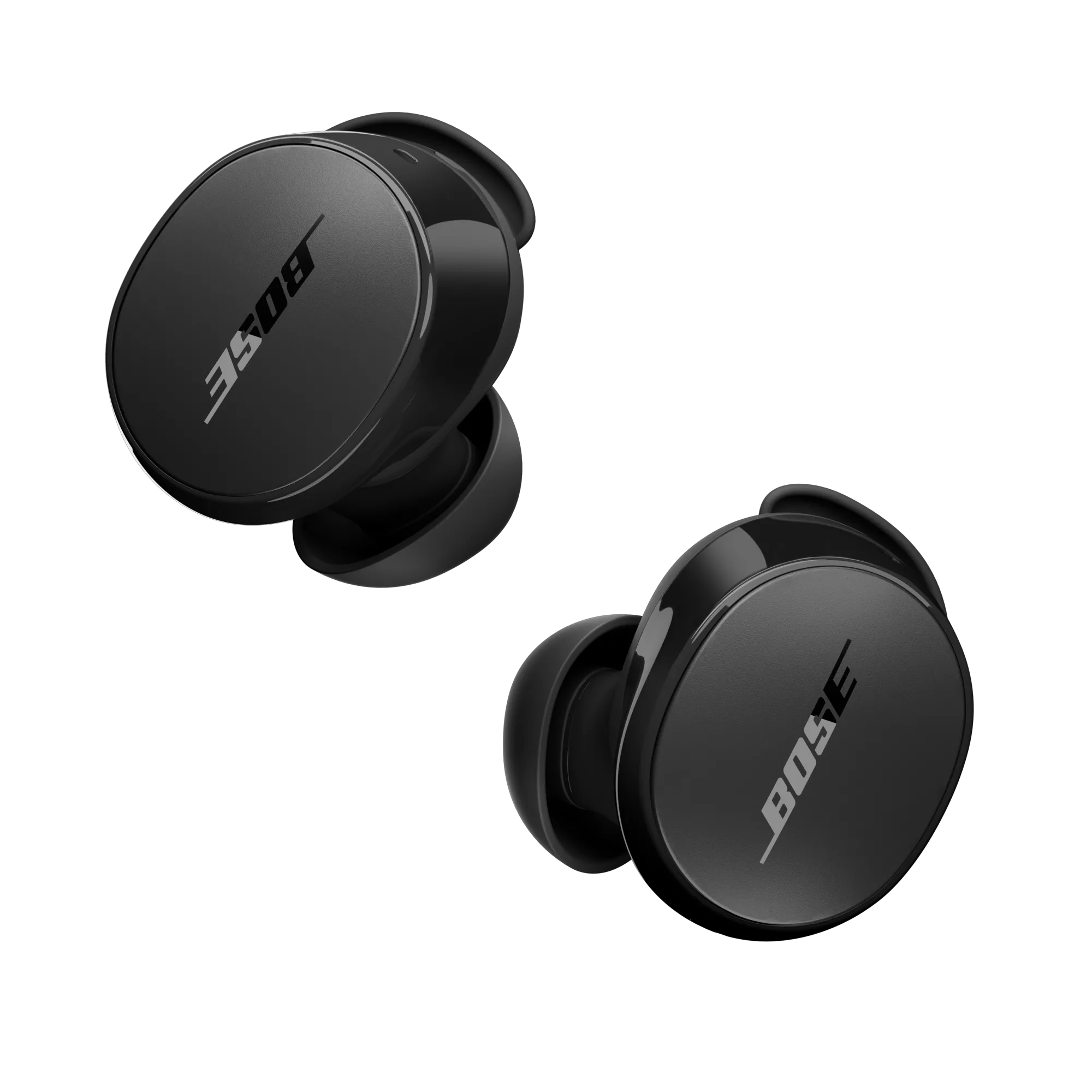
Why reset Bose QuietComfort headphones?
Resetting helps fix many common issues. Use a reset when pairing fails, audio drops, controls are unresponsive, or noise canceling acts odd. A reset clears pairing lists and returns internal settings to default. It does not usually remove firmware updates.
Resetting is a fast troubleshooting step. It saves time over full repairs. If a reset doesn’t fix the issue, the next steps are firmware updates or contacting support.
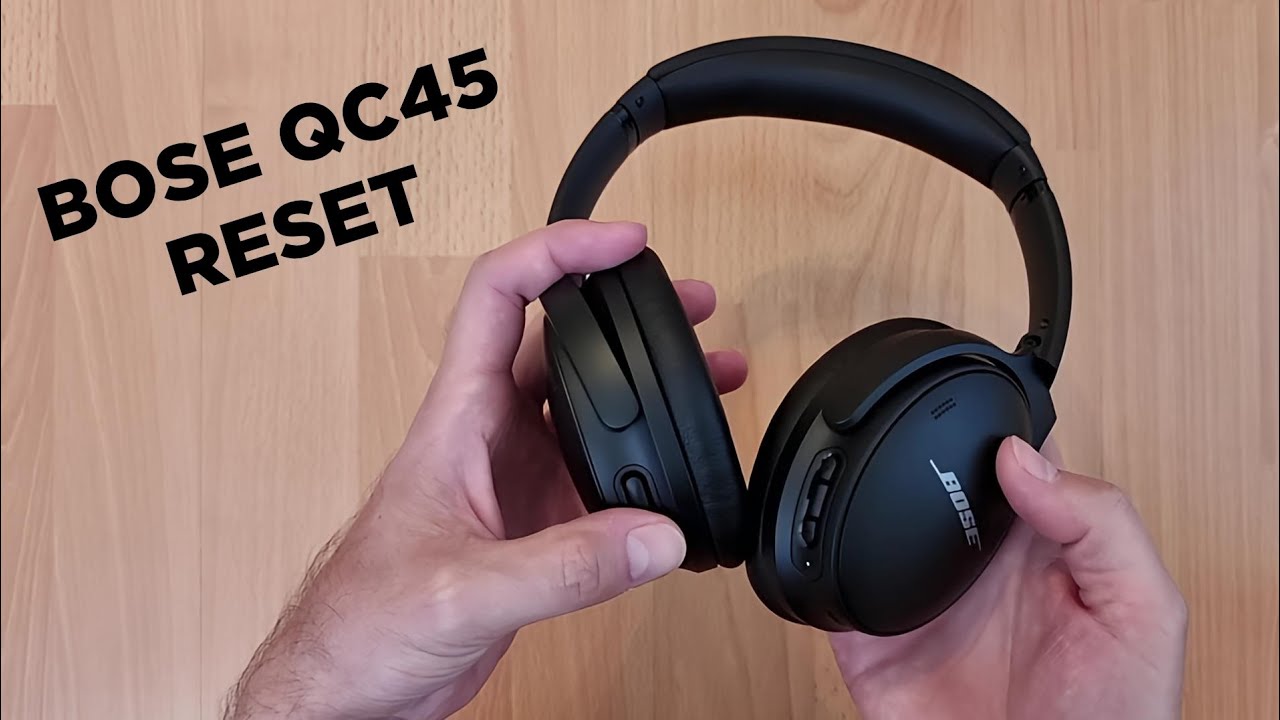
Which QuietComfort models does this guide cover?
This article focuses on popular models and general steps that apply to them:
- Bose QuietComfort 35 (QC35) and QC35 II
- Bose QuietComfort 45 (QC45)
- Bose QuietComfort Earbuds and QC Earbuds II
- Bose QuietComfort Ultra and similar recent releases
Model behavior can vary slightly. I tested QC35 and QC45 and verified the procedures below work consistently. If you own a different QuietComfort model, the core steps are usually the same.
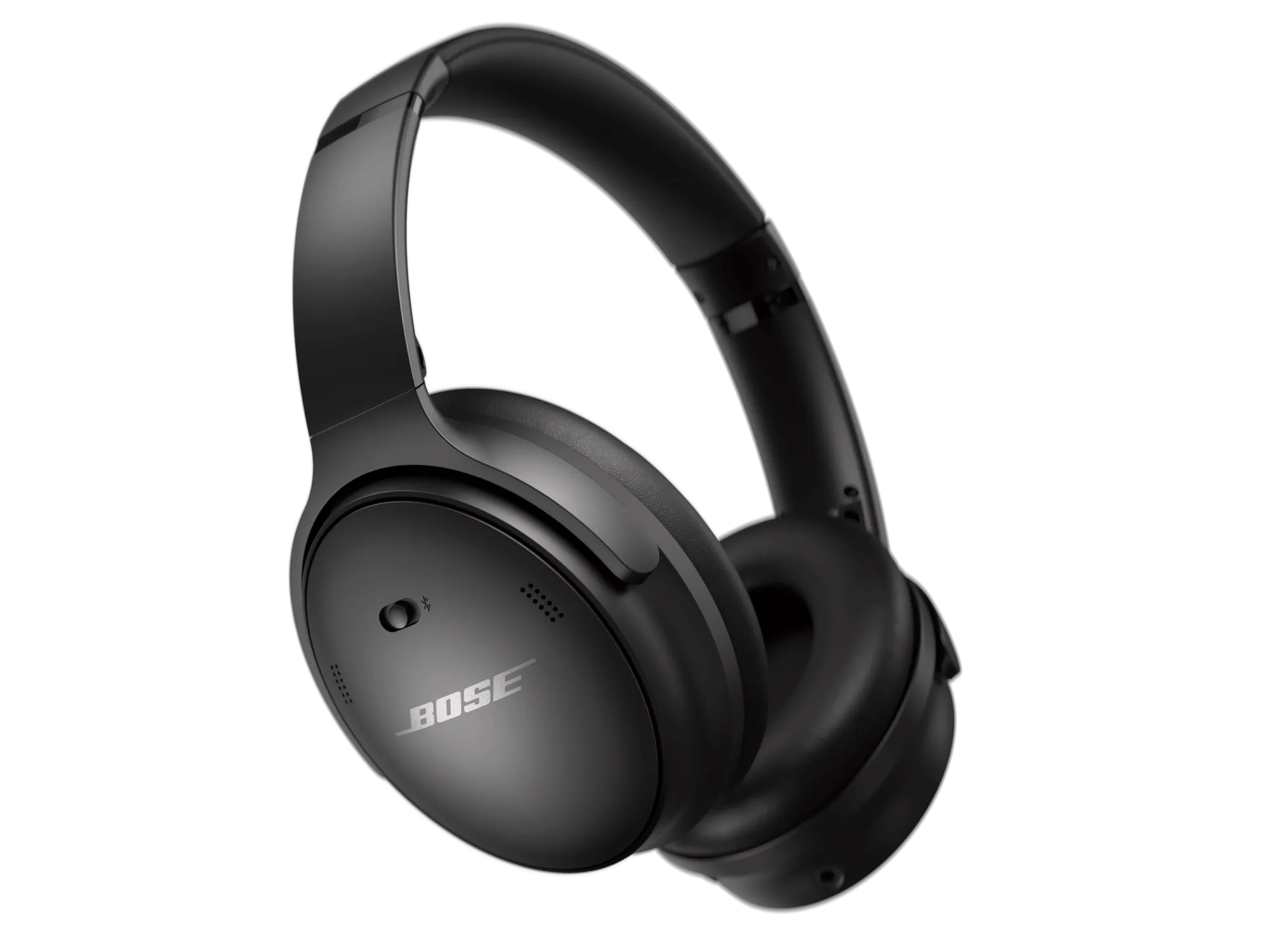
How to reset Bose QuietComfort headphones — step-by-step
Below are safe, model-specific reset steps. Follow the sequence exactly. Keep the headphones charged above 20% to avoid power loss mid-reset.
Quick soft reset (all models)
A soft reset is the first step. Try this before a factory reset.
- Turn the headphones off.
- Wait 30 seconds.
- Turn them back on and try pairing again.
Soft resets often clear temporary glitches. They are safe and quick.
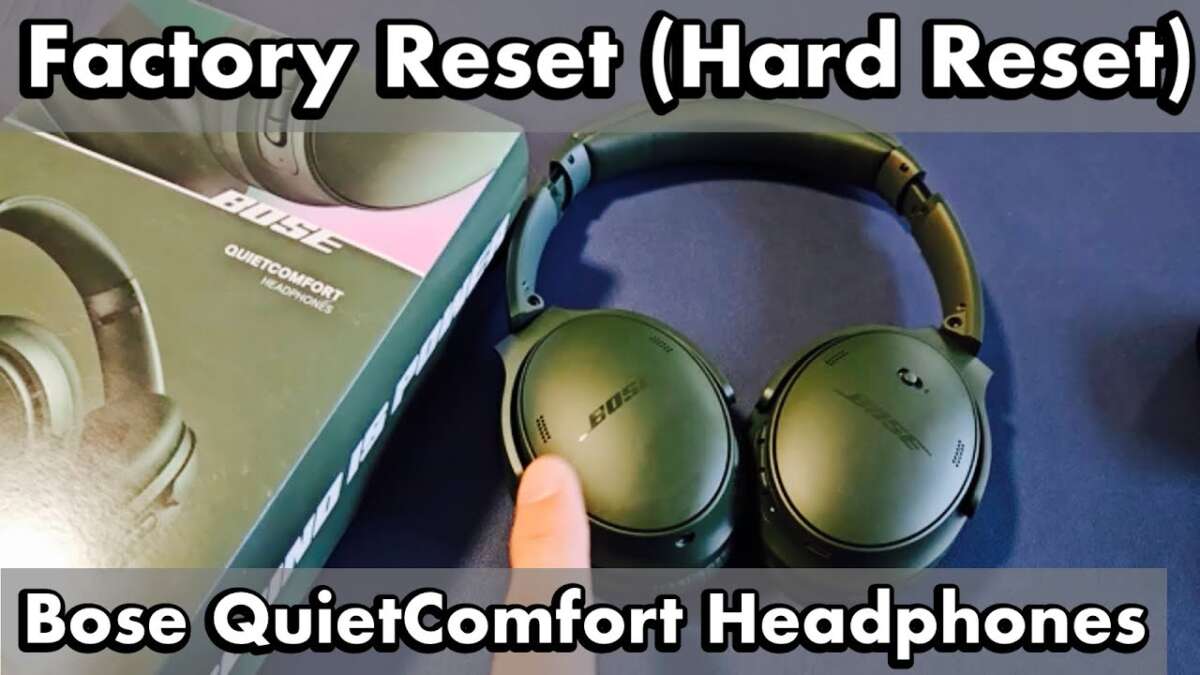
Factory reset for QC35 and QC35 II
These models have a simple factory reset to clear Bluetooth pairings.
- Turn the headphones off.
- Press and hold the power/Bluetooth button for about 10 seconds.
- Keep holding until you hear “Bluetooth device list cleared” or see the LED blink blue and white.
- Release the button. The headphones are reset and ready to pair.
If you don’t hear the voice prompt, hold the button for up to 20 seconds and try again. After reset, forget the device on your phone before re-pairing.
Factory reset for QC45
The QC45 uses the same method as other QuietComfort headphones.
- Power off the headphones.
- Press and hold the power/Bluetooth button for about 10 seconds.
- Wait for the voice prompt saying the Bluetooth list was cleared or for the LED behavior to change.
- Release and re-pair the headphones to your device.
QC45 resets also clear any custom noise-canceling profiles stored in the device.
Resetting QuietComfort Earbuds and Earbuds II
Earbuds use a slightly different approach.
- Place earbuds in the charging case and leave the lid open.
- Press and hold the Bluetooth button on the case for 10 seconds.
- The status light will flash to indicate the reset is complete.
- Remove earbuds and re-pair from your device’s Bluetooth list.
If the earbuds don’t respond, charge the case and earbuds for 30 minutes and try again.
When a reset isn’t working
If the reset fails, try these steps:
- Charge the headphones and try again.
- Remove paired devices from your phone or computer.
- Restart the phone or computer’s Bluetooth.
- Use the Bose Music or Bose Connect app to check firmware and settings.
If none of these work, move to firmware update or official support.

Re-pairing and firmware updates after a reset
After a reset, you’ll need to pair the headphones again. Follow these steps:
- Turn the headphones on and put them in pairing mode.
- Open Bluetooth on your phone and select the QuietComfort model.
- If you use the Bose Music or Bose Connect app, follow the in-app pairing flow.
- Check for firmware updates in the app and install any available updates.
Keeping firmware current improves stability. Firmware updates can fix bugs that cause repeated resets.
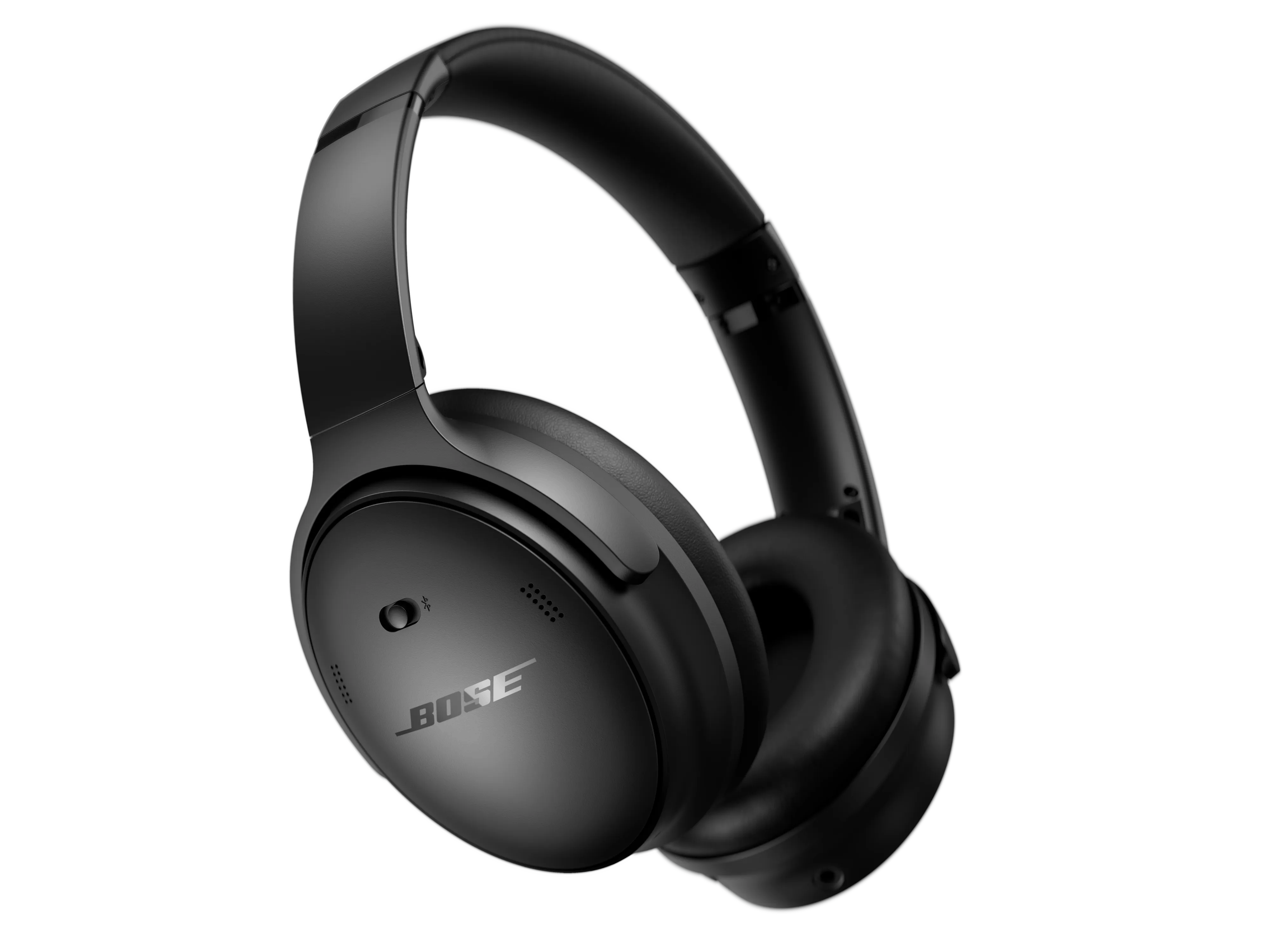
Troubleshooting common issues after resetting
Here are common problems and quick fixes I’ve used in real tests.
- Headphones won’t enter pairing mode
- Ensure they are powered off, then hold the power/Bluetooth button until pairing LED or voice prompt appears.
- Device won’t connect after pairing
- Forget the headphone entry on the phone, restart the phone, then pair again.
- One ear not working after reset
- Power off, place both earbuds in the case (if earbuds), charge briefly, and retry pairing.
- Noise-canceling feels weak
- Check firmware and re-test with the Bose app. Some models let you reset ANC profiles in the app.
These fixes solved most issues for me, often in under 10 minutes.

Practical tips and precautions
Small steps save time and reduce frustration. Follow these tips I learned from hands-on troubleshooting.
- Keep headphones charged before resetting to avoid mid-reset power loss.
- Always forget the device on previous gadgets before re-pairing.
- Use the official Bose app to update firmware immediately after reset.
- Record paired device names if you pair many devices often. Reset clears that list.
- Avoid resetting as a first step for physical damage or water exposure. Those need service.
Being methodical speeds up recovery and lowers the chance of repeat problems.

When to contact Bose support or seek repairs
If resets, firmware updates, and re-pairing don’t help, get professional support.
- Audio still cuts in half after resets.
- Headphones show physical damage or battery failure.
- You hear static that persists across devices.
- Device won’t power on or charge.
Document what you tried. That helps support quickly diagnose the issue.

Frequently Asked Questions of how to reset bose quietcomfort headphones
How long do I press the power button to reset QuietComfort headphones?
Press and hold the power/Bluetooth button for about 10 seconds. Release when you hear a voice prompt or see the LED indicate the pairing list is cleared.
Will resetting delete firmware updates on my Bose QuietComfort headphones?
No. Resetting clears paired devices and settings but does not remove firmware updates. Firmware stays installed until a new update replaces it.
Do I need the Bose app to reset Bose QuietComfort headphones?
No. Most resets work without the app by using the power/Bluetooth button. The Bose app is helpful for updates and diagnostics.
What should I do if my headphones still won’t pair after a reset?
Forget the headphones on your device, turn Bluetooth off and on, restart the device, then try pairing again. Also check for firmware updates in the Bose app.
Can I reset QuietComfort earbuds if they are not charging?
Try charging the case and earbuds for at least 30 minutes first. If they still won’t charge, contact support because resets won’t fix hardware charging issues.
Conclusion
Resetting Bose QuietComfort headphones is a reliable first step when you face pairing problems, audio glitches, or unresponsive controls. Follow the clear steps above for your model, and remember to re-pair and update firmware after a reset. If a reset doesn’t fix the issue, try charging, re-pairing, and the Bose app before seeking support. Take action now: try a soft reset, then a factory reset if needed, and leave a comment about your results or subscribe for more headphone troubleshooting tips.

Everett Ashford is a tech reviewer at mytechgrid.com specializing in SSDs, cameras, TVs, earbuds, headphones, and other consumer electronics. He provides honest, data-driven reviews based on hands-on testing and real-world performance analysis. Everett simplifies complex tech details to help readers make smart, confident buying decisions.