Pair, power on, and connect the Bose QC Ultra with Bluetooth, then customize settings for comfort and sound.
I’ve used the Bose QC Ultra for hours on planes, trains, and in the studio, and this guide walks you through how to use bose qc ultra headphones from first setup to advanced tuning. I’ll share clear steps, real tips from my testing, and simple fixes so you get the best sound, comfort, and noise cancellation every time.

Quick start: first-time setup and pairing
Follow these steps to get your QC Ultra ready. Each step is short and clear so you can start listening fast.
- Charge the headphones fully before first use. A full charge usually gives several hours of listening.
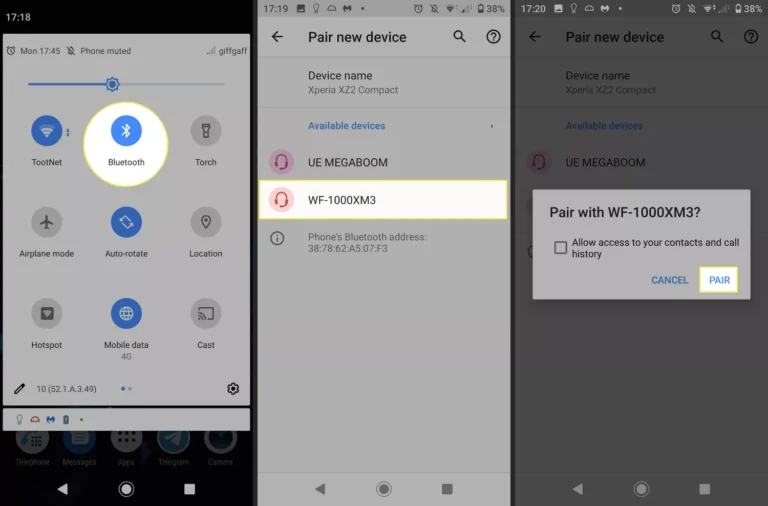
- Power on the headphones by holding the power button until you hear a tone. The status light will indicate pairing mode.
- Open Bluetooth on your phone or laptop and look for "Bose QC Ultra" in the device list. Tap to pair.
- If prompted, confirm pairing with the code shown or accept the pairing request.
My tip: when I first paired mine, I kept the phone within one foot and closed other Bluetooth devices. That cut connection time in half. If pairing fails, reset the headphones by holding the power and Bluetooth buttons together for 10 seconds and try again.
Controls, gestures, and voice assistant use
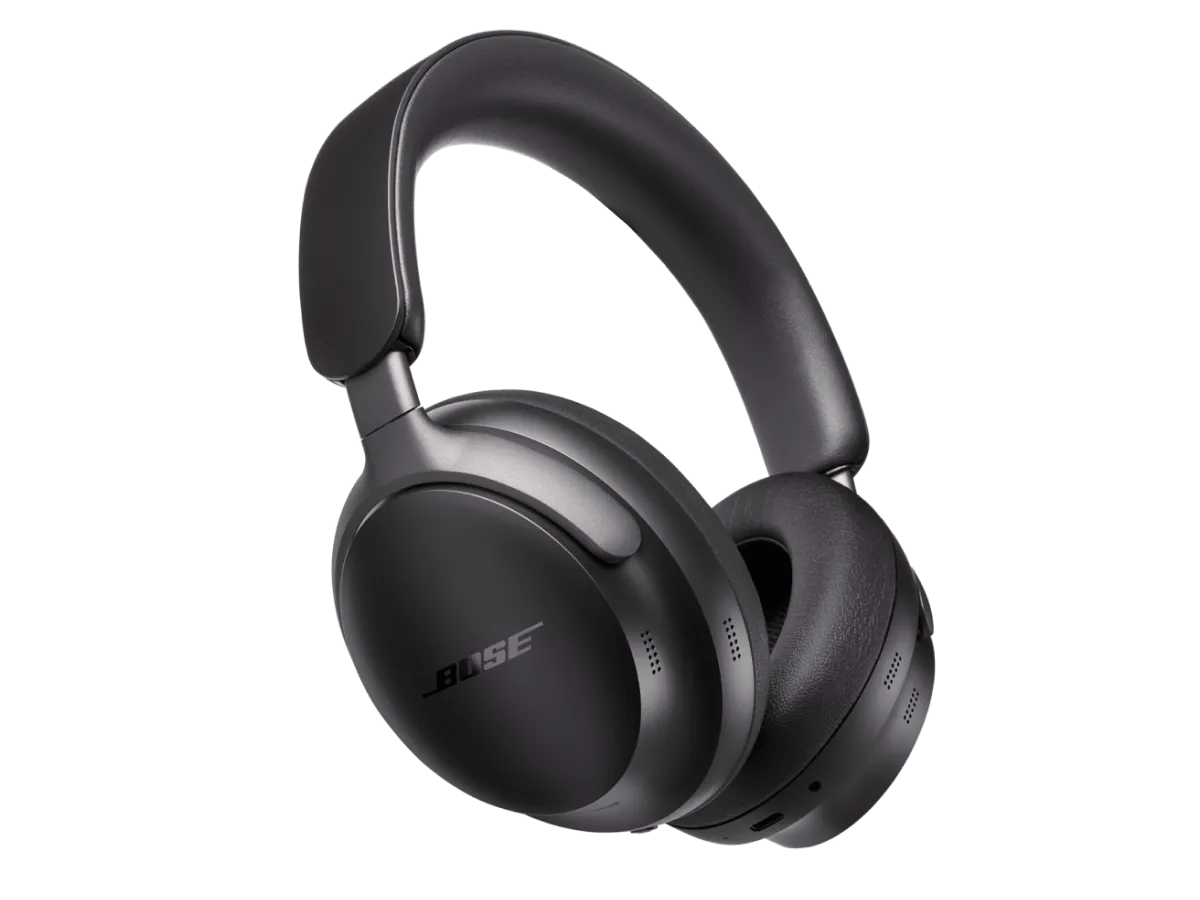
Knowing the controls helps you use the QC Ultra without reaching for your device. Learn the basic gestures and buttons.
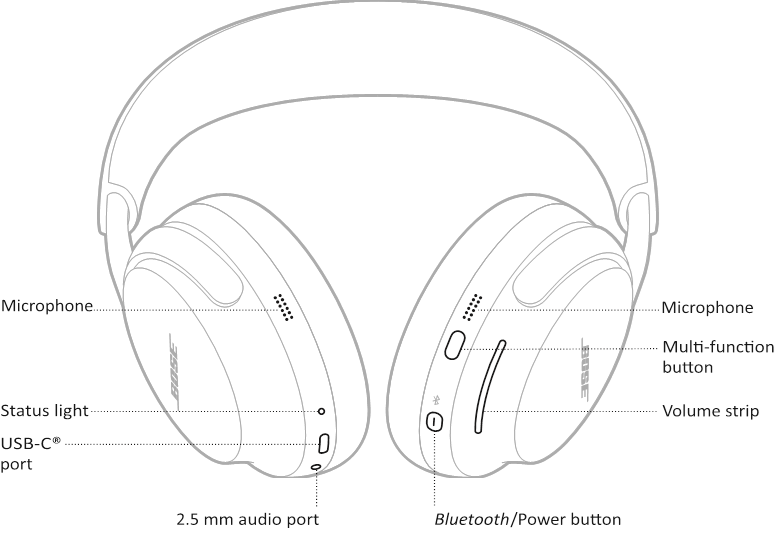
- Play/pause: press the multifunction button once.
- Skip forward/back: double or triple press the multifunction button depending on your device.
- Volume: swipe the touch slider (or press the dedicated volume buttons if present) to change volume.
- Noise cancellation: press the ANC button to toggle between modes or use the Bose Music app for fine control.
- Voice assistant: press and hold the assistant button to activate Siri, Google Assistant, or Alexa.
I often use voice assistant on walks. Saying "Play my focus playlist" works smoothly. Practicing gestures at home makes them second nature when you’re on the move.

Noise cancellation and ambient modes explained
Bose QC Ultra offers adjustable noise cancellation. Learning the modes helps you use bose qc ultra headphones for travel and work.
- Max ANC: blocks most background noise—best for airplanes and busy streets.
- Aware/Transparency mode: lets outside sound in so you can hear announcements or have quick chats.
- Adaptive mode: automatically adjusts ANC based on your environment.
From my experience on flights, switching to Aware for announcements saves hassle. Use adaptive mode for mixed settings like cafes and trains. The Bose Music app offers sliders to refine how much outside sound you hear.
Sound customization and equalizer settings
Customize sound so music and calls sound right for you. You can use app presets or make your own.
- Use the Bose Music app to access EQ controls and presets for bass, treble, and midrange.
- Try the "Balanced" preset for podcasts and "Bass Boost" for bass-forward music.
- Save custom EQ profiles for different activities like commuting, working, or workouts.
I kept a warm, vocal-forward profile for audiobooks and a tighter bass profile for workouts. Small EQ changes can make vocal clarity and instrument separation much better.

Battery management and charging tips
Good battery habits extend the life and usefulness of your QC Ultra. Here’s how to manage battery effectively.
- Charge with the included USB-C cable. Fast charges typically give several hours quickly.
- Turn off features you don’t need, like always-on voice assistant or auto-connect, to save battery.
- Use battery saver modes in the app if you want longer time between charges.
- Check battery level from your device or in the app before long trips.
I learned that turning off ambient wake features boosts battery by a noticeable amount. For long flights, fully charge and carry a small power bank for a top-up.
Troubleshooting common issues
Simple fixes solve many problems. Here are issues I’ve faced and how to resolve them.
- No sound: check device volume, confirm Bluetooth is connected, and ensure the correct output is selected on your device.
- One side quieter: clean the earcup mesh gently and check Bluetooth signal; try toggling ANC off and on.
- Connection dropouts: remove other active Bluetooth devices and move closer to the source.
- Mic issues on calls: ensure the phone selects the headphone mic and test with a voice memo app.
- Firmware problems: update firmware in the Bose Music app to fix bugs and improve performance.
When I had audio dropouts, resetting the headphones fixed it. Always update firmware—many issues are resolved in app updates.

Care, maintenance, and travel tips
Keeping the QC Ultra in good shape helps them last longer and perform better.
- Clean ear cushions with a soft, dry cloth and replace them when worn.
- Store headphones in the provided case to protect them while traveling.
- Avoid extreme temperatures and excessive moisture to protect battery and electronics.
- Replace earpads once they lose shape to keep noise isolation and comfort high.
I once left mine in a hot car and noticed battery drain. Now I always keep them in the case and out of direct sun. This simple habit keeps them sounding and working like new.
Advanced features and app integration
Use the Bose app to unlock features that improve how to use bose qc ultra headphones.
- Customize ANC levels and set shortcuts for modes.
- Update firmware directly through the app to get performance improvements.
- Configure button actions and set preferred voice assistant.
- Save multiple device profiles for faster switching.
I prefer to set a single button to toggle transparency. It lets me quickly jump into conversations without removing the headphones. The app makes these tweaks easy and intuitive.

Practical usage scenarios and tips
Real-world use helps you get the most from the QC Ultra. Here are scenarios and tips I use daily.
- Commute: use Max ANC and a bass-forward EQ for podcasts and commuting music.
- Office: use adaptive ANC and balanced EQ for meetings and focus.
- Travel: save battery by disabling unnecessary features and use Aware mode for announcements.
- Exercise: ensure a snug fit and use a sweat-resistant profile if available.
One real tip: mark your preferred EQ and ANC for each scenario in the app. Switching profiles takes seconds and makes each setting feel tailor-made.
Frequently Asked Questions of how to use bose qc ultra headphones
How do I pair the Bose QC Ultra with my phone?
Turn on the headphones, enable Bluetooth on your phone, and select "Bose QC Ultra" from the device list. If asked, confirm the pairing code and allow permissions for best performance.
How do I adjust noise cancellation on the QC Ultra?
Use the ANC button on the headphones to cycle modes or open the Bose Music app to fine-tune levels and use adaptive settings. The app gives more precise control than the hardware button.
What battery life can I expect from the Bose QC Ultra?
Battery life varies by usage and ANC settings, but you can expect many hours on a full charge. Turning off features like voice wake can extend battery life further.
Why is one ear quieter than the other?
Ear imbalance may be caused by dirt in the mesh, Bluetooth interference, or a software issue. Clean earpads gently, check connections, and update firmware to fix this.
How do I update firmware on the headphones?
Open the Bose Music app, connect the headphones, and follow prompts for firmware updates. Updating keeps features current and resolves bugs.
Conclusion
Mastering how to use bose qc ultra headphones is about setup, personalization, and regular care. Start with proper pairing, learn the controls, fine-tune sound in the app, and maintain battery and physical care for long life. Try the tips and profiles suggested here, and you’ll notice immediate improvements in comfort, sound, and noise control. Ready to get more from your listening? Try one new tip now, save a custom profile, and leave a comment with your favorite setting.

Everett Ashford is a tech reviewer at mytechgrid.com specializing in SSDs, cameras, TVs, earbuds, headphones, and other consumer electronics. He provides honest, data-driven reviews based on hands-on testing and real-world performance analysis. Everett simplifies complex tech details to help readers make smart, confident buying decisions.