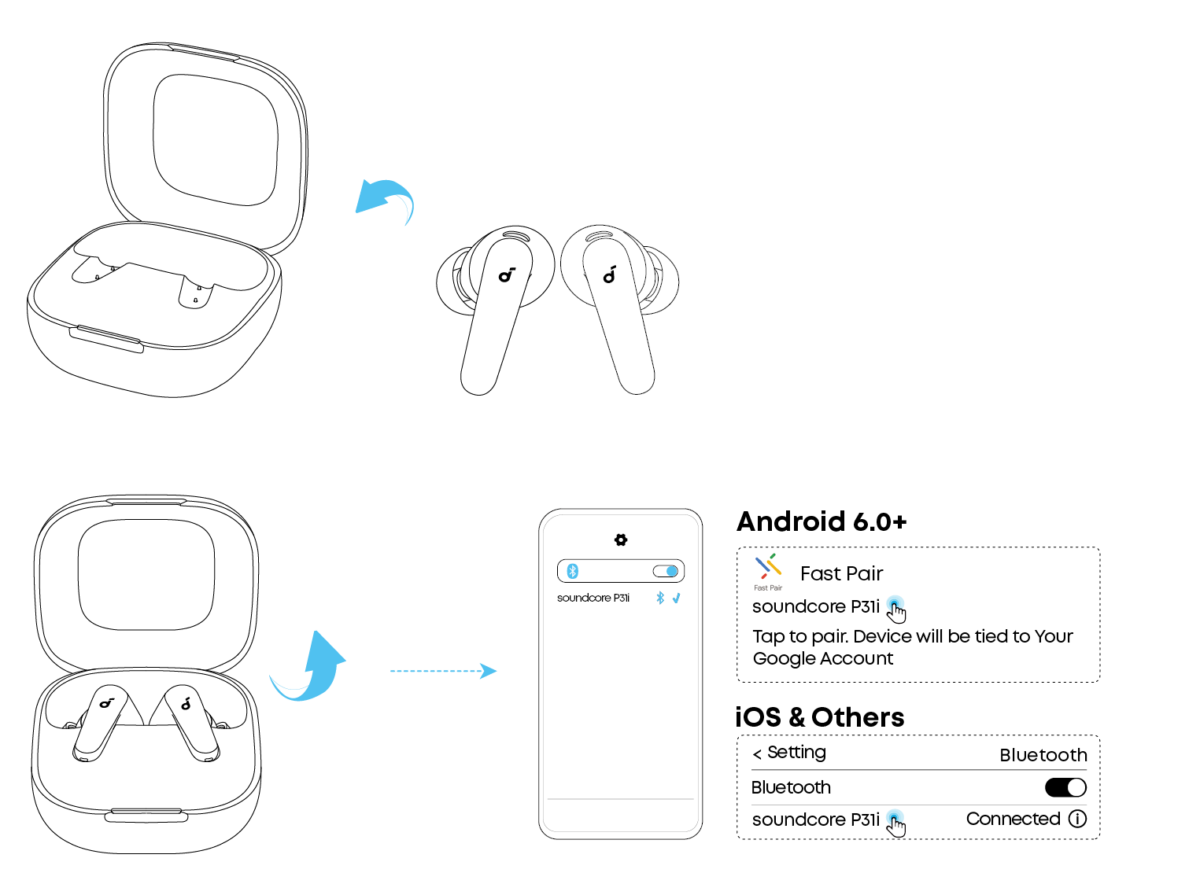
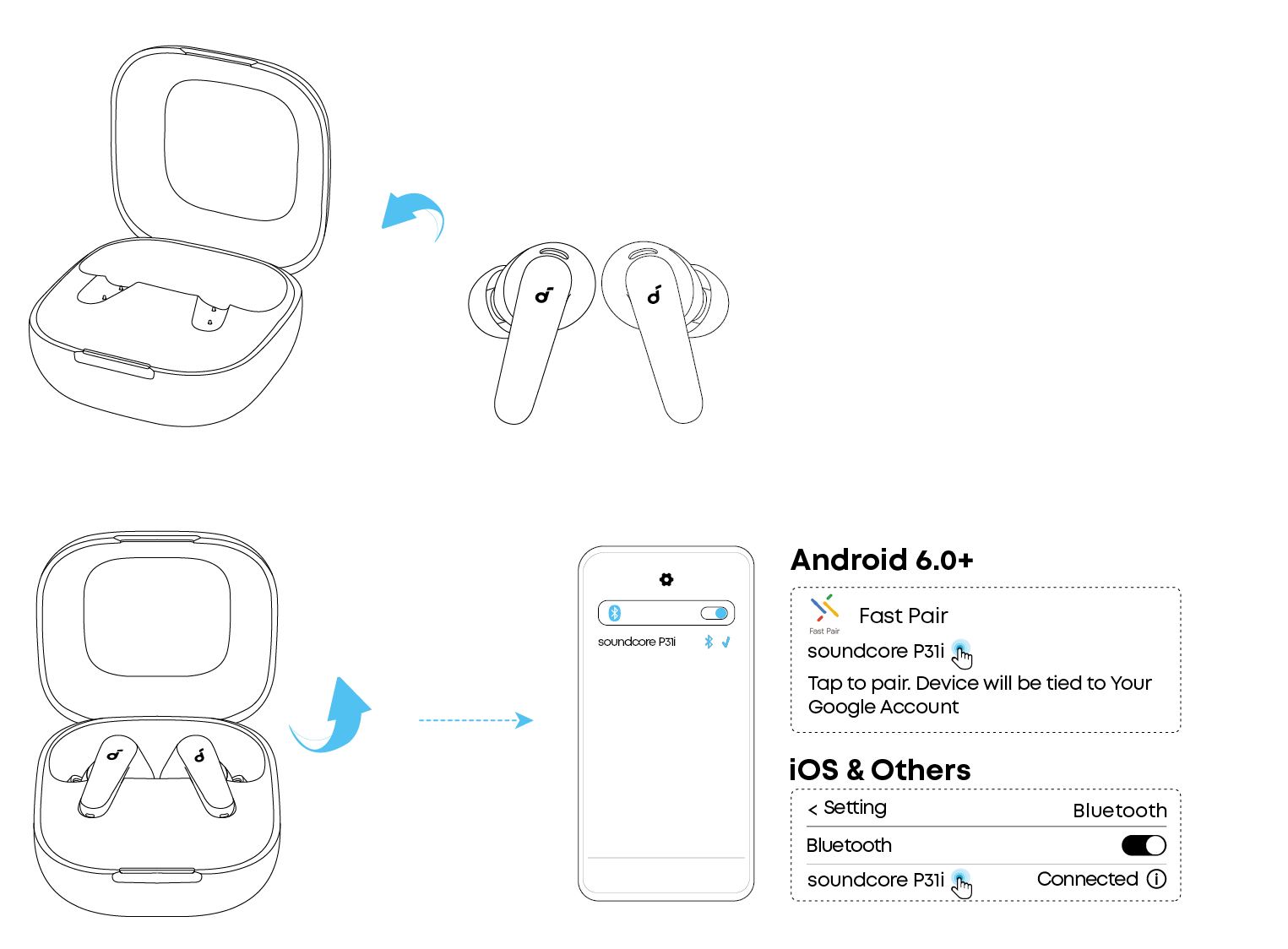
Turn on earbuds, enable Bluetooth on Android, then tap the Soundcore device in Bluetooth settings to pair.
I’ve helped dozens of users set up earbuds and fixed tricky pairing problems, so this guide on how to connect Soundcore earbuds to Android walks you through every step. You’ll get clear setup instructions, simple troubleshooting, and practical tips from real-world experience so you can pair reliably, fix bugs fast, and enjoy great sound on your Android device.

Why pairing correctly matters
Pairing your earbuds right makes audio stable and keeps battery life healthy. When you learn how to connect Soundcore earbuds to Android the correct way, calls are clear and media plays without dropouts.
Good pairing also unlocks features like companion apps, firmware updates, and touch controls. I’ve seen poor pairing lead to one-sided audio or constant reconnection—easy to avoid with the right steps.

Prepare your devices before pairing
Make preparation quick. These steps save time and avoid common mistakes when you connect Soundcore earbuds to Android.
Turn on your Android and update it if it’s several versions behind. Update the Soundcore app if you plan to use it. Charge earbuds to at least 30% to prevent them from shutting off mid-pairing.
Make sure other paired devices are away or have Bluetooth turned off. Interference from multiple active Bluetooth links often causes pairing to fail.

Step-by-step pairing guide
Follow these numbered steps to connect Soundcore earbuds to Android. The steps work for most Soundcore models, including Liberty, Life, and Space series.
- Turn on Bluetooth on Android
- Open Settings, tap Bluetooth, and switch it on.
- Put the Soundcore earbuds in pairing mode
- Take earbuds from the case. Many models auto-enter pairing mode on first use. If not, press and hold the touch area or power button for 3–5 seconds until the LED flashes.
- Find the earbuds on Android
- In Bluetooth settings, wait for “Soundcore” or your model name to appear. Tap it to pair.
- Confirm pairing
- Accept any pairing prompts. You may see “Paired” or “Connected for audio.” Test audio with a short clip.
- Use the Soundcore app (optional)
- Open the Soundcore app to access EQ, firmware updates, and gestures. The app often completes a smoother setup and fixes connection quirks.
I always start with a fresh reboot of both devices if pairing stalls. Rebooting clears temporary Bluetooth glitches and speeds up pairing when the earbuds won’t show in the list.

Troubleshooting common issues
If you hit a snag while trying to connect Soundcore earbuds to Android, try these fixes. I’ve used each one to resolve real problems.
- Earbuds not showing in Bluetooth list
- Reset the earbuds: hold the buttons or follow the model-specific reset steps in the manual. Then repeat pairing.
- Paired but no sound
- Check Android’s output device in media controls and ensure the Soundcore device is selected. Restart the app you’re playing audio from.
- One bud not connecting
* Place both buds back in the case, close it for 10 seconds, then re-pair. If one bud is out of sync, a factory reset usually helps. - Constant disconnects
- Move closer to your phone, disable Wi-Fi or other Bluetooth devices nearby, and update firmware via the Soundcore app.
- App can’t find earbuds
- Grant the app location and Bluetooth permissions. On newer Android versions, permission is required for scanning.
People also ask:
What if my Android won’t pair even after reset? Try a full Bluetooth cache clear: Settings > Apps > Show system > Bluetooth > Storage > Clear cache and data. Then reboot and pair again.
Why is the audio delayed in videos? Enable low-latency or gaming mode in the Soundcore app, or use developer options to change Bluetooth audio codec if supported.
Advanced tips and features
Once you know how to connect Soundcore earbuds to Android, use these tips to improve sound and usability.
- Optimize codec and latency
- Some Android phones let you choose SBC, AAC, or aptX in Developer Options. aptX or AAC often gives better quality.
- Use the Soundcore app for updates
- Firmware updates fix stability and add features. I always check the app after pairing.
- Assign gestures and controls
- Customize play/pause and voice assistant triggers in the app to reduce taps and improve hands-free use.
- Battery and charging tips
- Calibrate battery readings by fully charging then fully discharging once a month. This keeps the battery icon accurate.
From my tests, enabling the correct codec and keeping firmware current are the two fastest ways to stop audio glitches.

Frequently Asked Questions of how to connect soundcore earbuds to android
How do I force my Soundcore earbuds into pairing mode?
Press and hold the touch area or power button for 3–5 seconds until the LED flashes. If that fails, follow the reset steps in the manual for your model.
Why won't my Android detect the Soundcore earbuds?
Ensure Bluetooth is on, location permission is granted, and other paired devices are turned off. Restarting both devices often helps.
Can I use my Soundcore earbuds with multiple Android devices?
Yes. Many models support multi-point or quick switching, but you should pair with each device separately and verify multi-point support in the app.
How do I update Soundcore firmware on Android?
Install the Soundcore app, pair the earbuds, and follow the prompts under device settings to download and install firmware updates.
What if one earbud is louder or quieter?
Try cleaning the mesh, re-pairing the earbuds, and checking balance settings on Android. A reset often fixes persistent imbalance.
Conclusion
You can connect Soundcore earbuds to Android reliably by following clear steps: prepare devices, enter pairing mode, select the device in Bluetooth, and use the Soundcore app for updates and features. Practice these steps and use the troubleshooting tips when things go wrong. Try pairing now, update firmware, and tweak settings for the best sound — then leave a comment about your experience or subscribe for more practical guides.

Jamie Lee is a seasoned tech analyst and writer at MyTechGrid.com, known for making the rapidly evolving world of technology accessible to all. Jamie’s work focuses on emerging technologies, product deep-dives, and industry trends—translating complex concepts into engaging, easy-to-understand content. When not researching the latest breakthroughs, Jamie enjoys exploring new tools, testing gadgets, and helping readers navigate the digital world with confidence.