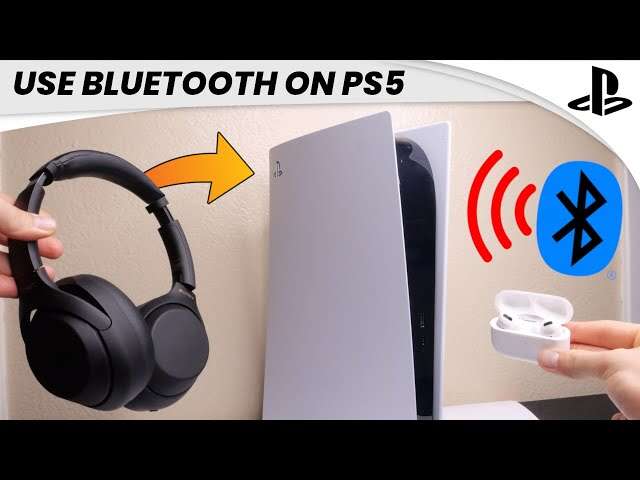
Yes — you can use your phone, PC, or TV to route PS5 audio to Bluetooth headphones without buying an adapter.
I’ve spent years testing consoles, headsets, and streaming tools, and I’ll walk you through practical, proven methods for how to connect bluetooth headphones to ps5 without adapter. You’ll learn why many Bluetooth headsets won’t pair directly, the best workarounds that don’t require extra hardware, step-by-step setup for each method, and troubleshooting tips I use myself. Read on to pick the approach that fits your gear and gameplay style.
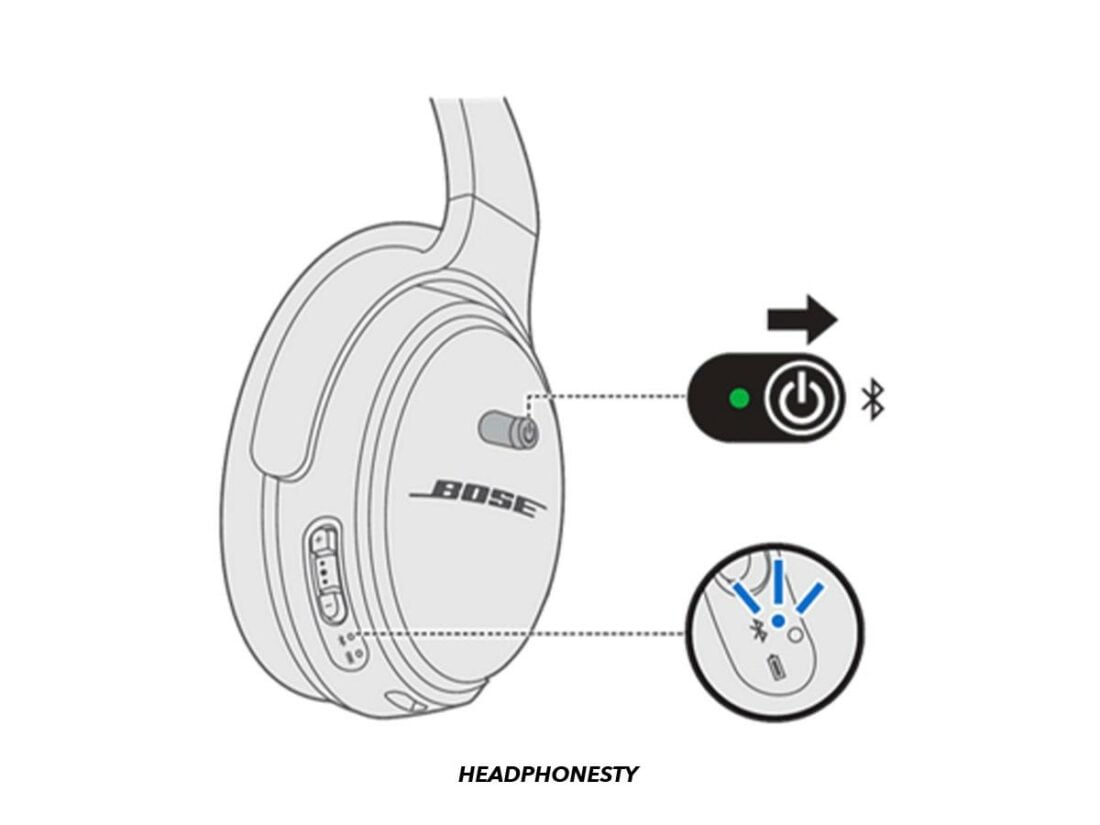
Why most Bluetooth headsets won’t pair directly with PS5
Sony limits standard Bluetooth audio on the PS5 for latency, security, and quality reasons. The console supports specific licensed wireless headsets and USB dongles, but it blocks generic Bluetooth profiles that phones and laptops accept. This is why people trying to pair random Bluetooth earbuds see no option on the PS5.
Knowing this helps when you look for alternatives. Instead of forcing a direct Bluetooth link, route audio through a supported device like your phone, PC, or TV. These workarounds let you connect bluetooth headphones to ps5 without adapter while keeping chat and game sound usable.

Method 1 — Use PS Remote Play (phone or PC) to connect bluetooth headphones to PS5 without adapter
PS Remote Play streams your PS5 to a phone or computer. That device can output sound to Bluetooth headphones. This is one of the cleanest ways to get game audio to wireless earbuds without buying a transmitter.
Steps to set up on mobile or PC
- Enable Remote Play on the PS5: Settings > System > Remote Play and turn it on.
- On your phone or PC, install the PS Remote Play app and sign in with the same PlayStation Network account.
- Pair your Bluetooth headphones with the phone or PC as you normally would.
- Open Remote Play and connect to your PS5. Audio will stream to your headset through the app.
- Connect your DualSense controller (via Bluetooth or USB) to the phone/PC for the best input experience.
What to expect
- Latency varies: mobile and home Wi‑Fi are usually fine for single‑player; competitive FPS can show lag.
- Voice chat: remote chat works but may need extra steps. Use the PS Remote Play microphone settings or keep party chat on the PS App if you want separate voice only.
- Battery and bandwidth: streaming uses extra battery and network capacity.
My experience
I used Remote Play with AirPods Pro for single-player sessions and the audio quality was clean. For fast PvP matches I noticed slight delay, so I switched to the DualSense wired option. Remote Play remains my go-to for couch play when I want wireless audio without buying hardware.

Method 2 — Route PS5 audio through a Bluetooth-capable TV
If your TV supports Bluetooth audio output, it can relay PS5 sound to your headphones. This is handy when your TV sits between the PS5 and your room’s audio setup.
Setup steps
- Connect the PS5 to your TV via HDMI.
- Put your TV into Bluetooth pairing mode (refer to the TV settings).
- Pair your Bluetooth headphones with the TV.
- Select the TV’s Bluetooth output as the audio device.
Limitations and tips
- Latency and lip-sync: some TVs add delay. Look for a “game mode” or audio sync option to reduce lag.
- Voice chat: TV Bluetooth often handles only audio out, not microphone in. For chat, use the PS App voice chat or a separate mic solution.
- Auto-switching: TVs may disconnect when the TV powers off or switches inputs. Re-pairing could be required occasionally.

Method 3 — Use a wired connection via the DualSense controller (when headset supports a cable)
Many Bluetooth headphones include a detachable 3.5mm cable or USB-C wired mode. Plugging them into the DualSense controller gives near-zero latency and full chat support — and it’s not an adapter.
How to do it
- Connect the 3.5mm cable from your headphones to the DualSense controller jack.
- On PS5: Settings > Sound > Microphone and Audio Output to confirm the controller headset is selected.
- Adjust volume and mic level as needed.
Why this works well
- Low latency and stable audio.
- Full microphone support for party chat and in-game voice.
- No extra purchases if your headset already has a wired option.
If your Bluetooth headphones don’t have a cable, consider buying a model with wired fallback in the future. That option avoids the need for third‑party adapters and works perfectly on PS5.
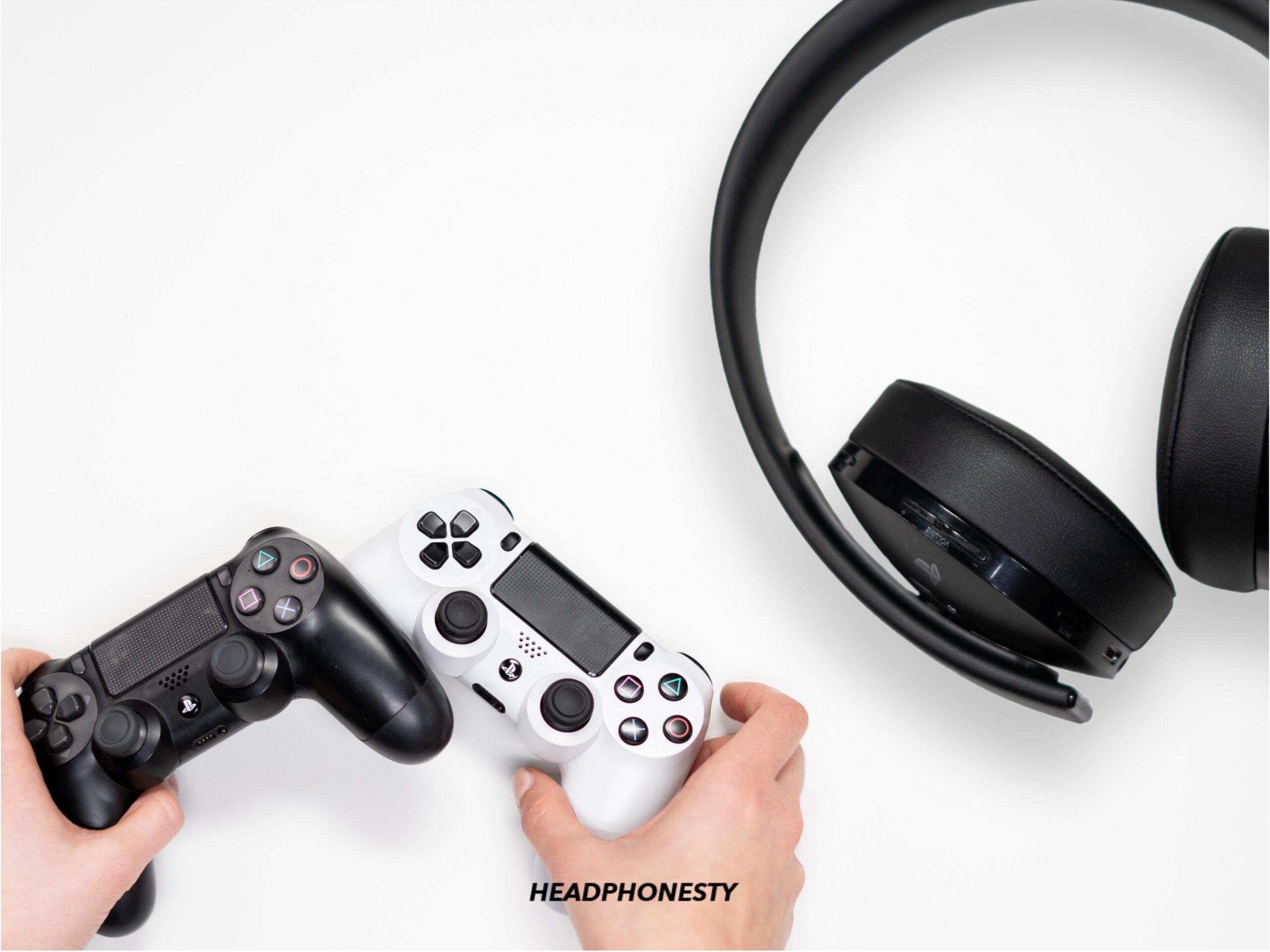
Tips to reduce latency and improve audio/chat when you connect bluetooth headphones to ps5 without adapter
Use these practical tweaks I learned while testing streaming and TV routing.
• Use a 5 GHz Wi‑Fi band for Remote Play to lower latency.
• Keep the PS5 and router on the same local network (preferably wired for the PS5).
• Enable “Game Mode” on the TV to reduce processing delay if using TV routing.
• Close background apps on your phone or PC when Remote Play is active to save CPU.
• If chat is important, pair voice separately using the PS App while streaming game audio to Bluetooth headphones.

Common mistakes and troubleshooting when connecting bluetooth headphones to ps5 without adapter
Short fixes for the usual problems I’ve run into.
• No audio in Remote Play
- Check the Remote Play app’s audio settings. Make sure the phone/PC audio output is set to your Bluetooth headset.
• Bluetooth headphones pair to TV but audio lags - Turn on the TV’s Game Mode and check audio delay settings. Try wired if lag persists.
• Microphone not working when routed through TV - Most TV Bluetooth outputs do not support headset mics. Use the PS App for voice chat or a wired connection to the controller.
• Remote Play disconnects frequently - Use a wired connection for your PS5 to the router and place the streaming device closer to Wi‑Fi. Restart the app and router if needed.
Frequently Asked Questions of how to connect bluetooth headphones to ps5 without adapter
Can I pair any Bluetooth headphones directly to the PS5?
No. The PS5 blocks most standard Bluetooth audio profiles. Only a few licensed headsets pair directly, so most headphones will not show up in PS5 Bluetooth settings.
Will Remote Play cause audio lag with Bluetooth headphones?
Some lag is common. Remote Play works best on a fast local network and is fine for casual play, but competitive fast-action games can reveal noticeable delay.
Can I use my headset mic when using my TV to route audio?
Usually not. Most TVs send audio out only and don’t accept headset mic input. For voice chat, use the PS App or a wired controller connection.
Are USB wireless dongles considered adapters?
Yes. USB dongles are adapters and are often supported by the PS5. The methods here focus on ways to connect bluetooth headphones to ps5 without adapter, so dongles are excluded.
What is the best method for low-latency gaming without an adapter?
Wired connection into the DualSense controller is the lowest latency option. If wiring is not possible, a wired TV connection or a high-quality Remote Play setup on a wired PC is next best.
Conclusion
You don’t always need an adapter to get wireless audio on PS5. The most reliable ways to connect bluetooth headphones to ps5 without adapter are using PS Remote Play on a phone or PC, routing audio through a Bluetooth-capable TV, or plugging a detachable cable into the DualSense controller. Each method has trade-offs in latency and chat support, so pick the one that matches your gaming priorities.
Try one of these methods today: test Remote Play for single-player comfort, use your TV for casual couch sessions, or switch to a wired controller connection for competitive play. Leave a comment about your setup or ask a question — I’ll help you troubleshoot it.

Everett Ashford is a tech reviewer at mytechgrid.com specializing in SSDs, cameras, TVs, earbuds, headphones, and other consumer electronics. He provides honest, data-driven reviews based on hands-on testing and real-world performance analysis. Everett simplifies complex tech details to help readers make smart, confident buying decisions.