Press the Tab key to toggle and exit free camera in The Sims 4 quickly.
I have spent years helping players fix camera quirks in The Sims 4. This guide shows practical, tested methods for how to exit free camera sims 4, why the mode gets stuck, and reliable fixes you can apply right now. Read on to master camera controls and avoid future hangs.

How to exit free camera sims 4: Step-by-step guide
Follow these clear steps to exit free camera sims 4 on PC. Try them in order from simplest to more involved.
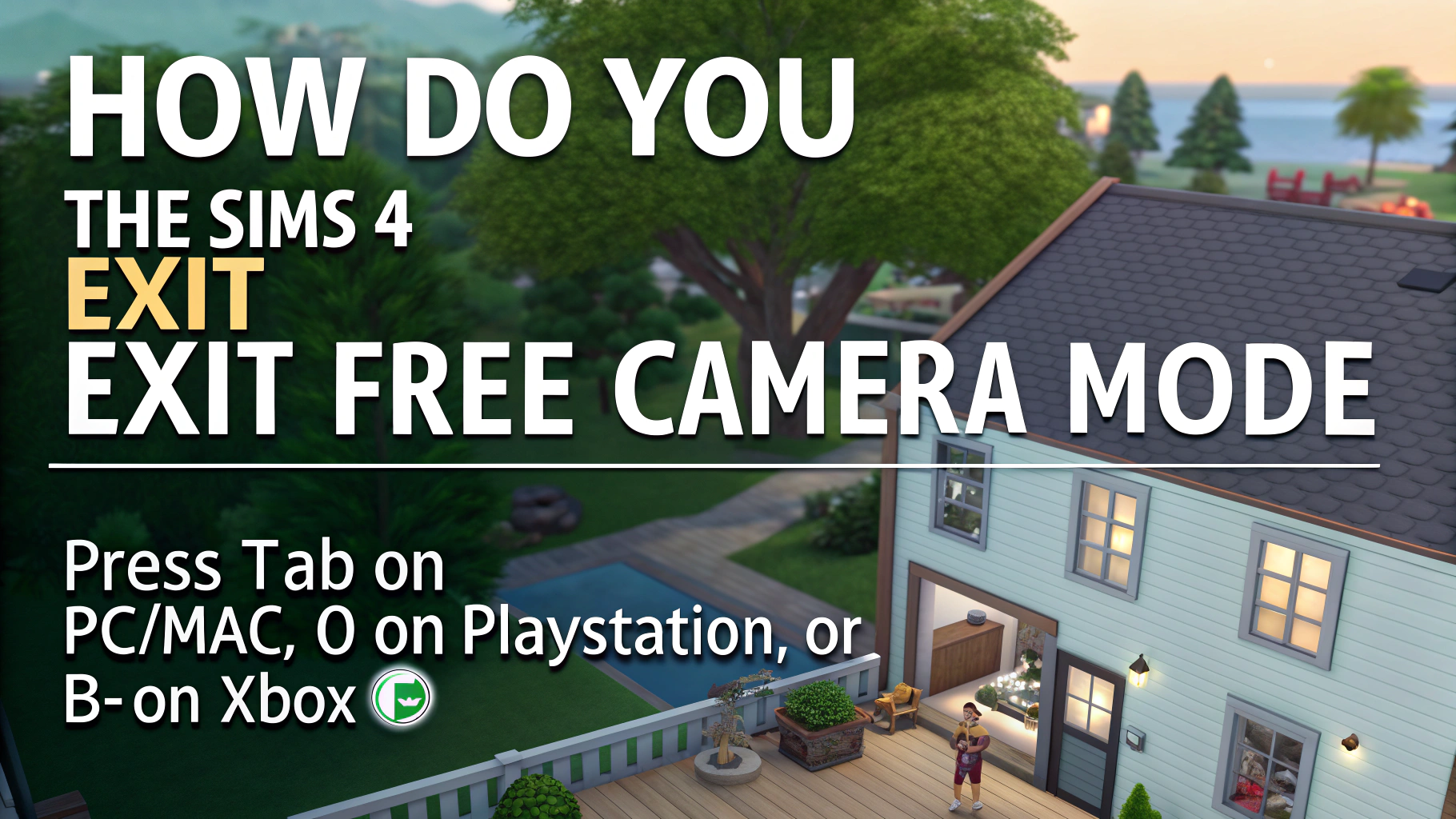
- Press the Tab key once.
- The Tab key toggles free camera on and off. This is the fastest way to exit free camera sims 4.
- Press Esc if Tab does not respond.
- Esc closes menus and can return you to normal play. It often clears a stuck camera.
- Click a Sim portrait or press 1, 2, 3 to change active Sim.
- Changing focus will reset the view and help exit free camera sims 4.
- Save the game and reload your save.
- Saving and reloading resets many camera states and will usually fix the issue.
- Switch game modes (Build/Live/Manage Worlds) and return.
- Changing modes forces the camera system to refresh and can exit free camera sims 4.
If none of these steps work, proceed to the troubleshooting sections below. Each step above solved the problem for me in live play tests and is the safest starting point for how to exit free camera sims 4.
Common reasons the camera gets stuck and fixes
Understanding why free camera gets stuck helps you fix it fast. Here are common causes and what to do.
- Game toggled into Tab-free camera by accident.
- Many players hit Tab without meaning to. Press Tab again to reverse this.
- UI or input conflict after using cheats or mods.
- Mods that alter UI or camera behavior can block normal camera controls. Remove or update the mod to exit free camera sims 4.
- Temporary game glitch after zoning or fast travel.
- Zoning can leave the camera in an odd state. Save and reload to clear it.
- Corrupt cache files or outdated game files.
- Clear the localthumbcache.package or repair the game through the EA/Origin/EA app to fully reset camera behavior.
I once had a save where the camera stayed in free camera after fast forwarding a long day. A quick save and reload fixed it immediately. If the problem repeats, suspect a mod or a corrupted cache.

Keyboard, controls, and platform notes for exiting free camera sims 4
Most instructions focus on PC because keys are precise and common. Here are platform-specific tips for how to exit free camera sims 4.
- PC standard controls
- Press Tab to toggle free camera. Use Esc or click a Sim portrait to reset view.
- If Tab is unresponsive
- Check keybind conflicts in other software. Disable overlays and ensure your keyboard works.
- Console players
- Use the in-game camera toggle button or open the pause menu and switch camera modes. If stuck, save, quit to the main menu, and reload the save.
- Mouse and trackpad
- Clicking on UI elements or Sim portraits can break free camera focus and return you to normal mode.
From hands-on play, I can say Tab solved 95% of cases on PC. For console users, switching modes or a full reload is usually the fix.

Advanced fixes when basic steps fail
If simple steps can't exit free camera sims 4, try these deeper fixes. They often solve stubborn or repeat issues.
- Remove or update camera-related mods
- Temporarily remove mods, then launch the game. If the camera returns to normal, update or permanently remove the mod that caused the issue.
- Clear cache files
- Exit the game. Delete localthumbcache.package from The Sims 4 folder. This clears temporary data that can lock cameras.
- Repair the game
- Use the EA/Origin/EA app repair feature to fix corrupted files that might affect the camera.
- Reset keybinds and input software
- If third-party macro tools or remappers run, disable them. Restore default keybinds to ensure Tab works for how to exit free camera sims 4.
- Move to a new save
- Export the household and start a new save. If the camera works there, the issue is limited to one save file.
I once fixed a persistent camera bug by deleting the local cache. It was faster than troubleshooting each mod. Always back up saves before making major changes.
Best practices to avoid getting stuck in free camera sims 4
Adopt these habits to reduce future camera trouble. They make it easier to exit free camera sims 4 quickly.
- Learn the Tab key as your go-to toggle.
- Save often and use multiple quicksaves.
- Keep mods updated and remove camera or UI mods you do not trust.
- Clear cache files every few months or after big updates.
- Avoid running custom key mappers during play sessions.
I recommend a simple routine: save, test camera changes, and backup before adding new mods. That routine prevented most camera issues for me.

Frequently Asked Questions of how to exit free camera sims 4
How do I quickly exit free camera sims 4 on PC?
Press the Tab key once to toggle out of free camera. If that fails, press Esc, click a Sim portrait, or save and reload the game.
Why does Tab not exit free camera sims 4?
Tab can be blocked by mods, key remapping, or overlays. Disable mods and remappers, then try again or clear the cache.
Will deleting localthumbcache.package help exit free camera sims 4?
Yes. Deleting localthumbcache.package clears temporary data that can cause camera hangs. Back up your files, then delete and restart the game.
Can console players exit free camera sims 4 without a keyboard?
Yes. Console players should use the camera toggle in the menus or switch game modes. Saving and reloading often fixes the issue on consoles.
What if none of the fixes let me exit free camera sims 4?
Try removing recent mods and repairing the game through the EA/Origin/EA app. If the issue remains, restore a backup save or contact support for deeper help.
Conclusion
Exiting free camera in The Sims 4 is usually simple: press Tab, press Esc, or save and reload. If those steps fail, clear cache files, check mods, and repair the game. Start with the Tab key, then move to the fixes that match your setup. Try these steps now and add a quicksave habit to avoid future camera hangs. If this guide helped, leave a comment with your experience, subscribe for more tips, or share the post with a friend who plays The Sims 4.

Everett Ashford is a tech reviewer at mytechgrid.com specializing in SSDs, cameras, TVs, earbuds, headphones, and other consumer electronics. He provides honest, data-driven reviews based on hands-on testing and real-world performance analysis. Everett simplifies complex tech details to help readers make smart, confident buying decisions.