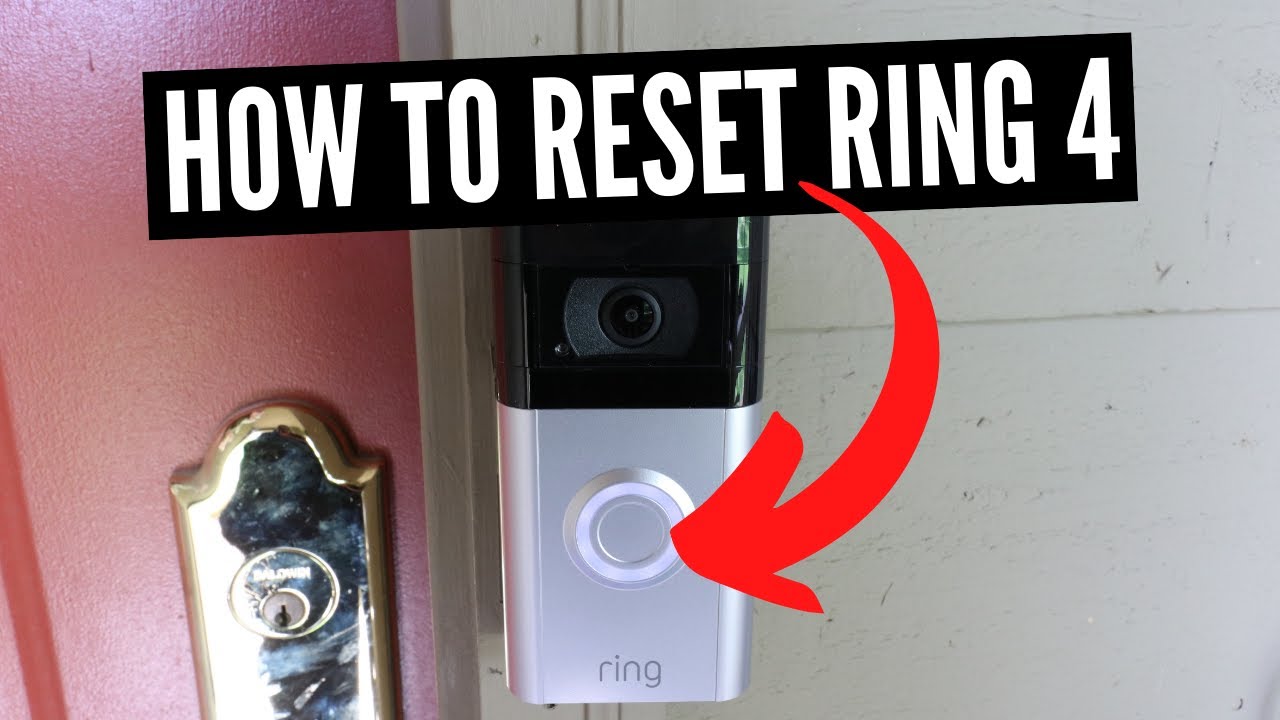
Hold the device's reset button for 10–20 seconds, then re-add it in the Ring app to complete the factory reset.
As a home security pro with years of hands-on work and testing with Ring devices, I’ll walk you through exactly how to factory reset Ring cameras. This guide covers why and when to reset, step-by-step resets for common Ring models, reconnecting tips, security best practices, and troubleshooting. Read on to get clear, practical instructions you can follow right now, based on real experience and proven steps.

Why you might need to factory reset Ring cameras
Resetting clears settings and returns the camera to its factory state. This can fix persistent firmware bugs, remove ownership for resale, or prepare a camera for a new Wi‑Fi network. Knowing how to factory reset Ring cameras helps you regain control when other fixes fail.
A reset removes local settings and unlinks the camera from your Ring account. That is useful if the device won’t update, won’t join Wi‑Fi, or if you sold or gifted the camera. Always try simple fixes first before a full reset.

When not to factory reset (and better alternatives)
A factory reset is a last resort. Try these first:
- Restart the camera by unplugging or removing batteries for 30 seconds, then power it back on.
- Check the Ring app for firmware updates and install them.
- Remove and re-add the device in the Ring app to refresh settings without wiping all data.
- Reset your router or toggle the 2.4 GHz/5 GHz network if Wi‑Fi is the issue.
Avoid a reset if you want to keep recorded videos or custom settings. A reset will remove them and unlink the device from your account. Knowing how to factory reset Ring cameras is useful, but safer alternatives often fix the issue.

How to factory reset Ring cameras (general steps and model-specific instructions)
Below are clear, model-focused steps. The general method is similar across models: find the reset button, hold it for the required time, wait for lights or sound cues, then set up in the Ring app. The steps here show how to factory reset Ring cameras for the most common devices.

Ring Video Doorbell (most battery models)
- Remove the faceplate or open the back to access the orange reset button.
- Press and hold the reset button for 15 seconds.
- Release and wait for the front light to flash, indicating a reset.
- Open the Ring app and follow Add Device to set up again.
How to factory reset Ring cameras of this doorbell type is straightforward and usually fixes pairing issues.
Ring Video Doorbell Pro and Pro 2
- Turn off power at the circuit breaker to the doorbell.
- Remove the faceplate and locate the small black button near the top-right.
- Press and hold for 20 seconds, then restore power.
- Use the Ring app to re-add the device from setup mode.
This method for how to factory reset Ring cameras on wired Pro models ensures the device clears its network profiles.
Ring Stick Up Cam (Battery and Wired)
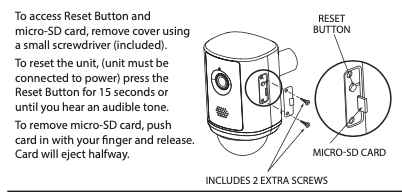
- For battery models, remove the camera from its mount and press the reset button on the back or bottom for 10–20 seconds.
- For wired models, unplug power or shut off breaker, then press the reset button while reconnecting power.
- Wait for the light ring to flash, then reconfigure in the Ring app.
These steps show how to factory reset Ring cameras for both power types without damaging the device.
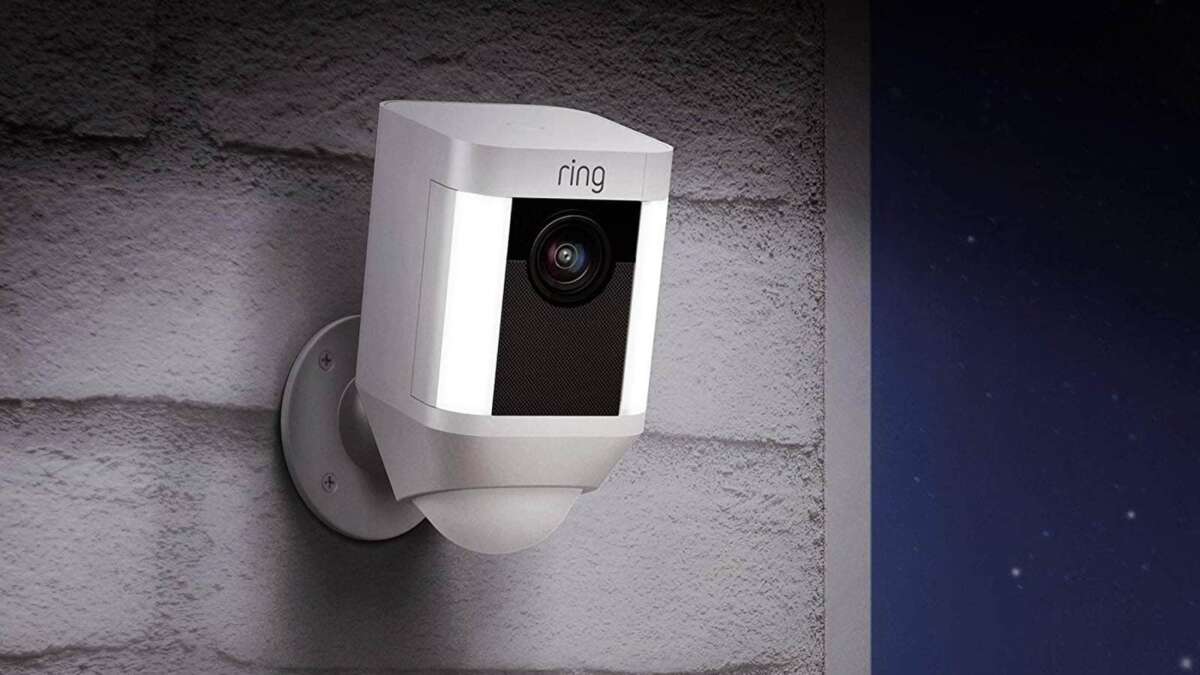
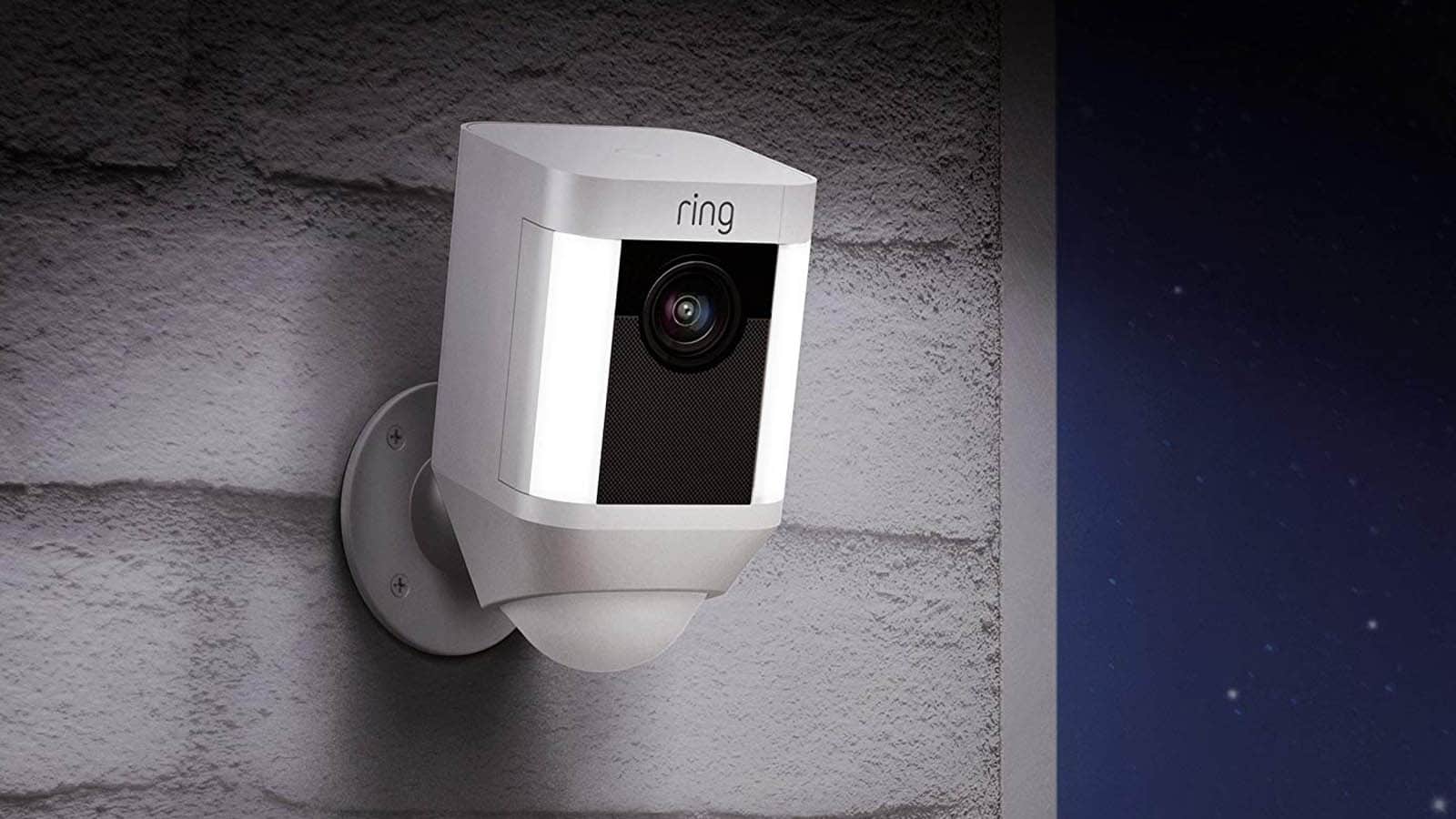
Ring Spotlight Cam (Battery and Wired)
- Remove the face cover or casing to find the reset button.
- Press and hold for 15 seconds until the light blinks.
- Reboot the camera and set it up again in the Ring app.
Use this when your Spotlight Cam won’t reconnect or when changing account ownership.
Ring Indoor Cam (Pan and Standard)
- Unplug the camera and wait 10 seconds.
- Hold the reset button on the base for 20 seconds while plugging the power back in.
- The camera will flash and reboot. Re-add in the Ring app.
This shows how to factory reset Ring cameras that are indoor models if they freeze or stop responding.
Ring Floodlight Cam
- Turn off power at the breaker before working on wired models.
- Press and hold the reset button located near the camera module for 20 seconds.
- Restore power and look for the status light to confirm reset.
- Use the Ring app to add the device again.
For hardwired outdoor units, proper power-off steps protect both you and the device while showing how to factory reset Ring cameras safely.
Reconnecting, setup, and post-reset checklist
After resetting, the camera is cleared and ready to be added again:
- Open the Ring app and tap Set Up a Device.
- Choose the correct camera type and scan the QR code or enter the setup code.
- Follow the in-app prompts to connect to your Wi‑Fi network.
- Update firmware if prompted and confirm motion and alert settings.
Tips from experience:
- Use a strong 2.4 GHz network or a mesh system with clear signal for first-time setup.
- Keep the camera near your router during setup to avoid dropouts.
- If setup fails, reboot your phone and router, then try again.
Knowing how to factory reset Ring cameras is only half the task — reconnecting correctly matters most for reliability.
Security, privacy, and account cleanup after a reset
A factory reset removes device data but does not delete recordings stored in the cloud on a Ring account. To fully transfer ownership:
- Remove the device from your Ring account in the app before selling or giving it away.
- Delete any saved videos you want removed from your Ring account.
- Ensure two-factor authentication is enabled for your Ring account to protect devices.
If you reset because of a security concern, change your Ring account password and review shared users. Learning how to factory reset Ring cameras and then cleaning up account access prevents unauthorized use.
Common problems after reset and how to fix them
If the device won't rejoin Wi‑Fi:
- Ensure your phone is on the same Wi‑Fi band you plan to use (2.4 GHz preferred).
- Temporarily disable VPNs or firewall settings on the router.
If the Ring app can’t find the device:
- Reboot your phone and the camera. Try using another mobile device for setup.
- Confirm the camera’s LED status matches expected setup lights.
If firmware update fails:
- Connect the camera to a stable power source and leave it connected for 30–60 minutes.
- If updates still fail, contact support for a device-specific recovery.
These fixes come from testing many setups. When you know how to factory reset Ring cameras and common issues, troubleshooting is faster and less stressful.

Frequently Asked Questions of how to factory reset ring cameras
Can I factory reset a Ring camera without the Ring app?
You can trigger a hardware reset using the camera’s reset button, but you will still need the Ring app to re-add and configure the device. The app completes setup, updates firmware, and ties the camera to an account.
Will a factory reset delete my Ring videos?
A factory reset removes local settings and unlink the device from your account, but cloud recordings remain tied to your Ring account until you delete them. To remove videos, delete them from the Ring app after you sign in.
How long does it take to factory reset Ring cameras?
The hardware reset process takes under a minute to trigger, but full reboot and firmware checks can take 5–15 minutes before the device is ready for re-setup. Allow extra time for updates during the first reconnection.
Do I need to turn off power before resetting wired Ring cameras?
Yes, for certain wired models like Pro and Floodlight Cam, cutting power at the breaker is safer and recommended before pressing the reset button. This avoids short circuits and protects the device.
My Ring camera still won’t connect after a reset. What should I do?
Try removing interference by placing the camera closer to the router, switching to 2.4 GHz, and rebooting your router and phone. If nothing helps, factory resetting again or contacting support may be necessary.
Conclusion
Resetting a Ring camera can fix persistent issues, transfer ownership, and clear bad settings. Follow model-specific steps, prepare your account, and reconnect carefully to avoid repeated problems. Practice safe power handling for wired devices and clean up your Ring account after a reset.
Take action now: if you’re facing a stubborn Ring camera issue, try the step-by-step reset for your model, then follow the reconnect checklist. Share your experience or questions below and consider subscribing for more practical home security tips.

Everett Ashford is a tech reviewer at mytechgrid.com specializing in SSDs, cameras, TVs, earbuds, headphones, and other consumer electronics. He provides honest, data-driven reviews based on hands-on testing and real-world performance analysis. Everett simplifies complex tech details to help readers make smart, confident buying decisions.