Turn on Bluetooth on your Mac, put headphones in pairing mode, and select them in Bluetooth settings.
I’ve connected dozens of headphones to Macs in support labs and on my own devices. This guide on how to connect Bluetooth headphones to Mac walks you through every step, explains settings and codecs, and solves the common problems that block a clean connection. Read on for clear steps, troubleshooting, and practical tips I learned from hands-on testing.

Step-by-step: How to connect Bluetooth headphones to Mac
- Make sure your Bluetooth headphones are charged and in pairing mode. Follow the headphone maker’s pairing steps if you are unsure.
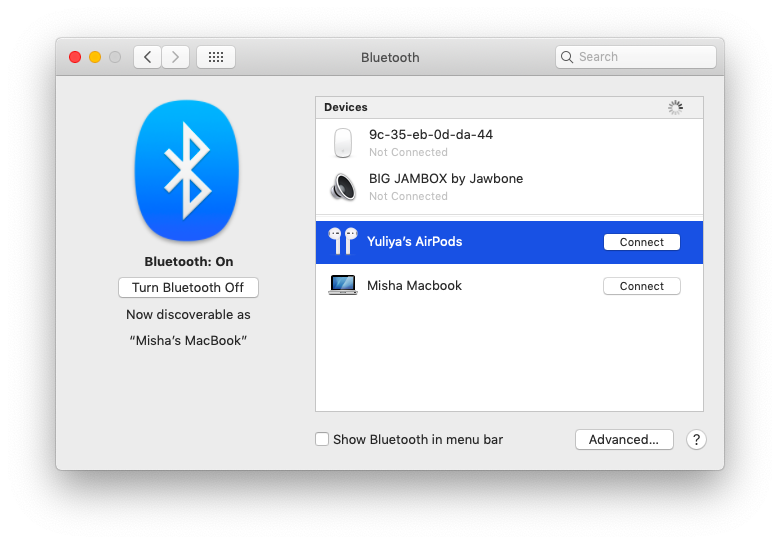
- On macOS Ventura or later, open System Settings, then click Bluetooth. On macOS Monterey or earlier, open System Preferences, then Bluetooth.
- Turn Bluetooth on if it’s off. Wait a few seconds for your Mac to scan for nearby devices.
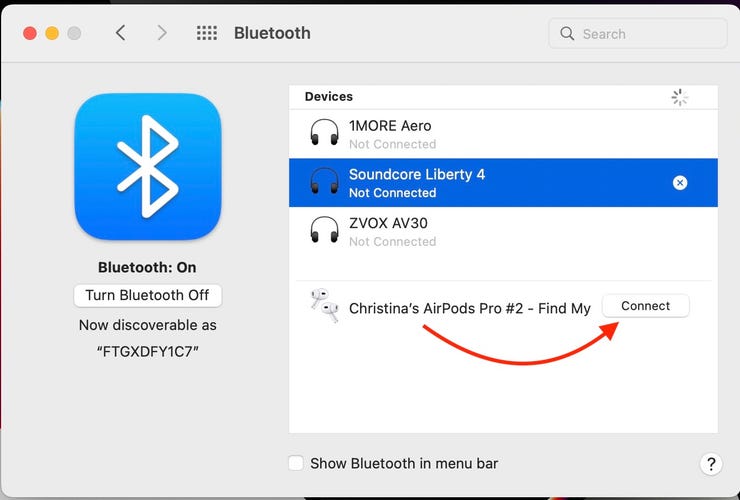
- When your headphones appear in the device list, click Connect or Pair. Some headphones show a code or confirmation prompt—follow any on-screen instructions.
- After pairing, open Sound settings or the Control Center and set your headphones as the output device.
Notes and quick checks:
- If your headphones don’t appear, toggle Bluetooth off and on and retry pairing.
- For Macs with a Bluetooth menu bar icon, you can Option-Shift click the icon for extra diagnostics on some macOS versions.
- If your Mac asks for a PIN, common defaults are 0000 or 1234 unless the manufacturer specifies otherwise.
This process explains how to connect Bluetooth headphones to Mac step by step. If you prefer visuals, check the Bluetooth list and menu bar while pairing to track the status.
Pairing tips, audio routing, and everyday settings
Use these tips to simplify long-term use and avoid reconnect problems.
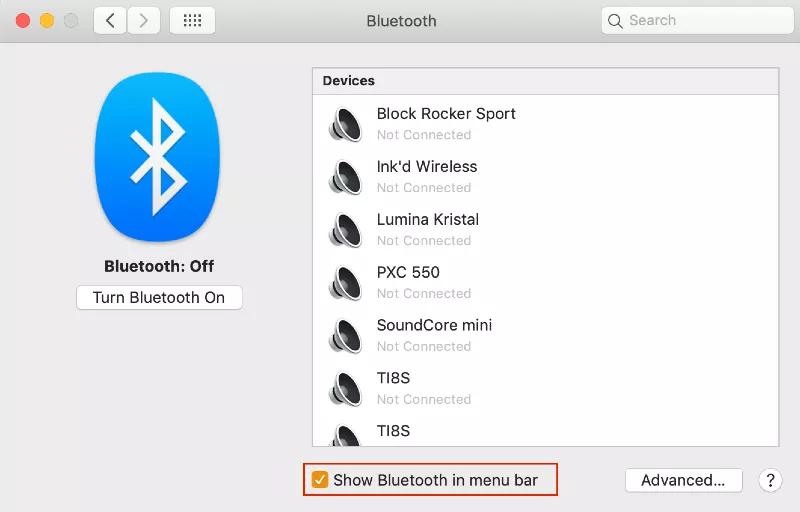
- Show Bluetooth in menu bar
- Open System Settings or Preferences > Bluetooth and enable menu bar access. This makes quick connections fast.
- Switch audio output quickly
- Click Control Center (or the sound icon) and choose your Bluetooth headphones as the output device.
- Auto-reconnect behavior
- Most headphones reconnect automatically when on and in range. To force a reconnect, turn the headphones off and on again.
- Manage multiple paired devices
- Your Mac can keep many paired devices, but active connections are limited. If a device won’t connect, remove it from the list and pair again.
Personal tip: I keep the Bluetooth menu in the macOS menu bar. It saves time when switching between a headset for calls and studio cans for mixing.
Troubleshooting Bluetooth on Mac
If pairing fails or audio is glitchy, try these fixes in order. They are safe and fast.
- Restart both devices
- Turn your headphones off and on. Restart your Mac.
- Forget device and re-pair
- In Bluetooth settings, remove the device and start pairing from scratch.
- Update macOS and headphone firmware
- New updates fix many Bluetooth bugs. Check System Settings > General > Software Update.
- Reset the Mac Bluetooth module (use with care)
- On some macOS versions, Option-Shift click the Bluetooth icon and select Reset the Bluetooth module. If that option is missing, restarting the Mac often achieves the same result.
- Delete Bluetooth preference files (advanced)
- Back up first. Remove /Library/Preferences/com.apple.Bluetooth.plist and reboot. This can clear stubborn errors.
- For Intel Macs: SMC or NVRAM reset
- If Bluetooth acts odd, try SMC or NVRAM resets per Apple’s support guides. For Apple Silicon, simply restart.
Common causes of connection issues:
- Interference from Wi-Fi or crowded 2.4 GHz signals.
- Low headphone battery.
- Headphones already connected to another device in active mode.
I once spent an hour troubleshooting a pair of earbuds that wouldn’t show up. Rebooting both devices and removing an old pairing from my phone fixed it. Often, the simplest steps work first.
Audio quality, codecs, and limitations
Understanding codecs helps you manage sound quality and latency on Mac.
- Common codecs and Mac support
- macOS typically supports AAC and SBC. AAC gives better quality on Apple devices. Support for aptX varies by Mac model and headphone.
- Latency and video sync
- Bluetooth adds latency. For video, use headsets with low-latency modes or wired connections for perfect sync.
- High-resolution audio limits
- Bluetooth compresses audio. For critical listening, use a wired connection or a USB DAC.
Practical advice: If you need low latency for gaming or live monitoring, test the headphones with a short video. If sync is off, switch to wired mode or choose headphones known for low-latency Bluetooth performance.
:max_bytes(150000):strip_icc()/003_how-to-connect-bose-headphones-to-a-mac-5179323-2d8d9514b04b48f4b5aed5fac6850c7d.jpg)
Advanced tips: multiple devices, routing, and MIDI
For power users who want more control over how sound flows on a Mac.
- Send audio to two outputs
- macOS does not natively stream one Bluetooth audio stream to two different Bluetooth headphones reliably. Use Audio MIDI Setup to create a multi-output device, but expect sync issues.
- Use third-party tools
- Apps can route audio to several devices or add streaming features. They can improve flexibility but may add latency.
- Fine-tune sample rate and channels
- Open Audio MIDI Setup to change sample rates or channel counts if you use USB audio devices alongside Bluetooth.
- Manage calls and microphones
- When a meeting app takes the mic, macOS may switch to a lower-quality Bluetooth profile. For better call audio, use a headset designed for hands-free calls or a wired mic.
From my experience, multi-device audio rarely works perfectly with Bluetooth alone. For parties or mirrored audio, a small Bluetooth transmitter with multi-pairing or a wired solution yields better results.

Common quick questions (PAA-style)
How long does pairing take when you learn how to connect Bluetooth headphones to Mac?
Pairing usually takes 5–20 seconds once your headphones are in pairing mode. If it takes longer, toggle Bluetooth and retry.
Will my Mac remember my headphones after pairing for how to connect Bluetooth headphones to Mac?
Yes, macOS stores paired devices and often reconnects automatically. If not, remove and re-pair to reset the connection.
Can I use two Bluetooth headphones on Mac when learning how to connect Bluetooth headphones to Mac?
Not reliably. macOS can create a multi-output device, but audio may be out of sync. Third-party tools or hardware splitters work better.
Do different macOS versions change how to connect Bluetooth headphones to Mac?
Yes. System Settings replaced System Preferences in recent macOS versions, but the Bluetooth workflow is the same. Menu names may differ.
Is wired always better than Bluetooth for how to connect Bluetooth headphones to Mac?
Wired gives zero latency and may offer higher fidelity. Use wired for studio work; Bluetooth is fine for casual listening and calls.
:max_bytes(150000):strip_icc()/how-to-connect-bluetooth-headphones-to-a-mac-51792753-cdeb96fd2639439481cc736b55ae3ae4.jpg) bluetooth headphones to mac”
bluetooth headphones to mac”
style=”max-width: 100%; height: auto; border: 2px solid black; border-radius: 10px; display: block; margin: 0 auto;”
loading=”lazy”
/>
Frequently Asked Questions of how to connect bluetooth headphones to mac
How do I pair my AirPods with my Mac?
Open the AirPods case near your Mac with lid open and follow the Bluetooth prompt. If needed, open Bluetooth settings and choose your AirPods from the list.
My Mac shows the headphones as connected but no sound plays. What should I do?
Open Sound settings or Control Center and set the Bluetooth headphones as the output device. If that fails, remove and re-pair the device.
Why is the audio choppy or keeps cutting out when connected?
Choppy audio often means interference or low battery. Move closer to the Mac, reduce Wi-Fi congestion, and fully charge your headphones.
Can I use a Bluetooth headset microphone with calls on Mac?
Yes. Select the headset as both input and output in Sound settings. Note that call mode may reduce audio output quality for the headphone.
How do I unpair Bluetooth headphones from my Mac?
Open Bluetooth settings, find the device, and choose Remove or Forget. Confirm to delete paired data and stop auto-reconnect.
My Mac won’t discover my headphones. What now?
Ensure the headphones are in pairing mode and not connected to another device. Restart both devices and update macOS if needed.
Do I need to update driver software to connect Bluetooth headphones to Mac?
macOS handles Bluetooth drivers internally. Keep macOS updated to ensure the latest drivers and bug fixes are applied.
Conclusion
You now have a clear, practical path for how to connect Bluetooth headphones to Mac. Follow the step-by-step pairing process, use quick routing tips, and apply the troubleshooting fixes when things go wrong. Try the simple fixes first—reboot, re-pair, and update—then move to advanced resets only if needed. If you found this helpful, try connecting your headphones now, leave a comment with any issues you see, or subscribe for more hands-on Mac tips.

Everett Ashford is a tech reviewer at mytechgrid.com specializing in SSDs, cameras, TVs, earbuds, headphones, and other consumer electronics. He provides honest, data-driven reviews based on hands-on testing and real-world performance analysis. Everett simplifies complex tech details to help readers make smart, confident buying decisions.