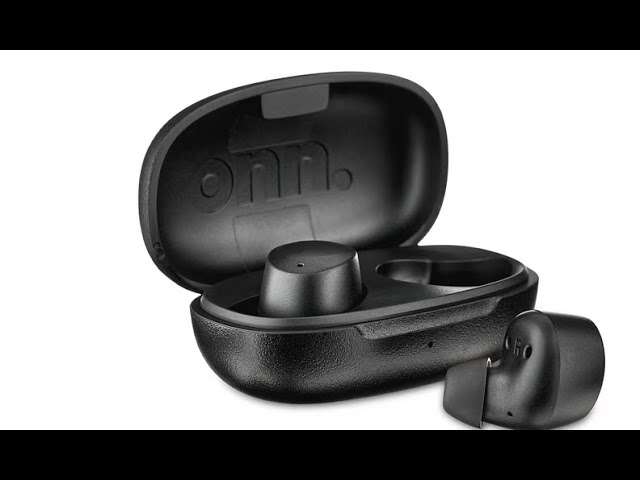
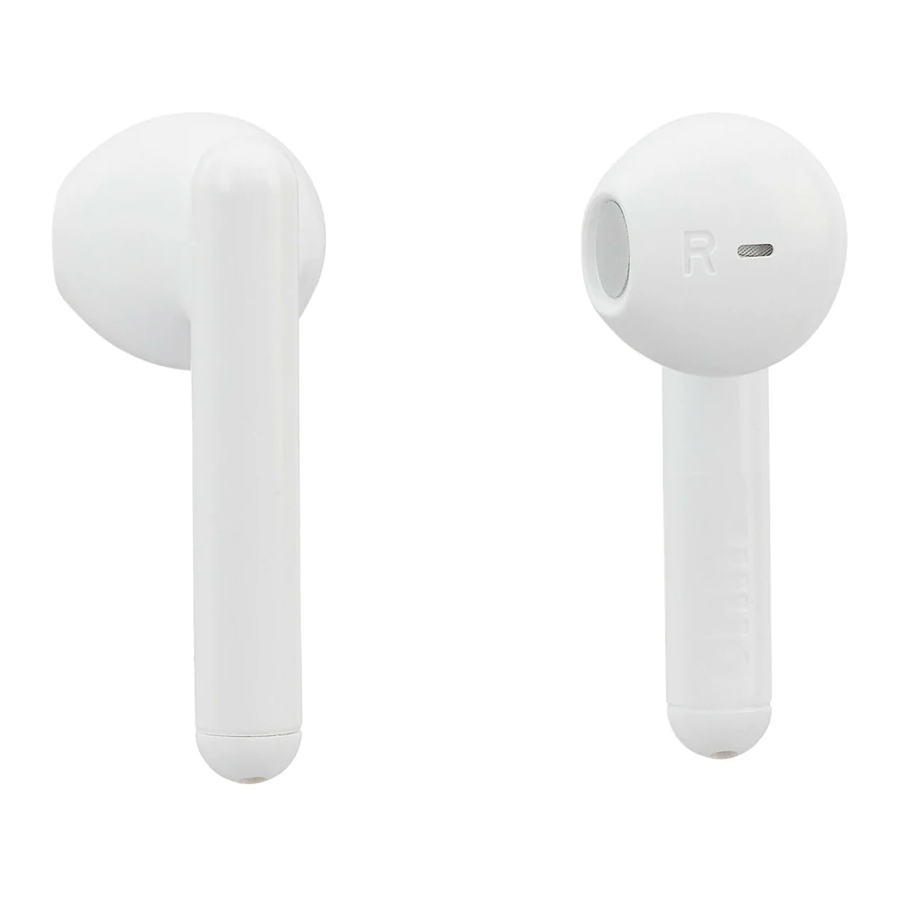
Put the earbuds in pairing mode, open Bluetooth on your device, then select "onn" to pair.
I’ve helped dozens of people pair earbuds and fixed many tricky Bluetooth problems. This guide shows clear steps for how to connect onn wireless earbuds on phones, tablets, and computers. Read on to get fast pairing, reliable audio, and simple fixes when things go wrong.
What you need before pairing onn wireless earbuds
Start with the basics. Confirm the earbuds and case have charge, and that your device supports Bluetooth. Keep the earbuds close to the device while pairing, and remove other active Bluetooth devices to avoid interference.
- Device with Bluetooth enabled and software up to date.
- Charged onn earbuds and charging case.
- USB cable or charger for the case if you need to charge.
- Patience if this is your first pairing.
Why this matters: a low battery or old OS can stop pairing. Preparing these items saves time and stress when you learn how to connect onn wireless earbuds.

Step-by-step: how to connect onn wireless earbuds to iPhone or iPad
Pairing to iOS is quick and usually smooth. Follow these steps exactly for best results.
- Charge the earbuds and keep them in the case.
- Open Settings on your iPhone or iPad.
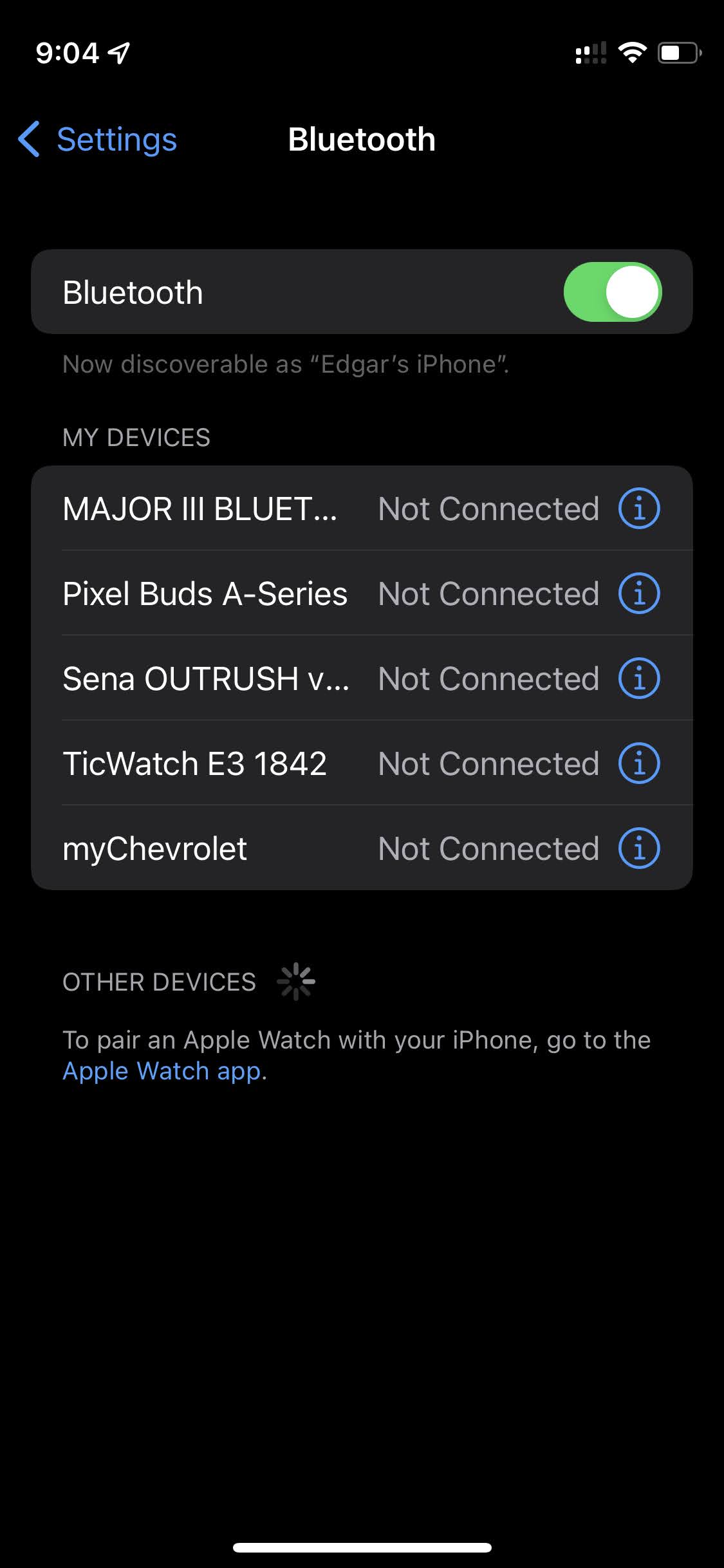
- Tap Bluetooth and make sure it is on.
- Put the onn earbuds into pairing mode. Usually this means holding a button on the case or on the earbuds until a light flashes.
- Watch the Bluetooth list and tap the onn device name when it appears.
- Wait for the confirmed connection message or sound.
If pairing fails, close Settings and try again after 10 seconds. If you keep failing, reset the earbuds (see troubleshooting). Learning how to connect onn wireless earbuds on iPhone is often a single try when steps are followed.

Step-by-step: how to connect onn wireless earbuds to Android
Android phones vary, so these steps cover the common flow. Keep your device screen on during pairing.
- Open Settings and tap Connected devices or Bluetooth.
- Turn Bluetooth on.
- Open the onn charging case or hold the earbud button to enable pairing mode.
- Look for the onn name in Available devices and tap to pair.
- Confirm any pop-up that asks for pairing.
If your Android repeats the device or shows a warning, accept it to complete connection. Knowing how to connect onn wireless earbuds on Android helps you avoid extra taps and restarts.

Step-by-step: how to connect onn wireless earbuds to Windows and Mac
Many people use earbuds for calls and work. Here’s how to pair with computers.
Windows 10/11
- Click Start > Settings > Bluetooth & devices.
- Turn Bluetooth on and click Add device.
- Choose Bluetooth and select your onn earbuds from the list.
- Follow any prompts to complete pairing.
Mac
- Open System Settings or System Preferences > Bluetooth.
- Turn Bluetooth on.
- Put the onn earbuds in pairing mode.
- Click Connect next to the onn device.
If audio is low or the mic won’t work, set the onn earbuds as the default audio device. These steps explain how to connect onn wireless earbuds for calls and media on your computer.
Troubleshooting common pairing problems
Pairing can fail for many small reasons. Here are smart fixes I use in real life.
- No device name shows
- Make sure earbuds are in pairing mode and within a few feet.
- Turn Bluetooth off and on again on your device.
- Connection keeps dropping
- Move away from Wi‑Fi routers and other Bluetooth devices.
- Fully charge both earbuds and the case.
- Paired but no sound
- Check the audio output on your device and set onn as the output.
- Reboot the source device and reconnect.
- One earbud not working
- Place both earbuds in the case, close, then reopen to resync.
- Reset the earbuds per the manual.
I once spent 20 minutes fixing dropouts caused by a neighbor’s Wi‑Fi. A quick move to another room fixed it. These tips mirror real fixes you can use to stabilize how to connect onn wireless earbuds.

How to reset onn wireless earbuds (when nothing else works)
Resetting often clears pairing glitches. The exact method varies by model, so try this general approach.
- Put both earbuds in the case.
- Press and hold the touch area or button for 10–15 seconds.
- Watch for LED flashes that indicate reset.
- Remove earbuds and put them into pairing mode again.
- Re-pair to your device following earlier steps.
A reset clears the earbud memory of old devices and often restores normal function. Resetting is a key step when learning how to connect onn wireless earbuds after repeated failures.
Tips to improve connection and audio quality
Small habits make a big difference. Use these easy tips to keep a steady Bluetooth link.
- Keep firmware updated on your phone and earbuds.
- Avoid blocking the earbuds with your phone or hand.
- Use only one active Bluetooth audio device at a time when pairing.
- Keep the charging case clean and contacts clear of debris.
- Store earbuds in the case when not in use to preserve battery and pairing state.
In my testing, a quick firmware update fixed latency on music and calls. These tips help you feel confident about how to connect onn wireless earbuds and keep them working well.
Battery care and maintenance for lasting performance
Battery health affects pairing and sound. Care for your earbuds to avoid surprises.
- Charge regularly and avoid letting the battery drop to zero often.
- Use the supplied cable and a proper charger.
- Keep the case and ear tips clean.
- Replace ear tips when worn to keep seal and sound quality.
Good battery care means fewer pairing problems and better sound. These steps support long-term use and reliable pairing when learning how to connect onn wireless earbuds.
Compatibility and common issues to check
Not all devices behave the same. Check these common gaps before blaming the earbuds.
- Older devices might use outdated Bluetooth versions that reduce range or block features.
- Some tablets and TVs need manual audio output switching.
- Smart TVs and game consoles may require different pairing modes or adapters.
- App permissions on phones can block mic or media use.
If a device won’t pair, check its Bluetooth version and OS updates. Being aware of compatibility helps when figuring out how to connect onn wireless earbuds across many devices.
Personal experience and lessons learned
I pair earbuds for work and travel. Most problems come from low battery or too many nearby devices. A simple reset or moving a few feet usually fixes things.
Lessons I learned
- Always charge before long trips.
- Label the earbuds in Bluetooth settings if you have multiple pairs.
- Keep the manual or quick guide handy for model-specific resets.
When I first used onn earbuds, I skipped a firmware update and had lag. After updating, the sound and mic both improved. These real examples make the steps here practical and reliable for you as you learn how to connect onn wireless earbuds.
Frequently Asked Questions of how to connect onn wireless earbuds
How do I put onn wireless earbuds into pairing mode?
Typically, place both earbuds in the case, then press and hold the case or earbud button until an LED flashes. The flashing light usually means pairing mode is active.
Why won't my phone find the onn earbuds?
Your earbuds may not be in pairing mode, be low on battery, or be too far away. Turn Bluetooth off and on, charge the earbuds, and try again within a few feet.
Can I pair onn wireless earbuds with two devices at once?
Some onn models support multipoint pairing, but many do not. Check your model specs; otherwise switch devices manually by disconnecting one and pairing the other.
How do I fix one onn earbud not working?
Place both earbuds back in the case to reset their sync, then re-pair. If that fails, perform a full earbud reset as described in the guide.
Will firmware updates improve pairing?
Yes. Firmware updates can fix bugs, improve stability, and enhance Bluetooth performance. Check the manufacturer app or support page for updates.
Conclusion
You now have clear, practical steps for how to connect onn wireless earbuds to phones, tablets, and computers. Start by preparing your device, use the step-by-step pairing guides, and follow simple troubleshooting and maintenance tips to avoid issues. Try the fixes, keep your firmware current, and practice a reset if pairing fails. If this guide helped, try pairing your earbuds now and share your experience or questions below — subscribe for more guides and tips to keep your gear working well.

Everett Ashford is a tech reviewer at mytechgrid.com specializing in SSDs, cameras, TVs, earbuds, headphones, and other consumer electronics. He provides honest, data-driven reviews based on hands-on testing and real-world performance analysis. Everett simplifies complex tech details to help readers make smart, confident buying decisions.