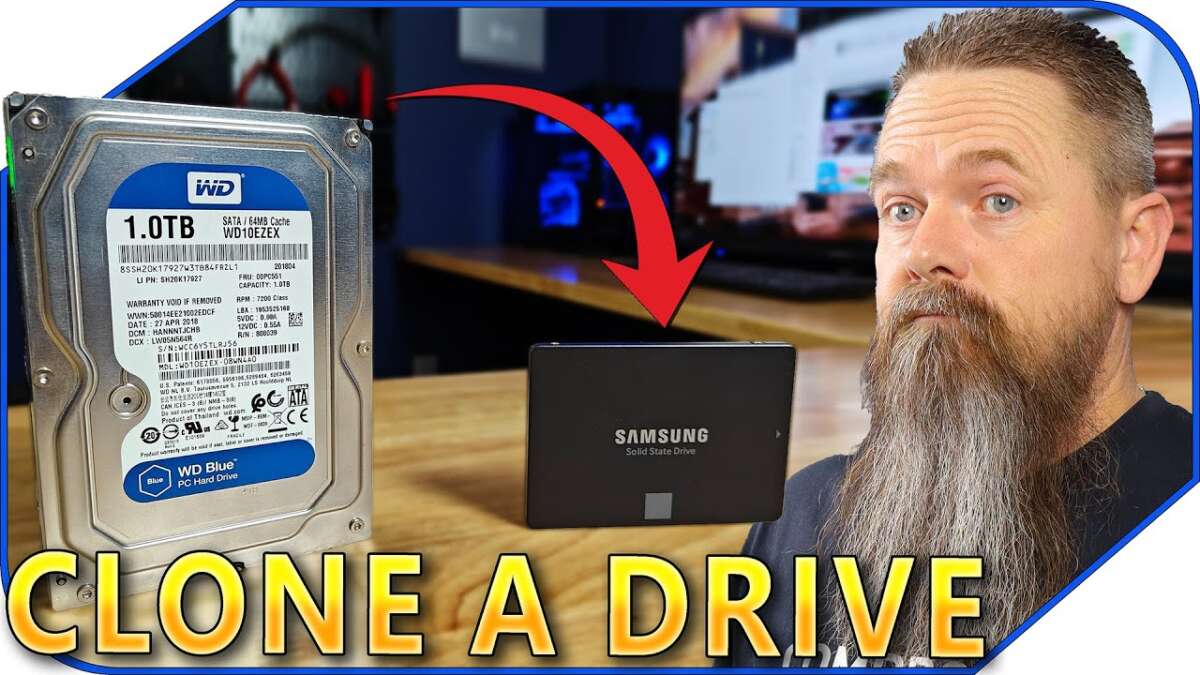
Clone the drive using a reliable cloning tool and a backup — no data loss when done right.
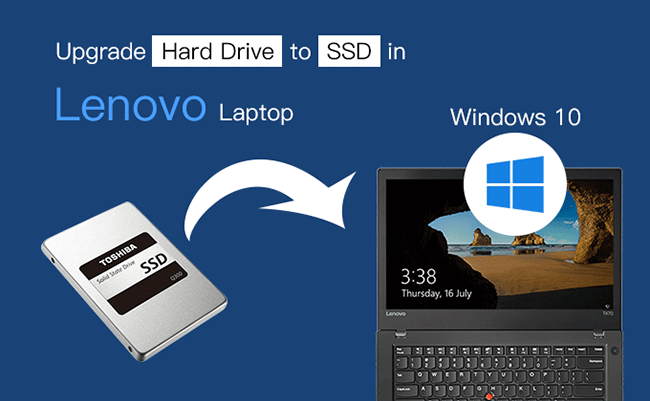
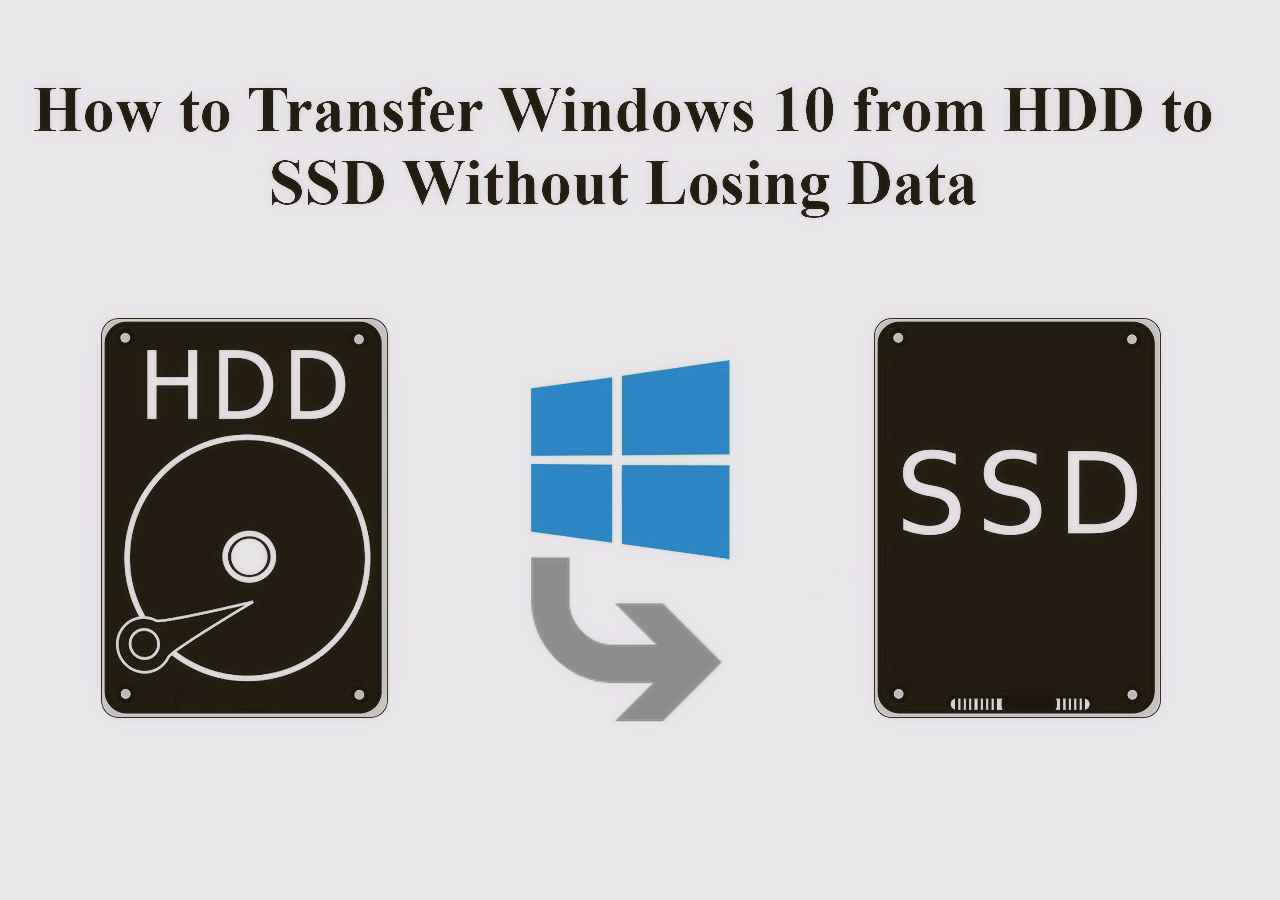
I’ve helped dozens of users and upgraded my own laptops from HDDs to SSDs. This guide on how to convert HDD to SSD without losing data walks you through why it matters, what to prepare, step-by-step cloning methods, troubleshooting tips, and post-migration checks. I combine practical experience, common mistakes I’ve seen, and clear, safe procedures so you can move your system and files confidently and without surprises. Read on to get a proven, repeatable plan for how to convert HDD to SSD without losing data.
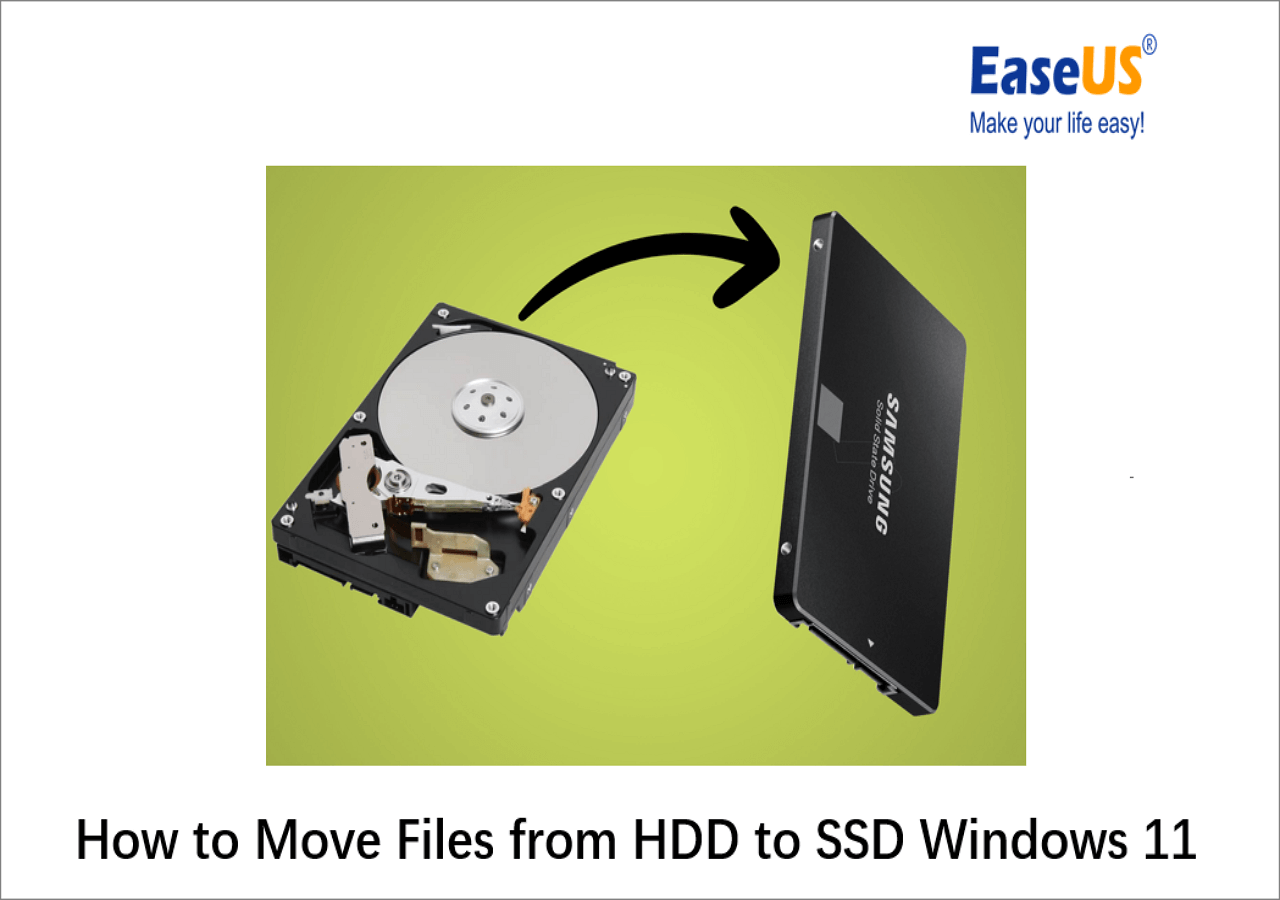
Why upgrade from HDD to SSD?
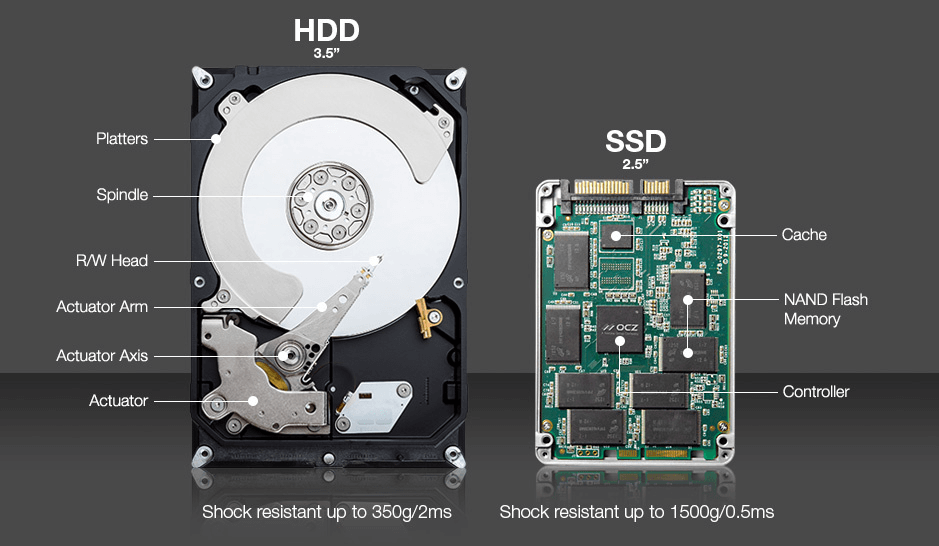
Solid state drives are much faster, quieter, and more power-efficient than traditional hard disk drives. Upgrading improves boot time, application launch speed, and overall system responsiveness. For many, the main reason to learn how to convert HDD to SSD without losing data is to keep your existing setup — installed apps, settings, and files — while enjoying these performance gains.
- Speed gains reduce wait time for daily tasks.
- Lower power draw extends laptop battery life.
- No moving parts mean less chance of mechanical failure.
I’ve replaced spinning drives in office laptops and older desktops. The immediate speed boost is always noticeable and worth the minimal time it takes to migrate.
Preparation: what you need before you start
Proper preparation cuts risk. Gather these items and follow the checklist.
- A target SSD with equal or greater used-space capacity than the HDD’s used data.
- A SATA-to-USB adapter, external drive enclosure, or spare SATA port if desktop.
- Reliable cloning software or disk-imaging tool that supports resizing partitions.
- A full backup to a separate external drive or cloud.
- Power source (keep laptop plugged in) and time (30–120 minutes typical).
Also verify:
- The SSD’s firmware is up to date if possible.
- Your system BIOS/UEFI supports AHCI mode for best performance.
- You have admin rights and any product keys or credentials you may need.
From experience, the biggest oversight is not making a full backup. Even with cloning, hardware or software can fail. Back up first and keep the backup until you verify the SSD works perfectly.
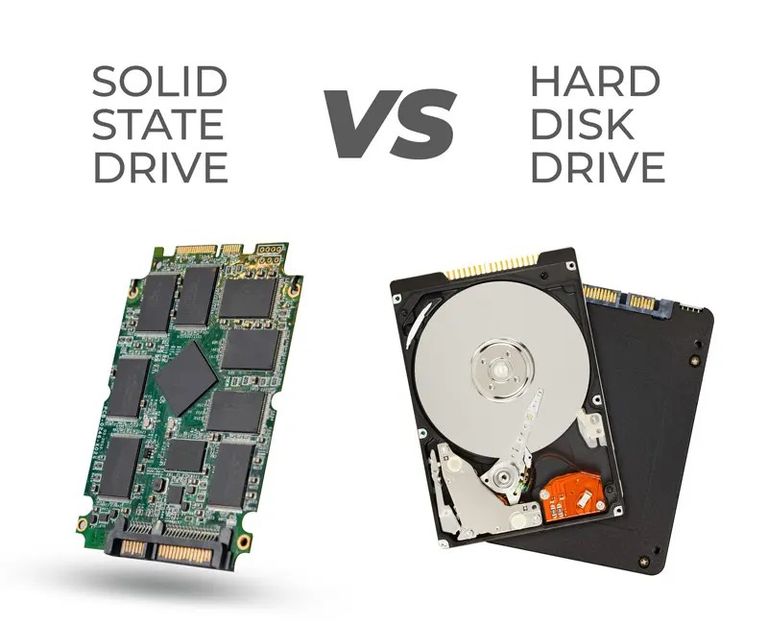
Methods to convert HDD to SSD without losing data
There are three common methods. Pick the one that fits your skill level and hardware.
- Disk cloning
- Directly copies the entire HDD, including OS, apps, and settings, to the SSD.
- Best for seamless migrations without reinstalling software.
- Disk imaging and restore
- Creates an image file of the HDD, then restores that image to the SSD.
- Useful when you want a safe archive before migrating.
- Fresh install with file restore
- Clean OS install on the SSD, then copy user files and reinstall apps.
- Best for a lean system and long-term reliability, but takes more time.
For most users who want to keep everything exactly as-is, disk cloning is the fastest and simplest route for how to convert HDD to SSD without losing data. I recommend cloning when you need immediate, identical results.

Step-by-step guide: cloning HDD to SSD
This step-by-step method uses cloning. It works for both laptops and desktops.
- Check capacity and prepare the SSD
- Ensure the SSD has enough space for the HDD’s used data.
- If the SSD is larger, you can expand partitions later.
- Backup your data
- Create a full backup to an external drive or cloud.
- Verify you can access a few files from the backup.
- Connect the SSD
- Use a SATA cable (desktop) or SATA-to-USB adapter (laptop).
- Confirm the SSD is detected in BIOS or Disk Management.
- Choose cloning software
- Pick software that supports cloning to smaller drives and resizing partitions.
- Many reliable free and paid options exist; choose one you trust.
- Start the clone
- Select the source HDD and the target SSD.
- Choose sector-by-sector clone only if you need exact copies; otherwise use intelligent cloning to skip free space.
- Verify the clone
- After cloning, shut down and disconnect the HDD (or change boot order).
- Boot from the SSD to confirm Windows/Linux/macOS starts and files are present.
- Finalize and optimize
- Enable AHCI in BIOS/UEFI if not already enabled (do this before cloning if possible).
- Trim support should be enabled for SSD longevity.
- Reclaim or expand partitions to use full SSD capacity.
I once cloned a 1 TB HDD to a 500 GB SSD by removing large video archives and moving them to an external drive before cloning. That reduced the used data below 500 GB and made cloning smooth.
Troubleshooting common issues
Even with care, problems can appear. Here are solutions I’ve used several times.
- SSD not detected after cloning
- Check cables and adapter. Update BIOS if needed. Try a different port.
- System won’t boot from SSD
- Check boot order in BIOS. If cloning used legacy partitioning, ensure BIOS mode matches (UEFI vs Legacy).
- Activation or license issues
- Some software may require reactivation after hardware change. Keep keys handy.
- Slower-than-expected performance
- Confirm AHCI is enabled and TRIM is active. Update SSD firmware and storage drivers.
- Partition size mismatch
- Use disk management tools to expand the cloned partition to the SSD’s full capacity.
Patience matters. I’ve fixed boot issues by toggling BIOS modes and re-running the cloning tool in a different mode. A second clone attempt often corrects minor errors.

Post-migration checks and performance tips
After a successful conversion, run a few checks and optimizations.
- Verify system boots reliably from the SSD and apps launch fast.
- Check free space and expand partitions if needed.
- Enable TRIM and confirm it’s active in your OS.
- Update storage drivers and SSD firmware if available.
- Move large, infrequently used files to external storage to preserve SSD space.
From my experience, users often forget to enable TRIM. Run a quick command in your OS to check it. Proper TRIM support keeps SSD speed steady over time.
Safety, backups, and rollback plan
Never skip the backup. Here’s a simple rollback plan if things go wrong.
- Keep the original HDD connected until you confirm success, or keep the backup until you’re certain.
- Create a bootable rescue USB with cloning software or OS recovery tools.
- If the SSD fails to boot, reconnect the HDD and boot from it to access files.
- Test your backup by restoring a small folder to confirm integrity.
I once restored a machine by reconnecting the original HDD after a clone set an incorrect active partition. Having the backup and original drive saved the day.

Quick PAA-style questions
How long does it take to convert HDD to SSD without losing data?
Typical cloning takes 30–120 minutes depending on data size and interface speed. Preparation and verification add additional time.
Can I clone a larger HDD to a smaller SSD?
Yes, if the used data fits on the smaller SSD. Use intelligent cloning and shrink partitions before cloning when needed.
Do I need to reinstall Windows after cloning to SSD?
No, cloning preserves the OS and apps. Only reinstall if you want a clean install or encounter boot issues.
Will moving to an SSD void warranty?
No, swapping drives usually does not void the computer warranty, but check your device warranty terms to be safe.
Is it safe to remove the HDD after cloning?
Yes, after you verify the SSD boots and files are intact. Keep backups for safety.
Frequently Asked Questions of how to convert hdd to ssd without losing data
What is the safest way to convert HDD to SSD without losing data?
The safest way is to make a full backup, then clone the HDD to the SSD with trusted cloning software, and verify the SSD boots before removing the HDD.
Can I use free software to clone my HDD to SSD?
Yes, many free tools reliably clone drives. Ensure the tool supports resizing partitions and the file system you use.
Will my programs and settings carry over after cloning?
Yes, cloning copies the OS, programs, and settings so your system behaves the same after migration.
Do I need to change BIOS settings after migration?
You may need to set the SSD as the primary boot device and ensure AHCI is enabled for best performance.
What if my SSD is smaller than my HDD?
Remove or archive large files until used space fits on the SSD, or use a larger SSD. Intelligent cloning can copy only used data.
Conclusion
Upgrading a machine by converting HDD to SSD without losing data is practical, safe, and highly rewarding when you follow a clear plan: back up, choose the right method, clone carefully, and verify results. With proper preparation you can keep your OS, apps, and files while gaining speed and reliability. Take the time to back up, pick the right cloning tool, and test thoroughly. Try it step by step, and leave a comment if you run into issues or want recommendations for cloning tools and adapters.

Everett Ashford is a tech reviewer at mytechgrid.com specializing in SSDs, cameras, TVs, earbuds, headphones, and other consumer electronics. He provides honest, data-driven reviews based on hands-on testing and real-world performance analysis. Everett simplifies complex tech details to help readers make smart, confident buying decisions.