Clean the SSD, align the thermal pad, press the heatsink in place, and verify temperatures under load.
I’ve spent years building and tuning PCs and servers, and I’ll walk you through exactly how to install heatsink on nvme ssd properly. This guide explains why a heatsink matters, the parts you need, step-by-step installation, testing, and real-world tips from my own builds. Read on to avoid common mistakes and get reliable, cooler NVMe performance.

Why add a heatsink to an NVMe SSD?
NVMe drives can get hot under sustained load. High temperature causes thermal throttling. A heatsink moves heat away from the SSD controller and NAND. That keeps speeds steady and improves drive longevity.
Installing a heatsink also helps systems with poor case airflow. Small gains in temperature can mean big gains in consistent performance. If you want to know how to install heatsink on nvme ssd properly, understanding the why makes the how easier.

Types of NVMe heatsinks and how to choose
There are three common types of NVMe heatsinks:
- Low-profile aluminum plates that stick to the SSD with thermal tape. These fit most laptops and slim builds.
- Tall finned heatsinks that clamp over the drive for max surface area. These suit desktops with space.
- Integrated M.2 heatsink modules that attach to the motherboard or bracket. They combine thin fins and secure mounts.
Choose a type based on clearance, airflow, and aesthetics. If you want detailed guidance on how to install heatsink on nvme ssd properly, pick a heatsink that fits your case and does not block adjacent slots.
Factors to check before buying:
- Drive length and M-key or B+M-key compatibility.
- Height clearance under GPU or inside compact cases.
- Whether the motherboard already includes a heatsink.

Tools and materials you will need
You do not need many tools. Gather:
- Small Phillips screwdriver for M.2 screws or bracket screws.
- Alcohol wipes or isopropyl alcohol for cleaning surfaces.
- Lint-free cloth or compressed air.
- Thermal pads or thermal tape that came with the heatsink.
- Anti-static wrist strap (optional but recommended).
Using the right thermal pad thickness matters. Check the heatsink instructions. If you want to learn how to install heatsink on nvme ssd properly, having the right pad avoids poor contact and uneven cooling.

Step-by-step: how to install heatsink on nvme ssd properly
Follow these steps slowly. Each step is short and clear.
-
Power down and unplug
-
Turn off your PC or laptop. Unplug the power cable and ground yourself to avoid static damage.
-
Open the case and locate the M.2 slot
-
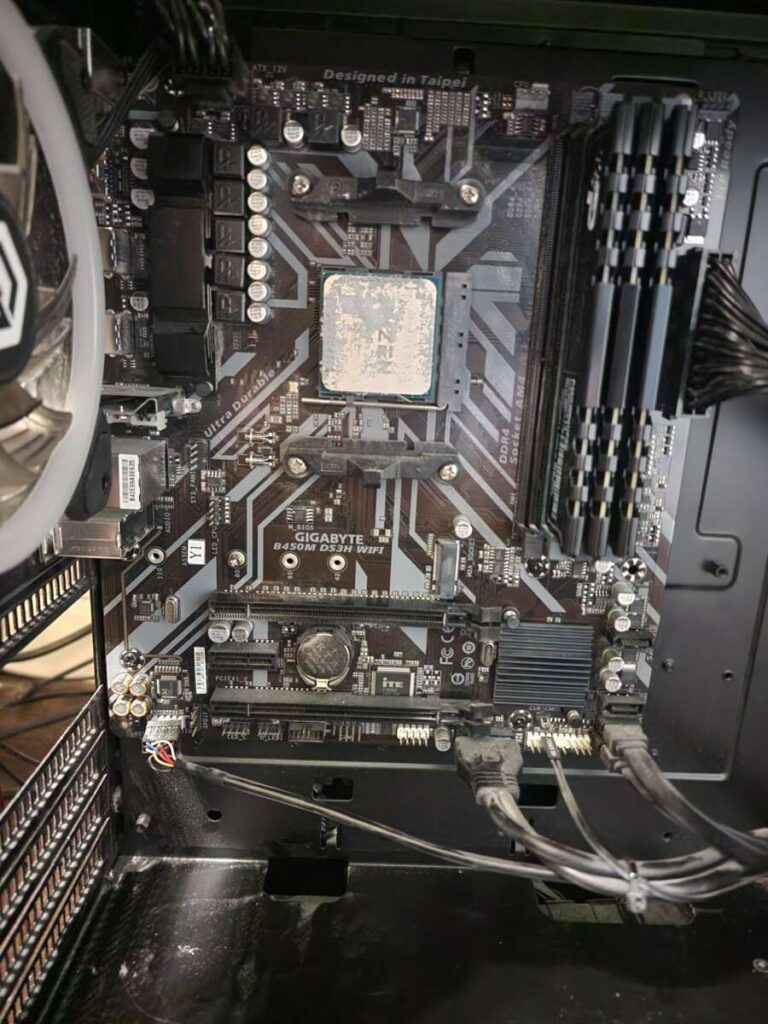
Remove the side panel on a desktop or the back cover on a laptop. Find the M.2 slot and the mounting standoff.
-
Remove the M.2 screw and take out the SSD if replacing
-
Unscrew the small M.2 screw. Lift the SSD gently and slide it out at a slight angle.
-
Clean the SSD surface
-
Use an alcohol wipe to clean the top of the SSD near the controller. Let it dry. Clean the heatsink contact area too.
-
Measure and apply the thermal pad
-
Cut the thermal pad if needed. Place the pad so it covers the controller and NAND chips but does not overhang the slot.
-
Remove any protective film from the pad.
-
Place the heatsink and align holes
-
Line up the heatsink with the screw hole and the pad. Make sure it does not touch other components.
-
Reinstall the SSD (if required) and secure the heatsink
-
If your heatsink uses the motherboard screw, insert the SSD at the same angle and push it down. Install the M.2 screw through the heatsink or standoff.
-
If the heatsink clamps over the SSD, follow the clamp instructions and tighten evenly.
-
Close up and boot
-
Reassemble your case. Plug in power and boot into your OS. Confirm the drive is recognized.
-
Test under load
-
Run a simple benchmark or heavy file transfer for 10–15 minutes. Check temperatures with a monitoring tool.
-
If temps drop and stay stable, your installation was successful.
Tips from my builds:
- I once used a heatsink with too-thick pad. The drive didn’t seat and temperatures were worse. Measure pad thickness first.
- Tighten screws just enough. Over-tightening can bend the drive.
If you want to master how to install heatsink on nvme ssd properly, follow each step and test after install.

BIOS, temperature monitoring, and testing
After installation, check BIOS to ensure the drive is detected. Many motherboards list M.2 devices on the boot screen. Use a monitoring app in the OS to see temps and health.
Simple tests I use:
- Run a 5–10 minute sequential read/write test to create steady heat.
- Watch the maximum temperature and whether it drops with the heatsink installed.
- Confirm no throttling by comparing performance curves before and after.
Keep logs if you tune multiple drives. This helps you see gains from the heatsink. Knowing how to install heatsink on nvme ssd properly includes verifying results after the job is done.

Common problems and troubleshooting
If the drive is not visible
- Check the M.2 screw and seating. The SSD may not be fully inserted.
- Remove the heatsink and confirm the drive is recognized before reattaching.
If temperatures are higher after installation
- The thermal pad may be too thick or misaligned. Recheck contact points.
- The heatsink might block airflow from case fans. Try a lower-profile option.
If the drive throttles under load
- Reapply thermal pad and ensure firm, even contact.
- Move case fans to improve flow over the M.2 area.
My real-world mistake
- Once I reused an old thermal pad with adhesive residue. This caused a gap and poor cooling. Clean surfaces fully and use a fresh pad.
These checks help you fix issues when learning how to install heatsink on nvme ssd properly.
Maintenance and long-term care
Maintenance is simple. Every 6–12 months:
- Power down and dust the heatsink with compressed air.
- Check screws and mounts for looseness.
- Replace the thermal pad if you remove the heatsink multiple times.
Avoid frequent removals. Each removal risks dust and wear. A well-installed heatsink keeps temperatures down and extends drive life. Learning how to install heatsink on nvme ssd properly pays off over years of use.
Frequently Asked Questions of how to install heatsink on nvme ssd properly
What if my motherboard already has a built-in M.2 heatsink?
Built-in heatsinks are usually fine. Remove them only if you need a different form factor or better cooling. Reuse the stock thermal pad or replace it with an approved pad for better contact.
Can I use a generic thermal pad from another device?
It is possible but not ideal. Use a pad with correct thickness and thermal conductivity. A wrong pad can reduce cooling rather than improve it.
Do I need an anti-static wrist strap to install a heatsink?
It is not required but recommended. Grounding reduces the risk of static damage. Simple grounding by touching the case also helps.
Will a heatsink void my SSD warranty?
Most manufacturers allow heatsinks. Check warranty terms. Avoid modifying labels or firmware; that can affect claims.
How much temperature drop should I expect with a heatsink?
Results vary by model and airflow. Expect 5–20°C lower under sustained load in many setups. Measuring before and after is the best way to know.
Conclusion
Installing a heatsink on an NVMe drive is a small step that delivers clearer performance and longer life when done right. Follow the steps, pick the right parts, and always verify temperatures after install. If you try these tips, you’ll avoid common mistakes and enjoy steadier SSD speeds. Share your experience, ask a question, or subscribe for more hardware guides.

Everett Ashford is a tech reviewer at mytechgrid.com specializing in SSDs, cameras, TVs, earbuds, headphones, and other consumer electronics. He provides honest, data-driven reviews based on hands-on testing and real-world performance analysis. Everett simplifies complex tech details to help readers make smart, confident buying decisions.