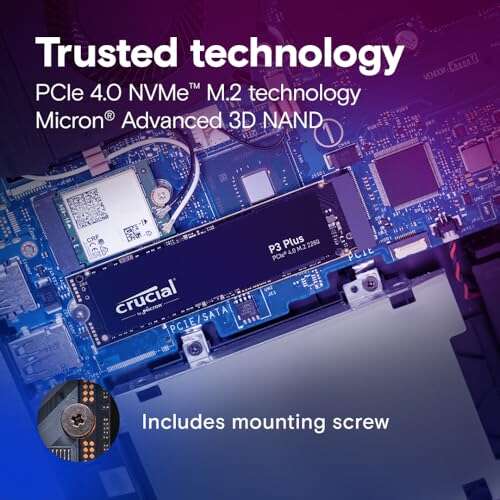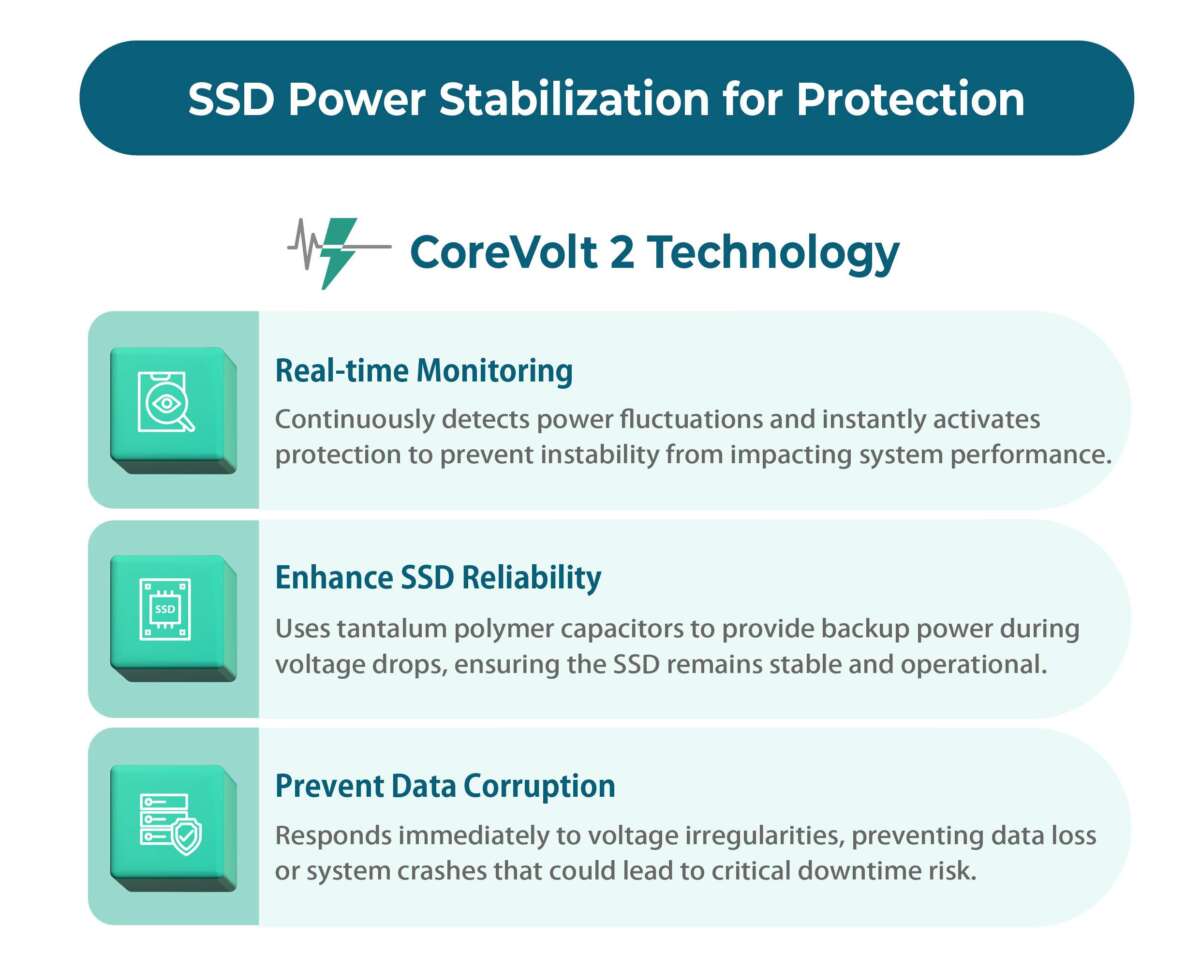
Keep your SSD fast by leaving free space, enabling TRIM, updating firmware, and avoiding heavy sustained writes.
I have worked with storage systems for years and helped both home users and small teams keep drives healthy. This guide explains how to prevent SSD performance drop over time in clear, practical steps. You will learn what causes slowdowns, how SSD tech works, simple daily habits, advanced tuning, monitoring tips, and real-world mistakes to avoid. Read on to protect your drive speed and extend its useful life.
What causes SSD performance drop?
SSDs slow down for several clear reasons. NAND flash needs time to clean up blocks after writes. Without that cleanup, new writes get split and delayed. Large or constant writes push the controller into slower modes. Heat, full capacity, old firmware, and heavy random writes also hurt speed.
Common culprits include:
- Garbage collection and write amplification that increase I/O overhead.
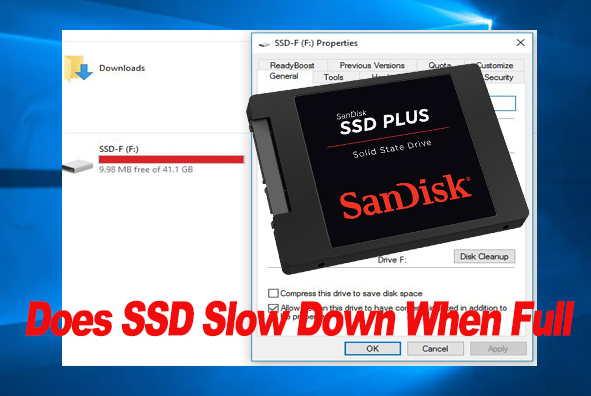
- Full drive space that leaves no room for efficient block management.
- Disabled TRIM or poor OS support for SSD commands.
- Thermal throttling when drives run hot for long periods.
These issues show up as longer write times and lower sustained throughput. Understanding the causes helps you know how to prevent SSD performance drop over time.

How SSDs work and key concepts
SSDs store data in NAND flash. Flash can only be written in pages and erased in blocks. This mismatch leads to internal housekeeping tasks. The drive must move valid data before erasing a block. That movement is part of garbage collection.
Key concepts to know:
- TRIM: lets the OS tell the SSD which blocks are no longer in use. This reduces extra work.
- Write amplification: more internal writes than your system requested. Higher amplification shortens life and slows writes.
- Overprovisioning: reserved space that helps the controller manage blocks efficiently.
- Endurance: measured in TBW or DWPD, it limits total write workload.
Knowing these terms makes it easier to follow steps that prevent SSD performance drop over time. When you tune a drive, you are mainly reducing write amplification and keeping free blocks ready.

Practical ways to prevent SSD performance drop over time
Follow these practical steps. They are low-effort and very effective.
- Enable TRIM on your OS
- TRIM reduces garbage collection work. Most modern OSes enable it by default. Verify it and enable if off.
- Keep free space
- Aim for 10–25% free space. More free space lowers write amplification and keeps speeds steady.
- Update SSD firmware
- Firmware fixes can reduce bugs and improve garbage collection. Check vendor tools periodically.
- Avoid filling the drive
- Do not use SSDs as long-term archival storage when near full. Move large cold files to HDD or cloud.
- Use drive-specific tools
- Vendor utilities help set overprovisioning and run secure erase or health checks.
- Limit sustained heavy writes
- Avoid long backups or video renders directly to the SSD. Use a scratch disk with higher endurance if needed.
- Choose the right SSD for the workload
- For heavy writes, pick drives with higher endurance (SLC/MLC or enterprise-class).
- Keep your system cool
- Add airflow or heatsinks for NVMe drives. Thermal throttling causes big slowdowns.
- Enable hardware features correctly
- Use AHCI for SATA or latest NVMe drivers. Wrong drivers can stop TRIM and lower throughput.
- Avoid encryption overhead on low-end SSDs
- Full-disk encryption can increase write cycles. Use drives with built-in hardware encryption if needed.
These steps directly help prevent SSD performance drop over time by reducing internal overhead and keeping the controller effective.
Monitoring, maintenance, and tools
Watch your SSD health and watch for slowdowns early. Simple checks help you act before speeds drop badly.
- Check SMART attributes
- Monitor wear level, spare block count, and reallocated sectors. Sudden changes signal trouble.
- Use vendor tools
- Most makers offer utilities for firmware updates and secure erase. Use them periodically.
- Run light benchmarks
- Test read/write speeds after big updates or heavy use. Compare results to past runs to spot decline.
- Schedule maintenance
- Set sparse backups and avoid daily full disk writes. Use TRIM and optimize OS settings.
People also ask:
How often should I check SSD health?
Check SMART and vendor tools every few months for consumer drives, more often for heavy-use systems.
Will secure erase restore original speed?
Secure erase can return the drive to near-new performance by cleaning all blocks. Use vendor methods for best results.
Does defragmentation help SSDs?
No. Defragmentation adds writes and increases wear. For SSDs, keep TRIM enabled instead.
Keeping an eye on health and making small changes prevents SSD performance drop over time and gives you time to act before data loss or severe slowdown.
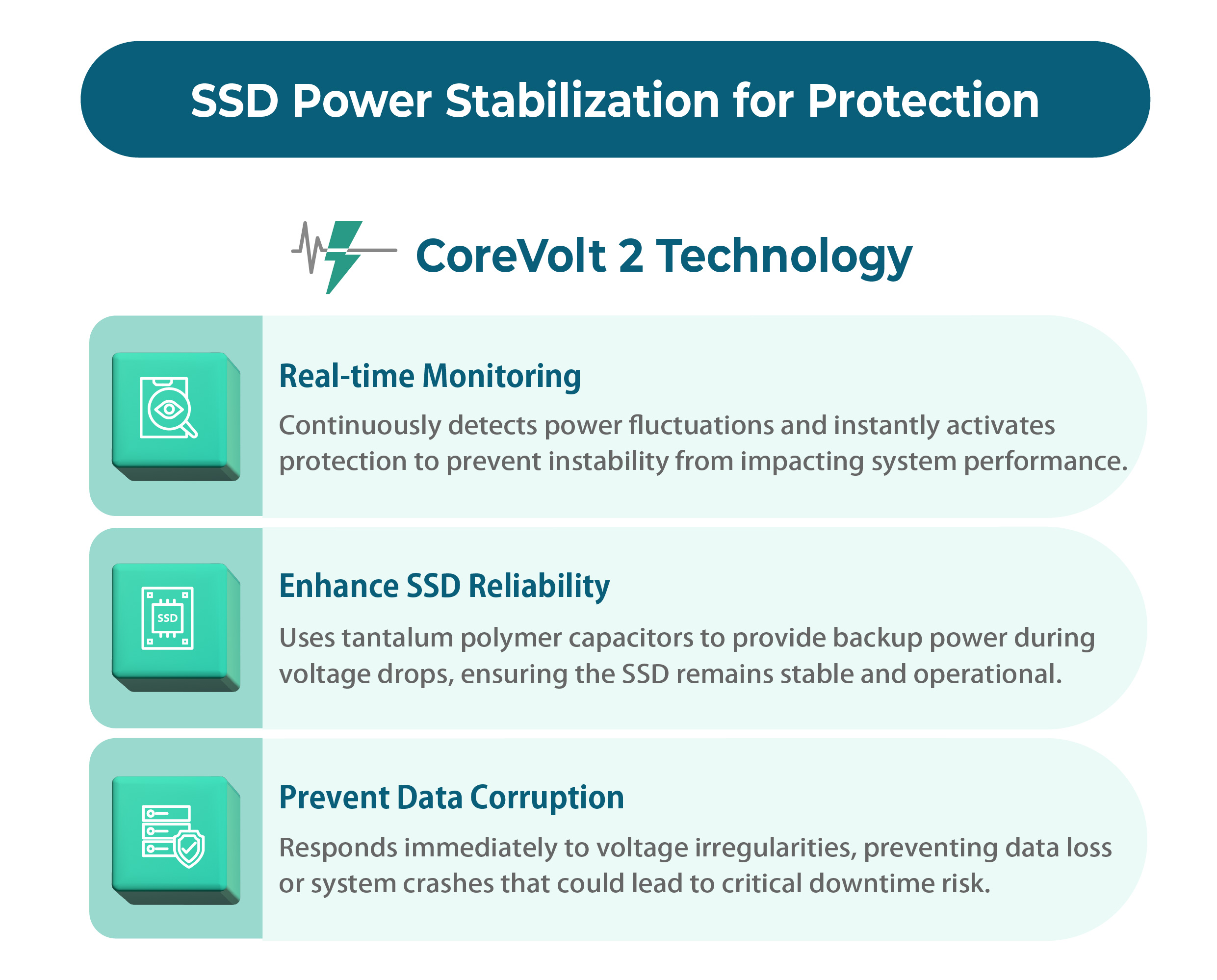
Advanced tips: overprovisioning, firmware, and workload tuning
For power users and servers, these tips add endurance and steady speed.
- Set overprovisioning
- Reserve 7–20% of the drive for internal use. Many vendor tools let you set this value.
- Tune filesystem and partition alignment
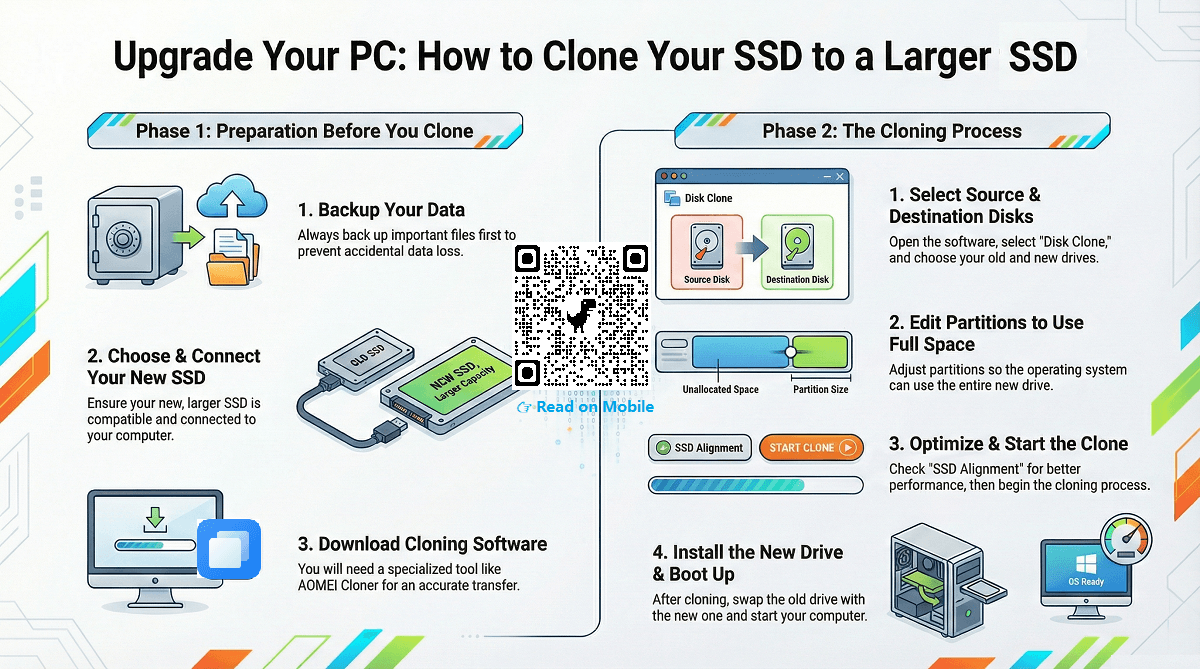
- Proper alignment reduces extra writes. Modern OS installers handle this, but check when cloning drives.
- Use write-friendly filesystems for servers
- Filesystems that reduce small random writes can cut write amplification.
- Consider enterprise or higher-grade NAND
- SLC/MLC offer better endurance than TLC/QLC. Pick the right media for heavy write tasks.
- Use RAID carefully
- RAID can increase write workload. Choose RAID levels and controllers that work well with SSDs.
- Monitor firmware release notes
- Firmware can fix thermal and performance bugs. Read notes before updating to avoid surprises.
When you apply advanced tweaks, you further reduce the risk of slowdowns. These steps are key for data centers, content creators, and anyone pushing many terabytes of writes.
My experience and lessons learned
I have managed dozens of SSDs in labs and small offices. Early on, I kept drives full and saw steady slowdowns. After enabling TRIM and leaving free space, speeds returned and stayed stable. I once trusted a cheap NVMe for a render farm and hit thermal throttling every day. Adding a heatsink solved that one.
Lessons I share:
- Small changes matter. TRIM and free space fixed many slow drives.
- Know the workload. Match drive endurance to expected writes.
- Back up often. Performance issues can precede failure.
These real examples show how simple habits prevent SSD performance drop over time.
Frequently Asked Questions
How much free space should I leave on an SSD?
Aim for 10–25% free space. More free space gives the controller room to manage blocks and reduces slowdowns.
Does TRIM really matter for SSD speed?
Yes. TRIM tells the SSD which blocks are unused, cutting the work needed for new writes and keeping speeds up.
Will firmware updates improve drive speed?
Often they do. Firmware can fix garbage collection, thermal, and compatibility issues that affect speed.
Can I use an SSD full-time for backups?
Avoid using the same SSD for constant backup storage when it gets filled. Use HDDs or cloud for cold data to preserve SSD performance.
How do I test if my SSD is slowing down?
Run a simple benchmark that measures sustained write speed and compare with past results. Check SMART attributes for wear indicators.
Is secure erase safe to restore performance?
When done properly with vendor tools, secure erase can restore near-new performance. Back up data first, as it erases everything.
Will disk encryption slow my SSD?
Encryption can add overhead, especially on low-end drives. Use hardware encryption or faster drives to reduce impact.
Conclusion
You can keep an SSD fast for years by using a mix of good habits and the right hardware. Enable TRIM, leave free space, update firmware, manage heat, and match drive type to your workload. Monitor SMART stats and use vendor tools for maintenance. Start with these steps today to prevent SSD performance drop over time and avoid costly slowdowns. Try one change this week—check TRIM and free space—and see the difference. If this helped, share your results or ask a question below.

Everett Ashford is a tech reviewer at mytechgrid.com specializing in SSDs, cameras, TVs, earbuds, headphones, and other consumer electronics. He provides honest, data-driven reviews based on hands-on testing and real-world performance analysis. Everett simplifies complex tech details to help readers make smart, confident buying decisions.