Re-initialize or assign a drive letter, check cables and BIOS, update drivers, or use diskpart.
I have fixed dozens of drives for clients and friends, and I know the frustration when an SSD won't show in Disk Management. This guide walks you through clear, tested steps on how to fix ssd not appearing in disk management. I blend hands-on tips, real troubleshooting moves, and simple explanations so you can fix the problem fast and safely.
Why an SSD might not appear in Disk Management
An SSD can be invisible for many small reasons. It might be unplugged, not initialized, missing a drive letter, or stuck in a bad state. Firmware, drivers, or a wrong BIOS setting can hide the SSD too. I have seen new SSDs shipped uninitialized and old SSDs fail after firmware updates. Knowing these causes helps you choose the right fix for how to fix ssd not appearing in disk management.

Quick checklist before deeper fixes
Run this checklist first. These checks often solve the issue in minutes and avoid data loss.
- Check physical connections. Make sure the SATA or NVMe cable and power are secure.
- Switch ports. Move the SSD to a different SATA port or M.2 slot.
- Try another PC or USB adapter. This isolates PC settings from drive faults.
- Open Device Manager and Disk Management. Look for unknown devices or uninitialized disks.
- Confirm BIOS/UEFI detects the SSD. If BIOS does not see it, Windows tools cannot either.
This checklist clears many common causes of how to fix ssd not appearing in disk management.

Step-by-step fixes you can do now
Follow these steps in order. Each step is safe, simple, and aimed at getting the SSD visible again.
- Restart and reseat the SSD
- Shut down the PC. Unplug power. Replug the SSD and cables. Boot again.
- This fixes loose cables and simple connection errors.
- Check BIOS/UEFI settings
- Reboot and enter BIOS. Look for SATA or NVMe detection. Turn on ports if disabled.
- If BIOS does not see the drive, do not proceed to Windows tools yet.
- Assign a drive letter or initialize the disk
- Open Disk Management. If you see an unallocated disk, right-click and pick Initialize Disk.
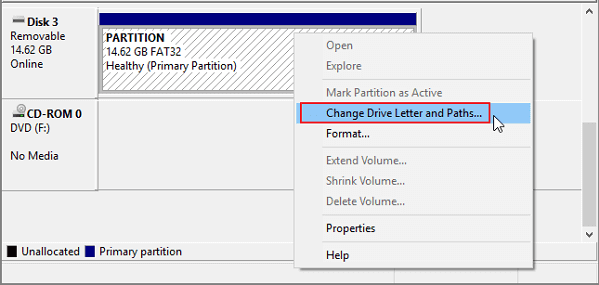
- If the disk is initialized but has no letter, right-click the volume and choose Change Drive Letter and Paths.
- Use Diskpart for invisible disks
- Open Command Prompt as admin and run: diskpart, list disk, select disk
, detail disk. - If disk shows, run attributes disk clear readonly, online disk, and then create/assign partitions carefully.
- Update or reinstall drivers
- Open Device Manager. Find the SSD under Disk drives. Right-click and choose Update driver.
- If update fails, uninstall the device and reboot. Windows often reinstalls a fresh driver.
- Check power and SATA mode
- Ensure power supply can handle drives. Verify SATA mode (AHCI vs RAID) in BIOS.
- Switching modes can hide or reveal drives, so follow vendor guidance.
These actionable steps usually resolve how to fix ssd not appearing in disk management for most users.

Advanced troubleshooting and recovery options
If the basic steps don't work, try these advanced methods. They are more technical but often bring results.
-
Use vendor tools and firmware updates
- Many SSD makers provide firmware and diagnostics. Run their tools in Windows or bootable media.
- Firmware fixes low-level bugs that can hide a drive.
-
Check for RAID or controller conflicts
- If your PC uses RAID, the OS may not show standalone drives. Verify controller settings.
- Controllers with proprietary drivers can hide disks until proper drivers load.
-
Use Linux live USB to inspect the SSD
- Boot a Linux live USB and run lsblk or fdisk -l. Linux can detect drives Windows misses.
- This helps decide if the problem is Windows-specific or hardware-related.
-
Inspect NVMe namespace issues
- NVMe drives can have namespace problems. Use manufacturer NVMe tools to rescan namespaces.
- Incorrect namespaces can make the device invisible in Disk Management.
-
Data recovery approach
- If data is crucial, avoid destructive commands. Use read-only tools or seek a professional.
- I once recovered a client’s SSD by imaging it with a hardware imager before further repair.
These advanced steps add depth to how to fix ssd not appearing in disk management when basic fixes fail.

Preventive tips and best practices
Protect your data and reduce future trouble with these habits.
- Initialize and format new SSDs properly after installing them.
- Keep firmware and chipset drivers up to date.
- Use quality cables, ports, and a stable power supply.
- Make a regular backup plan. SSDs fail without warning.
- Label drives and document BIOS/UEFI settings after big changes.
Following these tips lowers the chance you'll need to troubleshoot how to fix ssd not appearing in disk management again.
Frequently Asked Questions of how to fix ssd not appearing in disk management
Why does my SSD show up in BIOS but not in Disk Management?
If BIOS sees the SSD but Disk Management does not, the disk may be uninitialized or missing a driver in Windows. Initialize the disk or update drivers, and check Device Manager for unknown devices.
Can Disk Management recover a failed SSD?
Disk Management can help with partition and letter issues but cannot fix hardware failure. For suspected hardware faults, use vendor diagnostics or professional recovery services.
Will formatting fix an SSD not showing up?
Formatting helps only when the SSD appears as unallocated or has a corrupted filesystem. If the SSD is not detected at all, formatting is not possible and other fixes are needed.
Is it safe to use diskpart to fix detection issues?
Diskpart is powerful and safe when used correctly, but it can erase data if you run destructive commands. Always confirm the selected disk number before making changes.
Could a Windows update cause my SSD to disappear?
Yes. Occasionally updates change drivers or power settings that affect detection. Roll back the update or reinstall drivers if the SSD disappears after an update.
Conclusion
You now have a clear path to diagnose and repair an SSD that does not show in Disk Management. Start with simple checks, move through safe Windows fixes, and use advanced tools only when needed. Take one step at a time, back up important data, and document any changes you make. Try these steps and comment below with your results or questions — I’ll help you troubleshoot further.

Everett Ashford is a tech reviewer at mytechgrid.com specializing in SSDs, cameras, TVs, earbuds, headphones, and other consumer electronics. He provides honest, data-driven reviews based on hands-on testing and real-world performance analysis. Everett simplifies complex tech details to help readers make smart, confident buying decisions.