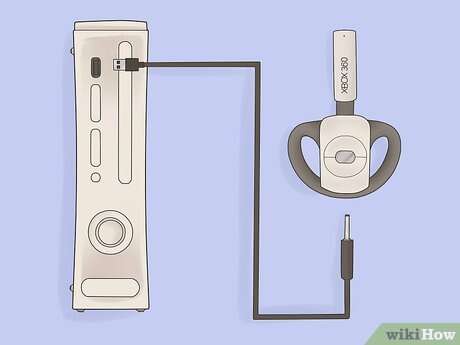
You generally can't pair standard Bluetooth headphones directly with Xbox One.
I have helped dozens of gamers get clean audio on consoles. This guide explains how to use bluetooth headphones on xbox one, why direct pairing usually fails, and practical, tested workarounds that let you play with low lag audio and chat. Read on for step-by-step methods, troubleshooting tips, and honest pros and cons so you can pick the best setup for your gear and budget.

Why connecting Bluetooth headphones to Xbox One is tricky
Xbox One uses a proprietary wireless audio system. It does not support the typical Bluetooth audio profile most headphones use. That is why trying to pair standard Bluetooth headphones with the console usually fails.
This limit affects both game sound and chat. Learning how to use bluetooth headphones on xbox one means choosing a supported path or using a workaround that bridges Bluetooth audio to the Xbox ecosystem.

Official and supported methods
Microsoft supports a few clear routes for audio. These tend to be the most reliable.
- Use Xbox Wireless headsets
- These connect directly to the console using the Xbox wireless protocol. No dongles or pairing issues.
- Use a wired headset via the controller
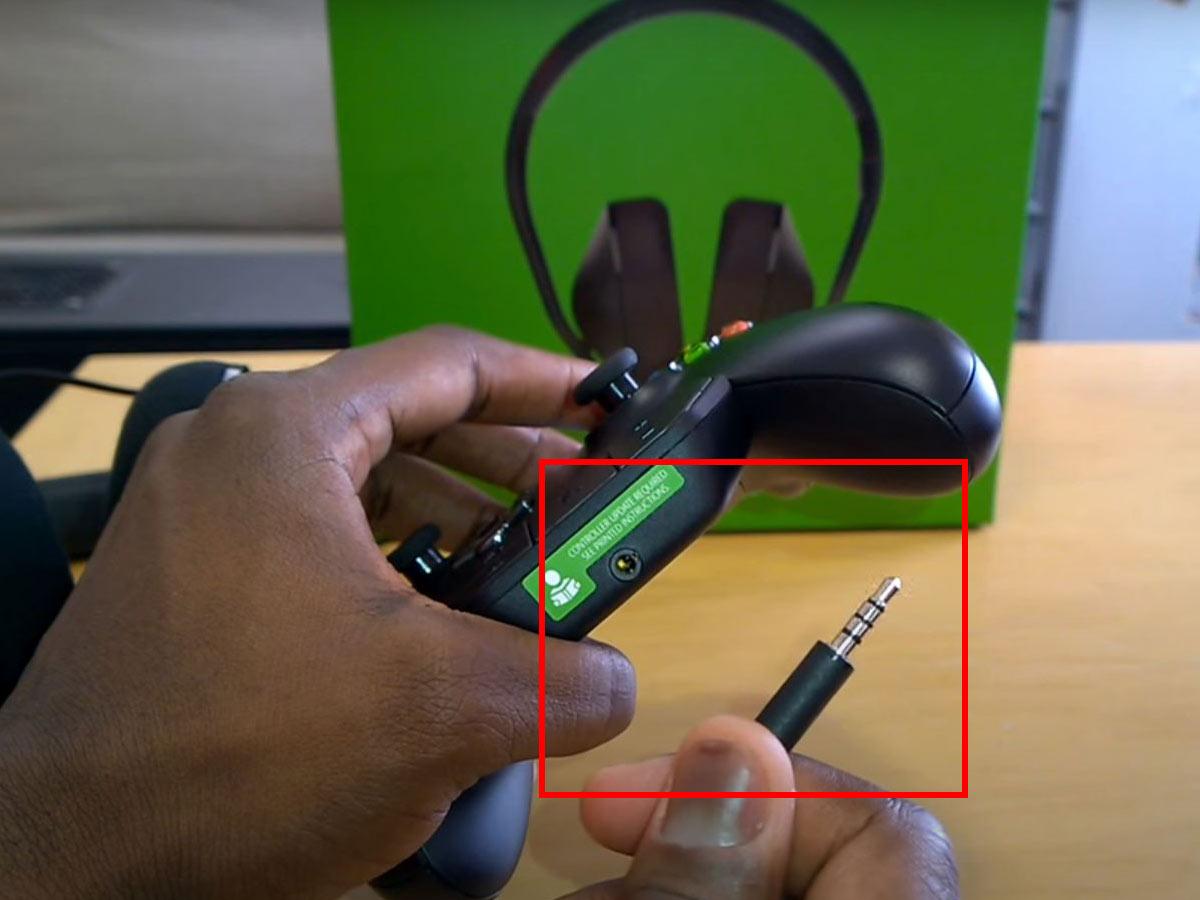
- Plug a headset into the 3.5mm jack on the Xbox One controller for game and chat audio.
- Use a USB headset or adapter
- Some USB headsets or sound cards work plugged into the console directly.
If you want guidance on how to use bluetooth headphones on xbox one, consider that official solutions avoid latency and chat problems common with Bluetooth workarounds.
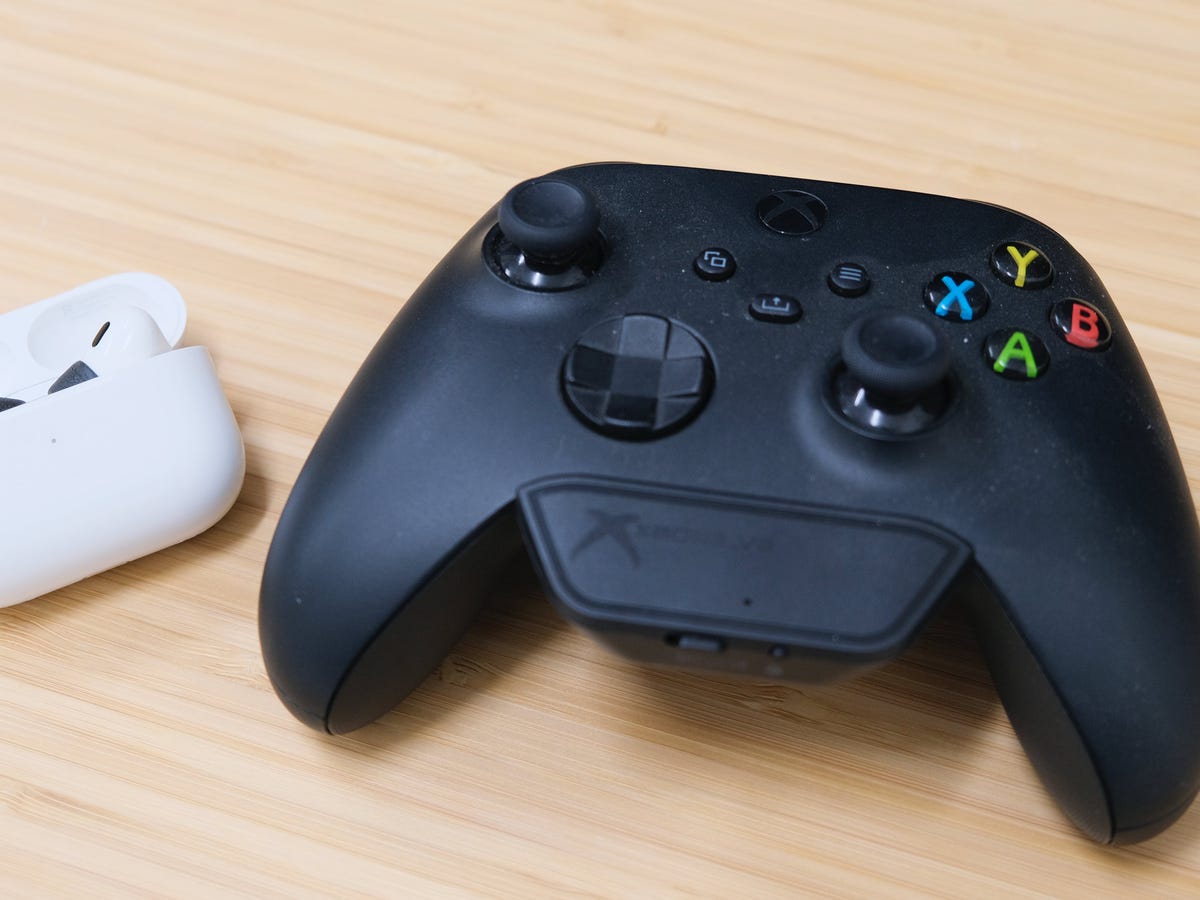
Workarounds to use Bluetooth headphones on Xbox One
When you already own Bluetooth headphones and want to use them, there are practical workarounds. Each has trade-offs in latency, chat support, and cost.
- Bluetooth transmitter plugged into controller or TV
- Buy a low-latency (aptX LL) Bluetooth transmitter.
- Plug it into the controller 3.5mm jack or TV audio out.
- Pair your headphones to the transmitter.
Advantages: Simple, inexpensive. Disadvantages: Chat mic may not work and latency varies.
- Xbox app on phone (console streaming)
- Enable console streaming or use the Xbox mobile app.
- Pair Bluetooth headphones to your phone.
- Stream game audio to phone and listen via Bluetooth.
Advantages: Chat can work through app. Disadvantages: Higher latency and network dependency.
- Stream through a PC
- Use the Xbox app or streaming apps on Windows.
- Connect your Bluetooth headphones to the PC.
Advantages: More control over audio routing. Disadvantages: Setup complexity.
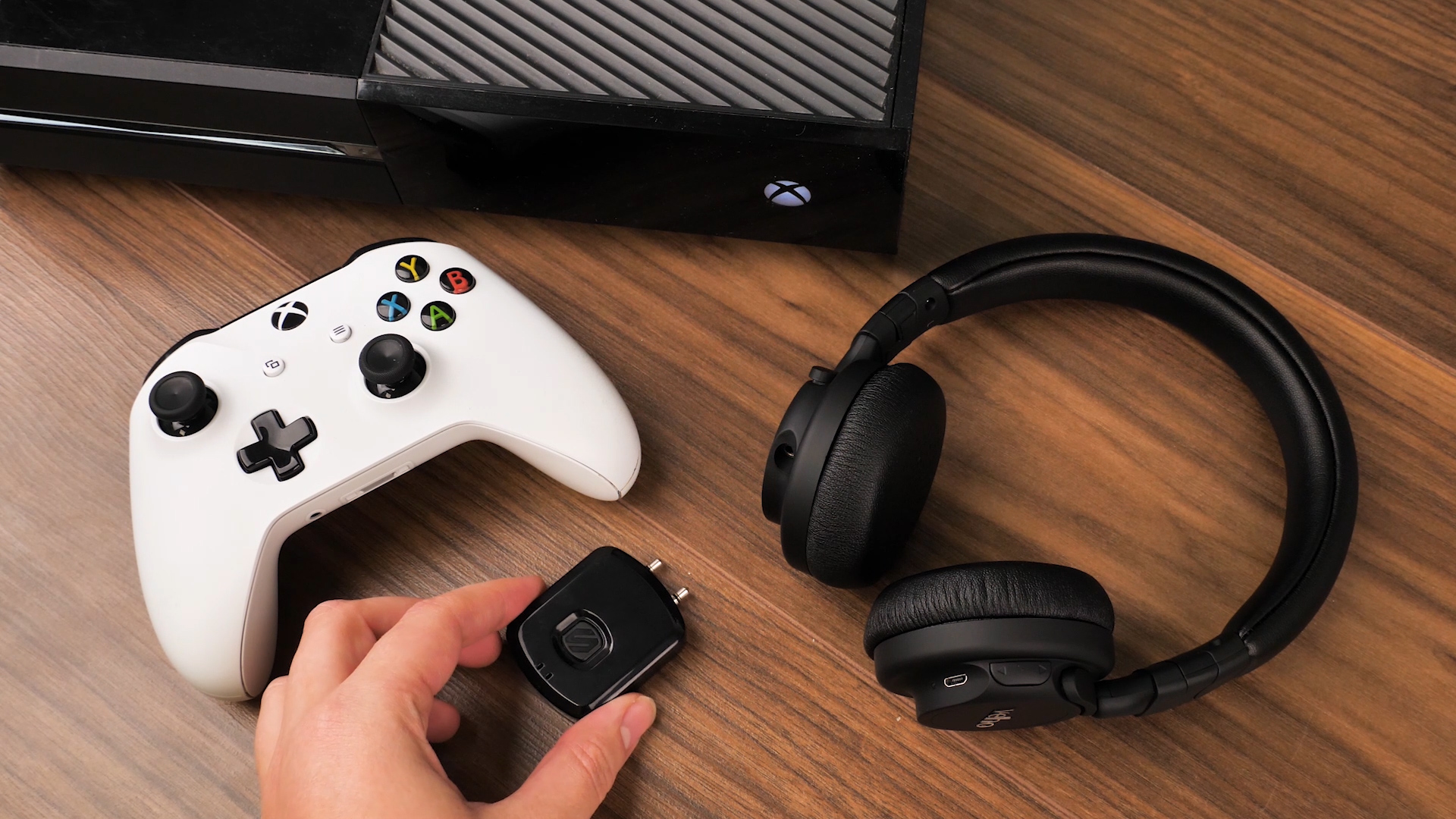
- Dedicated dongles made for headsets
- Some “wireless” headsets come with a USB dongle that uses its own protocol. Those behave like supported devices and offer low latency.
When deciding how to use bluetooth headphones on xbox one, pick the method that balances audio delay and chat needs for your games.

Step-by-step: Using a Bluetooth transmitter with Xbox One controller
This is one of the most common DIY solutions.
- Choose the right transmitter
1. Look for aptX Low Latency support to reduce audio lag.- Confirm it supports both audio and microphone if you want chat.
- Plug it in
- Insert the transmitter into the controller’s 3.5mm jack or the TV’s headphone/output port.
- Pair your headphones
- Put the transmitter in pairing mode.
- Put your Bluetooth headphones in pairing mode and connect.
- Adjust Xbox settings
- Press the Xbox button, go to Profile & system → Settings → General → Volume & audio output.
- Adjust “Headset chat mixer” and volume to balance game and chat.
Notes: If the transmitter connects to the TV instead of the controller, you may lose chat through the headset. That requires a separate solution for mic/chat audio.
Step-by-step: Using the Xbox app on phone with Bluetooth headphones
This method streams console audio through your phone. It often supports in-game chat via the phone’s mic.
- Prepare the console
- On Xbox One, go to Settings → Devices & connections → Remote features and enable remote play.
- Use the Xbox app
- Install and sign into the Xbox mobile app on the same network.
- Connect your console to the app and start streaming.
- Pair your Bluetooth headphones
- Pair your headphones to the phone.
- Phone audio will play the streamed game audio.
- Test chat
- Use the app’s party chat or connect your mic to the phone for voice.
Notes: Network quality affects both audio and latency. This route is best for casual play, not fast-paced competitive games.
Troubleshooting and tips from experience
I’ve tested several headsets and transmitters. Here are practical fixes and tips I learned.
- No sound after pairing
- Check controller volume and mute settings. Restart the console and transmitter.
- Mic not working
- Most Bluetooth transmitters do not relay console chat. Use controller wired mic or Xbox app for voice chat.
- Audio lag or lip-sync issues
- Use aptX Low Latency transmitters and headphones that support similar codecs. Wired connections have the least lag.
- Update firmware
- Update your controller and console. Use the Xbox Accessories app to update controller firmware for better headset compatibility.
- Prioritize features
- If low latency matters (FPS or online gaming), use a wired or Xbox Wireless solution. If comfort and convenience matter, accept small lag or use the Xbox app.
From my tests, cheap transmitters often cause audio drift. Spending a bit more on a reputable low-latency transmitter reduces problems significantly.
Pros and cons of using Bluetooth headphones on Xbox One
Knowing trade-offs helps pick the right setup.
Pros
- You can use favorite Bluetooth headphones without buying a new headset.
- Wireless freedom for couch play when latency is acceptable.
- Using the Xbox app or PC opens flexible audio routing.
Cons
- Native Bluetooth pairing is not supported by Xbox One. Workarounds are required.
- Chat microphone often won’t work with simple transmitters.
- Possible audio latency and sync problems during competitive play.
When deciding how to use bluetooth headphones on xbox one, weigh whether convenience or performance is more important for your gaming style.

Related concepts and accessories
Understanding related tech helps make better choices.
- Xbox Wireless vs Bluetooth
- Xbox Wireless is a separate protocol used by official headsets for low-latency audio and full chat support.
- aptX Low Latency
- A codec that reduces Bluetooth audio delay. Both transmitter and headphones must support it.
- Mix amp and optical audio
- Some users route console audio through a mix amp or audio extractor then to Bluetooth/other devices.
- USB sound cards and dongles
- Can convert audio to USB and sometimes offer better chat support than wireless transmitters.
These accessories affect how to use bluetooth headphones on xbox one and determine the quality of your final setup.

Frequently Asked Questions of how to use bluetooth headphones on xbox one
Can I pair any Bluetooth headphones directly to my Xbox One?
No. Xbox One does not support standard Bluetooth audio pairing. You must use Xbox Wireless headsets or a workaround like a Bluetooth transmitter or the Xbox app.
Will a Bluetooth transmitter allow chat on Xbox One?
Usually not. Most transmitters only send audio from console to headphones. Chat often requires a wired mic, the Xbox app, or a headset with its own USB dongle.
Is there noticeable lag with Bluetooth on Xbox One?
Yes, many Bluetooth setups introduce lag. Using aptX Low Latency transmitters and compatible headphones reduces lag, but wired or Xbox Wireless options remain the best for zero-lag gaming.
Can I use the Xbox mobile app to get audio on Bluetooth headphones?
Yes. Stream the game to your phone using the Xbox app and pair your Bluetooth headphones to the phone. Expect higher latency and depend on network quality.
Are Xbox Wireless headsets worth buying?
If you want low latency and working chat without hacks, yes. They connect directly to Xbox One and behave like native devices with full audio and microphone support.
Conclusion
You can use Bluetooth headphones on Xbox One, but not by native pairing. Choose an official Xbox Wireless headset, use a wired or USB connection, or select a tested workaround like a low-latency Bluetooth transmitter or the Xbox app for streaming. Test your chosen method for mic support and lag before committing to it.
Try one approach this week: if you have a Bluetooth transmitter, test it with a short session and evaluate chat and lag. Share your setup below or subscribe to get more step-by-step guides and troubleshooting tips.

Everett Ashford is a tech reviewer at mytechgrid.com specializing in SSDs, cameras, TVs, earbuds, headphones, and other consumer electronics. He provides honest, data-driven reviews based on hands-on testing and real-world performance analysis. Everett simplifies complex tech details to help readers make smart, confident buying decisions.